
Import employees from a spreadsheet: your whole team at once
 By Kate Vodopian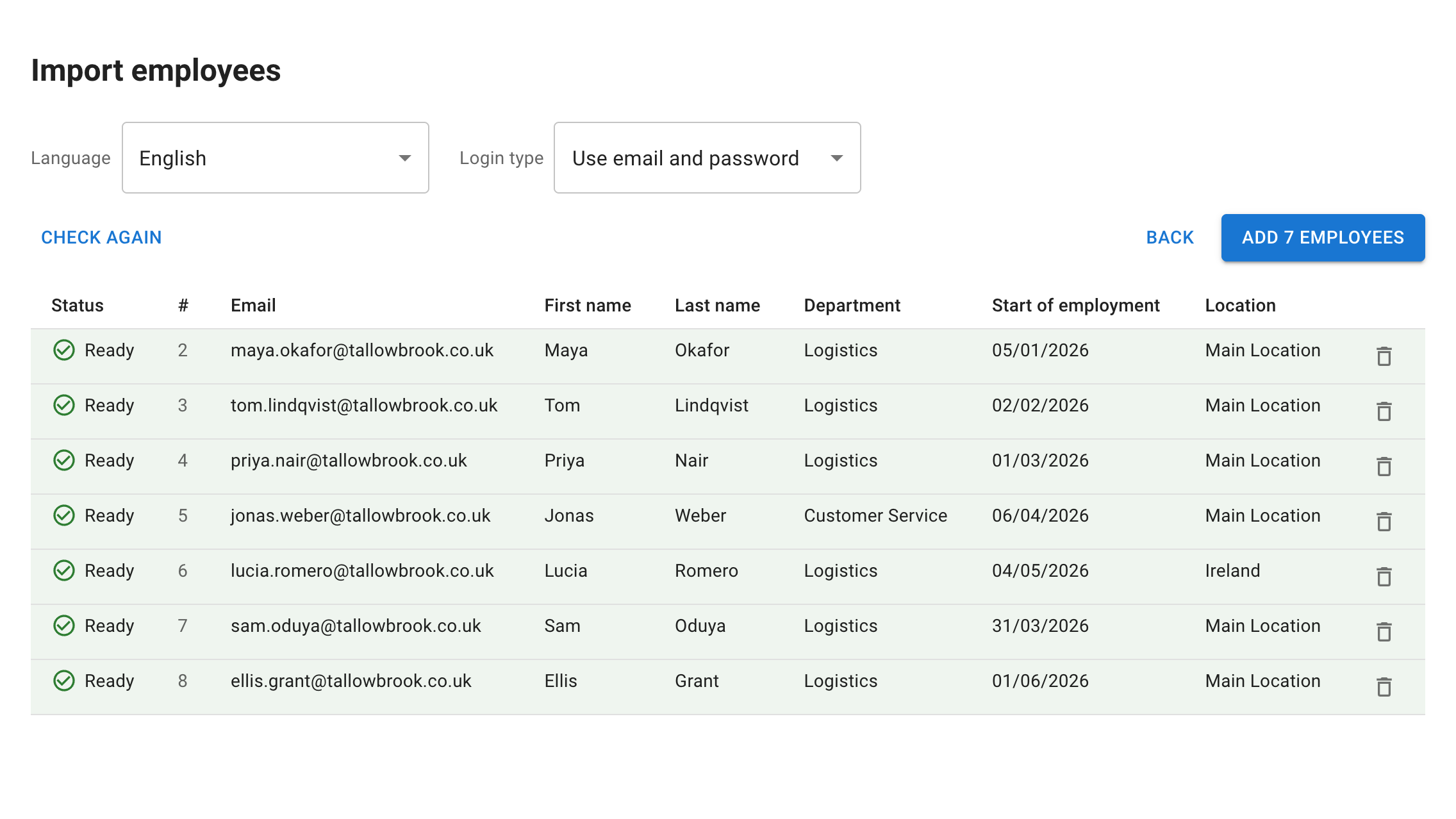
Setting up TimeOff.Management for a whole team should not mean filling in one form per person. If your employees are already in a spreadsheet, you can add them all at once: paste the rows, let every row be checked, and add the employees with one press of a button.
Paste the rows you already have
As an administrator, open Employees, select the arrow beside Add new employee, and choose Import from a spreadsheet. Then copy the rows from your spreadsheet and paste them into the box, or choose a CSV file. Rows copied straight from any spreadsheet work.
The import reads nine columns, and only three are needed on every row: email, first name and department. Last name, start of employment, location, employee number, title and date of birth come along when your sheet has them.
Not sure how to lay the sheet out? Download an example file gives you a CSV with the column names in your language and one invented example employee. Replace the example with your own rows, then copy them, or save the file as CSV UTF-8 and choose it.

Next, the page lists each column of your sheet with a sample value and its best guess at where it goes. Check the guesses, set anything you do not need to Don’t import, and continue.
Every row is checked before anyone is added
The import makes one promise on its first screen: “Nobody is added until you press Add.”
Every row goes through the same checks as adding one employee by hand, and the table marks each one Ready or Needs fixing. A problem is said under the cell it is about: a missing first name, an email that appears twice in the sheet, an address already in use, or a date that could not be read. On a trial account, the import takes work email addresses only.
You fix a row in the table itself. Click a cell, type, and press Enter, and the row is checked again by itself. Departments and locations are picked from your company’s own.
If your sheet names a department your company does not have yet, a notice above the table lists it once, with how many rows name it. You can create the department from there, with its name already filled in, or pick one of your existing departments for all those rows at once.
When the rows look right, one button adds every Ready row, one after another, and shows its progress. At the end, a summary says how many employees were added, and each row not added says why.
Invite people when you are ready
The import sends no emails: it invites nobody. That leaves you time to finish each employee’s set-up first, such as a schedule, tags or allowance changes, on their card.
When everything is in place, invite everyone with Invite employees on the Employees page, or one person at a time with Send invite email on their card.
Each employee the import adds is set up as if you had added them one by one, and the audit trail records each of them as Employee added.
Try it on your team
The step-by-step guide is in the Help Centre: Import employees from a spreadsheet. It walks through the example file, matching your columns, fixing rows and what the import does not set.
Not using TimeOff.Management yet? Start free trial or Book a demo.