
Blackout dates
Protect busy dates from unexpected leave.
Use blackout dates, company events and location or department rules to make important dates clear before employees submit leave requests.
30-day free trial · No credit card required · UK-hosted · UK support
- Blackout dates
- Company events
- Local rules
Blackout dates
Block leave on the dates when your team needs cover most.
Company events
Show training days, closures and important business dates clearly.
Local rules
Apply busy-date controls only to the right department or location.
Busy date controls
Put important dates in the system, not in someone's memory.
Blackouts stop leave being booked on the dates that need cover. Company events put the other important dates in front of people without stopping anything. Both are the same thing to set up: give the date a name and a short note, then decide whether people can still book leave on it.
Blackout dates
Block leave when the team needs cover for important dates.
Company events
Show training days, inventory days or other events on the calendar.
Team targeting
Point a busy date at a department, a location, or named people — or leave it applying to everyone.
Special cases
Admins can always make an exception. Managers can, if you let them.
Blackout dates
Block leave when cover matters most.
When a date should be protected — such as stock take, deadline week, training preparation or a seasonal peak — TimeOff makes that clear before leave is requested.
- Leave not allowed on selected dates where cover is required.
- A named reason on the date itself — hover a protected day and the event's name and note are right there.
- Marked while they are picking dates, so the constraint shows up before anyone submits anything.
- One day or a whole period, in the entry's own colour — a protected week is one entry, not five.
Company events
Show important events without turning them into leave.
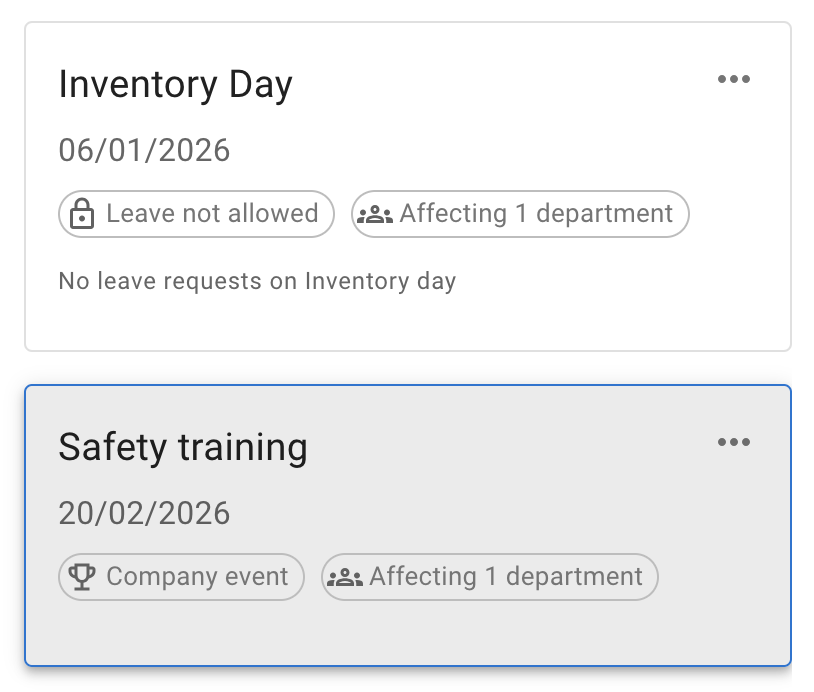
Some dates need to be visible without stopping anyone booking. The same entry does that job — leave stays available, and the date still shows up wherever people are looking at the calendar. Company events help teams see training, inventory days, office closures or planning days alongside leave information.
- Training and company events visible in the same planning context.
- Helpful calendar notes for days when teams need to know what is happening.
- One entry, not a copy per tool — the same date shows on people's own calendars, on the team view where they can see it, and on a phone.
- In personal calendars too, if you switch it on — busy dates travel out with the calendar feeds employees connect to Google Calendar or Outlook.
Company event
Safety training is shown on the calendar so managers know why a date matters.
- Leave on this day Still allowed
- Affects 1 department
- Shown on the calendar Yes, with its description
Departments and locations
Apply busy dates only where they matter.
A blackout or event does not always need to affect the whole company. Point it at the department, the location, or the specific people it actually concerns — everyone else carries on as normal. Leaving the targeting blank is the default, and the fastest setup: the date simply applies to everyone.
- Department-specific busy dates for operational teams or service areas.
- Location-specific events for local closures, inventory or training.
- Named employees when only a handful of people are affected.
- Less confusion because unaffected teams do not see unnecessary restrictions.
Targeted blackout
Stock intake applies to the Warehouse team.
- Department Warehouse
- Rule Leave not allowed
- Everyone else Unaffected
Calendar setup
Add busy dates from the calendar.
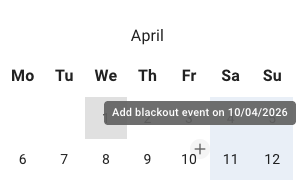
Admins add blackouts and company events straight from the calendar. Click a date and the form opens with that date already filled in — a small detail that makes setting one up faster and harder to get wrong.
- No retyping the date — the form opens against the day you clicked.
- Use the same place to manage blackouts and company events.
- One screen end to end — a name, the date or the range, a short note, the leave switch, and who it applies to.
Manager and admin exceptions
Keep control for genuine special cases.
Employees follow the rule. Admins can always book through a blackout on someone's behalf when the business genuinely needs it — and if you want managers to be able to do the same for their teams, that is a choice you can switch on.
- Employees follow the blackout — no exceptions to manage.
- Admins can act for someone when a real situation needs it.
- Managers can too, if you allow it — for their team, never for their own leave.
Special case override
An admin books leave for someone during a blackout date.
- Employee booking Blocked
- Admin, on behalf Allowed
- Manager, on behalf Allowed if switched on
Busy dates stay visible before requests happen.
Blackout dates and company events help employees understand important dates, help managers protect cover, and help admins keep local busy periods organised. Every one of them is included on every account, at one published price per person, per month.
Blackouts
Block leave on dates when cover matters most.
Events
Show training, inventory days and company events in context.
Targeting
Apply rules by department, location or named people.
Exceptions
Admins handle the special cases — and managers too, if you allow it.
Common questions
Blackout date questions we are asked most.
- What is a blackout date?
- A blackout date is a day, or a run of days, when employees cannot book leave. An admin gives it a name, the date or date range it covers, and a short note explaining it — then chooses who it applies to. Employees see it on the calendar in its own colour, with the name and the note, so the reason is on the date itself rather than in an email somebody has to remember.
- What is the difference between a blackout date and a company event?
- One switch. They are the same kind of entry — a name, a date or range, a short note and who it applies to — and a single setting decides whether people can still book leave on it. Switch it one way and it blocks leave; switch it the other and it stays visible to the same people while leave carries on as normal.
- Can I block leave for one department without affecting everyone else?
- Yes. Point the busy date at the department it concerns and everyone else is unaffected — they will not see a restriction that has nothing to do with them. A busy date can be aimed at a location or at named employees in the same way. Leaving the targeting blank is the default, and applies the date to the whole company.
- Do employees see a blackout date before they request leave?
- Yes — both while they are browsing and while they are booking. The date is marked in its own colour on their own calendar, and on the team view where they can see it; hovering it shows the event's name and description. The booking date picker marks affected days while the employee is choosing them, so the constraint is visible before anything is submitted.
- Can a manager book leave during a blackout date?
- An admin can always book leave for someone during a blackout when the business needs it. A manager can do the same for their team only if the company switches that on — and never for their own leave, which stays subject to the blackout like anyone else's.
- Can a blackout cover a whole period rather than a single day?
- Yes. A busy date takes a date range as readily as a single day, so a stock take week, a deadline week or a seasonal peak is one entry rather than five. It carries one name, one note and one colour across the whole run.
- Do blackout dates and company events show up in Google Calendar or Outlook?
- They can. Calendar feeds are what employees connect to Google Calendar or Outlook, and an admin decides at company level whether blackouts and company events travel out with them. Switched on, an important date is visible in the calendar someone actually lives in, not only inside TimeOff.
More than a shared calendar.
“As an employer, I had a lot of problems with overlapping holidays, so I was looking for an affordable and smart application. I didn't want to use calendar applications, because they don't include an authorization process.”
Protect the dates your team depends on.
Set blackouts, events and local busy periods so employees can see what is happening, and where leave is not available, before they make a request.
30-day free trial · No credit card required · Cancel anytime