📈 A page for each accrued allowance schedule
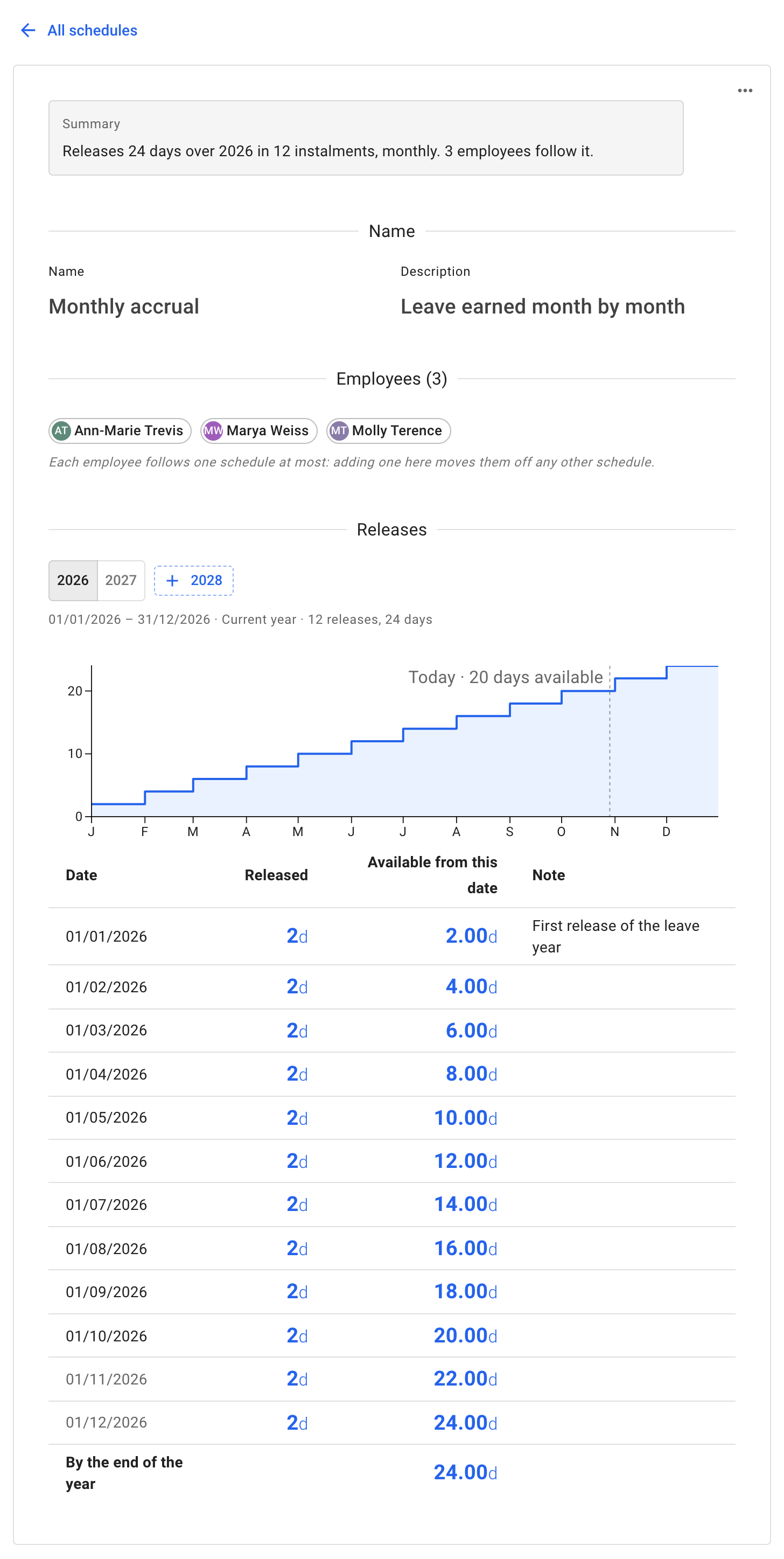
Accrued Allowance Schedules lists every schedule: how much it releases in a year and how often, how many employees follow it, and anything that needs attention, such as a next leave year that is not set up yet. Selecting a schedule opens its page: a Summary, its Name and Employees, and its Releases, a leave year at a time, as a chart of the allowance building up through the year above a table of every release.
Edit schedule, in the ⋯ menu, turns the whole page into one form: change the name or the employees, and add, change or remove any release. Generate… fills a leave year from an allowance released monthly, every two weeks or weekly, or with an earlier year’s releases. Nothing is saved until Save changes. The + beside the years sets up a leave year the schedule does not cover yet, and Add schedule previews the releases as you type the allowance.
For more information please check article Employee policies.