
Employee Calendar
Employee Calendar is your personal leave screen in TimeOff.Management.
Use it to check your leave allowance, view booked leave, request time off, cancel or revoke requests, and see important company dates.
Depending on your company settings, your screen may show different options.
What you can do in Employee Calendar
From Employee Calendar, you can:
- view your leave allowance
- check your remaining balance
- see booked and approved leave
- see pending requests
- request new leave
- cancel pending requests
- revoke approved leave
- view bank holidays
- view company events
- see blackout dates
- export your leave to an external calendar
- download your leave requests as a file
What is on the page
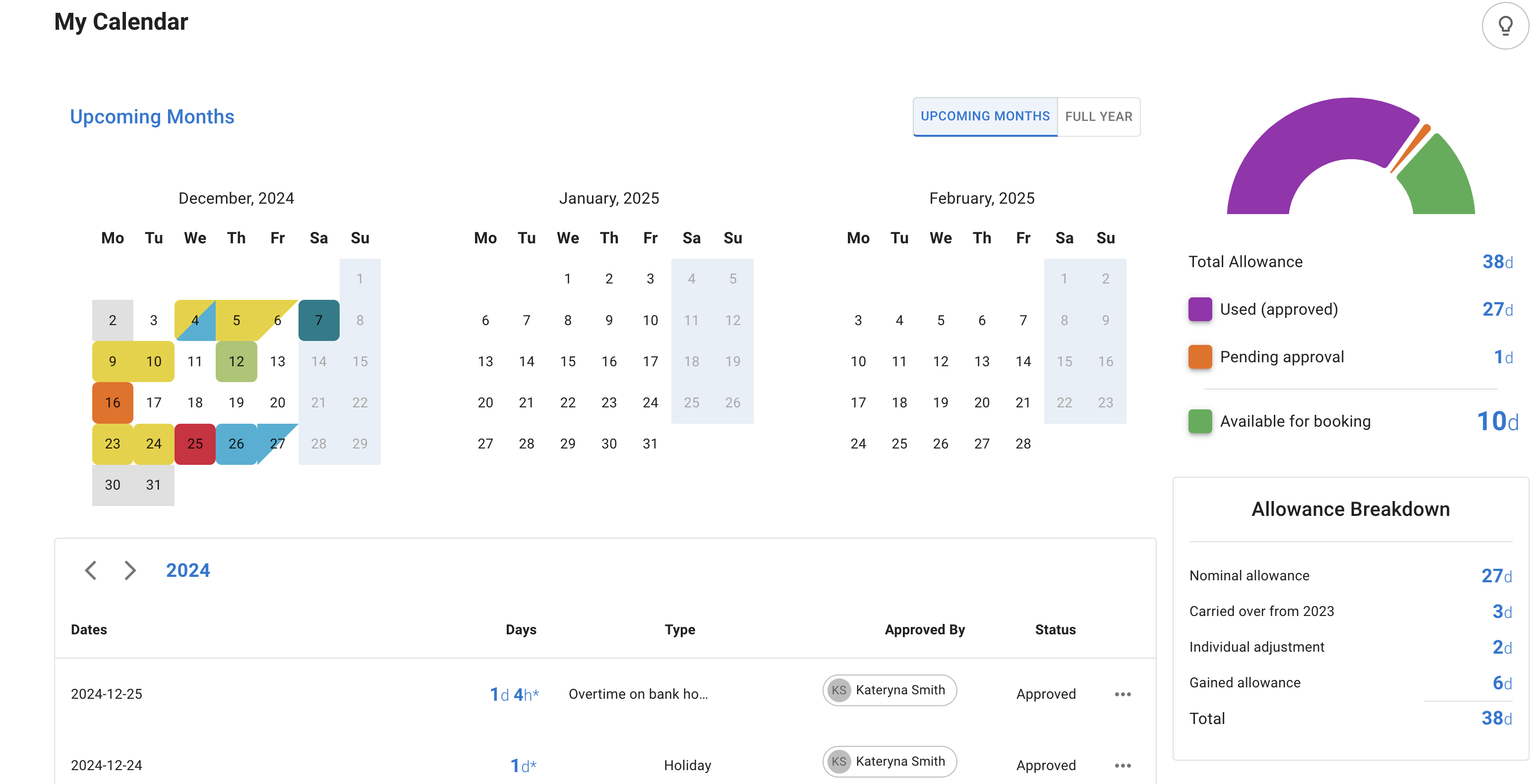
The year at the top of the page sets what Allowance and Leave requests show. The other cards are about today, whichever year you are looking at.
The cards along the top say where you stand:
- Available to book — what you can still book in the current leave year. Its arrow opens Allowance details. With an unlimited allowance, the card says so.
- Next leave — your next approved leave, or On leave now while you are on it. Its arrow opens the leave.
- Pending requests — how many of your requests are waiting for a decision. Its arrow sets Leave requests to pending, for the current leave year.
Below them:
- Coming up — leave that has not ended, approved or waiting, soonest first, among the bank holidays, blackout dates and company events ahead of you.
- Leave requests — every request of the year, declined and cancelled ones included. The buttons above the list show one status at a time, and say how many each holds. Export downloads that year’s requests of the status you have chosen, as a CSV file.
- Calendar — your months, with arrows to move through them. Full year opens the whole year. Select a free day to book it, drag across several days to book them together, or select a leave to open it.
- Allowance — what is available for the year, what is used and pending, and what you have used of each leave type. How it is worked out opens Allowance details. For a leave year that has finished, it lists the leave types alone.
View your leave allowance
Employee Calendar shows your allowance and remaining balance.
This may include:
- your yearly allowance
- days already booked
- days already used
- days remaining
- carried-over days
- manual adjustments
- the Start/End of employment row, in the leave year you join or leave (how it works)
- extra allowance earned through overtime or TOIL, if enabled
The exact allowance shown depends on your company setup.
For example, your allowance may come from your department, an individual allowance, an accrual schedule, or another company policy.
For a full overview of how allowance is set up, read: Setting up allowances
Understand your allowance breakdown
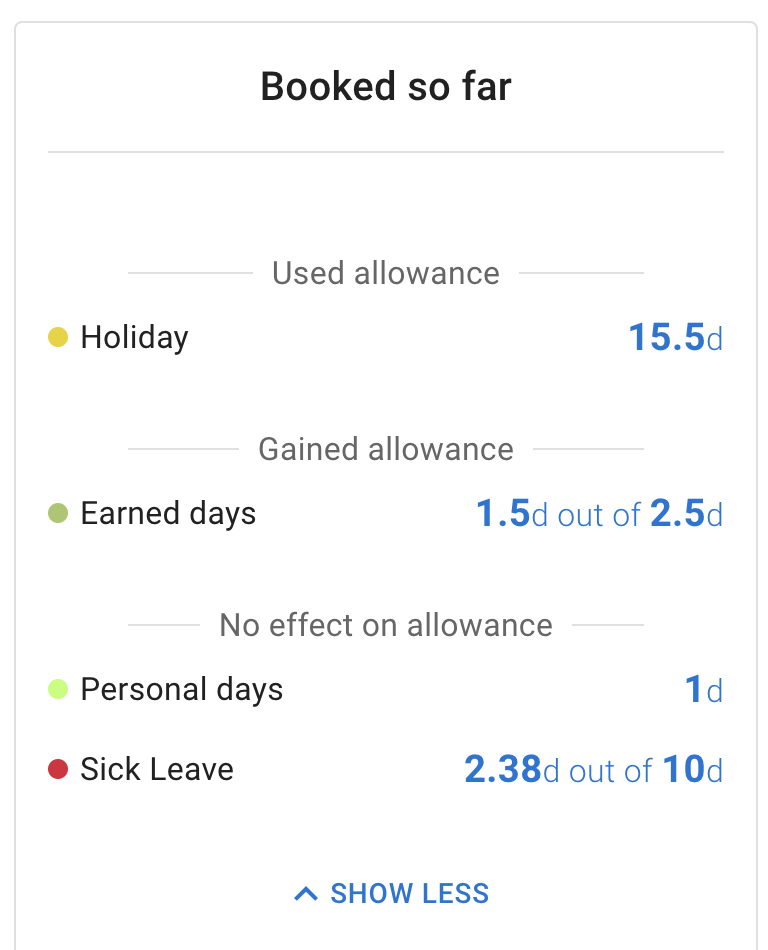
Select How it is worked out on Allowance, or the arrow on Available to book, to open Allowance details. It shows how your allowance is made up, what is used and pending, and what is left to book. If you follow an accrual schedule, it also shows what is released through the year. In a leave year your allowance changes part-way through, it says what the year is made of.
On the Allowance card, each leave type you have used has its limit, what you have used and what is available, grouped by how the type affects your allowance. Show more lists the rest.
Some leave types deduct from allowance.
Other leave types may add to allowance or have no effect.
For example:
- holiday may deduct from allowance
- overtime or TOIL may add to allowance
- working from home may have no effect on allowance
- sick leave may have its own leave type limit
Read more: Leave types
Request leave from Employee Calendar
You can request leave directly from Employee Calendar.
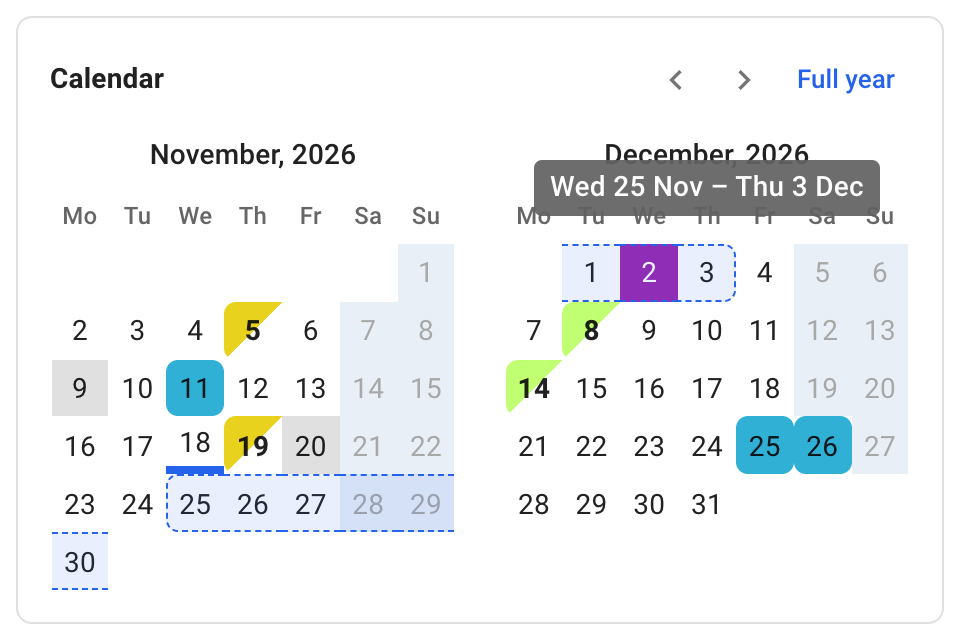
Use the Add leave button, or select the date you want to book on Calendar or in Full year.
To book several days at once, press on the first free day and, keeping the button down, drag to the last, across weeks or into the next month. The chosen days are outlined, and their dates show by the pointer. Let go, and Add leave opens on those days. To cancel, press Esc before you let go.
Then choose:
- leave type
- start date
- end date
- full day, morning, afternoon, or hourly leave if enabled
- comment, if needed
After you submit the request, it will appear in Employee Calendar.
Depending on your company settings, it may remain pending until your manager or approver reviews it.
Read more: How to request leave
Check request status
Each leave request has a status. Leave requests lists yours, and can show one status at a time.
Common statuses include:
- Pending — waiting for approval
- Approved — confirmed leave
- Declined — not approved
- Revoke pending — waiting for approval to remove previously approved leave
Pending leave is usually shown in orange.
Approved leave is shown using the colour set for that leave type.
This helps you quickly see what is confirmed and what is still waiting for approval.
Cancel or revoke leave
You can manage your own requests from Employee Calendar. Open the leave from Coming up, Leave requests or Calendar.
Use Cancel request when a request is still pending.
Use Revoke leave when a request has already been approved.
Your manager may need to approve the revocation before the leave is removed.
Read more: Cancel or revoke leave requests
View company dates
Employee Calendar may also show company-wide dates, on Calendar and, for those ahead of you, in Coming up.
These can include:
- bank holidays
- company events
- blackout dates
Bank holidays
Bank holidays are shown on the calendar if your company has added them.
Depending on your company settings, bank holidays may or may not affect your allowance.
Company events
Company events help your team see important dates.
They may include training days, company meetings, team events, or other dates your admin wants employees to see.
Company events do not usually block leave requests.
Blackout dates
Blackout dates are selected by your admin.
They are used when leave should not usually be booked, such as busy periods, stocktakes, launches, or key business dates.
If you need to book leave during a blackout period, speak to your manager or admin.
They may be able to help if there is an agreed exception.
Export Employee Calendar
You may be able to export your TimeOff calendar to an external calendar, such as Google Calendar or Outlook Calendar.
This uses a calendar feed.
Depending on your permissions, you may be able to export:
- Employee Calendar
- Team View
- a custom calendar feed
Keep your calendar feed link private.
Read more: TimeOff feeds into Google and Outlook Calendars
To download your leave requests instead, use Export on Leave requests.
Why your allowance may look different from expected
Your allowance may depend on several settings.
These include:
- department allowance
- individual allowance
- accrual schedule
- start date
- work schedule
- carried-over allowance
- manual adjustments
- leave types
- pending requests
- approved leave
If your balance does not look right, ask your manager or TimeOff admin to check your employee profile.
For a full overview of allowance setup, read: Setting up allowances
Best practice
Check Employee Calendar before booking leave.
This helps you see your remaining allowance, check pending requests, and avoid booking leave during blackout dates or busy company periods.