
Calendar feeds
Calendar feed settings control what information employees can send from TimeOff.Management to external calendars.
These settings affect calendar feeds used with services such as Google Calendar and Outlook.
Administrators can choose whether feeds include:
- public holidays
- leave type names
Without these options enabled, leave normally appears as Busy and public holidays are not included.
Open Calendar Feed settings
To manage company calendar feed settings:
- Go to Settings → Advanced Settings.
- Find the Calendar Feeds section.
Available Calendar Feed settings
There are three company-level options:
- Include Bank Holidays in third-party calendars
- Expose leave types in third-party calendars
- Include blackout and company events in calendar feeds
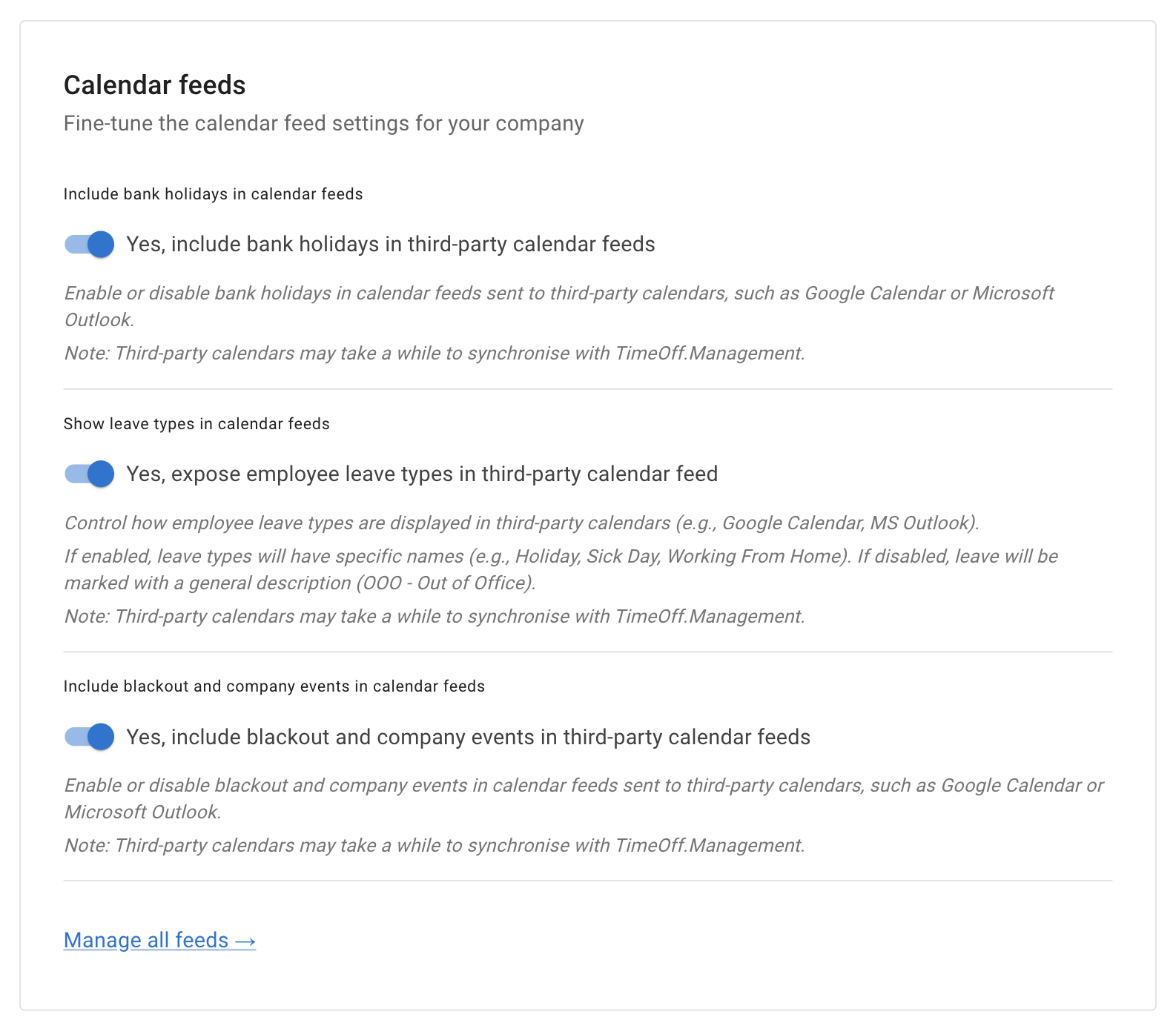
After changing an option, save your settings.
Include public holidays
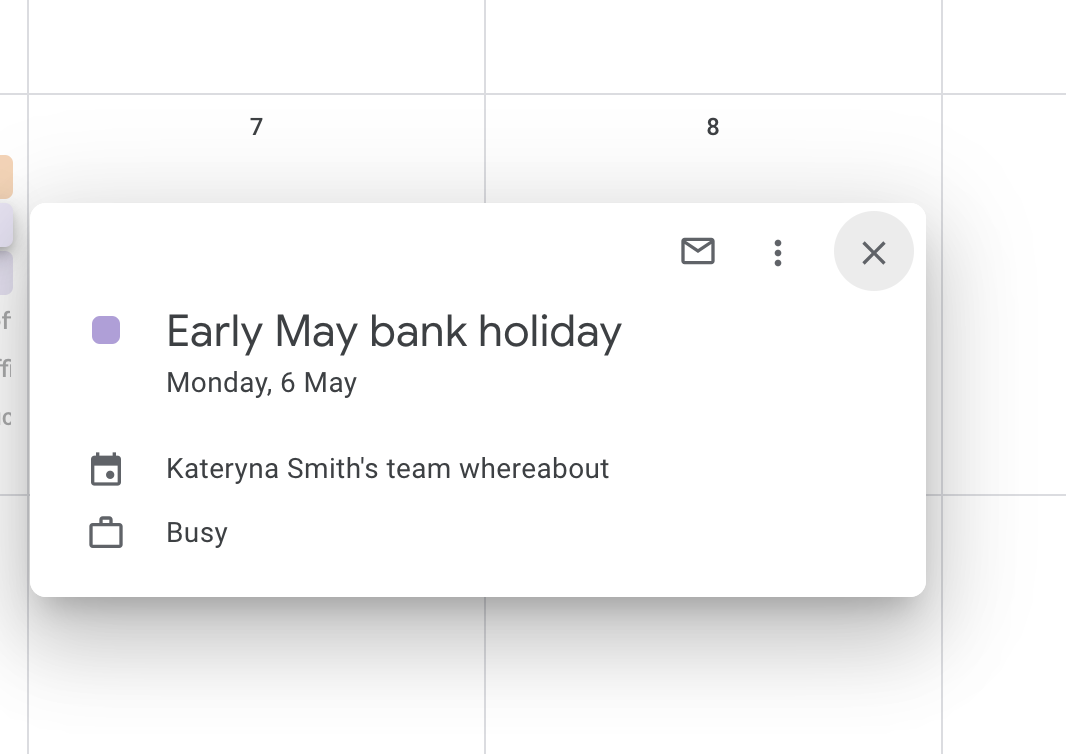
Enable Include Bank Holidays in third-party calendars when employees should see their public holidays in external calendars.
This can help employees plan around:
- national public holidays
- regional holidays
- location-specific holidays
- half-day public holidays
- company-recognised holiday dates
The public holidays shown depend on the employee’s location and the public holiday calendar configured in TimeOff.Management.
Include blackout and company events
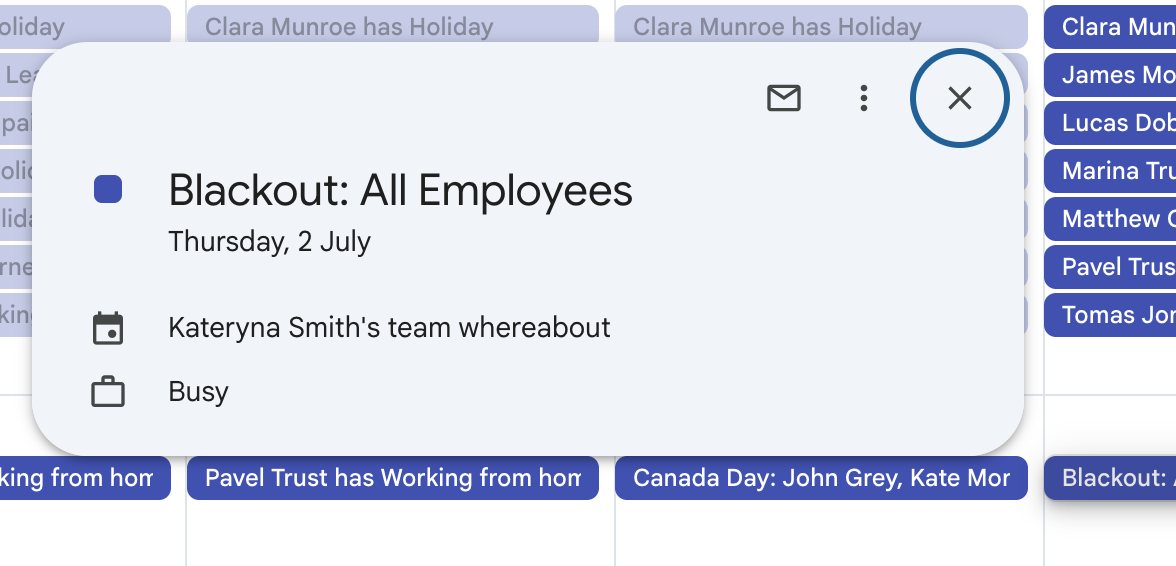
Enable Include blackout and company events in calendar feeds when employees should see blackout and events in external calendars.
Read more: Blackouts and events
Expose leave type names
By default, employee leave is normally shown as Busy in an external calendar.
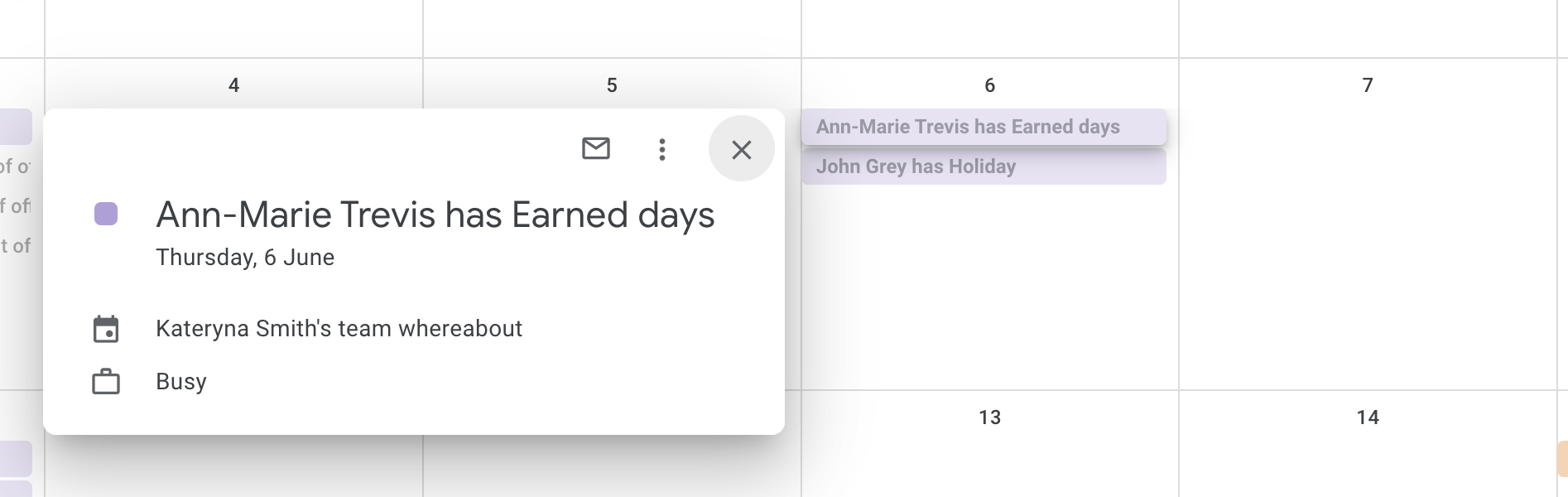
Enable Expose leave types in third-party calendars when the leave type name should also be displayed.
For example, the calendar entry may show:
- Holiday
- Working from Home
- Training
- Unpaid Leave
- Sick Leave
Consider privacy before exposing leave types
Leave type names can reveal why an employee is unavailable.
Some leave types may contain sensitive information.
For example:
- Sick Leave
- Medical Appointment
- Bereavement Leave
- Unpaid Leave
- other company-defined sensitive leave types
Before enabling this setting, check:
- who can access the external calendar
- whether the calendar is shared
- whether leave type names should be visible outside TimeOff.Management
- your company privacy rules
- whether showing only Busy provides enough information
For many companies, showing Busy is the safer option.
What calendar feeds can employees create?
Employees can create different feeds from My Profile → Calendar Feeds.
Depending on their permissions, available feeds may include:
- My Calendar — the employee’s own leave
- My Team View — leave for employees they are allowed to see
- Custom Feed — selected employees chosen by the user
Each feed follows the user’s TimeOff.Management permissions.
Read more: Connect TimeOff.Management to Google and Outlook Calendars
Each employee should use their own feed
Calendar feed links are unique to the user.
Employees should copy their own feed link from TimeOff.Management.
They should not:
- share their calendar feed URL with colleagues
- use another employee’s feed link
- publish the feed URL publicly
- include the link in unsecured documents
Anyone with access to a feed URL may be able to view the information included in that feed.
Changes may not appear immediately
External calendars control how often subscribed calendar feeds are refreshed.
Changes made in TimeOff.Management may therefore take some time to appear in Google Calendar, Outlook, or another calendar service.
The delay does not always mean the feed is broken.
Before reconnecting the feed:
- Check that the change appears in TimeOff.Management.
- Refresh the external calendar.
- Allow time for the calendar service to sync.
- Check that the correct feed URL was used.
If public holidays are missing
Check:
- whether Include Bank Holidays is enabled
- the employee’s assigned location
- the public holiday calendar for that location
- the selected public holiday year
- whether the external calendar has refreshed
- whether the employee subscribed to the correct feed
Read more: Managing locations
If leave types still show as Busy
Check:
- whether Expose leave types is enabled
- whether the settings were saved
- whether the external calendar has refreshed
- whether the leave type is visible to that user
- whether the correct feed was added
Permission and privacy settings still affect what each user can access.
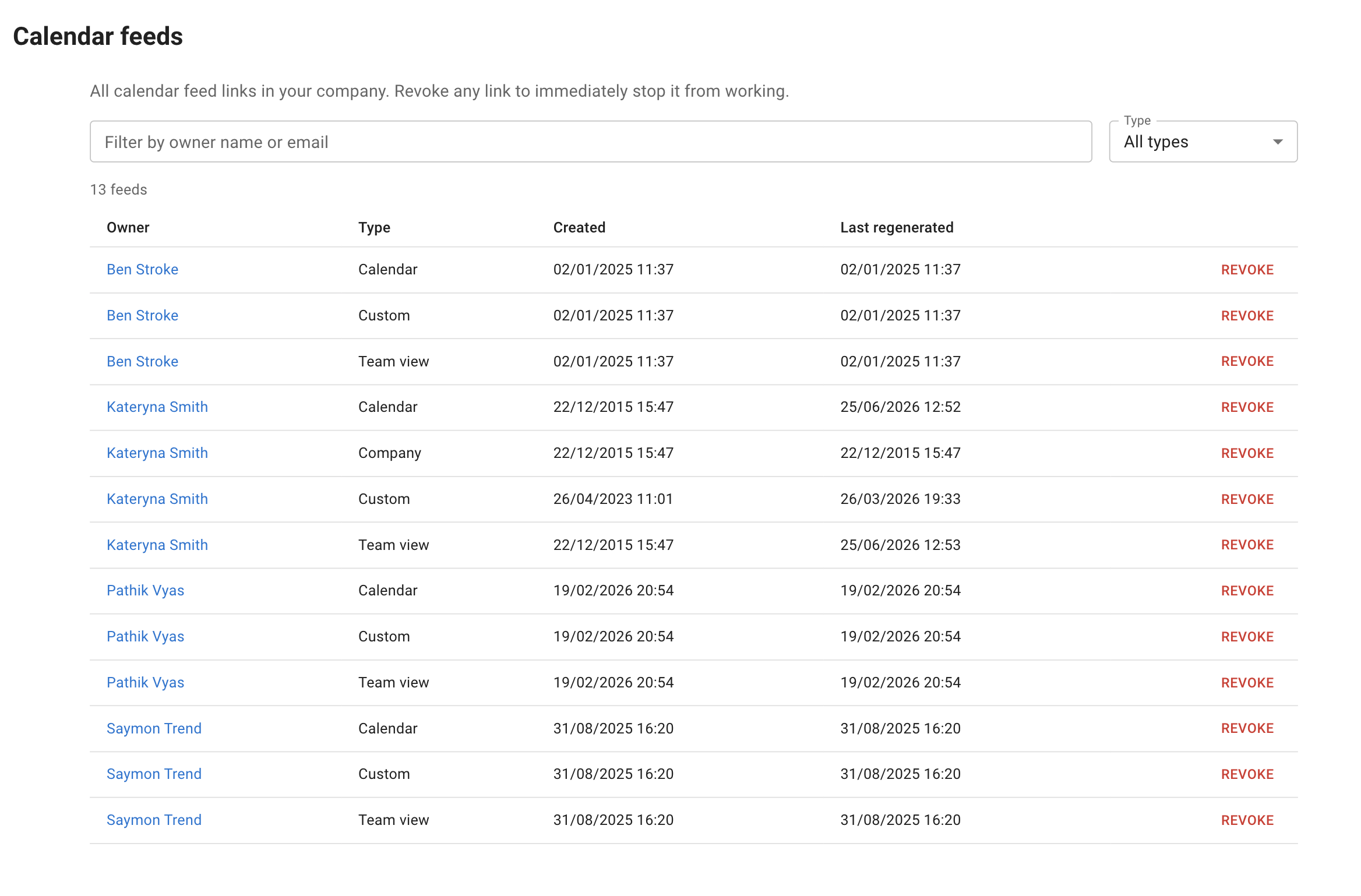
Removing calendar feed
Administrators can manage calendar feed from Advance Settings - Calendar Feeds or from My profile - Manage calendar feeds.
Related articles
-
Connect TimeOff.Management to Google and Outlook Calendars Copy a personal, Team View, or custom calendar feed and subscribe to it in Google Calendar or Outlook.
-
Public holidays Import, add, edit, and manage location-specific public holidays.
-
Leave types Configure leave type names, colours, allowance effects, limits, and booking rules.
Best practice
Include public holidays when they help employees plan their time.
Keep leave type names hidden unless your company has confirmed that showing them in external calendars meets its privacy rules.