
Allowance adjustments and TOIL
Allowance adjustments let admins add or remove days from an employee’s leave allowance.
Use them for one-off changes, corrections, overtime, TOIL, or special agreements.
Some companies call this:
- allowance adjustment
- PTO adjustment
- holiday allowance correction
- annual leave adjustment
- TOIL adjustment
- Time Off in Lieu
In TimeOff.Management, you can manage these changes in two ways:
-
Manual allowance adjustment Best for one-off changes and corrections.
-
Automatic TOIL from an overtime leave type Best when employees regularly earn extra leave from overtime.
How allowance adjustments fit with allowance setup
Allowance adjustments are different from department allowance or individual allowance.
Department allowance and individual allowance set the employee’s main yearly allowance.
Allowance adjustments add to or take away from that allowance when something changes.
For example, use an allowance adjustment when you need to:
- add TOIL for approved overtime
- correct an allowance mistake
- remove allowance added by mistake
- add extra leave agreed by the company
- adjust allowance for a special case
- record a one-off HR decision
For a full overview of allowance setup, read: Setting up allowances
Manual allowance adjustments
Use a manual adjustment when you need to add or remove allowance for one employee.
On the employee’s Allowance tab, admins select the + on the Allowance adjustments in [year] caption. A one-line form opens below the year’s adjustments: enter the Days (Hours, when your company shows leave durations in hours), negative to remove days, and a Comment explaining the change, then select Add.
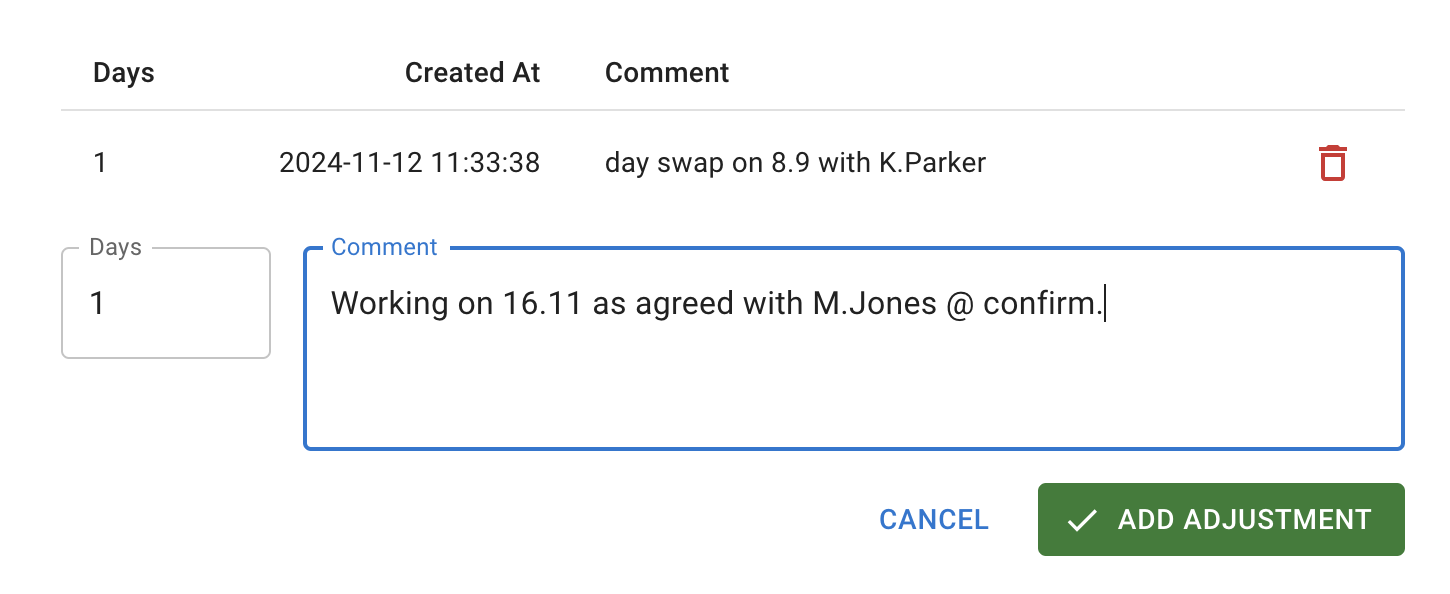
The same tab holds the Start/End of employment figure for employees who join or leave during the leave year. That figure only takes allowance away: extra days are always an allowance adjustment, not that figure.
Read more: Allowance for employees who join or leave during the year
When to use manual adjustments
Manual adjustments are best for occasional changes.
Use them when the change does not need a new allowance policy.
For example:
- an employee earned one extra day of TOIL
- an admin needs to correct a balance
- an employee was given extra leave as a one-off agreement
- allowance was entered incorrectly
- unused allowance needs a manual correction
- a special adjustment needs to be recorded with a comment
Add a clear comment
Always add a short comment when making an allowance adjustment.
This keeps the allowance history transparent.
Good comments are simple and specific.
For example:
- “Added 1 day TOIL for approved overtime on 12 June.”
- “Corrected allowance after contract update.”
- “Removed 0.5 day added in error.”
- “Added 2 days as agreed by HR.”
All adjustment records are saved, so admins can review them later.
Add or remove allowance
Manual adjustments can be used to increase or reduce allowance.
Use a positive adjustment to add days.
Use a negative adjustment to remove days.
Before saving, check:
- the employee name
- the number of days
- the reason for the change
- the comment
- the company year or allowance period
This helps avoid mistakes in the employee’s balance.
TOIL and overtime
TOIL means Time Off in Lieu.
It allows employees who work extra time to receive additional leave instead of overtime pay.
In TimeOff.Management, TOIL can be handled in two ways:
- add it manually with an allowance adjustment
- add it automatically using an overtime leave type
Use manual adjustment for occasional TOIL.
Use an overtime leave type if TOIL is a regular part of your company process.
Automatically add TOIL for regular overtime
If employees regularly earn TOIL, create a leave type for overtime.
When the overtime request is approved, TimeOff.Management can add the correct amount of TOIL to the employee’s allowance.
To do this:
- Create a new leave type, such as Overtime.
- Set its Counting to Adds to the allowance.
- Set its Rate to control how overtime converts into TOIL.
- Save the leave type.
Read more: Leave types
Overtime rate examples
The Rate controls how much allowance is added.
For example:
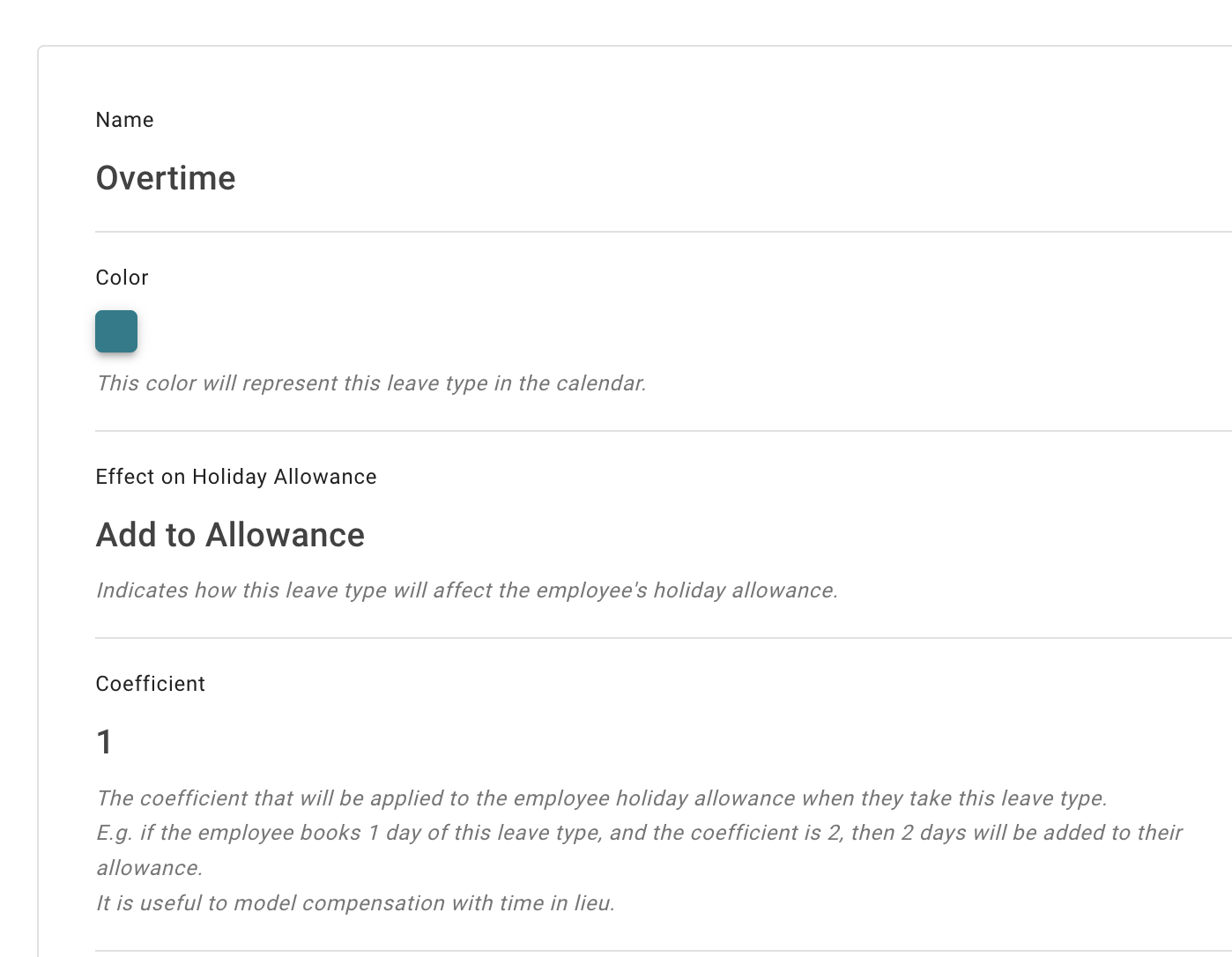
- A Rate of 1 means 1 day of overtime adds 1 day of TOIL.
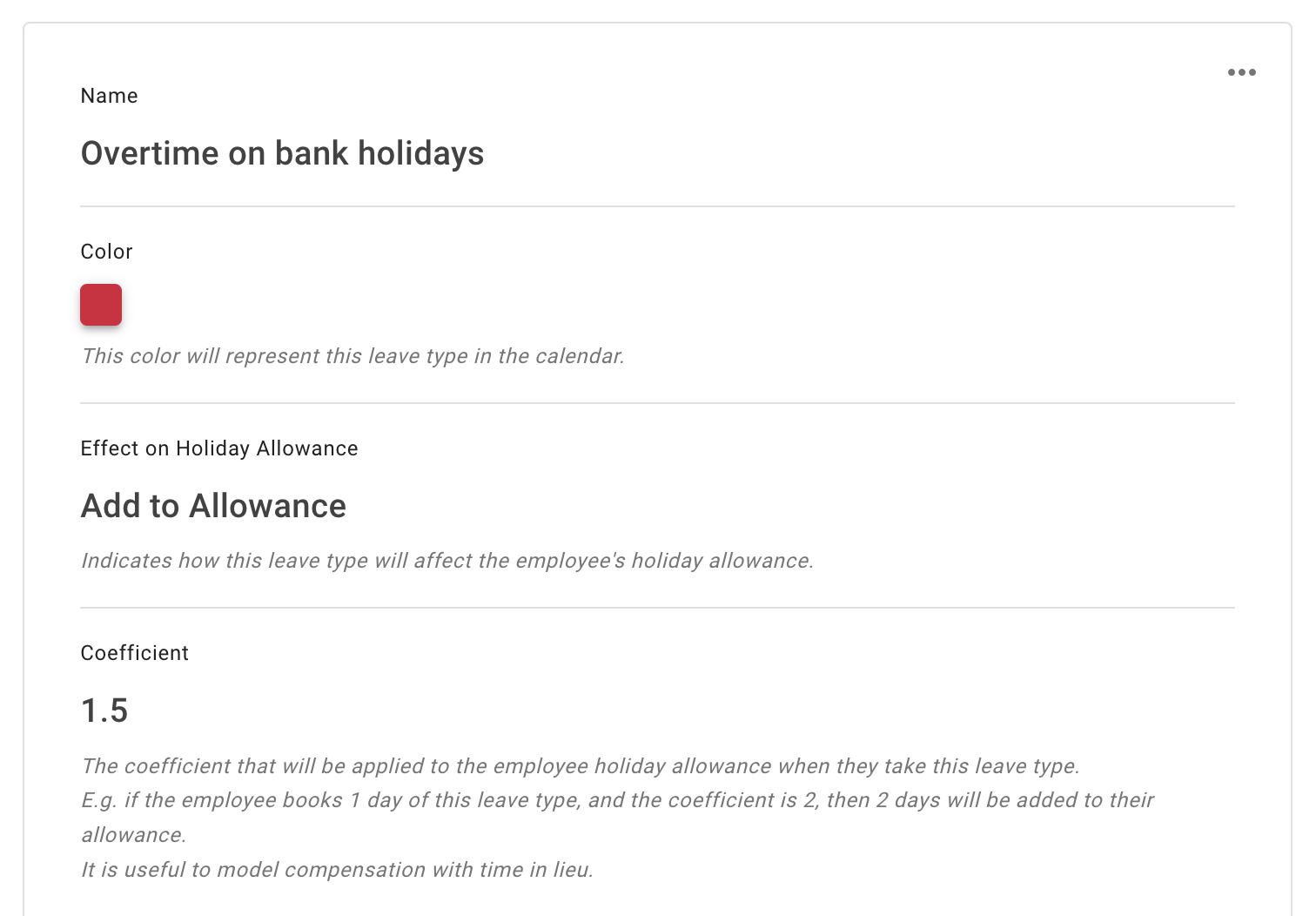
- A Rate of 1.5 means 1 day of overtime adds 1.5 days of TOIL.
Example with a rate of 1:
Example with a rate of 1.5:
What happens after overtime is approved
Once the overtime request is approved, the employee’s allowance is updated.
For example:
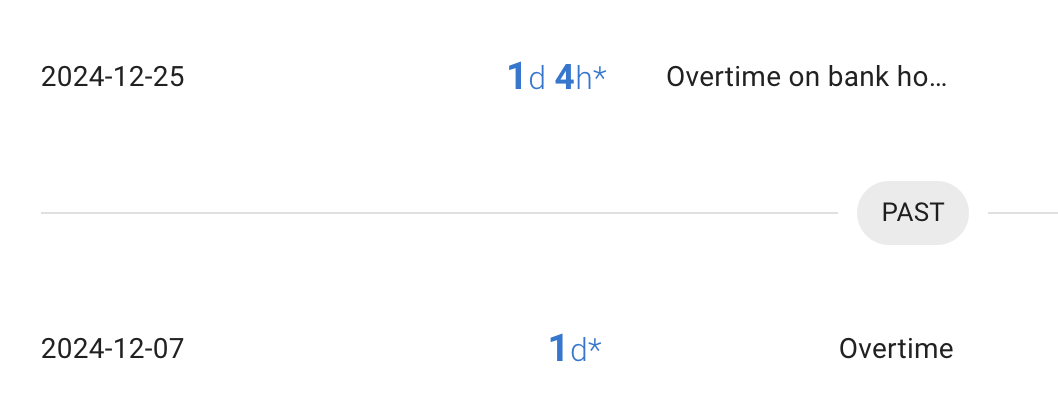
- overtime with a rate of 1 adds 1 day
- overtime with a rate of 1.5 adds 1 day and 4 hours, assuming an 8-hour standard day
The added TOIL appears in the employee’s allowance overview.
The employee can then use the added allowance for bookings as usual.
Manual adjustment or automatic TOIL?
Use this table to choose the right option.
| Situation | Best option |
|---|---|
| One employee needs a small correction | Manual allowance adjustment |
| One employee earned TOIL once | Manual allowance adjustment |
| Employees regularly earn TOIL from overtime | Overtime leave type |
| Your company wants approval before TOIL is added | Overtime leave type |
| You need a clear record of why allowance changed | Manual allowance adjustment with a comment |
| You need a repeatable TOIL process | Automatic TOIL through a leave type |
When not to use allowance adjustments
Do not use allowance adjustments to replace normal allowance setup.
For example, do not use manual adjustments when you really need to:
- set the same allowance for a whole department
- give one employee a different fixed yearly allowance
- set up accrual over time
- increase allowance based on years of service
- create a yearly leave type limit
Use the right allowance setting instead.
Read more: Setting up allowances
Best practice
Use allowance adjustments for one-off changes.
Use clear comments so every change is easy to understand later.
For regular TOIL, create an overtime leave type. This keeps the process consistent and reduces manual work for admins.