
Public holidays
Public holidays can be managed separately for each company location.
In TimeOff.Management, the page may be labelled Bank Holidays.
Use it to:
- import holidays for a selected location and year
- add holidays manually
- edit imported holidays
- remove holidays that do not apply
- create half-day public holidays
- prepare public holiday calendars for the next year
Open the Bank Holidays page
Open Settings → Bank Holidays.
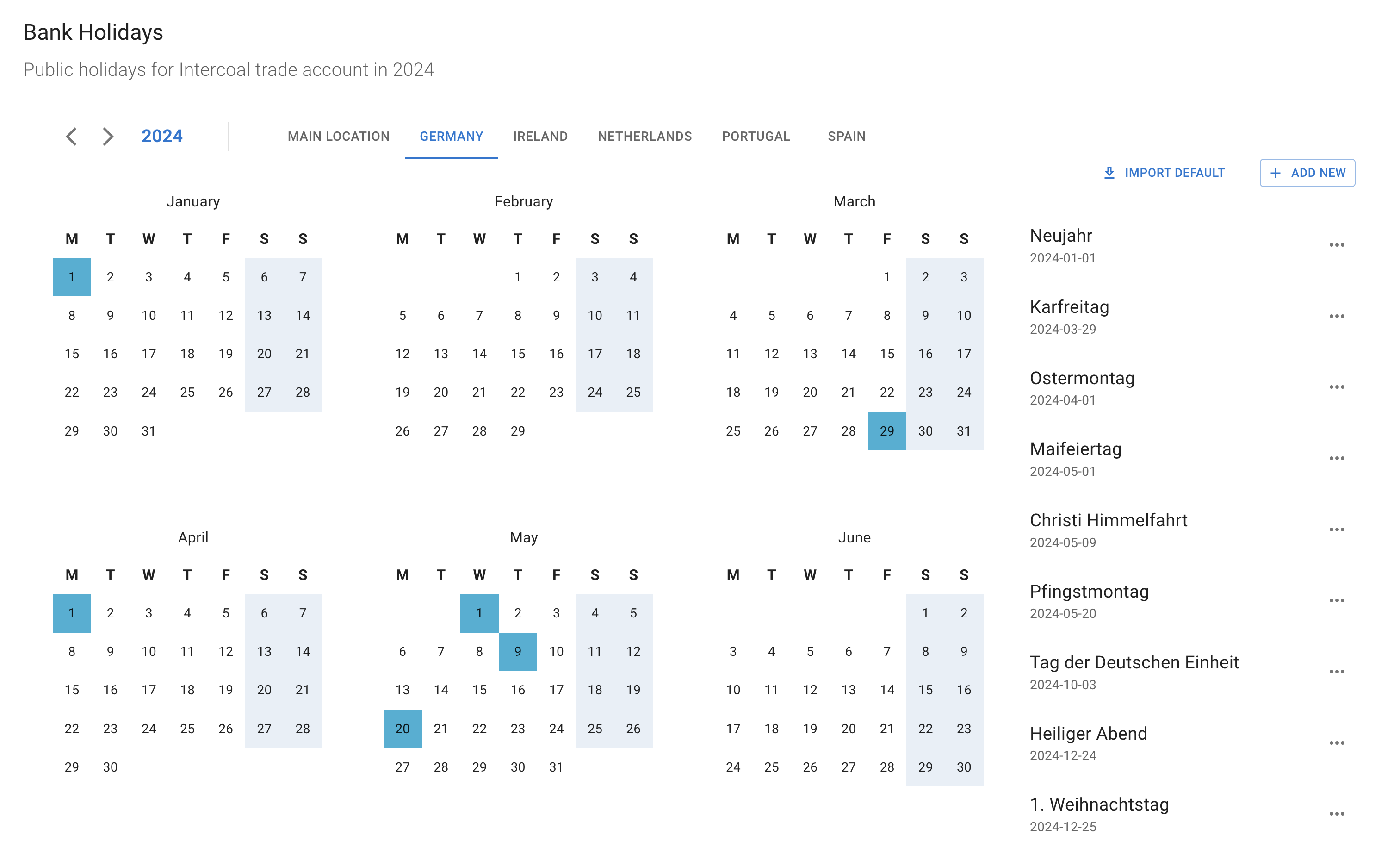
The page shows the public holidays currently added for the selected location and year.
Import public holidays
You can import a public holiday list for a specific location.
To import holidays:
- Open Settings → Bank Holidays.
- Select the location.
- Choose the year.
- Select Import/Upload.
- Review the holidays added to the list.
Repeat the process for each location that follows a different public holiday calendar.
Review imported holidays
Always review the imported list before employees start booking leave.
Check:
- holiday names
- dates
- the selected year
- the selected location
- regional holidays
- any company-specific working arrangements
- duplicate entries
Public holiday rules can vary between countries and regions.
Remove or edit any holiday that does not apply to your company.
Edit a public holiday
The imported holiday list can be amended.
To edit a holiday:
- Open the correct location and year.
- Find the holiday.
- Select Edit.
- Update the name, date, or other available details.
- Save your changes.
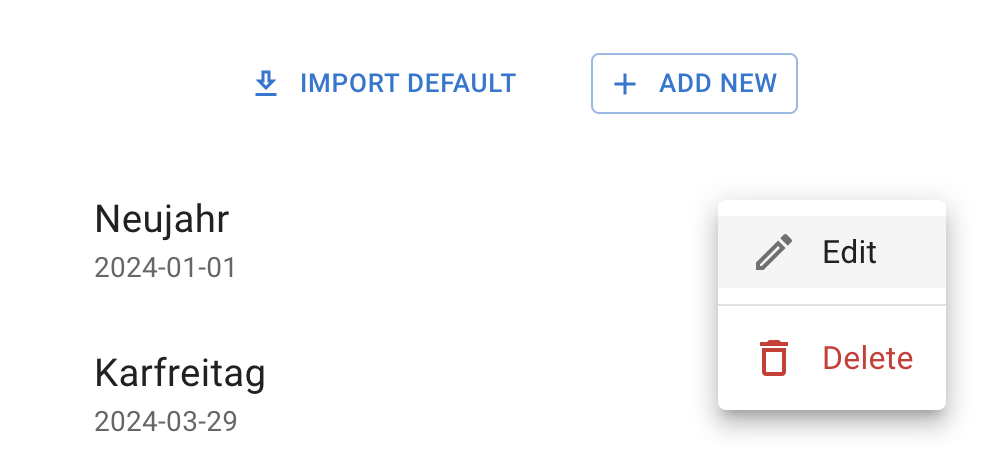
Editing is useful when:
- a holiday date changes
- a regional holiday does not apply
- the holiday name needs correcting
- your company observes a replacement date
Add a public holiday manually
You can add a holiday that is not included in the imported list.
To add one:
- Open Settings → Bank Holidays.
- Select the correct location and year.
- Select Add New.
- Enter the holiday details.
- Select Create.
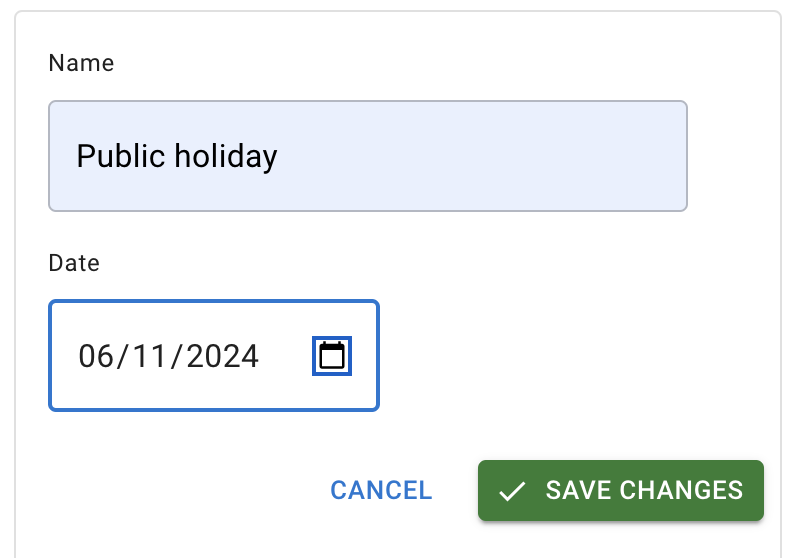
The new holiday will be added to the selected list.
This is useful for:
- regional holidays
- local holidays
- replacement bank holidays
- company-recognised public holidays
- holidays not included in the imported calendar
Create a half-day public holiday
Some companies give employees half a day off for selected public holidays or special occasions.
TimeOff.Management supports half-day public holidays.
When creating or editing the holiday, choose the half-day option.
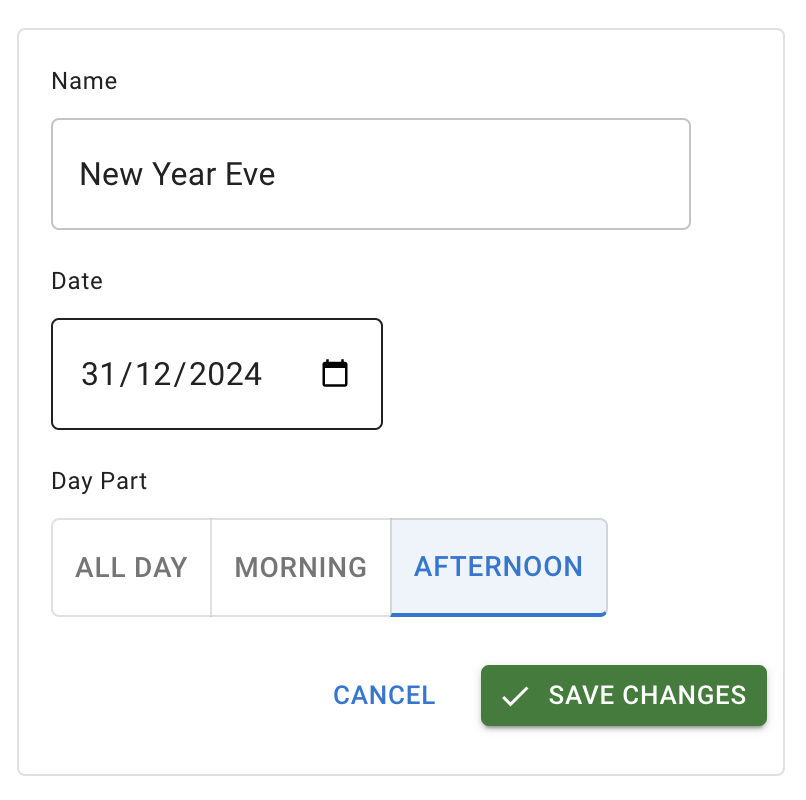
Check your employee schedules before using this option.
A half-day holiday should match your company policy and the working pattern used by the affected employees.
Public holidays and locations
Employees should be assigned to the correct location.
The location helps determine which public holiday calendar applies to them.
For example, employees may follow different calendars for:
- England
- Scotland
- Wales
- Northern Ireland
- US states
- Canadian provinces
- different countries
Read more: Managing locations
Employees working in different locations
When your company operates in several regions:
- Create each required location.
- Assign employees to the correct location.
- Import the public holidays for each location.
- Review regional differences.
- Add or remove holidays where needed.
Do not use one public holiday list for every employee unless they all follow the same calendar.
Prepare public holidays for the next year
Public holidays should be reviewed before the new year begins.
For each location:
- Select the next year.
- Import the public holiday list.
- Check every date.
- Add missing regional holidays.
- remove holidays that do not apply.
- check half-day holidays.
- confirm employees are assigned to the right location.
Preparing the calendar early gives employees clearer information when planning leave.
If an employee sees the wrong public holidays
Check:
- the employee’s assigned location
- the selected public holiday year
- whether the holiday was added to the correct location
- whether the employee changed location
- whether the public holiday date is correct
- whether a duplicate or replacement date was added
After correcting the setup, review the employee calendar again.
Related articles
-
Managing locations Create locations and assign employees to the correct regional setup.
-
My Calendar See how employees view their leave, allowance, public holidays, blackouts, and company events.
-
Blackouts and company events Add important company dates or restrict leave bookings for selected locations and departments.
Best practice
Import public holidays for each location before the new year starts.
Review every imported list instead of assuming that all national or regional holidays apply to your company.