Getting Started - How to Set up TimeOff
Welcome to TimeOff.Management — let's get started!
This quick start guide walks you through the initial setup. By the end you’ll have a good understanding of the basics and be ready to start tracking time off.
In this guide
- Add users
- Set up employee schedule
- Manage departments
- Set up allowance/PTO
- Customise leave types
- Add locations and bank holidays
- Privacy settings
- Reports
1. Add users
Users can be quickly added one by one from the Employee section in the Main Menu.
You can also add users from Team View.
To add many employees at once, paste the rows from your spreadsheet or choose a CSV file with Import from a spreadsheet, from the arrow beside Add new employee on Employees. Every row is checked before anyone is added. See Import employees from a spreadsheet.
Prefer us to do it? Send your spreadsheet with the following details: employee first and last name, email address, and department to kate@timeoff.management. We’ll upload the data for you within one working day.
To learn more, see: Adding, editing, deleting users.
2. Set up employee schedule
It’s very important to set up employee schedules, especially for part-time employees, so the system can accurately calculate deductions from their allowance.
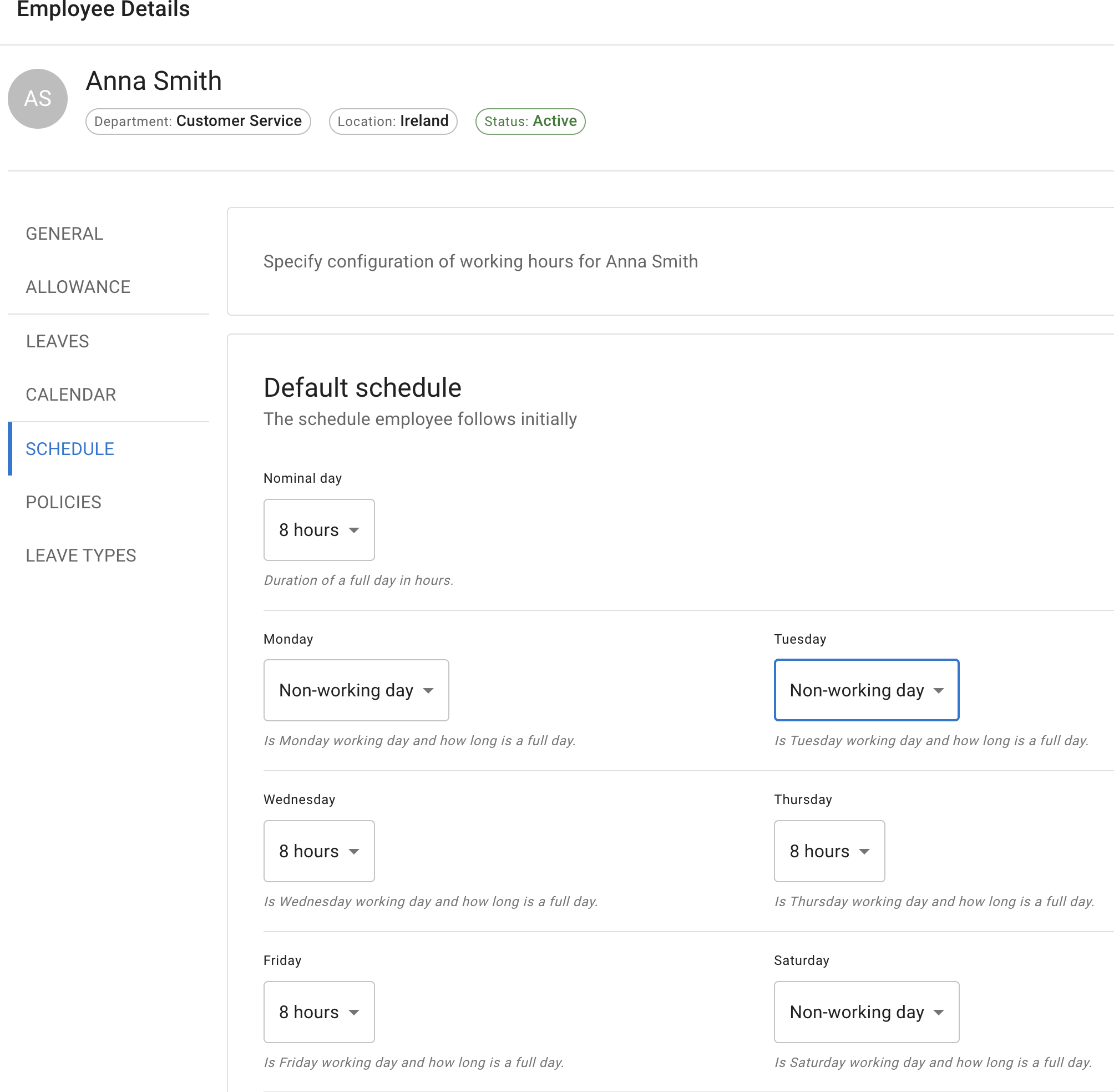
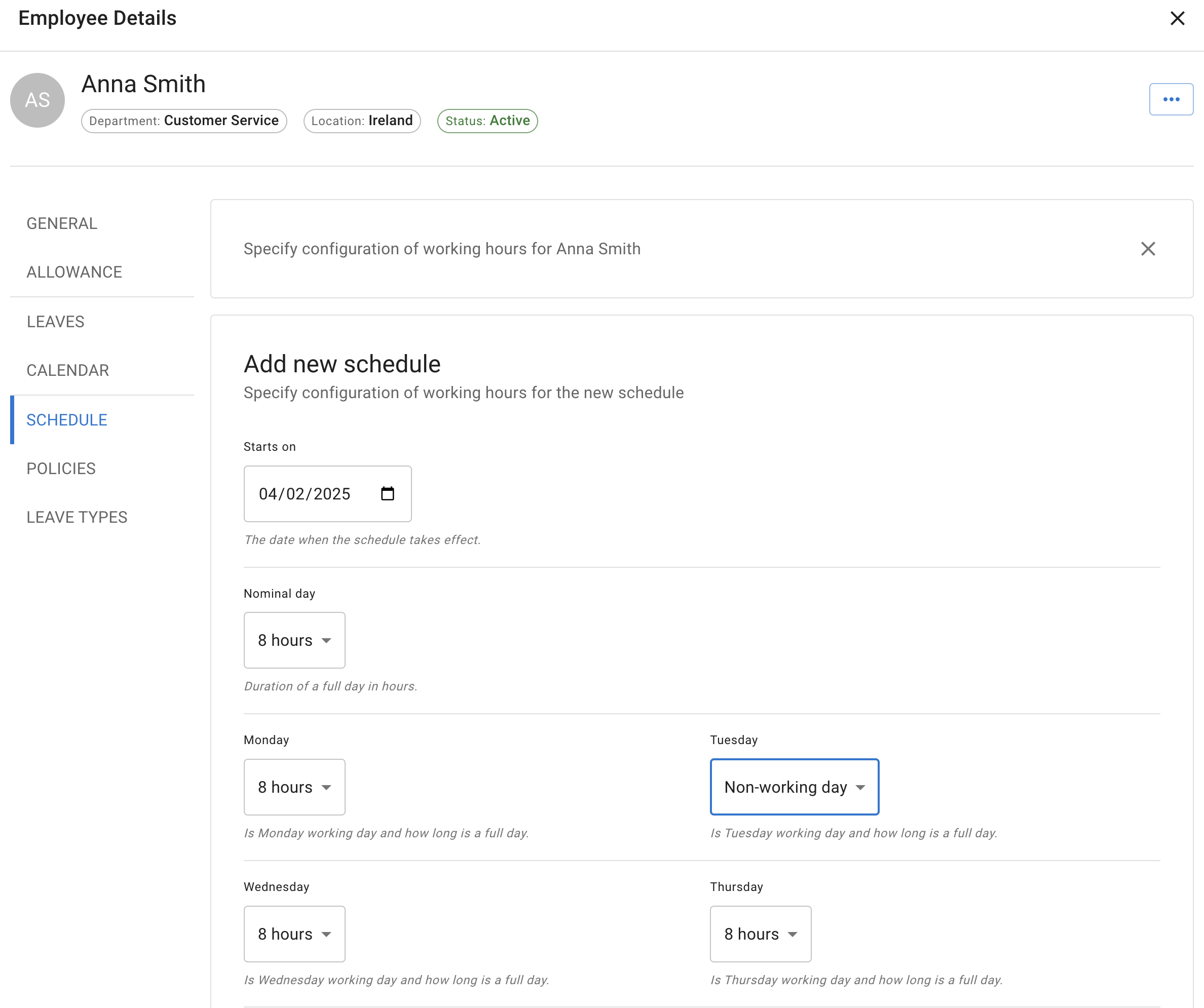
How to update an employee’s schedule:
- Go to the Employee tab and select Schedule.
- If the employee has an existing schedule, amend the Default Schedule and click Save Changes.
- If the employee has a new schedule starting from a specific date:
- Select the + at the right of the first schedule’s caption, then Add weekly schedule or Add rota schedule.
- Set the Starts on date.
- Adjust the schedule as needed.
- Select Add.
3. Manage departments
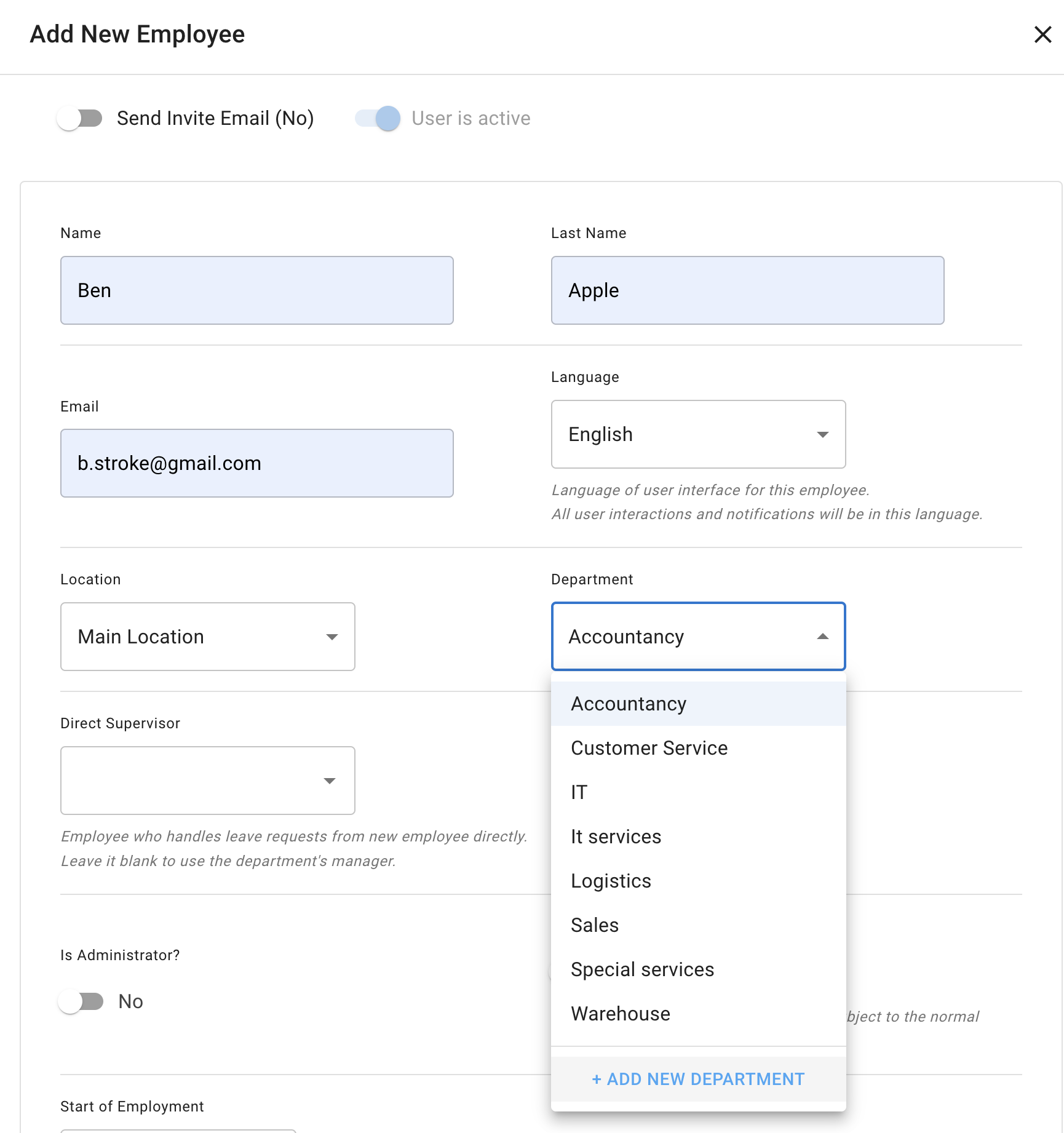
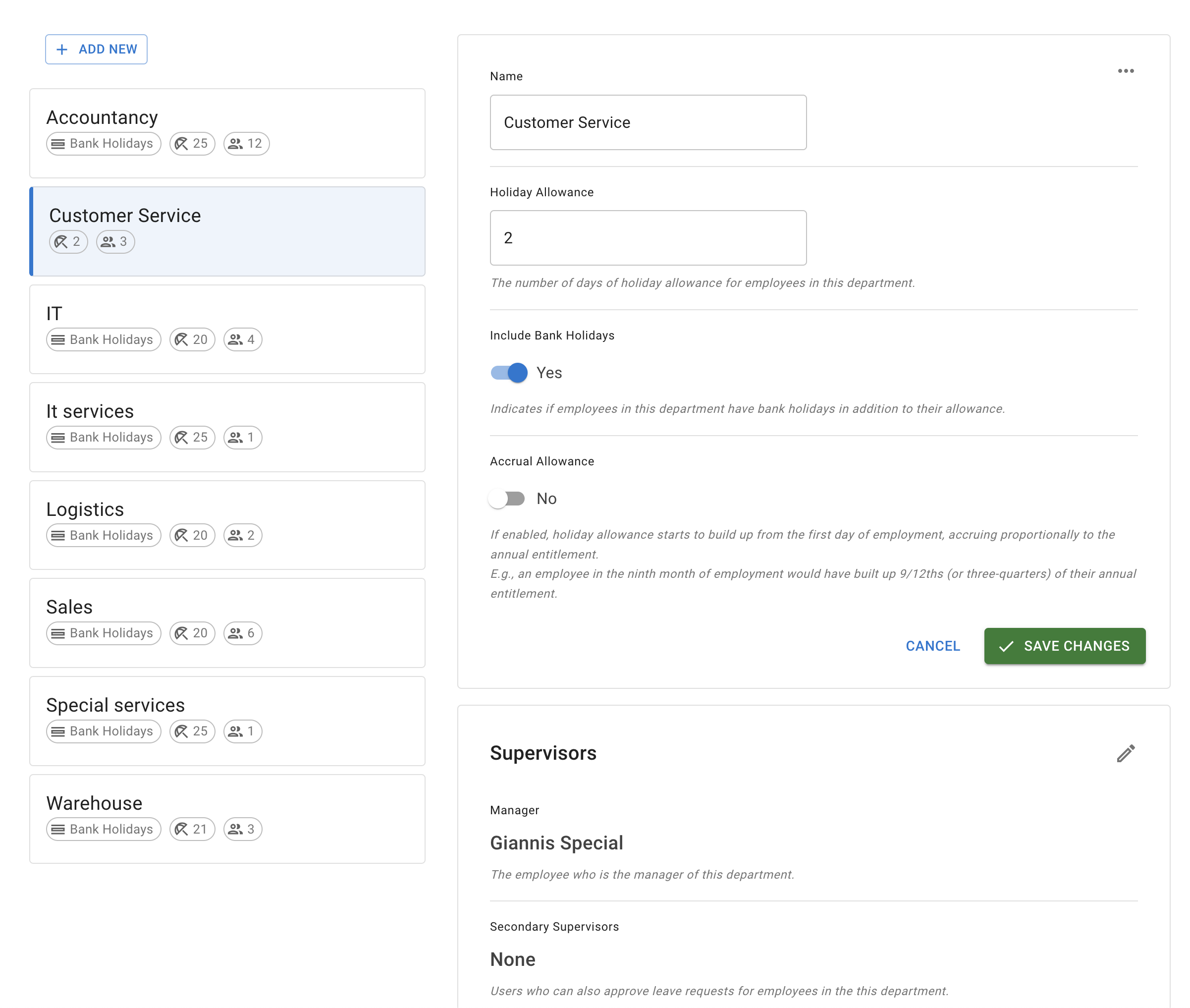
Departments can be created when adding new employees and managed later from Settings → Departments. You can add supervisors and adjust department settings there.
Learn more: Managing departments.
4. Set up allowance/PTO
After adding employees, schedules, and departments, check your allowance setup.
Allowance is the amount of leave an employee can use during the company year. Some companies call this holiday allowance, annual leave, vacation allowance, or PTO.
Most teams start with a department allowance.
This means everyone in the same department follows the same allowance rule.
You can then use employee-level settings when someone needs a different setup.
For example, you may need to:
- give one employee a custom allowance
- set up a part-time employee
- use an accrual schedule
- add manual allowance adjustments
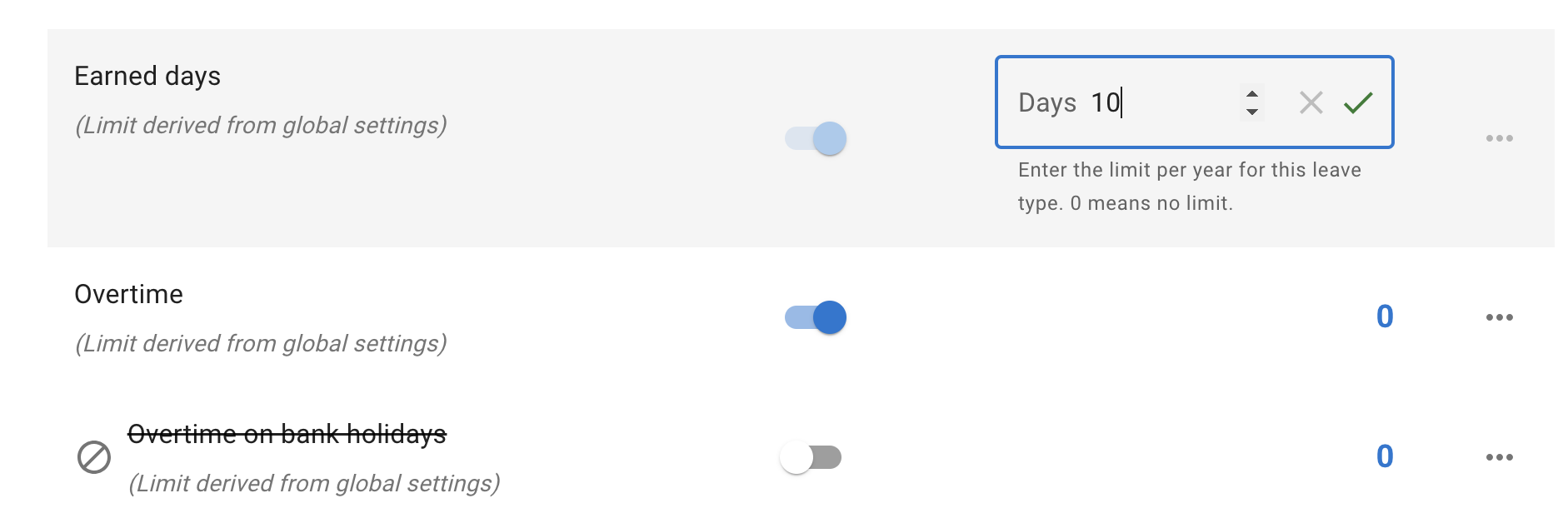
- apply leave type limits
- prepare carry over before the new company year
Allowance setup usually depends on:
- the company year
- employee schedules
- departments
- individual employee allowance
- leave types
- accrual policies
- carry over rules
For a full overview, read: Setting up allowances
5. Customise leave types
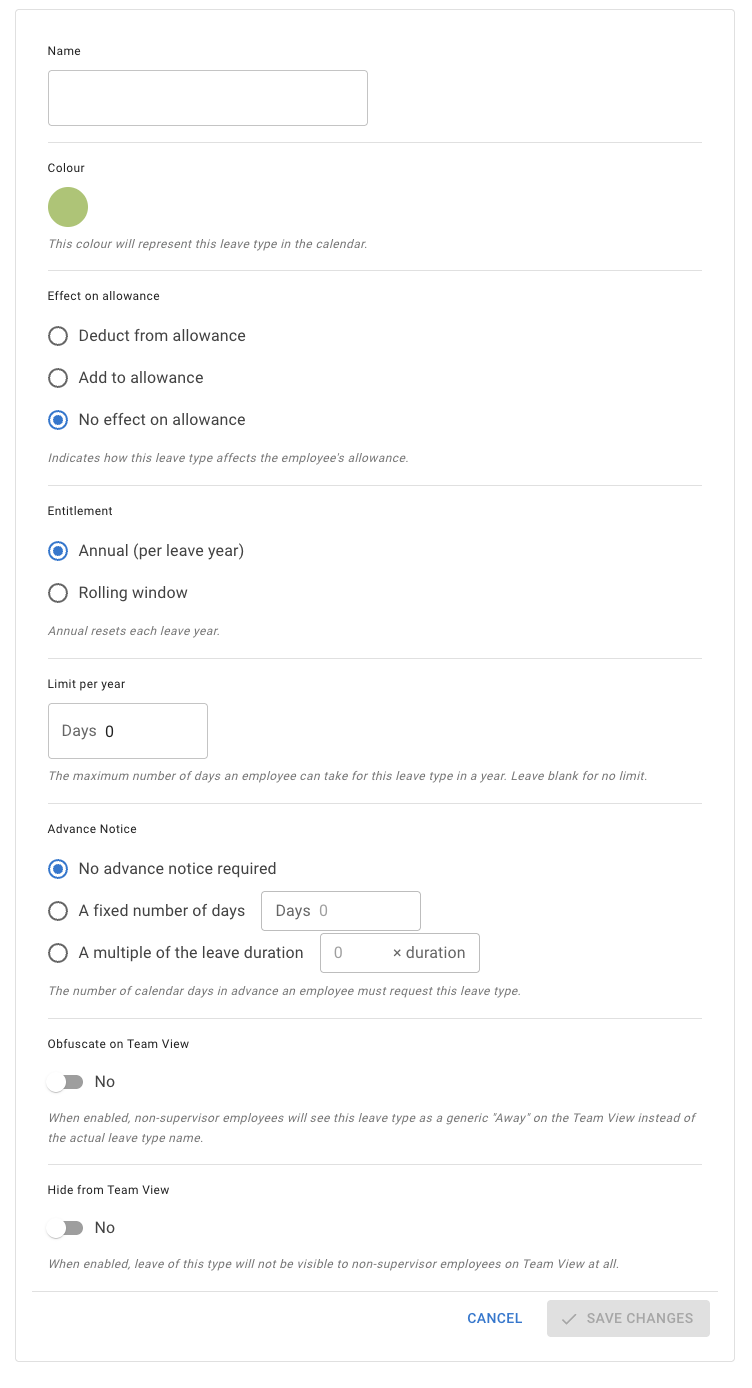
To set up company leave types, go to Settings → Leave types. Your account starts with a small set of ready-made leave types, so nobody has to build leave types from scratch before booking any leave. Add, rename or archive them to suit your company’s needs.
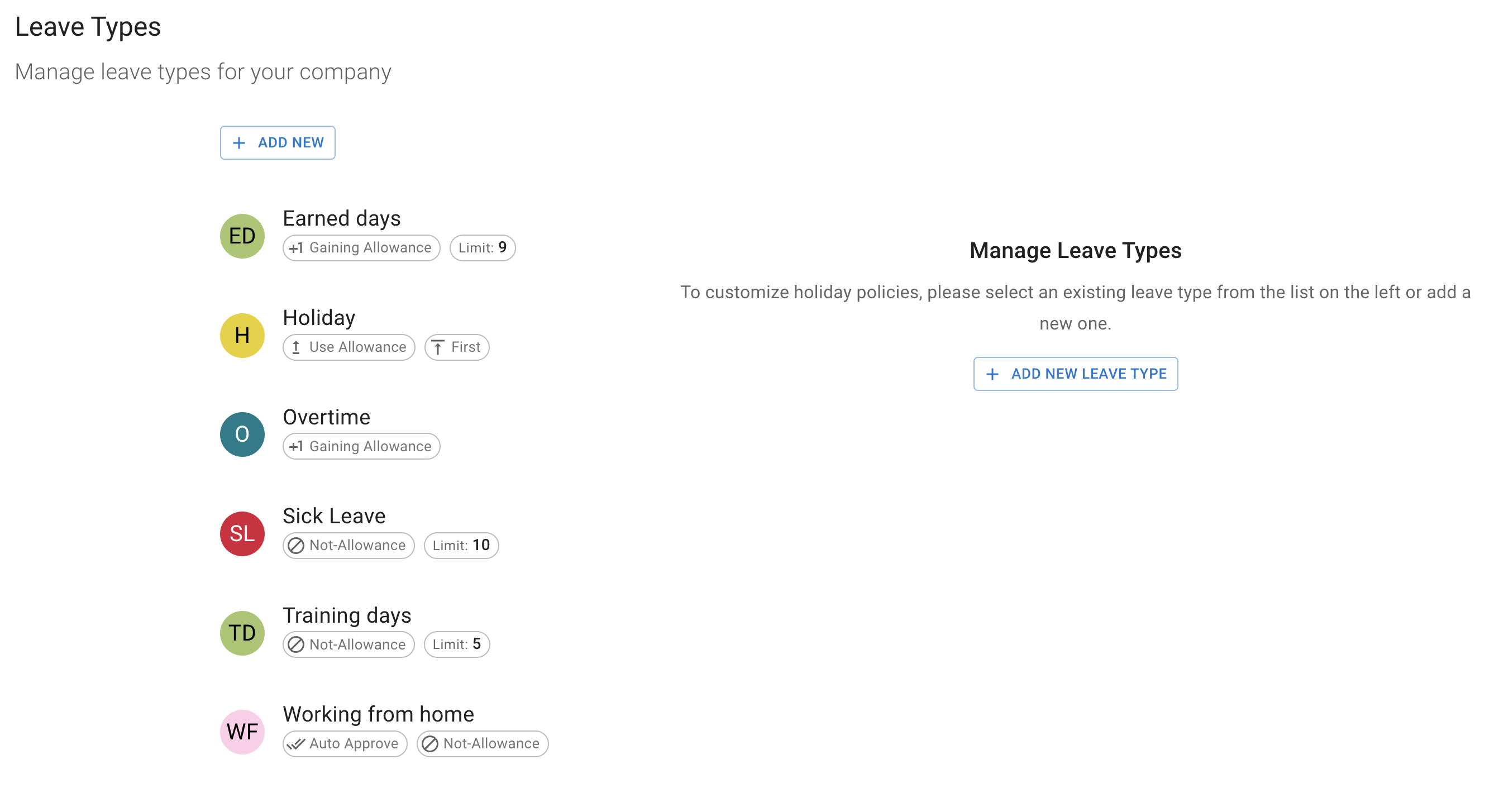
There are several options available to customise a leave type, such as how it is counted (Counting), a Limit, or an Advance notice period. Learn more: Leave types.
Note: Company-wide leave types can be adjusted on a per-employee basis where needed.
6. Add locations and bank holidays
If your company has teams operating from different locations, you can create and manage these locations in Settings → Locations.
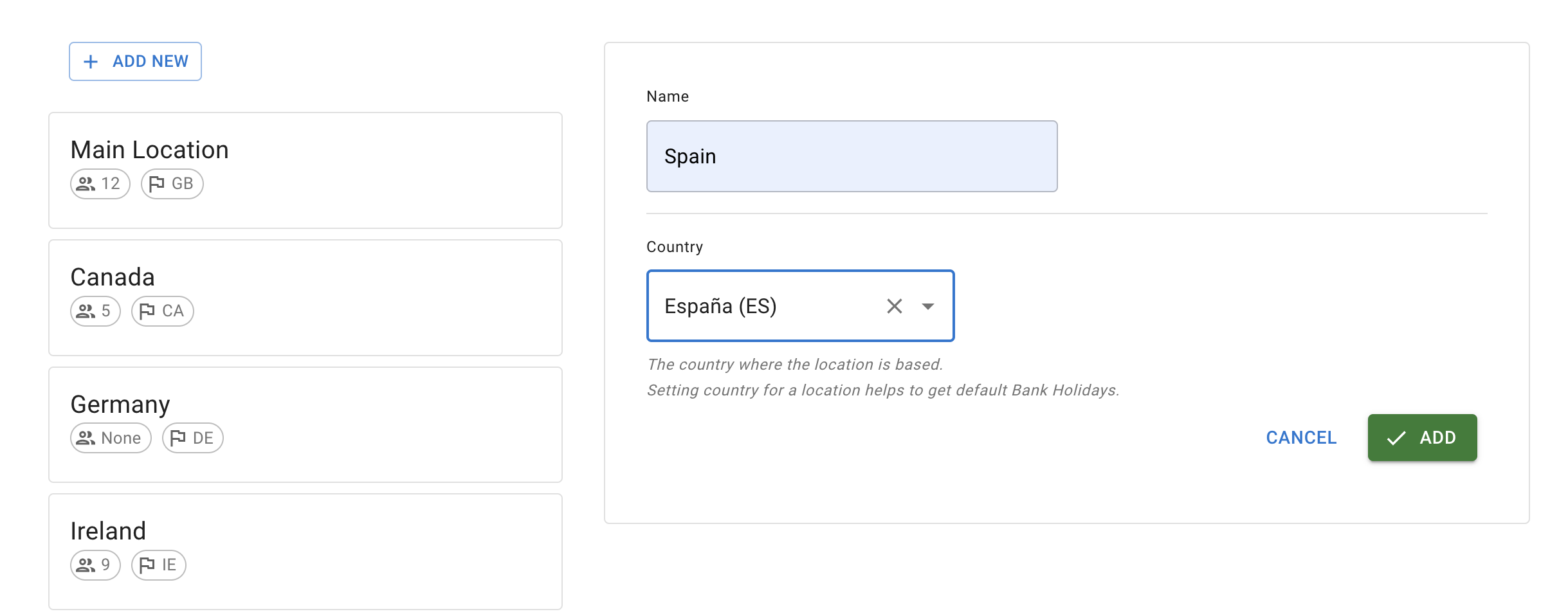
You can also assign employees to a location and upload bank holidays for that location.
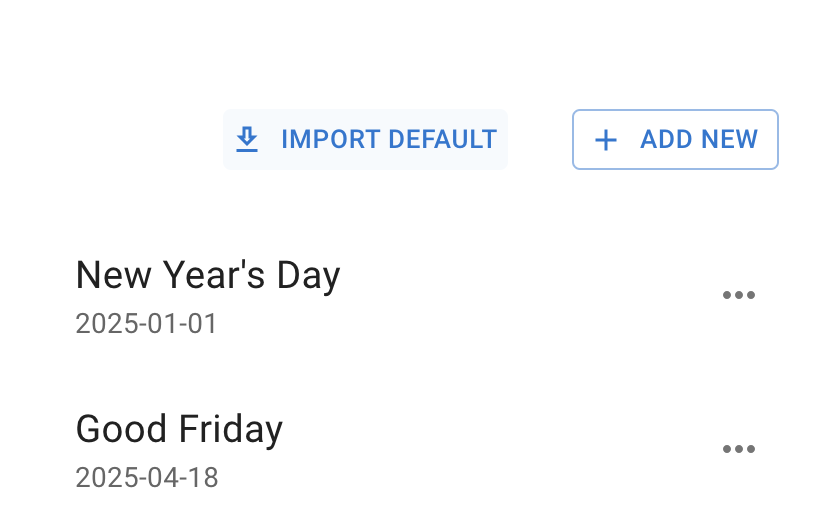
Learn more: Managing locations and Public holidays.
7. Privacy settings
This step is about understanding who can see what. Administrators have full access, while other roles have more restricted views.
Admin users can:
- Set up the account and billing details
- See all employee allowances
- Book and cancel leave for all employees (including historic leave)
- Configure annual entitlement and account settings
Department approvers/secondary supervisors:
- Do not see company-wide Settings (Locations, Leave Types, Departments)
- Can view allowance and calendars for employees in their department
- Can access Employee list, restricted to their department
Users:
- Do not see Settings or Employee menus
- Cannot change their annual entitlement
- Cannot cancel bookings in the past (they can cancel future bookings)
- Cannot see other employees’ allowances or summary calendar info
- Cannot edit their working schedule
Privacy modes: Team View supports multiple privacy options, from sharing info between teammates to Admin‑only views and hiding leave types. See: Team View leave data privacy settings.
8. Reports
Access reports from the Reports section in the Main Menu. All reports can be downloaded as CSV files.
Three key report types:
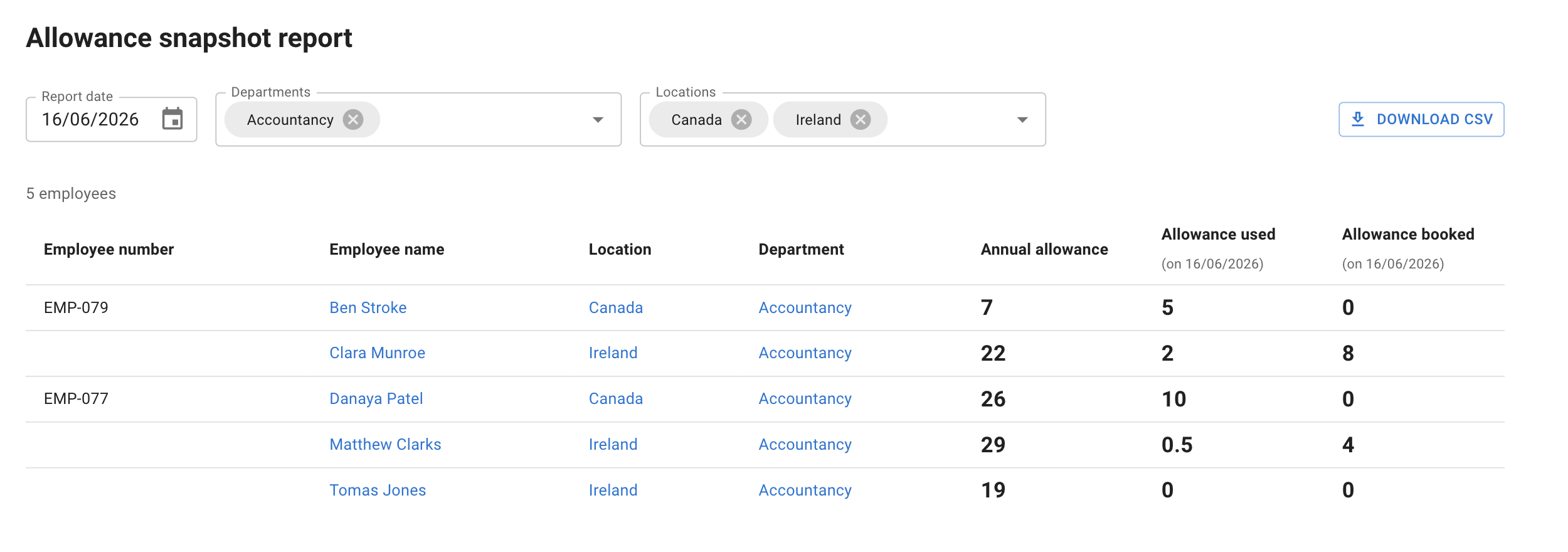
The Allowance snapshot report shows employee allowance information on the date the report is created.
Use this report to check:
- annual allowance
- days already used
- days already booked
- remaining allowance
- employee allowance position at a point in time
This is useful when checking leave balances, preparing for year end, or reviewing allowance across the company.
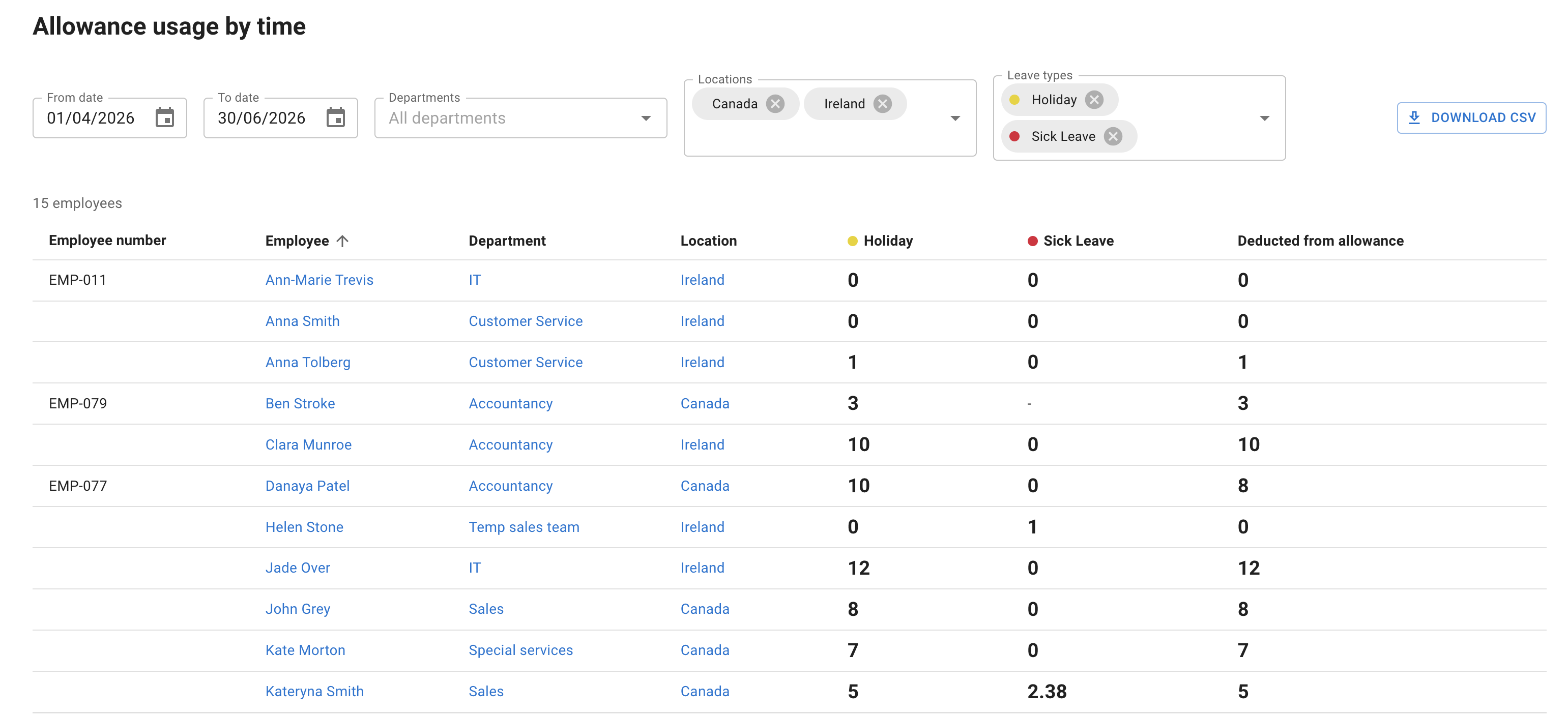
The Allowance usage by time report gives a detailed view of absence by employee.
It includes filters for:
- department
- location
- leave type
- selected time period
Use this report when you need to review how leave has been used across a team, department, location, or leave type.
This can help you spot patterns, check absence levels, and prepare for allowance reviews.
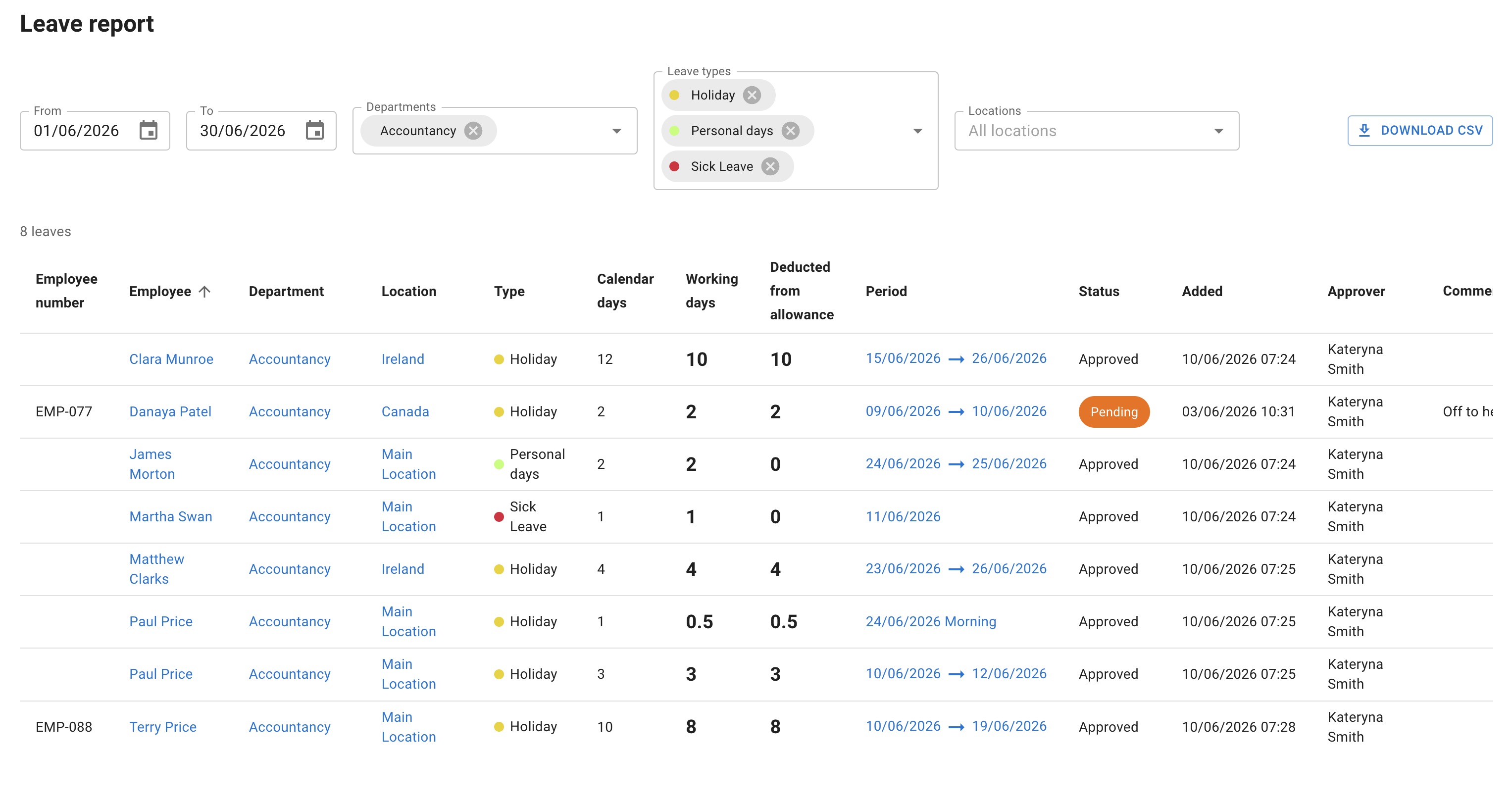
The Leave report gives a detailed list of employee leave requests.
It can include:
- leave dates
- request status
- leave type
- approvers
- employee comments
- manager or admin comments
Use this report when you need a clear record of leave requests and approvals.
It is useful for checking historical absence, reviewing pending or approved leave, and keeping a clear audit trail.