
How to assign and manage leave approvers
Account administrators decide who reviews employee time off requests.
In TimeOff.Management, you can assign approvers in two main ways:
- by department
- directly for one employee
This gives you a simple approval setup for most teams, with flexibility where one person needs a different approver.
Approval options
| Option | Best used when |
|---|---|
| Department approver | Everyone in a department should follow the same approval route |
| Direct supervisor | One employee needs a different approver from the department manager |
| Secondary approver | A second person should also be able to action requests |
| Two-tier approval policy | A request needs one extra approval step before final manager approval |
Most companies start with department approvers.
Direct supervisors are useful for exceptions, project-based teams, temporary staff, or employees who report to someone outside their department.
1. Set approvers for a department
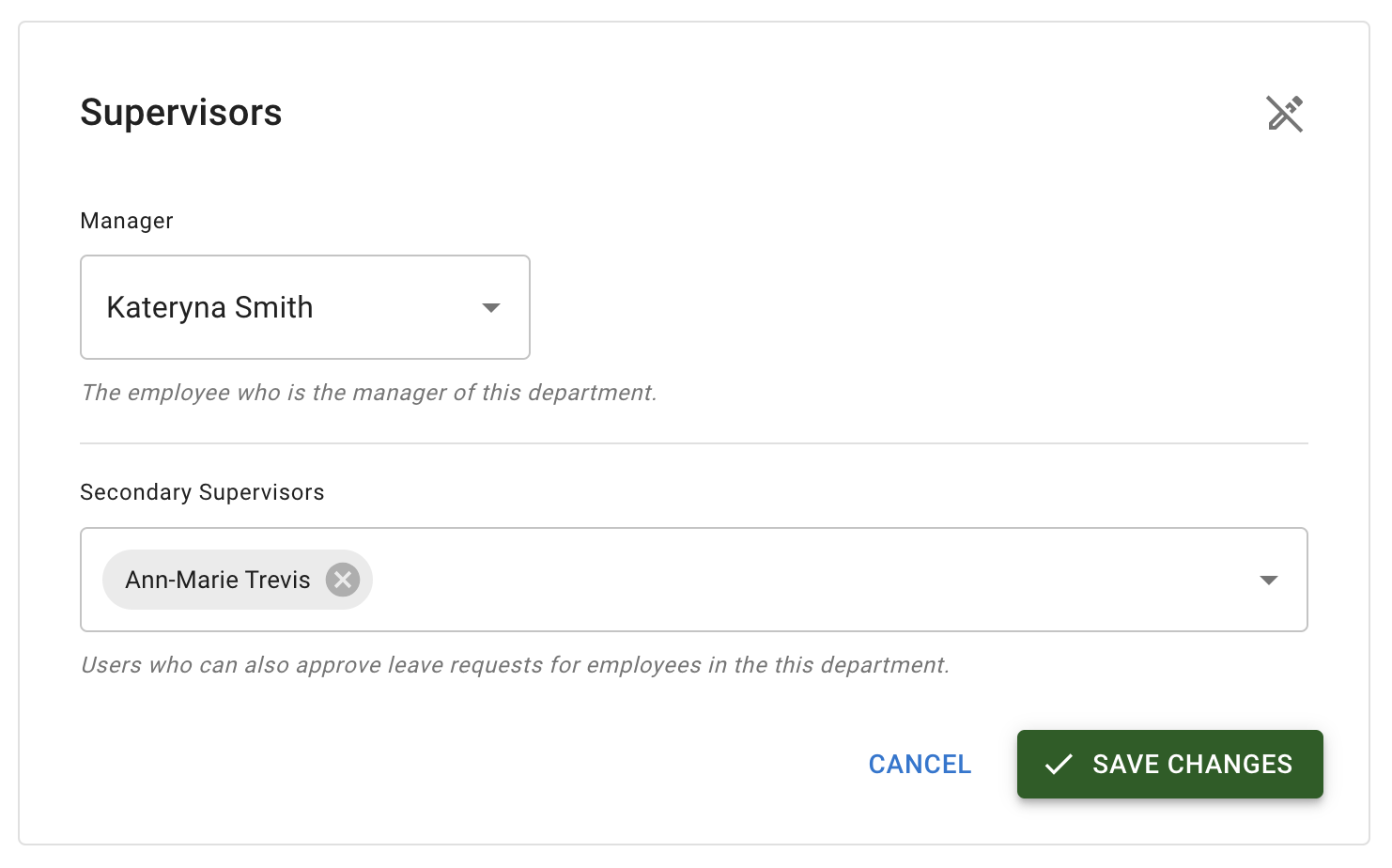
Department approvers apply to all employees in that department, unless an employee has a direct supervisor set.
You can assign:
- a manager
- a secondary approver
When a leave request is submitted, it is counted on both approvers’ Leave requests button, and both receive an email.
Either approver can approve or decline the request.
Once either approver has actioned the request, it stays in the list and says what happened — Leave approved, for example — and no longer needs a decision from the other.
When to use department approvers
Use department approvers when:
- one manager approves leave for a whole team
- each department has a clear manager
- the approval process should be simple
- employees in the same department follow the same route
For example:
| Department | Main approver | Secondary approver |
|---|---|---|
| Sales | Sales Manager | Operations Manager |
| Support | Support Lead | HR Manager |
| Finance | Finance Manager | Company Admin |
Read more: Managing departments
Why add a secondary approver?
A secondary approver helps avoid delays.
This is useful when the main approver is:
- on leave
- unavailable
- travelling
- too busy to respond quickly
The secondary approver can action the request without waiting for the main approver.
This helps employees get a faster answer.
2. Set a direct supervisor for one employee
A direct supervisor is set at employee level.
Use this when one employee should not follow the normal department approver route.
For example, this can help with:
- project-based teams
- temporary staff
- contract workers
- employees reporting to a manager in another department
- senior employees with a different approval route
- cross-functional teams
How to set a direct supervisor
To set a direct supervisor:
- Go to Employees.
- Select the employee.
- Open Employee details.
- Go to the General tab.
- Select Edit, the pencil on the Identity caption.
- In the Employment details section, choose a Direct manager from the list.
- Select Save changes at the foot of the drawer.
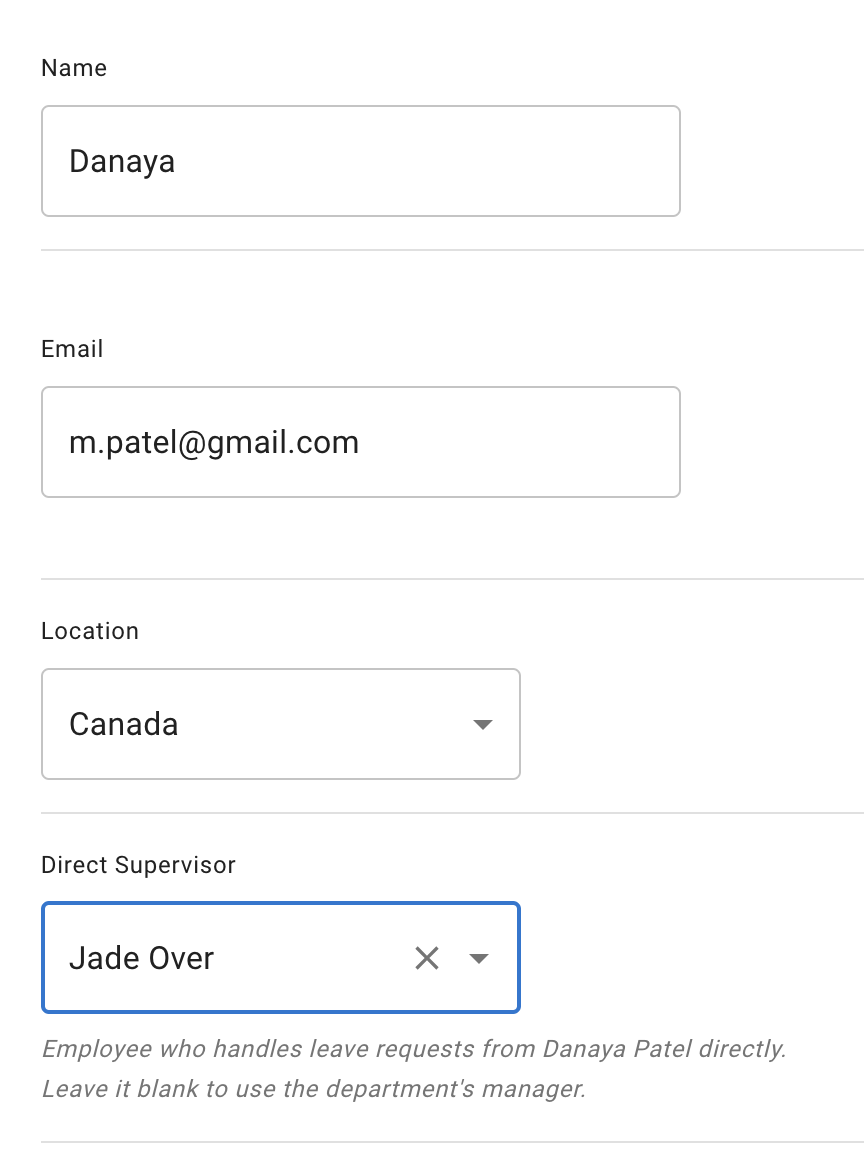
After saving, that employee’s requests can be sent to the direct supervisor instead of using only the department approver setup.
3. Use a two-tier approval policy
A two-tier approval policy adds one more approval step before the final manager approval.
This is useful when a company needs an extra review before the request reaches the final approver.
For example, a request may need to be checked first by:
- a team lead
- a project manager
- an HR user
- a finance or operations manager
- another nominated approver
After the first approval step is complete, the request can then move to the final manager or department approver.
This does not replace the normal manager approval process. It adds another layer before the final approval.
When to use two-tier approval
Use two-tier approval when:
- leave needs an extra compliance check
- a project manager should review absence first
- HR needs to approve selected leave types
- senior roles need a more controlled approval route
- your company wants stronger checks before final approval
For simple teams, one manager approval is usually enough.
For larger teams, regulated teams, or companies with more complex approval rules, two-tier approval can give extra control.
Read more: Employee policies overview
Department approver or direct supervisor?
Use the simplest option that matches your company structure.
| Situation | Recommended setup |
|---|---|
| Everyone in the department reports to the same manager | Department approver |
| One employee reports to a different manager | Direct supervisor |
| A project worker reports to a project lead | Direct supervisor |
| A department needs backup approval cover | Secondary approver |
| A senior employee needs a separate approval route | Direct supervisor |
What happens when an employee submits a request?
When an employee submits a leave request:
- TimeOff.Management checks the employee’s approval setup.
- The request is counted on the correct approver’s Leave requests button.
- The approver also receives an email notification.
- The approver reviews the request.
- The approver approves or declines it.
- The employee receives the result.
Read more: Approve or decline time off requests
Check approver notifications
Approvers may receive:
- a count on the Leave requests button
- email notifications
- pending request alerts
If an approver does not receive a request, check:
- the employee’s department
- the department approver
- the secondary approver
- whether a direct supervisor is set
- the employee’s email address
- the approver’s email address
- whether the request was auto-approved
If the wrong person receives the request
If a request goes to the wrong person, check the employee’s setup.
The most common causes are:
- the employee is in the wrong department
- the department approver is outdated
- the employee has a direct supervisor set
- the direct supervisor is no longer correct
- the employee recently moved teams
- the approver has left the company
Update the department or employee profile, then save your changes.
To see who manages whose leave across the whole company at once, open the Org chart.
If a manager leaves the company
Before deactivating a manager, check whether they approve leave for anyone.
You may need to update:
- department approvers
- secondary approvers
- direct supervisors
- employee policies
- manager visibility settings
This prevents leave requests from being sent to an inactive user.
Read more: Deactivate an employee account
Approval and auto-approval
Approver settings control who reviews a request.
An auto-approval policy controls whose requests are approved the moment they are made, with no manager decision in between.
The exception is two-tier approval. Where such a policy also applies, its screening step comes first, unless the auto-approval policy is set to skip it.
These are separate settings.
A policy can cover named employees, departments, locations, roles or the whole company, and can be limited to selected leave types.
If a request is auto-approved, it does not wait for a manager decision at all.
Read more: Auto-approval policy
Approval and leave on behalf of employees
Managers and admins may be able to create leave on behalf of employees.
Depending on your company settings, those requests may be:
- approved immediately
- sent through the normal approval process
- auto-approved, where an auto-approval policy covers that person’s on-behalf bookings
Read more: Create leave on behalf of an employee
Related articles
-
Managing departments Set department details, department allowance, managers, and approvers.
-
Approve or decline time off requests Review pending requests and understand what managers should check before approving leave.
-
Auto-approval policy Choose whose leave actions are approved the moment they happen, instead of waiting for a manager.
Best practice
Use department approvers for your normal approval process.
Use direct supervisors only when one employee needs a different route.
Add a secondary approver where leave requests must not wait for one manager to be available.