
Employee policies
TimeOff.Management gives you flexible policies to match the way your business works.
You can control access, visibility, and privacy. You can also manage how leave is earned and make sure your team is not short-staffed.
Everything is simple to set up and easy to manage.
In this guide
- Two-tier approval
- Auto-approval
- Leave increment
- Leave access
- Unlimited Allowance
- Watch by Email
- Reminders
- Team view visibility group
- Accrued Allowance Schedule
- Employee Management Roles
- Restrict leave overlap
- Tenure Based Allowance
- Company Leave Data View
- Access to Reports
Two-tier approval
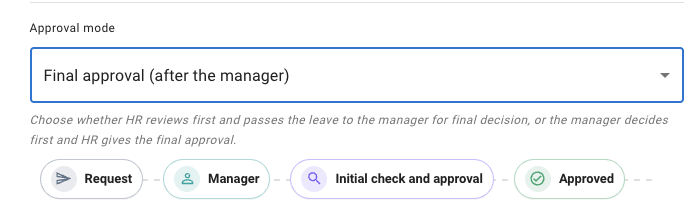
This policy lets you add a first line of approval before the request goes to the employee’s department or direct manager. For example, HR can review selected leave requests first. Once approved, the request then moves on to the normal manager approval step. The policy can be set up for selected leave types, employees, departments, or location. Or you can set the employee’s direct manager as the first approval step, followed by HR or another selected user as the second approval step.
Auto-approval
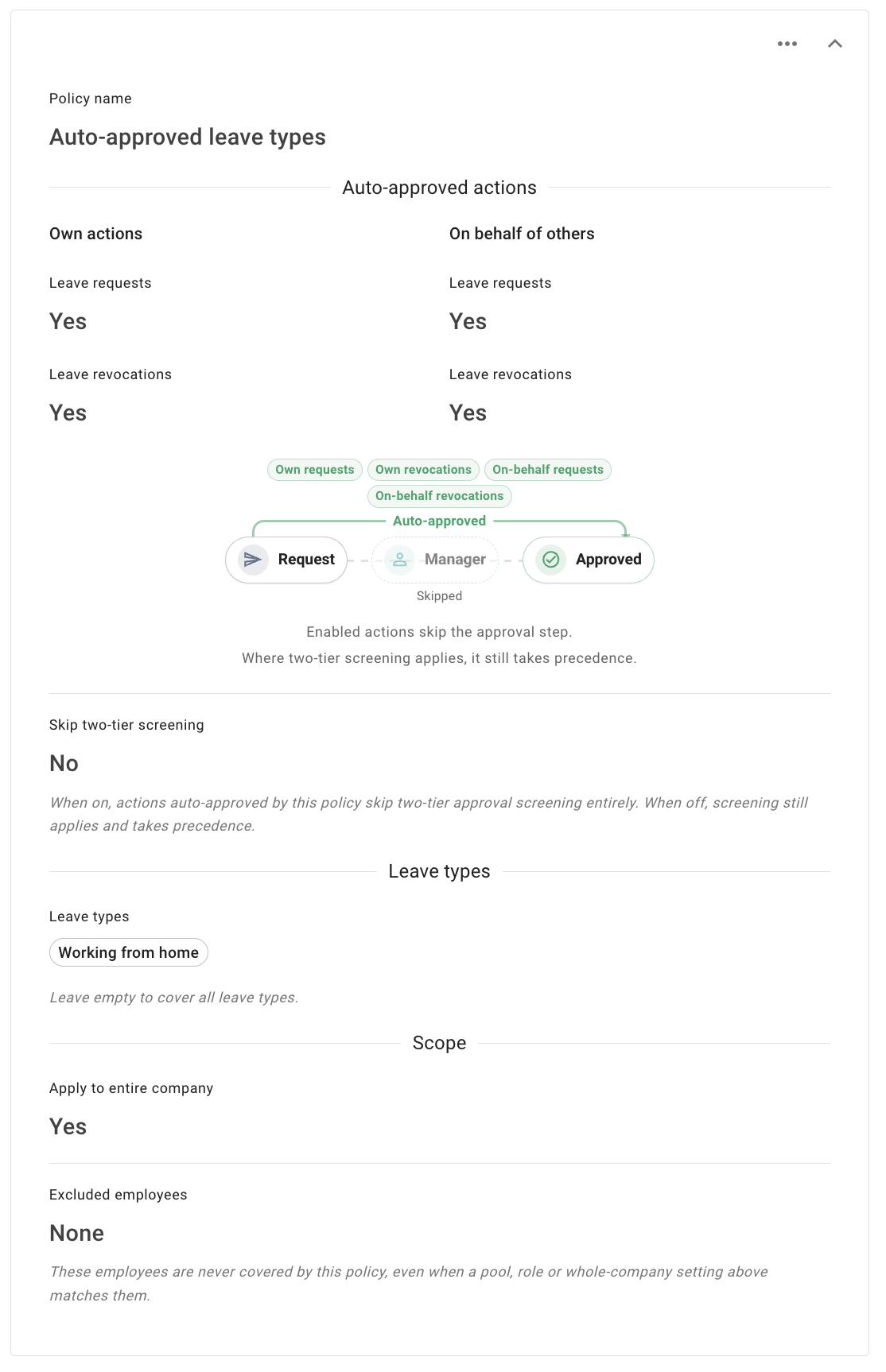
This policy decides whose leave actions complete the moment they happen, with no manager decision in between. Choose who it covers — named employees, departments, locations, roles or the whole company, minus anyone you exclude — and pick which actions it auto-approves: leave requests, leave revocations, a person’s own actions, the ones they take for the employees they manage, or any mix of the four. A policy can be limited to selected leave types.
Auto-approval is only set up here. If a Two-tier approval policy also applies, the screening step still takes precedence, unless the auto-approval policy is set to skip it.
Read more: Auto-approval policy
Leave increment
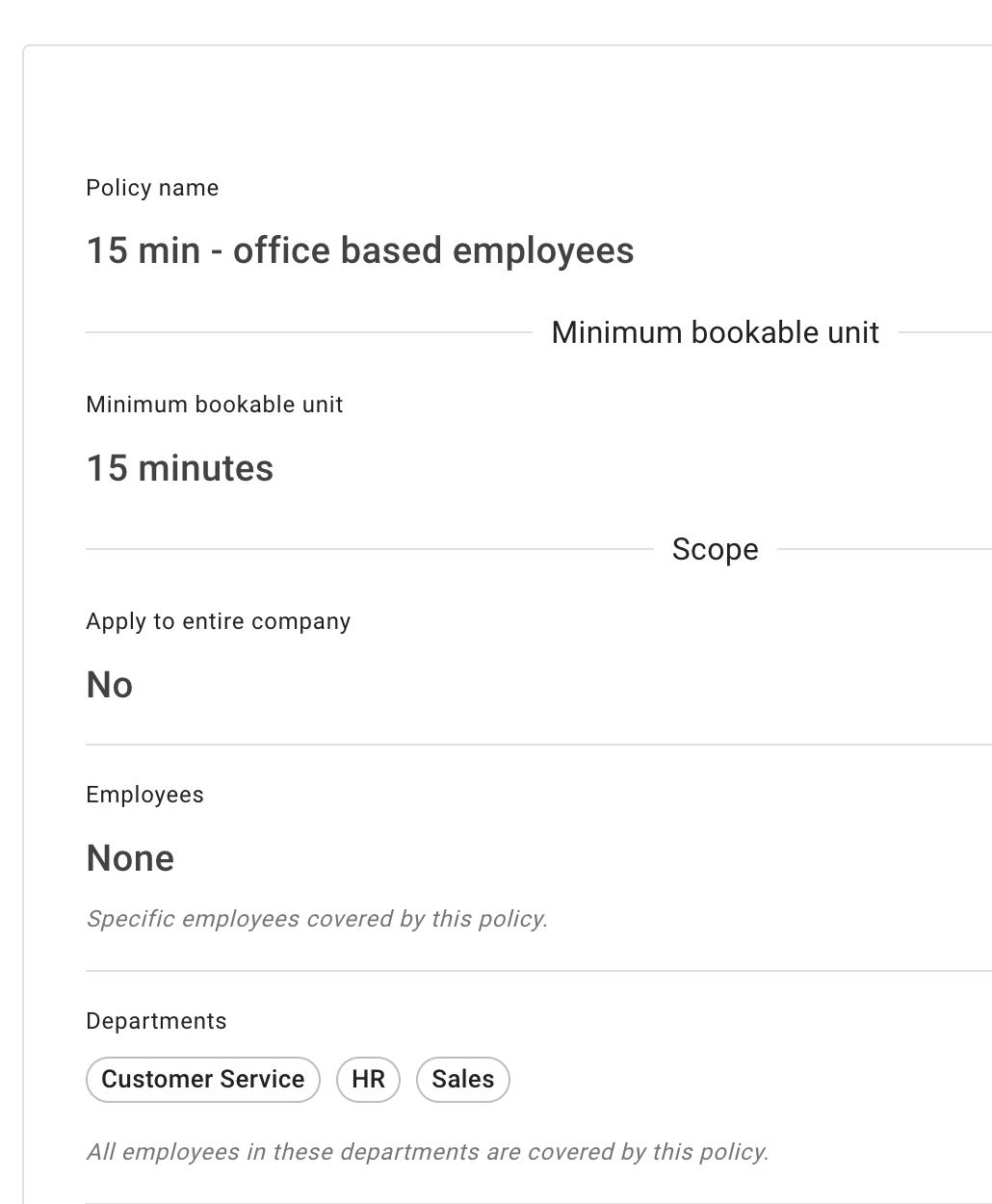
Each policy sets the smallest bookable unit for the employees it covers.
Assign by employee, department, location, tag, or the whole company, and leave named people out with Excluded employees.
A policy can also be narrowed to particular leave types in its Leave types row. Left empty, it applies to every leave type. A rule that names a leave type overrides one that names none.
Leave access
You can manage leave types in two ways.
For a simple setup, leave every leave type available to everybody. This is the default, and it works well when the same leave types apply to the whole company.
For a more controlled setup, use a Leave Access policy. A Leave Access policy groups selected leave types together and assigns them to employees, departments, locations, or everybody carrying a given tag.
This is useful when different groups of people need different leave types. For example, managers may need extra leave options that regular employees do not use.
When a new employee is added to a department or location a policy already covers, they are picked up by that policy automatically.
The leave types page acts as your main storage area. You can create a leave type once, then add it only to the policies where it is needed.
Four behaviours are worth knowing before you adopt Leave Access policies.
Policies add up. An employee covered by more than one policy gets every leave type those policies grant between them.
Once you use Leave Access policies, creating a leave type no longer reaches the people those policies cover. It has to be added to the relevant policy as a second step. Employees not covered by any policy still follow the company-wide default and get it straight away. If you have just made a leave type and the people who need it cannot see it, this is almost always why.
A new department or location is not covered automatically. Adding one does not add it to any policy, so its employees will not get that policy’s leave types until somebody adds the department or location to it.
A tag is a live audience. Where a policy is scoped by a tag, an employee is inside that policy for as long as they carry the tag and drops out of it the moment an administrator takes the tag away. Read more: Tagging employees
Where a Leave Access policy governs an employee, their own Leave types tab says so and shows only what the policy has granted them.
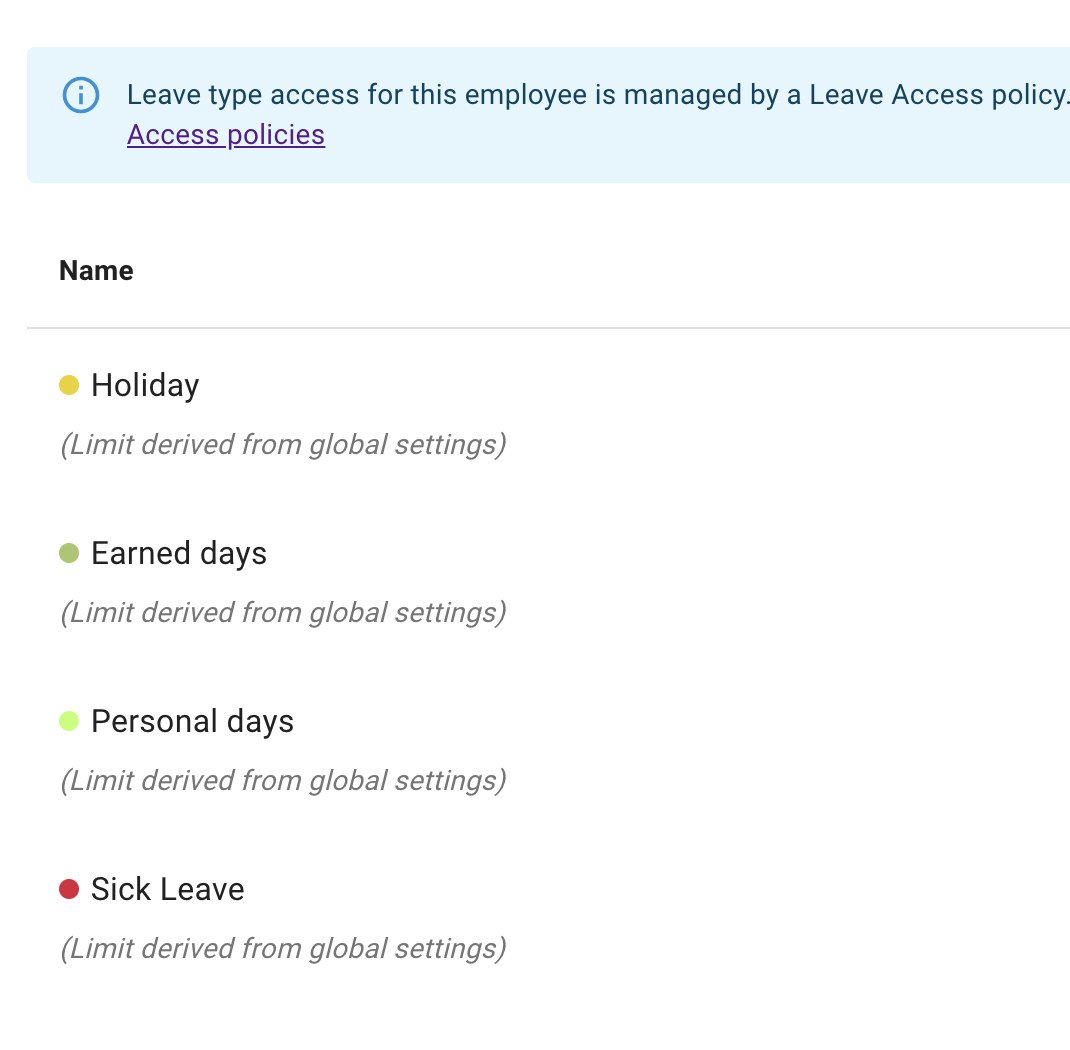
Read more: Leave types
Unlimited Allowance
Unlimited Allowance is a flexible option in TimeOff.Management. It removes the idea of one shared “bucket” of days.
Instead, each leave type works on its own.
- Unlimited holiday policy
Some companies offer unlimited paid time off.
There is no fixed number of days per year. Employees take leave when needed, with approval.
Unlimited Allowance supports this model by removing the yearly limit.
- Simple and transparent setup
Go to Settings → Employee policies and select Unlimited Allowance. From there, you can assign unlimited allowance to specific locations, departments, or individual employees.
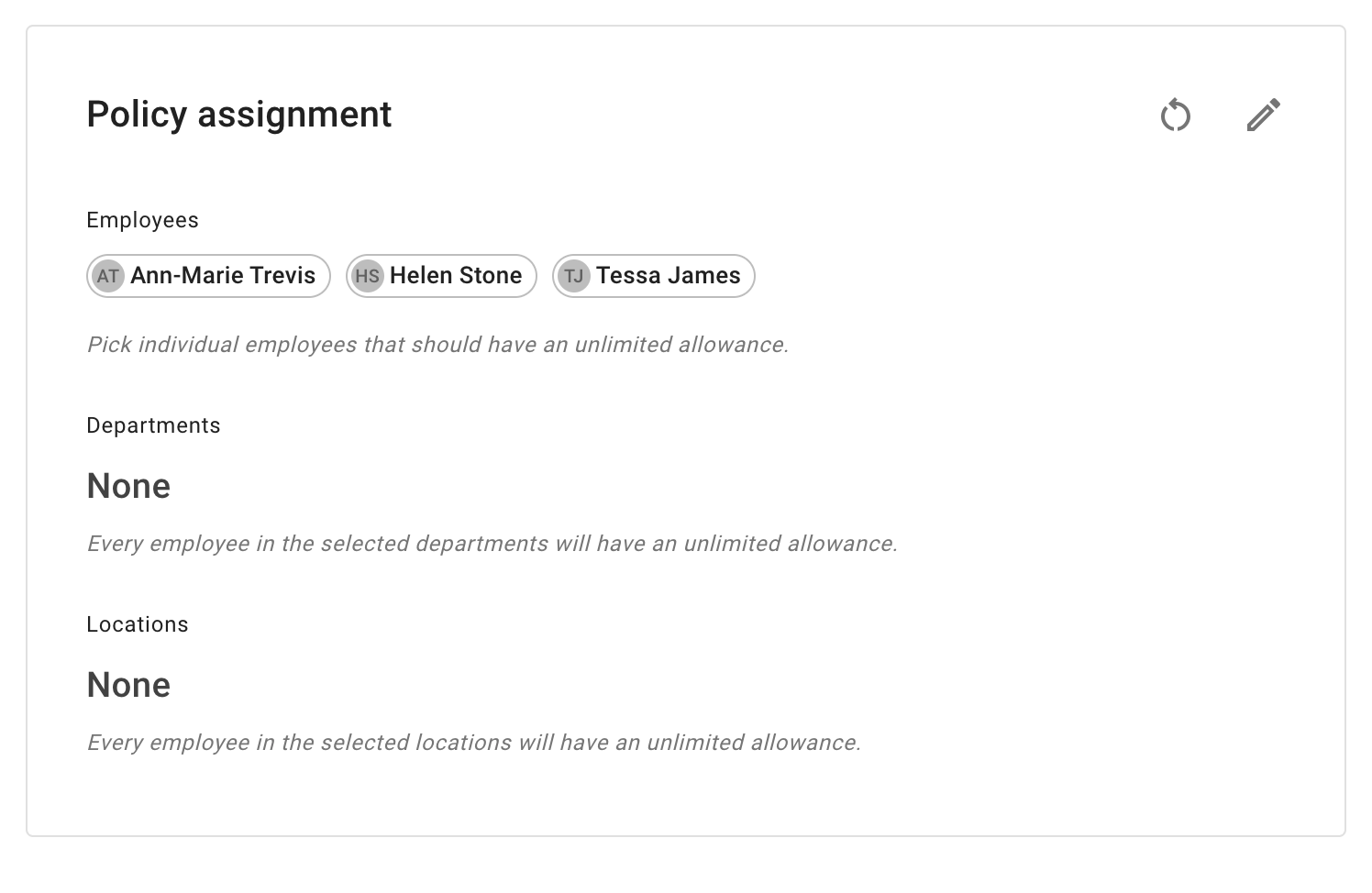
Watch by Email
“Watch by Email” policy lets selected users receive notifications about leave activity for selected employees. You can choose exactly which leave types to follow, so you only receive updates that matter to you. This is ideal for HR, project leads, or senior managers who need visibility without being direct supervisors. Configure it once and stay informed automatically.
The example below is intended for HR to use when employees book sick leave, helping them follow up on any required paperwork.
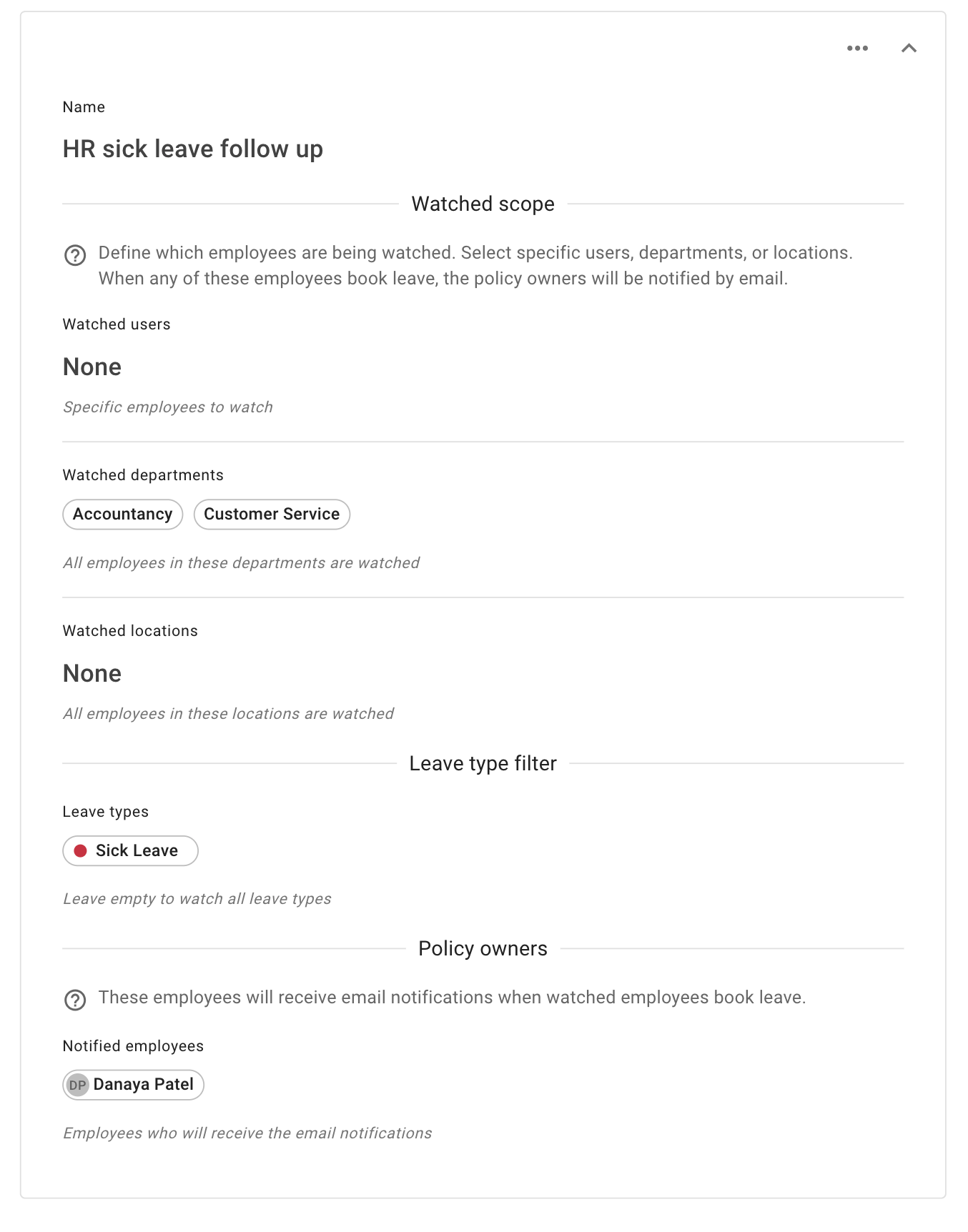
Reminders
This policy watches a group of employees and emails another group before those employees’ approved leave starts. The two groups can be the same — a team keeping an eye on each other — or two different ones, so that a department’s leave reaches the people who arrange cover. You can narrow it to selected leave types, or to leave of at least a given length.
Recipients get at most one email a night: a digest of the upcoming leave, not a message per booking. Nobody is ever reminded about their own leave.
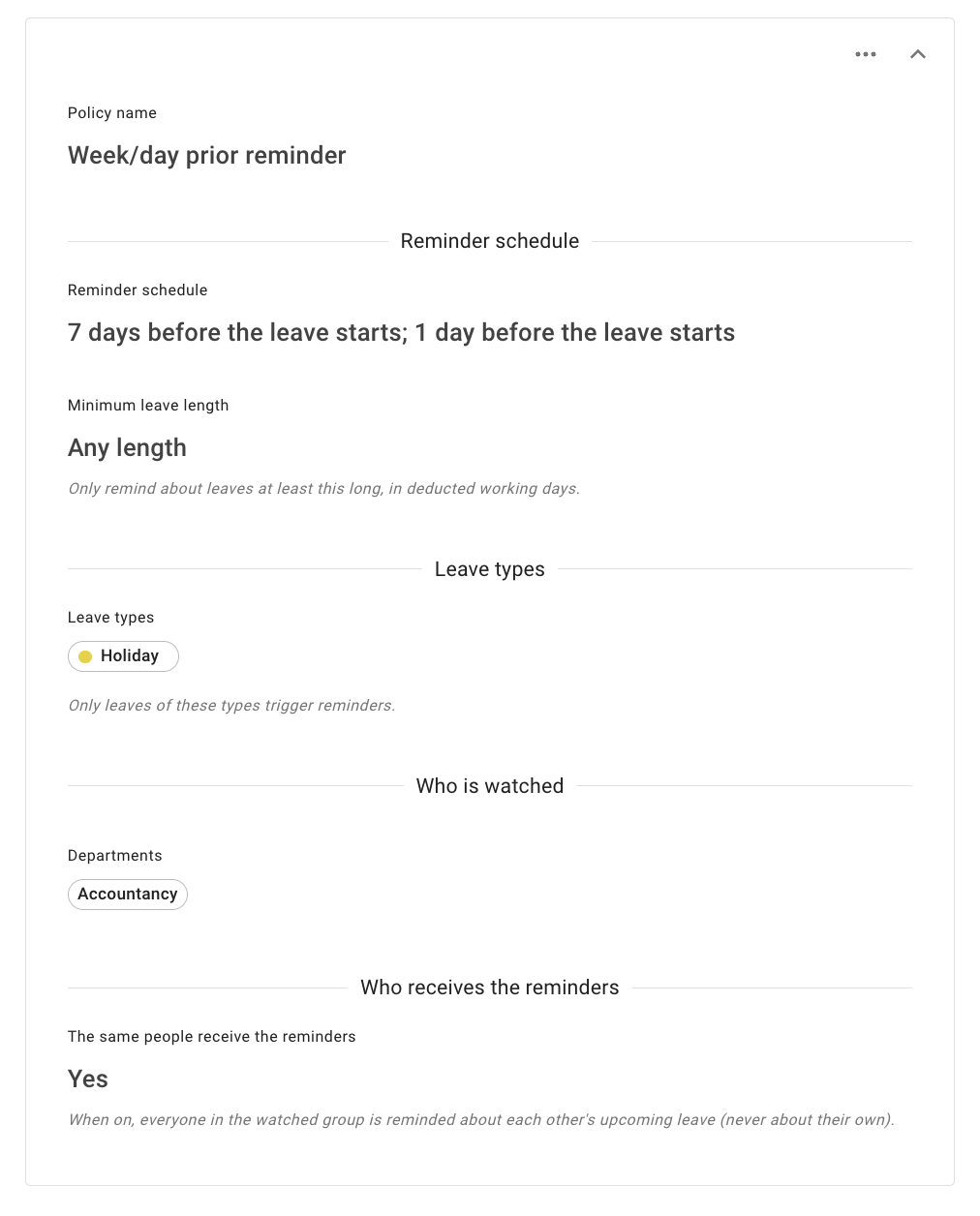
Read more: Reminder policy
Team view visibility group
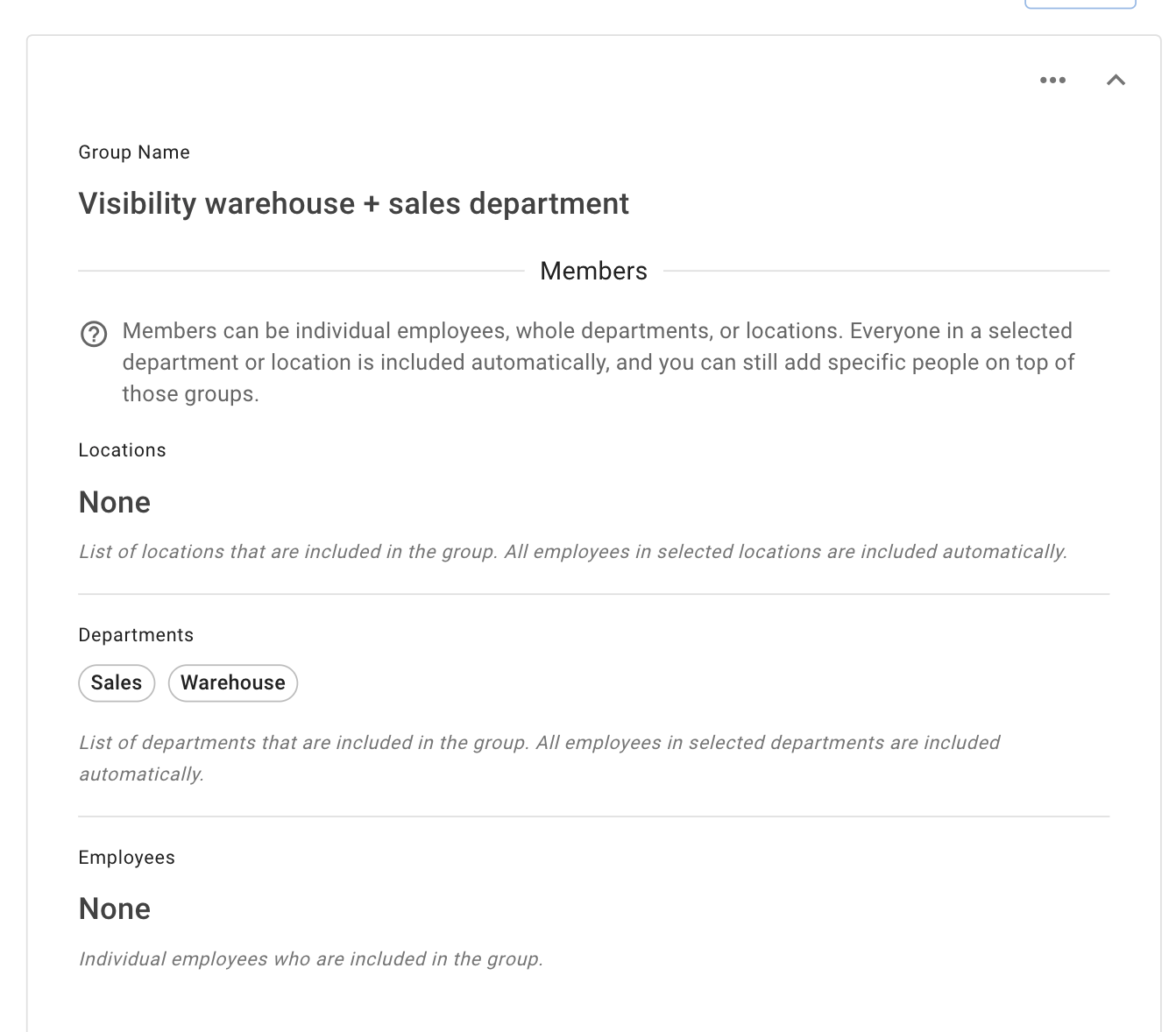
Visibility Groups allow you to extend access to Team View beyond standard department boundaries.
For example, if you have multiple teams working on a shared project—made up of employees from different departments—you can create a Visibility Group to let them see each other’s leave on Team View. This helps everyone stay aligned and understand team availability at a glance.
When a Visibility Group is applied, users included in the policy will be able to see each other on Team View, in addition to the colleagues they would normally see based on their department settings.
Another common use case is enabling collaboration between specific departments. For instance, you might want your warehouse and sales teams to view each other’s leave, while keeping this information hidden from other departments. A Visibility Group makes this easy to set up and manage.
Accrued Allowance Schedule
The Accrued Allowance Schedule lets you create a tailored policy for how annual leave is earned over time.
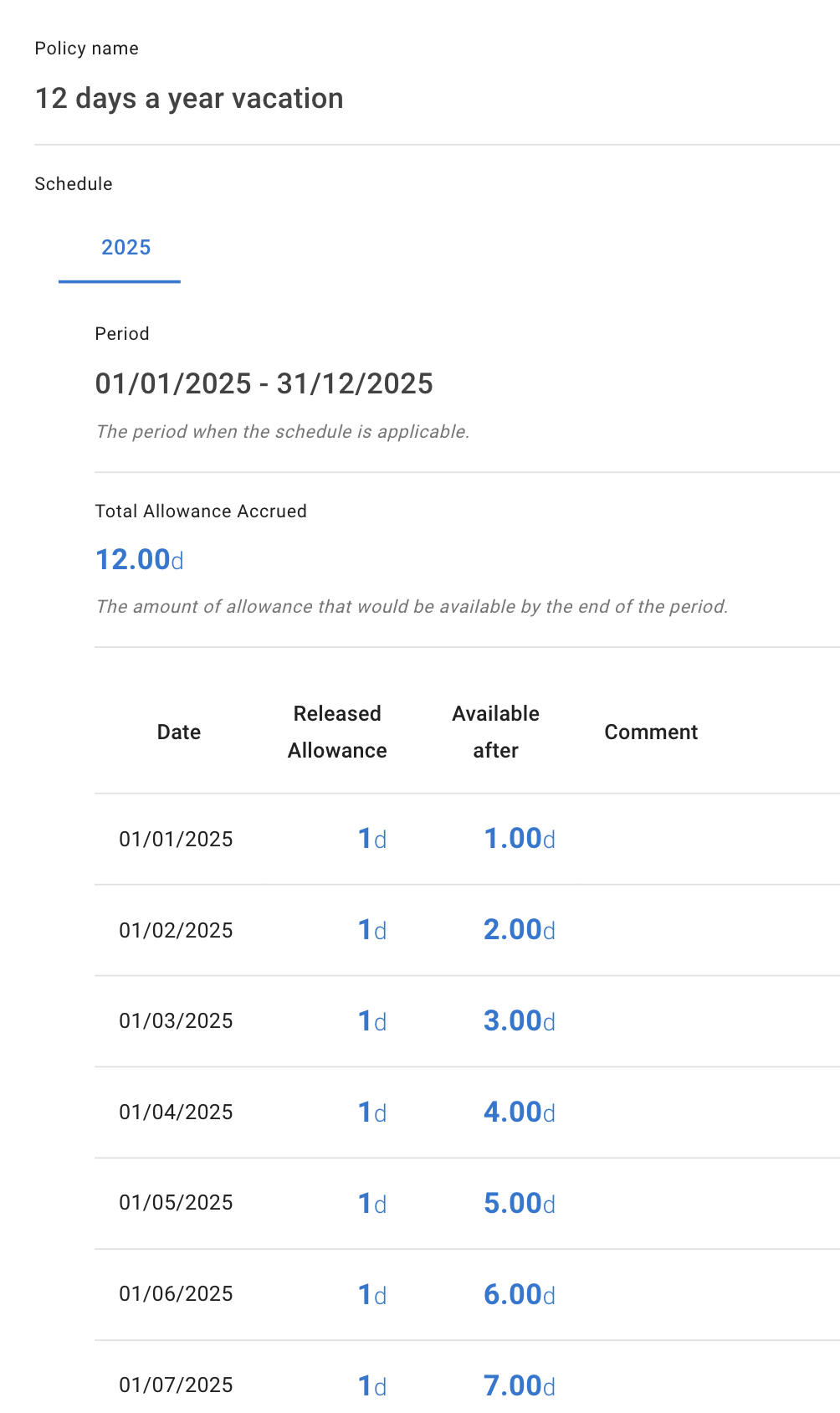
You can set up a simple, proportional accrual—where allowance builds up evenly across the company year. Alternatively, you can design more specific schedules to match your business needs.
For example, if employees work on a 10-month contract within a 12-month period, you can configure the policy so that their time off accrues only during those 10 working months.
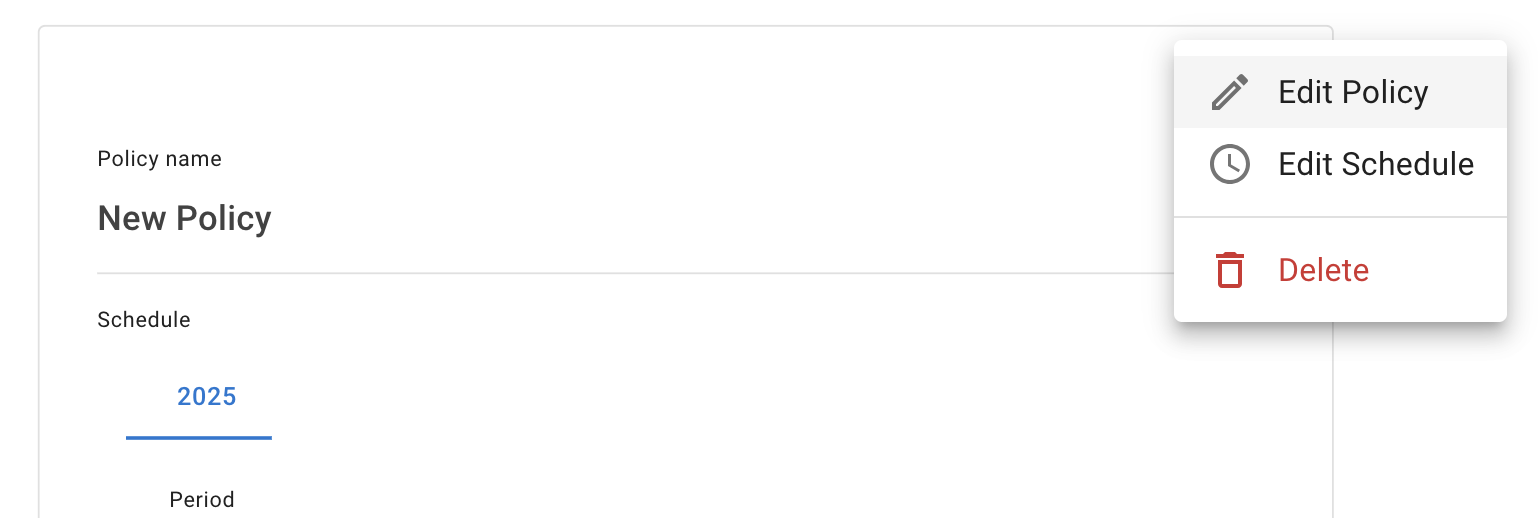
- Once you click “Add New Policy”, a new window will appear. From the menu, select “Edit Policy.”
-
Next, give the policy a name, add the users who will be affected, and click Save Changes.
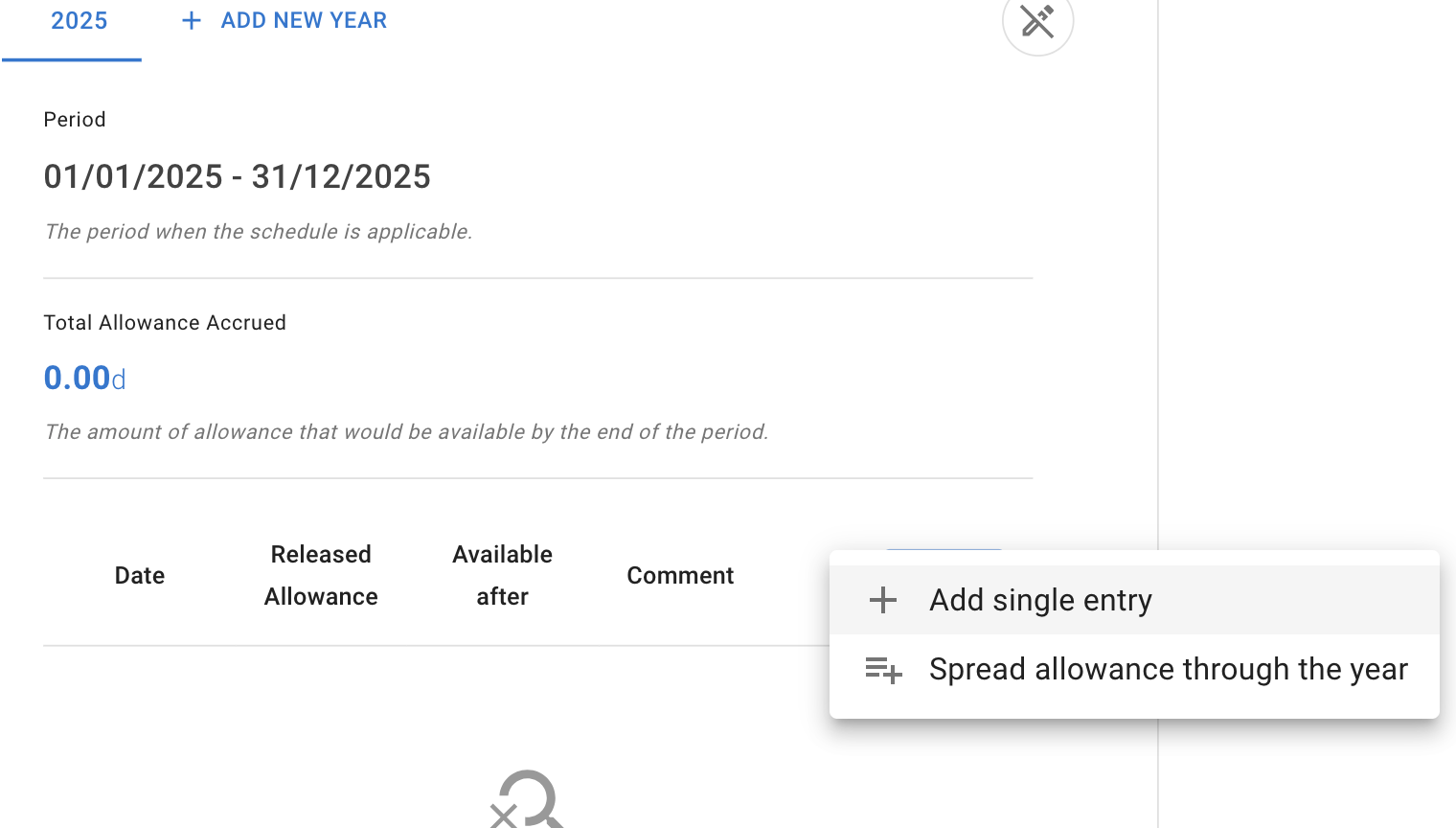
Then, from the same menu, select “Edit Schedule.” Here, you can add a single entry if you want a fixed number of days to be released each month, or set the allowance to be spread proportionally throughout the company year.
-
The policy is now active.
Employee Management Roles
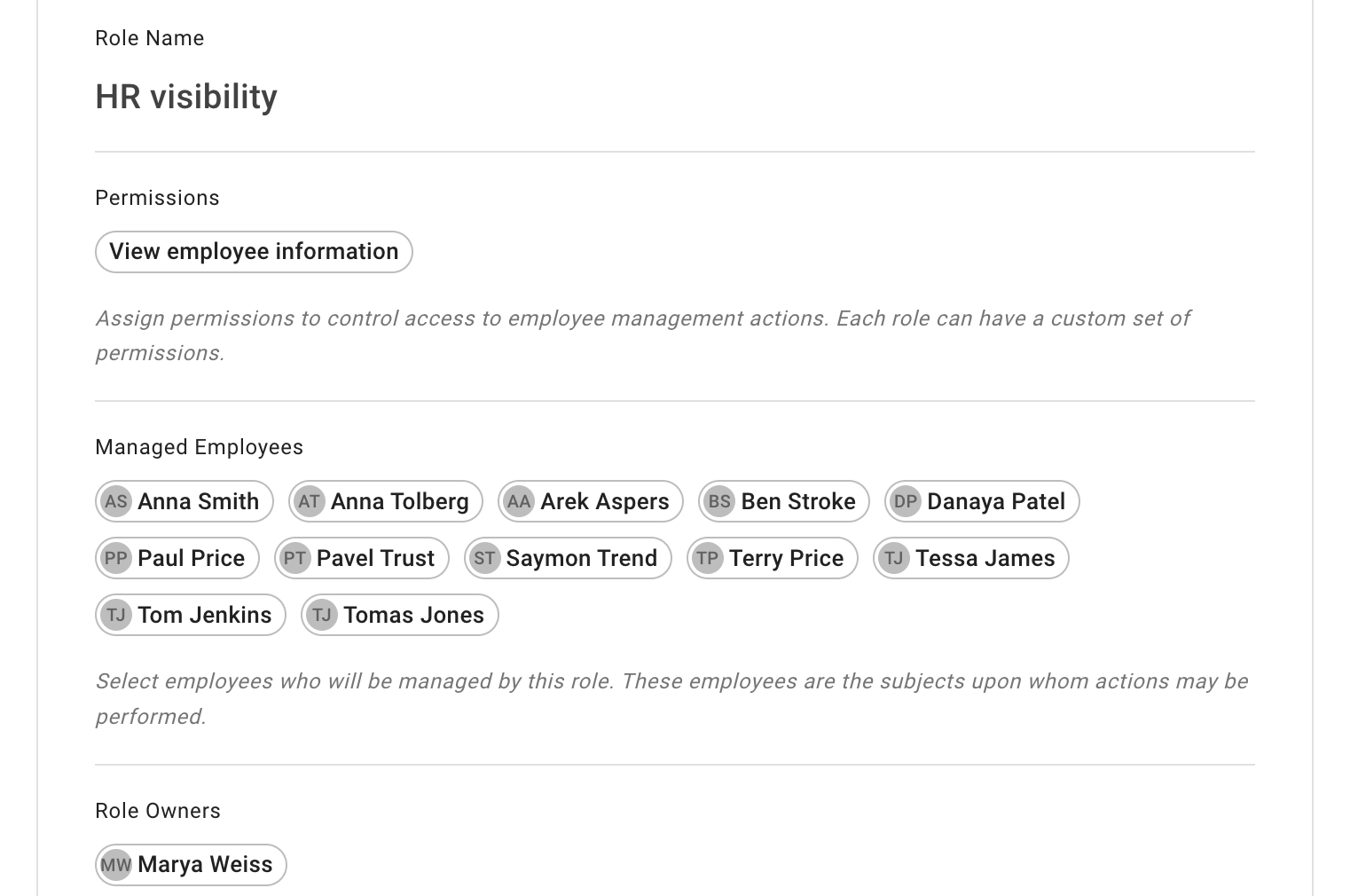
Assign management permissions (view, add, edit, delete) for selected employee groups without full admin rights. Example: allow HR to view employee data by creating a role and adding employees; assign the HR team member as Role Owner.
Restrict leave overlap
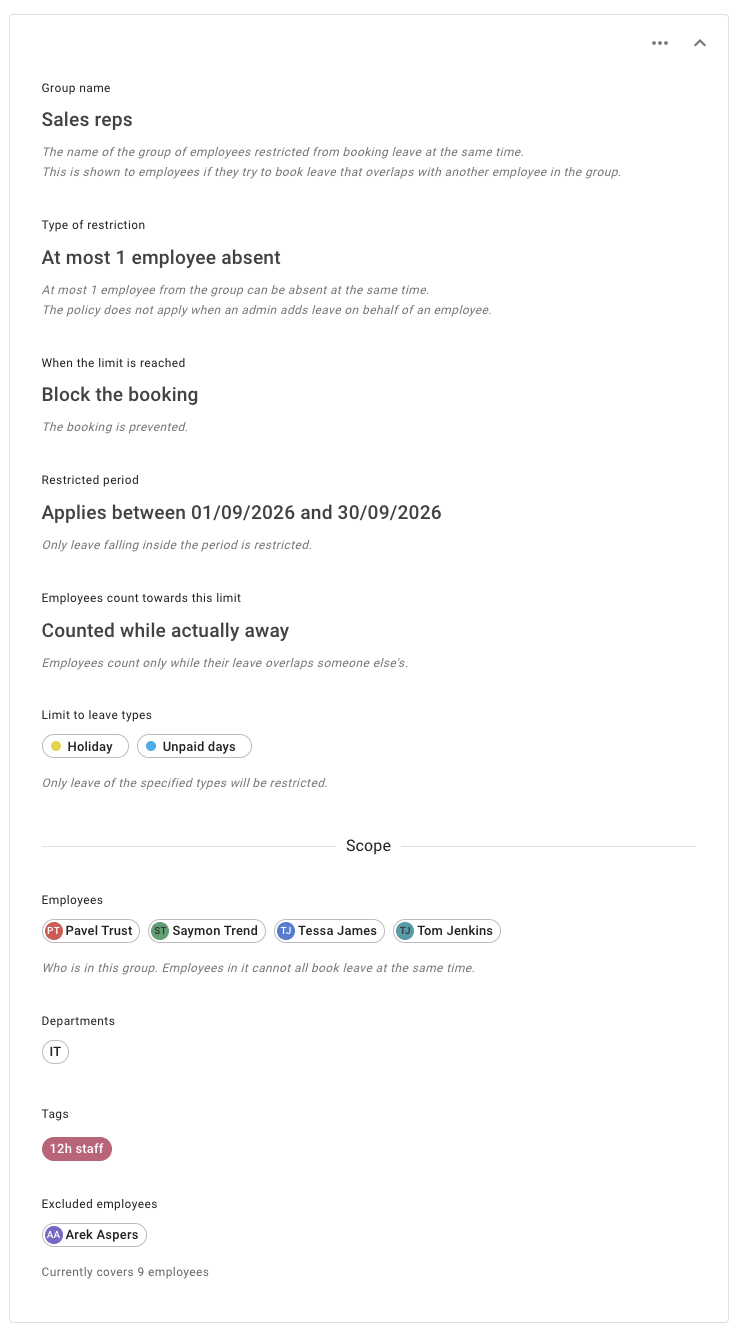
This policy defines a group of employees and a limit on how many of them may be away at the same time — at most a given number absent, or at least a given number present. When a leave request would break the limit, the policy either refuses it or lets it through and attaches a warning for the manager. You can narrow it to selected leave types, and to a restricted period such as a shutdown or a peak.
A group is built from employees, departments, locations and tags, or the whole company, minus anyone you exclude. Naming a department covers everybody in it, so somebody who joins later is in the group without an administrator touching it. A company can run as many groups as it likes, and an employee can be in several.
Read more: Restrict leave overlap
Tenure Based Allowance
Automatically increase allowance based on start date and configured bands. Each band adds to the base allowance (not cumulative). Only the last applicable band applies.
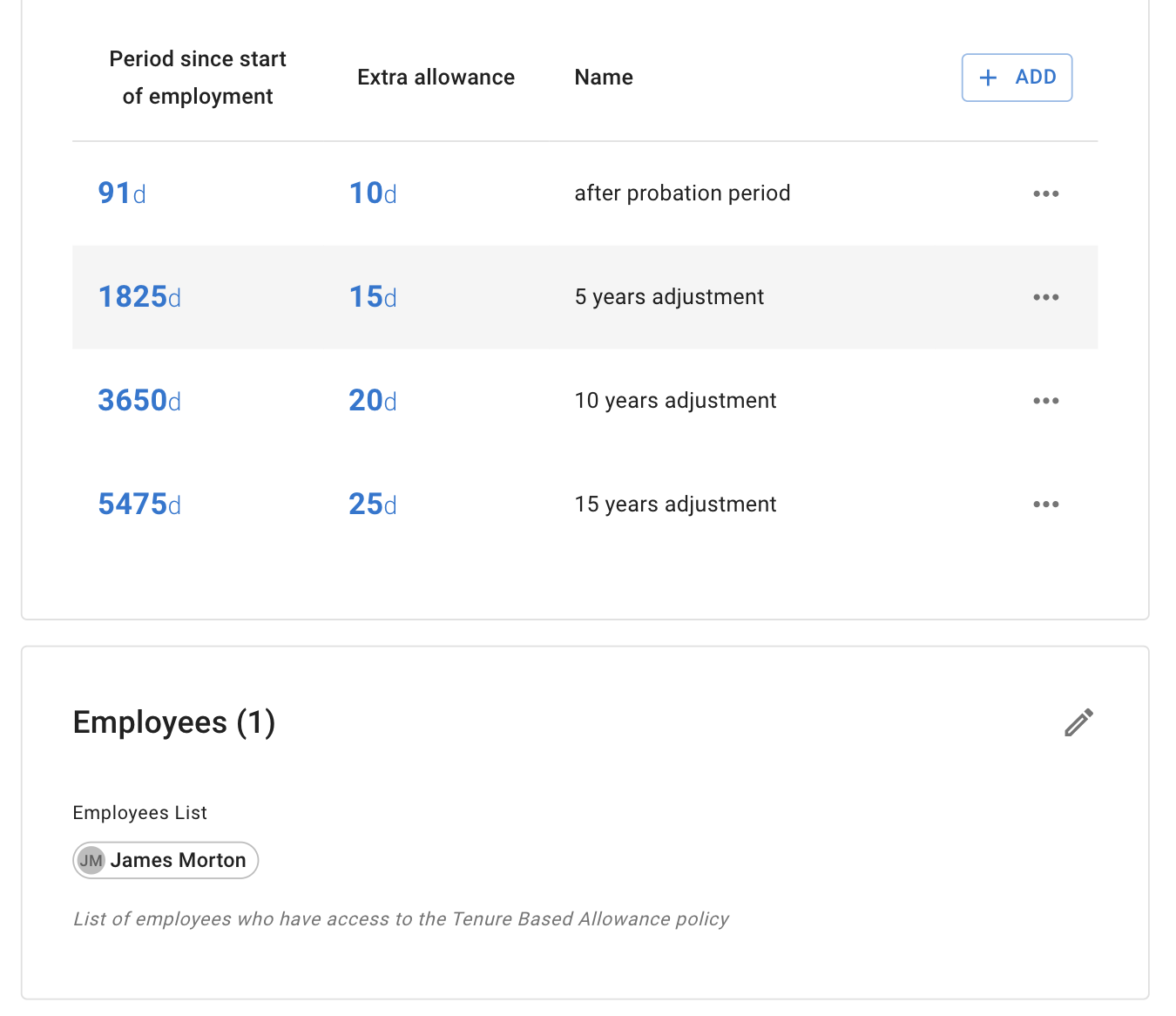
Ensure starting allowance is 0 before bands apply:
- Individual: Employee → Allowance → Override department allowance → 0
- Department: Settings → Departments → Set allowance to 0 days
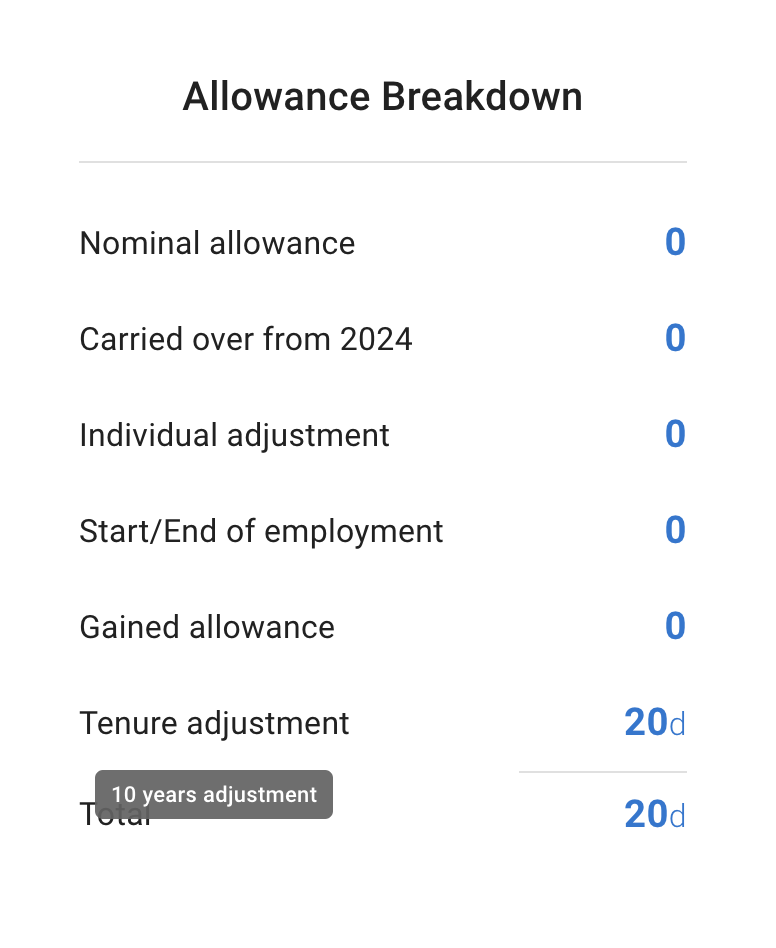
The system moves employees between bands automatically when milestones are reached. Example allowance view after 10 years:
Company Leave Data View
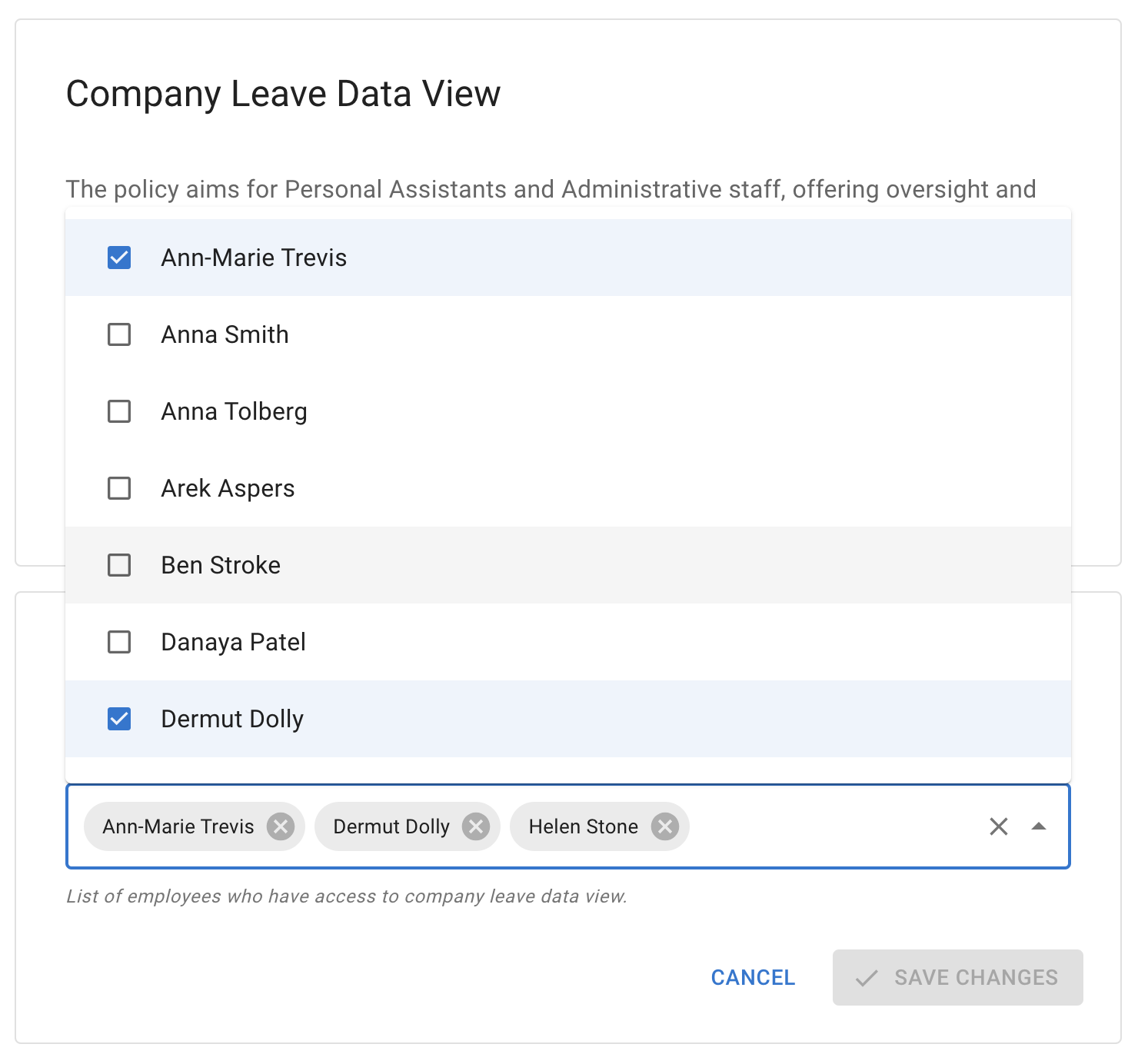
Provide selected employees (e.g., PAs, admins) access to Team View and individual calendars across all departments for coordination. Assign in the policy editor. The Policies tab in an employee’s details shows whether it applies to them.
Access to Reports
Grant selected employees access to the Reports section for departments where they are an Employee, Approver, or Secondary Approver. Admins retain full access. Assign in the policy editor; you can modify or revoke anytime.
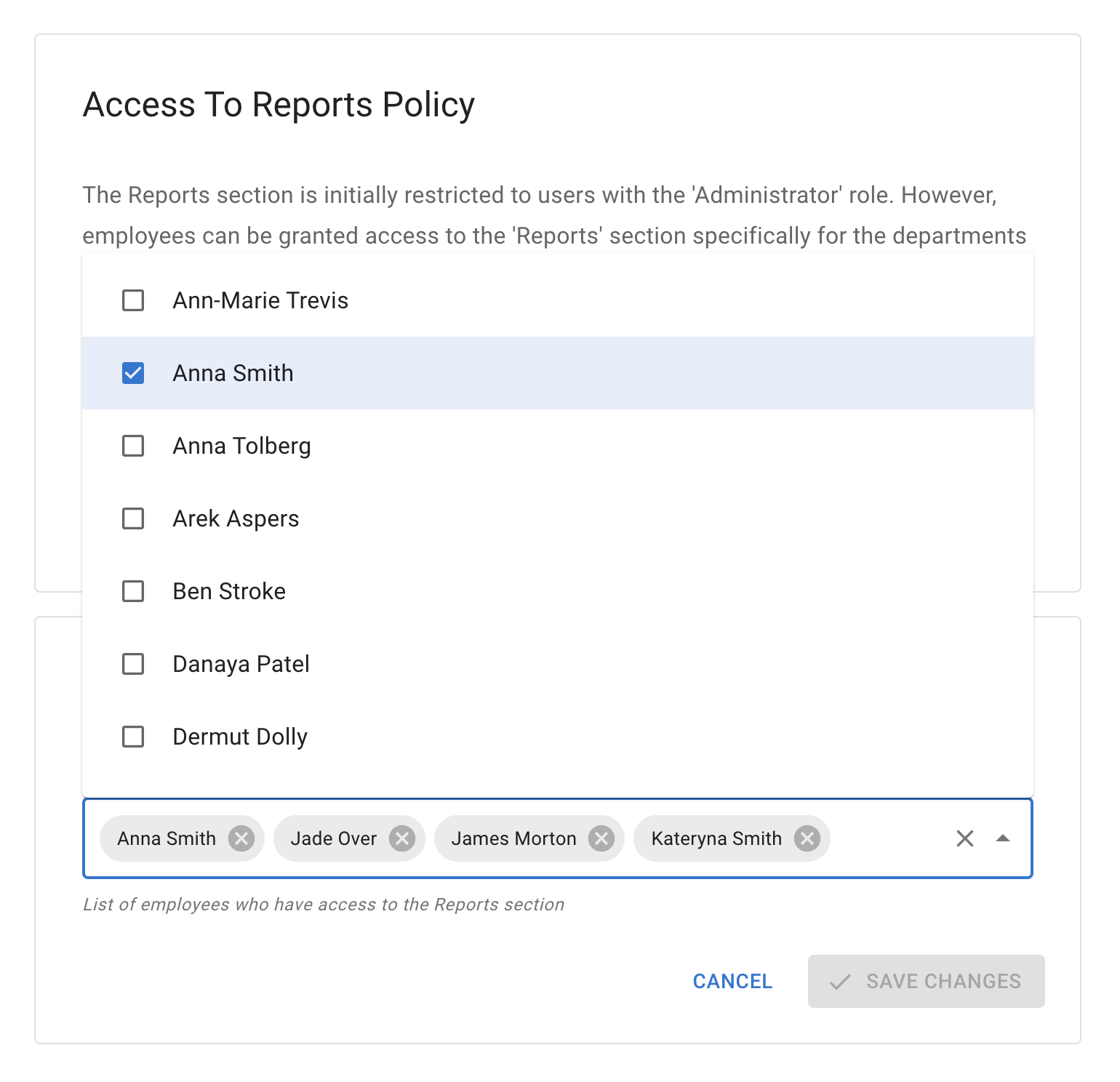
The Policies tab in an employee’s details shows whether it applies to them.