
Managing departments
Adding department
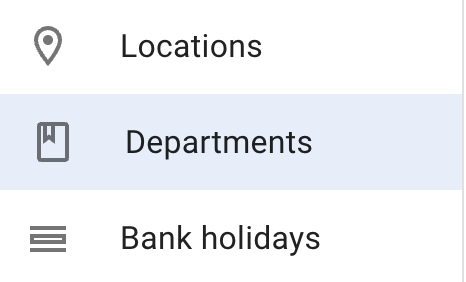
To manage Departments, open Settings → Departments.
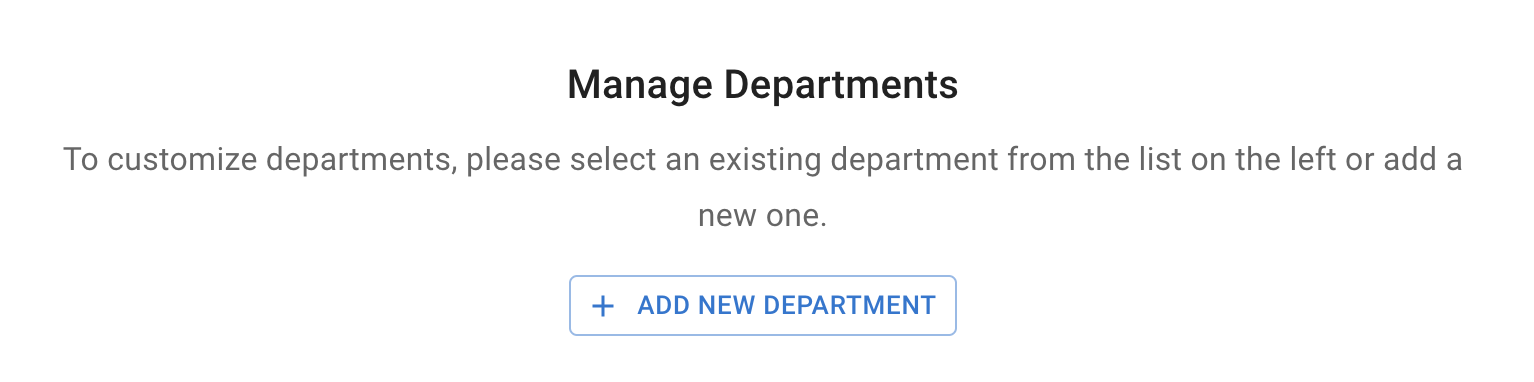
Press the “Add new department” button.
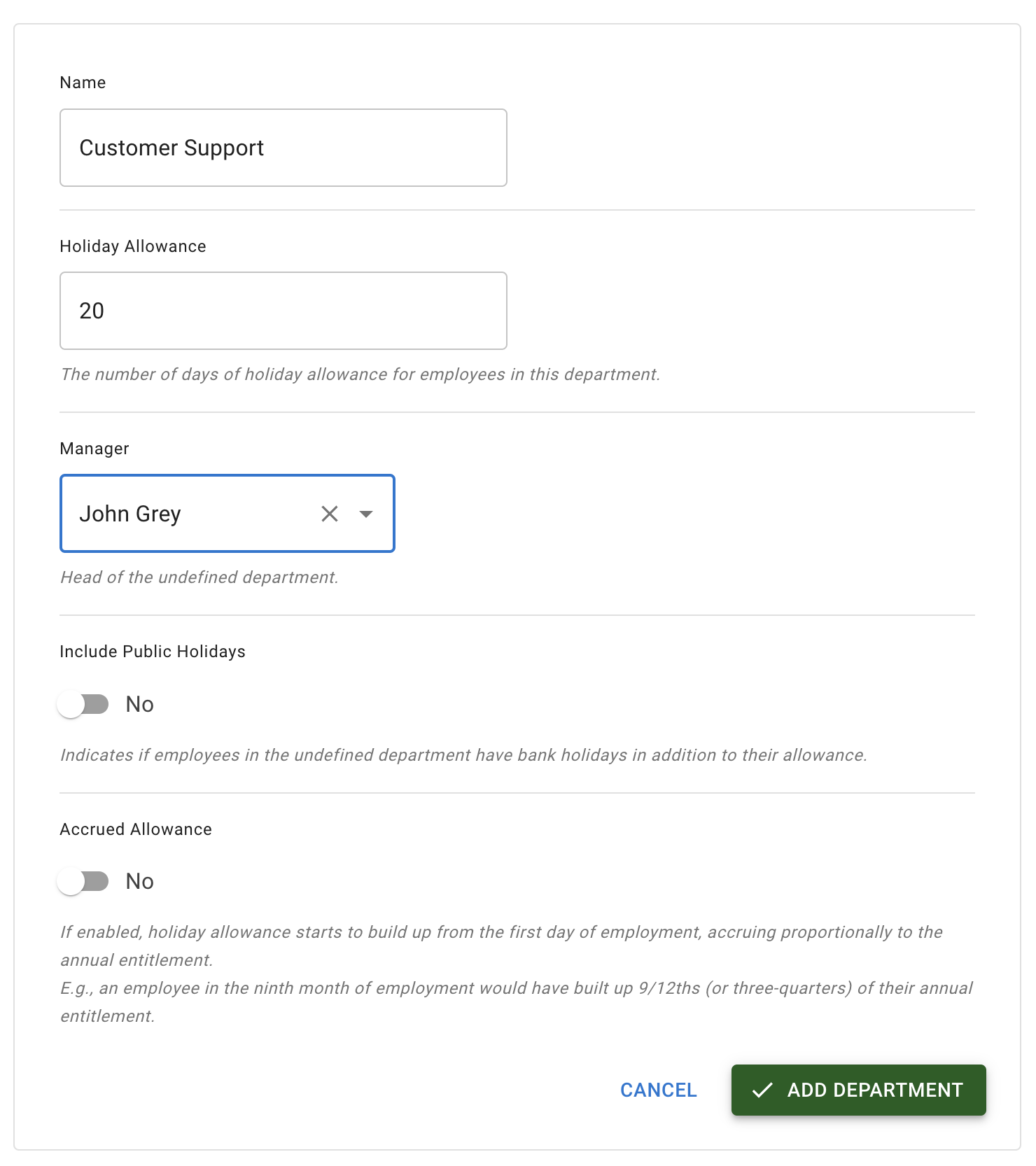
Fill the form:
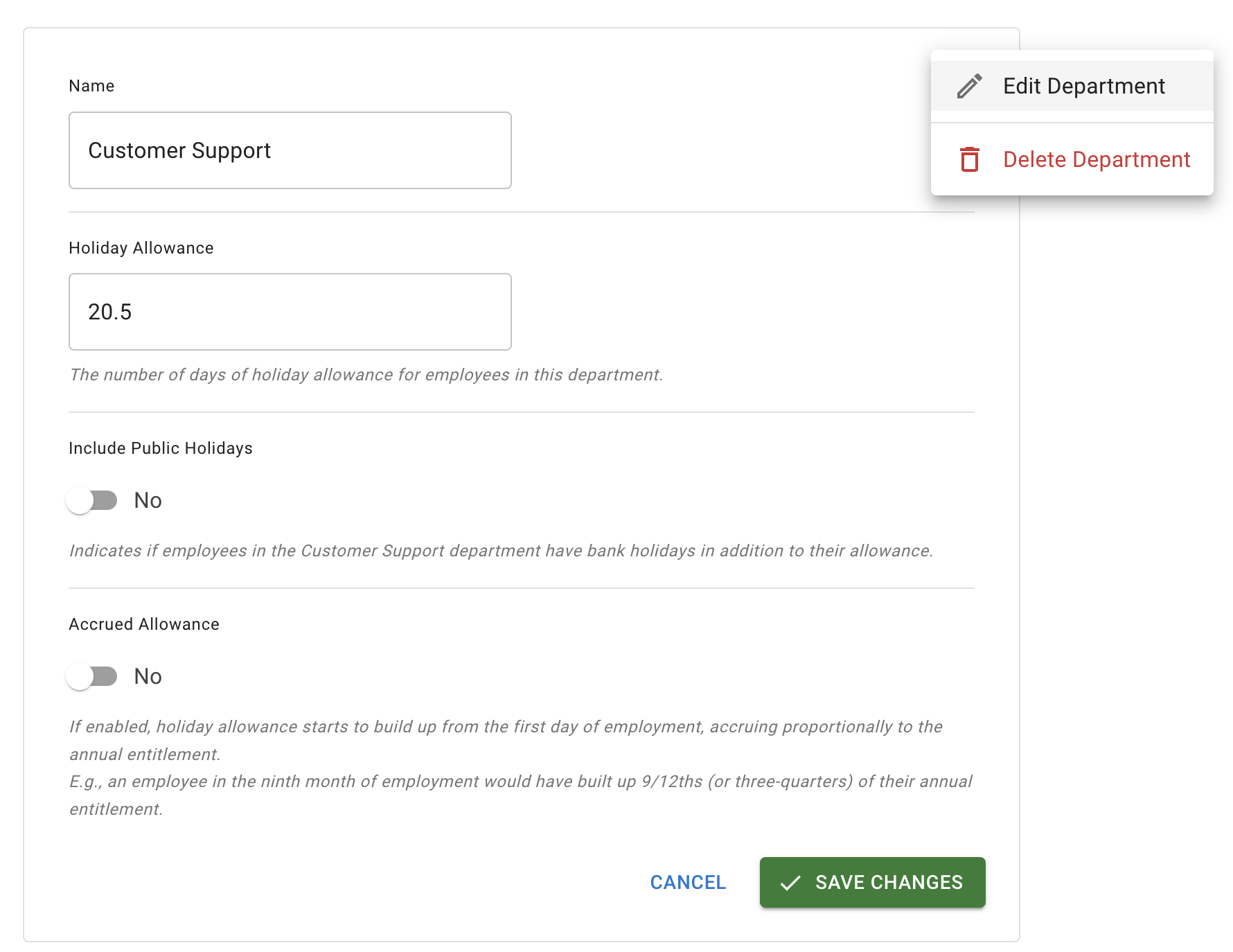
- Name of the department
- Allowance: total absences allowed for each employee in the department
- Manager (approves leave requests for this department)
- Include Public holidays (optional)
- Accrued Allowance (optional): employees build up their annual leave over the first year of their employment. Annual leave is accumulated for each month of employment. For example, after 3 months of working in the business, an employee would have accrued ¼ of their annual entitlement.
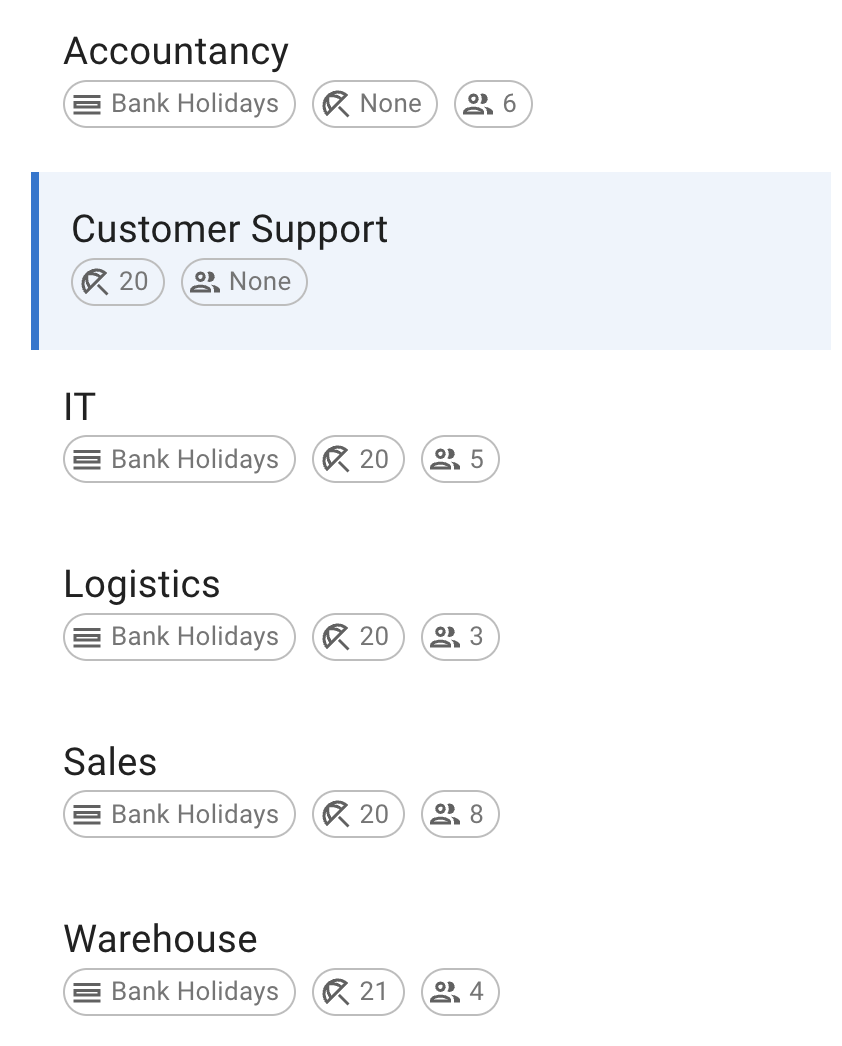
After creation, it appears in the department list.
Editing departments
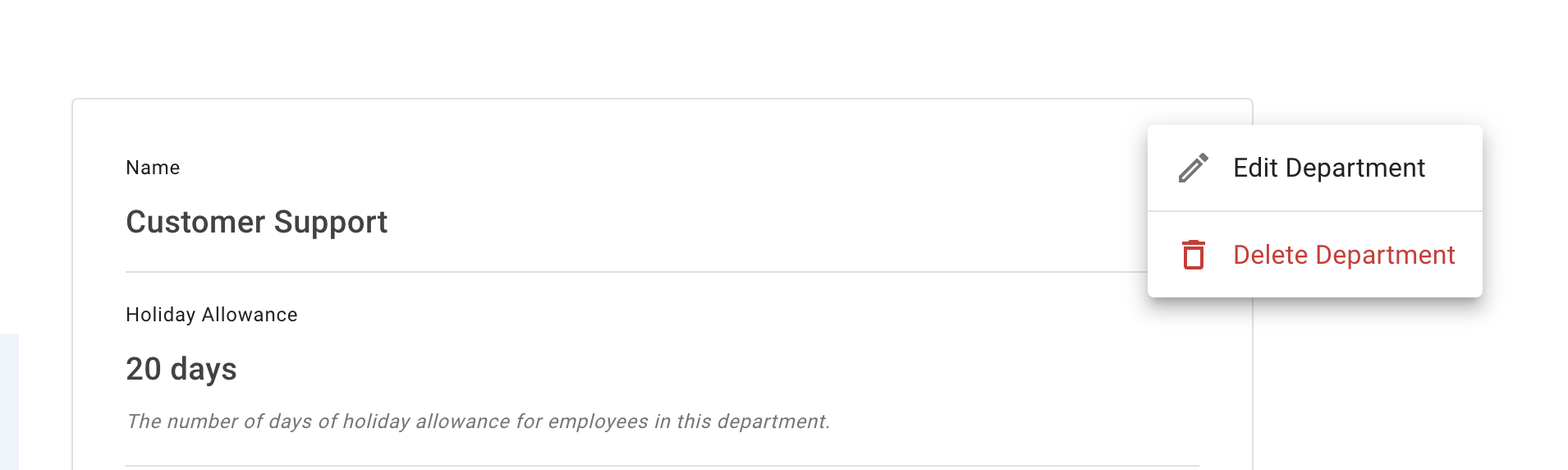
- Edit details: choose “Edit Department”, make changes, Save changes.
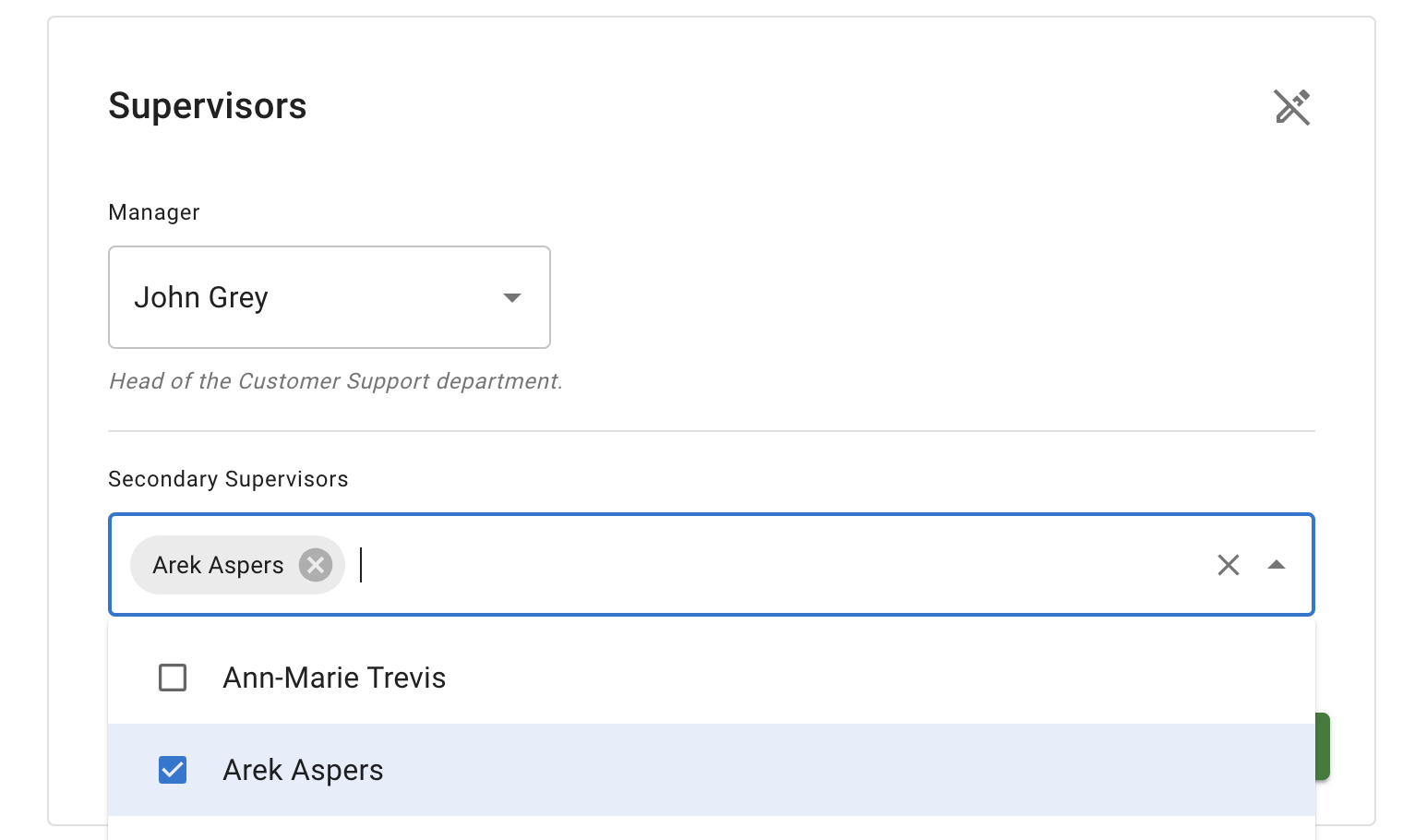
- Edit supervisors: enter edit mode (pencil icon), adjust manager or add a secondary supervisor, Save changes.
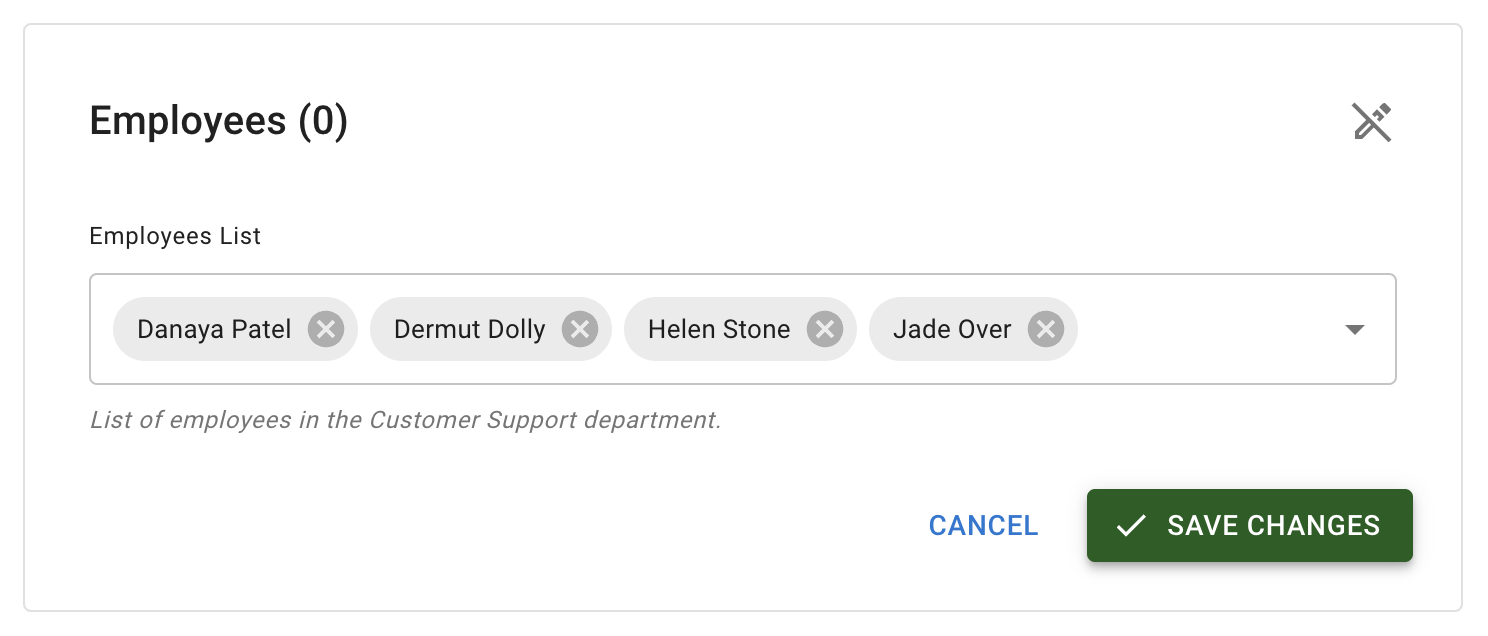
- Add employees: enter edit mode (pencil icon), add employees and Save changes. If an employee belongs to another department, they will be moved automatically.
Deleting departments
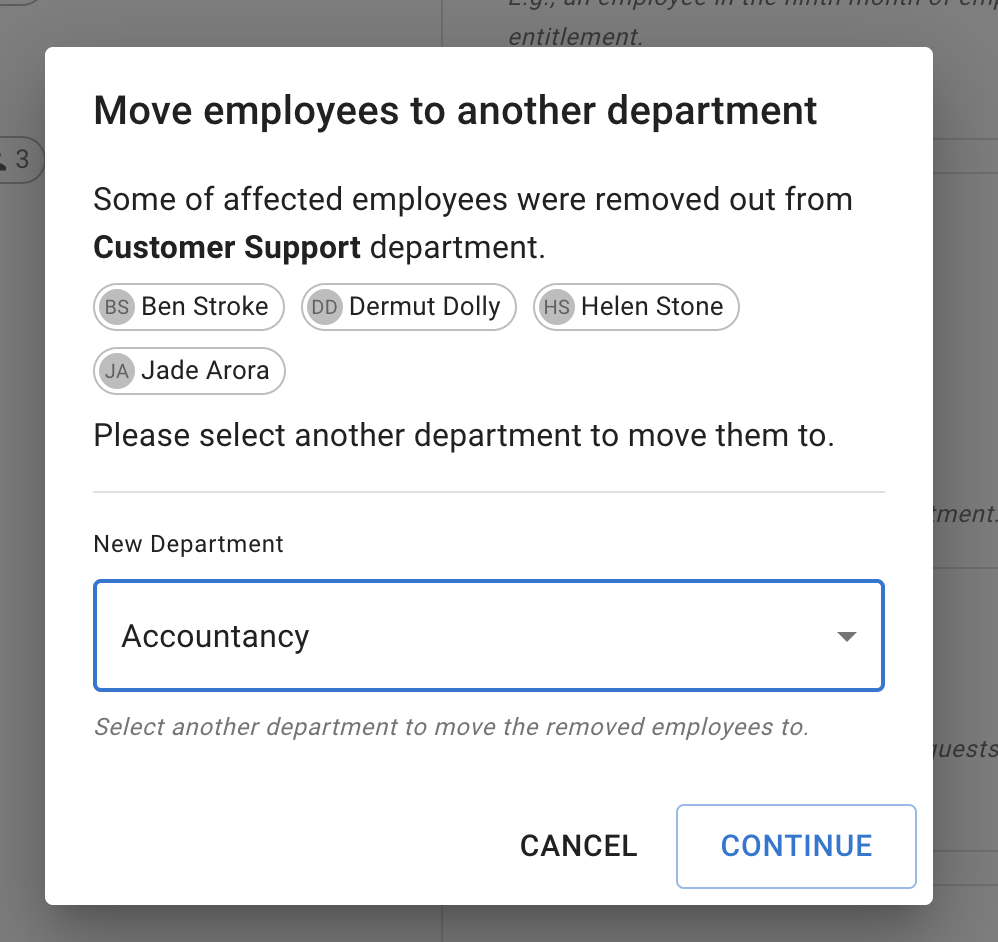
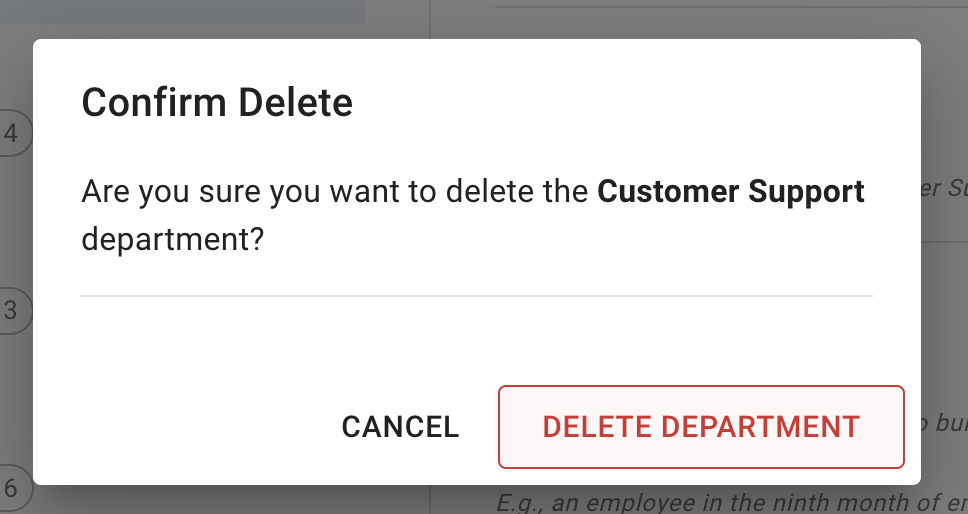
Department can be deleted only if it does not have any employees. For this go into department details and in the employees section delete all employees from this department and Save changes. System will show a pop-up window asking to reassign deleted employees to other departments.
Then delete the department:
Department allowance and PTO setup
The Allowance field sets the default leave allowance for employees in this department.
Use this when everyone in the department should follow the same annual leave or PTO allowance.
For example:
- full-time employees may receive 25 days
- part-time employees may be placed in a separate department with a different allowance
- contractors may be placed in a department with no paid holiday allowance
This is the simplest way to keep allowance consistent across a team.
If one employee needs a different allowance, you do not need to create a new department. You can override the department allowance from the employee’s Allowance tab.
If employees earn leave gradually over time, use an accrual schedule instead of giving the full allowance at the start of the year.
Read more: Setting up allowances