
Leave types
Leave types help you track different kinds of time off in TimeOff.Management.
You can use them for holidays, sick leave, working from home, unpaid leave, overtime, TOIL, study leave, parental leave, or any other kind of leave your business needs.
A leave type is a category, not a budget. The allowance is the employee’s overall budget for the leave year. The leave type decides whether a request touches that budget at all, and on what terms.
To manage leave types, open Settings → Leave types.
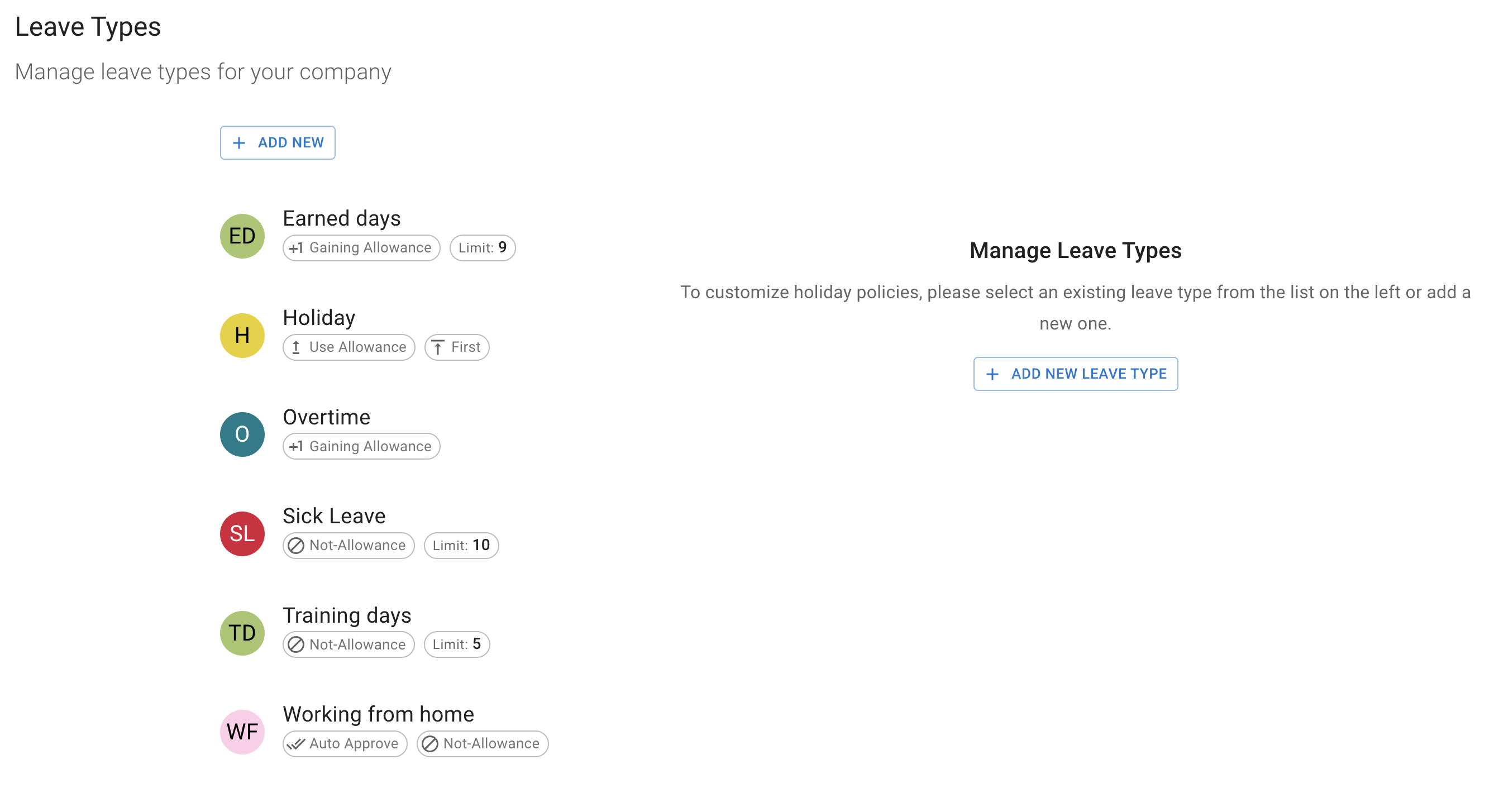
You’ll see every leave type your company has, grouped by how each one is counted: Uses the allowance, Adds to the allowance and Does not use the allowance. A leave type’s chips add only what its heading does not say: a rolling window’s length, any Limit, any Advance notice, how colleagues see it on the Team View (Shown as “Leave” or Not shown on the Team View), and which one is the Default when booking. Archived leave types come last, under Archived, struck through. There is a search box for accounts with a long list, and Add new for creating one.
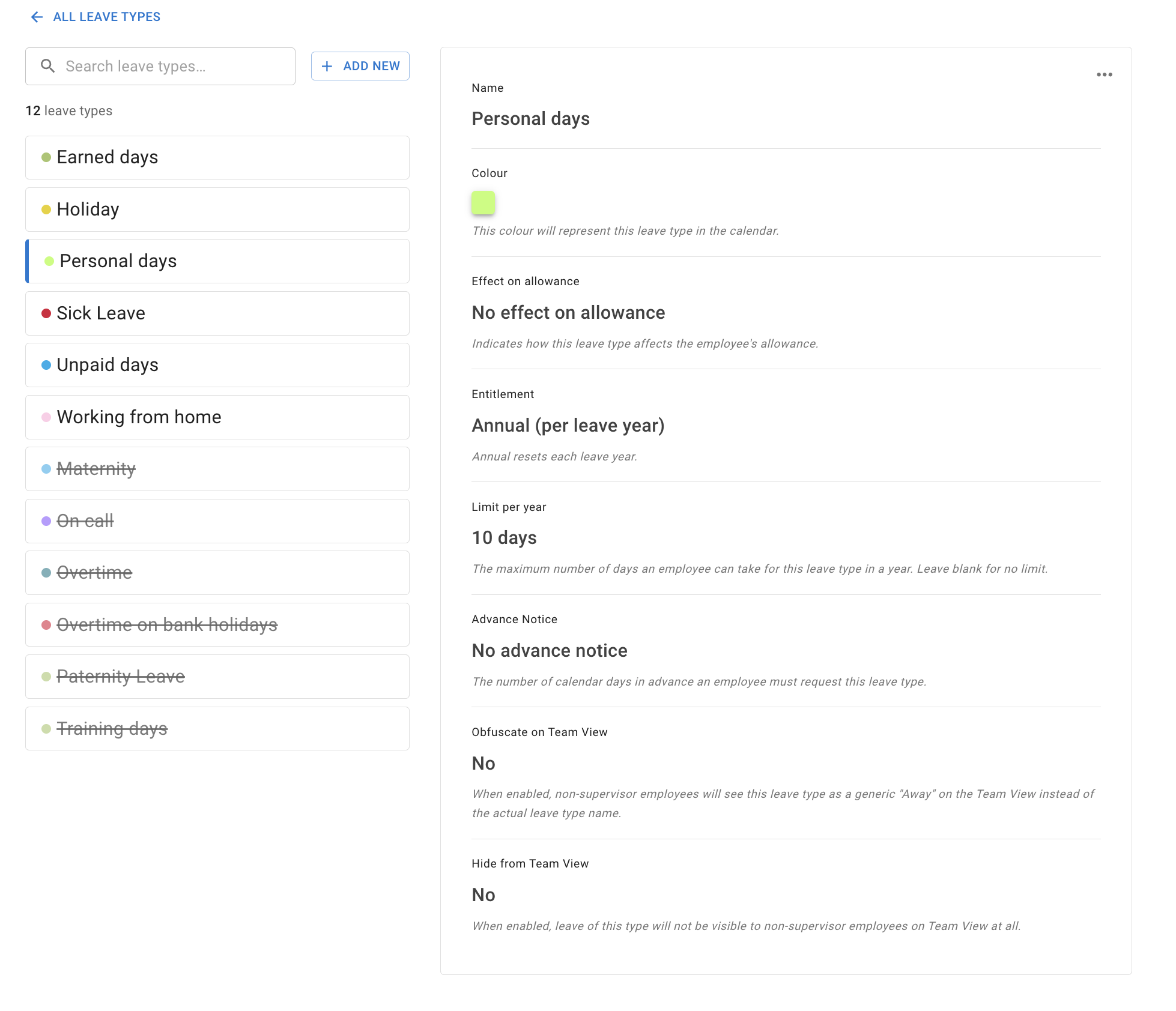
Selecting a leave type opens its details, where every setting below lives. At the top, What this leave type does sums up its settings in a few sentences. While you edit the leave type, those sentences follow the form, so you can read what it will do before you save.
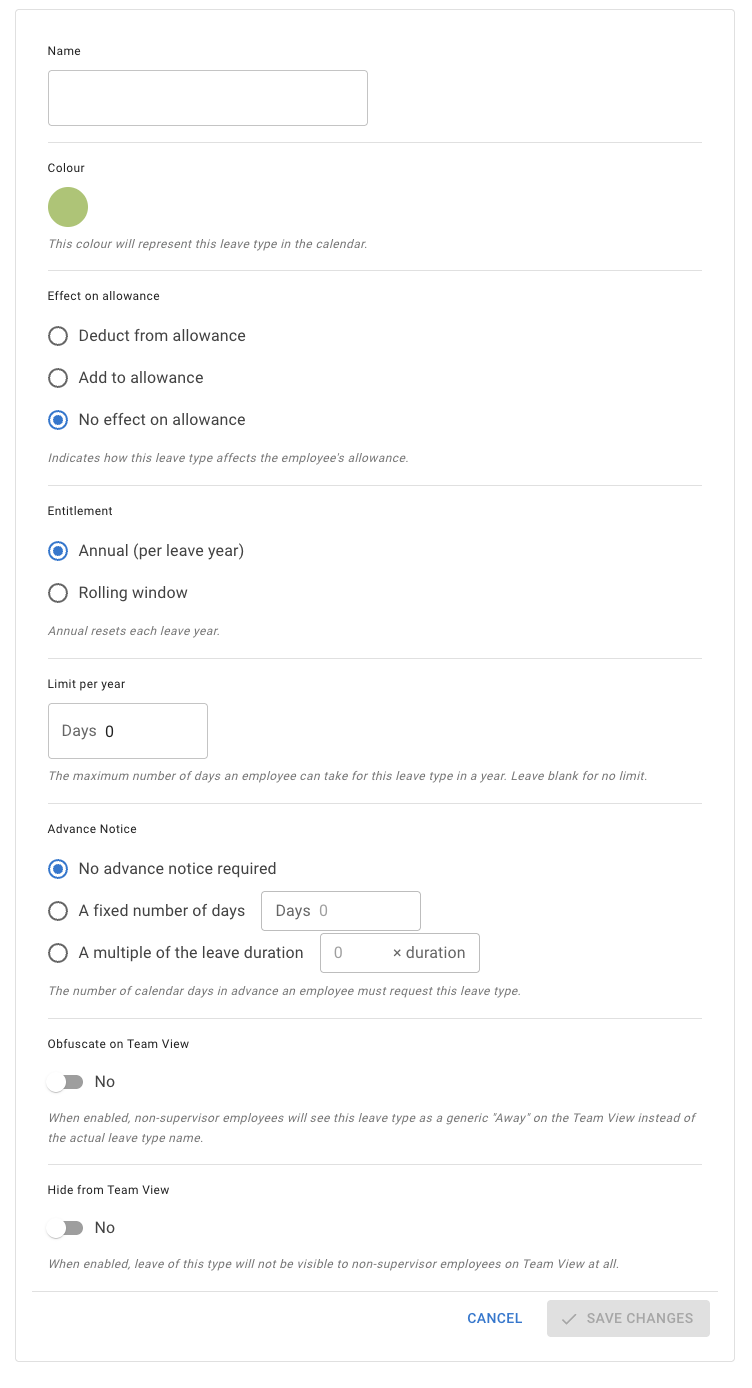
What you can set for each leave type
Each leave type can be customised to match the way your company manages time off.
The form groups its settings in four sections: What it is called, with the name, colour and Default when booking; How it is counted, with Counting, Rate and Limit; Booking rules, with Advance notice; and What colleagues see on the Team View, with Shown as.
You can set:
-
Name The name employees will see when booking leave.
-
Colour The colour shown on the calendar.
-
Default when booking The leave type Add leave opens on. The switch is offered once a leave type has been saved, not while you create it. See Set the default leave type below.
-
Counting This controls how the leave type affects employee allowance, and how its use is totalled. There are four options:
-
Uses the allowance Use this for paid holiday or any leave that should reduce the employee’s balance.
-
Adds to the allowance Use this for leave types that add time back to the employee’s balance, such as overtime or TOIL.
-
Does not use the allowance, counted per leave year Use this when the leave should be tracked but should not change allowance, such as sick leave, working from home, compassionate leave or unpaid leave. Its use is totalled per leave year, resetting each leave year.
-
Does not use the allowance, counted over a rolling window The same, except that its use is totalled across a window measured back from the leave itself.
This is the setting to check first when something looks wrong. Sick days coming out of the holiday balance almost always means the sick leave type is set to Uses the allowance when it should be Does not use the allowance, counted per leave year.
A leave type you create starts on Does not use the allowance, counted per leave year. Counting per leave year is the right answer for almost every company. A rolling window is a specialist option, for entitlements that are defined by a trailing period rather than by your company leave year.
Choosing the rolling window option changes two things:
- A limit becomes required rather than optional. The window only means something measured against a cap.
- Three further settings appear: Rolling window (months), for how many months the window covers, then Count bank holidays and Allow concurrent leave. No other option offers them.
When an employee books a rolling leave type, they are shown where they stand against the limit for that window, so it is not a constraint they discover only when the request is refused.
Read more: Rolling window leave types
-
-
Rate Offered only when Counting is Adds to the allowance. It scales how much allowance the employee gains relative to the time they record, so an hour of this leave type can be worth more, or less, than an hour of allowance. The form puts it as “Each day of this leave type adds this many days to the allowance.” This is what makes overtime and time-in-lieu arrangements work without manual adjustments.
Read more: Allowance adjustment
-
Limit The maximum number of days an employee can take for this leave type. Leave it blank for no limit, and the details show No limit. It is often used for sick leave, unpaid leave, or other leave types that do not use the main holiday allowance.
What the limit is measured over follows Counting above. Counted per leave year, it is the leave year. Counted over a rolling window, it is the number of consecutive months you set, so the rule reads as a number of days in any so many months — five days in any twelve consecutive months, for example — and the check looks back over that period rather than resetting on a fixed date.
Three things are worth knowing about limits:
- The limit is per employee, not per company. It is how much any one person may take, not a pool the team shares.
- It can be overridden for one employee — see Individual limits for leave types.
- Whether anyone may book past the limit is a separate, company-level decision — see Exceed leave type limits.
-
Advance notice Choose whether this leave type needs notice, and how much: None, Must be requested at least … days ahead or Must be requested … × its own length ahead, the last two each with a box for its figure.
For example, a fixed 10 days for holiday means employees can only book that leave type at least 10 days before the start date. A multiple scales the requirement with the booking instead, so a long booking needs more warning than a short one.
Advance notice applies to employees booking for themselves. When an admin or a manager books on someone else’s behalf, it does not get in the way.
Read more: Advance notice for booking leave requests
-
Shown as What colleagues who are not admins or managers see of this leave type on the Team View:
-
The leave type’s name They see the leave under its own name.
-
“Leave” They see a generic Leave rather than the name. The leave still shows, so people can still plan cover.
-
Not shown Leave of this type does not appear for them on the Team View at all.
The setting applies to this leave type only, and admins and managers always see the real leave type, as the form notes: “Supervisors and admins always see the type.” See Hide leave type details on Team View below for how it fits with the company-wide settings.
-
The details of a saved, active leave type end with Also governed by, a read-only summary of what decides the leave type besides its own settings. Who may book it reads Everyone, lists the Leave Access policies that grant the leave type, or reads Only employees not covered by a Leave Access policy (see Control who can use each leave type below), and Policies naming it lists any other policy that names it. For a leave type with a limit, Exceeding the limit reads Allowed or Not allowed, beside a link to Advanced settings.
Approving a leave type automatically
Auto-approval is no longer a setting on the leave type itself. To have requests for a leave type approved the moment they are made, add an auto-approval policy and limit it to that leave type.
Two parts of the policy decide the rest. Scope says whose leave it covers — Apply to entire company covers everybody, or you can name employees, departments, locations or roles. Auto-approved actions says what completes instantly, and a new policy starts with all four switches on, covering revocations and on-behalf bookings as well as requests.
Where a two-tier approval policy also applies to a request, its screening step comes first unless the auto-approval policy is set to skip it.
Read more: Auto-approval policy
Control who can use each leave type
By default, every leave type is available to every employee. Creating one makes it available to the whole company, and most companies never need to change that.
Two things narrow it.
Leave Access policies
If different teams need different leave types, use Leave access in Employee policies.
A Leave Access policy groups selected leave types together and assigns them to:
- selected employees
- departments
- locations
This is useful when some leave types should only be available to certain people.
For example:
- Study leave may only apply to one department.
- A local leave type may only apply to one location.
- Senior managers may need leave options that other employees do not use.
Three behaviours are worth knowing before you adopt them.
Policies add up. An employee covered by more than one policy gets every leave type those policies grant, not just the ones from a single policy.
Once you use Leave Access policies, creating a leave type no longer reaches the people those policies cover. The leave types page becomes a library rather than a distribution list. A new leave type reaches an employee covered by a policy only after you add it to that policy as a second step. Employees who are not covered by any policy still follow the company-wide default and get it straight away — which is what makes a mixed set-up confusing. This is the single most common surprise for companies adopting the feature: if you have just created a leave type and the people who need it cannot see it, this is almost always why.
New departments and locations are not picked up automatically. Adding a department does not add it to any policy, so its employees will not receive that policy’s leave types until someone adds the department to it.
Read more: Employee policies - Leave access
The employee’s own Leave types tab
Every employee record has a Leave types tab, under Employee details. It lists the leave types with an Available switch and a Limit (in days) for each, so you can:
- switch one leave type off for that person, so it is not offered when they book; and
- give that person a limit that differs from the leave type’s own.
Use this for one-person exceptions, and a Leave Access policy for structural ones. Where a Leave Access policy governs an employee, the tab says so and shows only the leave types they have been granted.
If an employee ends up with no leave types available at all, the tab warns you — that employee cannot request leave.
Read more: Block selected leave types and Individual limits for leave types
Hide leave type details on Team View
Some leave types may be sensitive.
For example, you may not want everyone to see if a person is off sick, on unpaid leave, or using another private leave type.
Three separate controls decide what colleagues can see. They are in different places, so this section gathers all of them.
| Control | Where it lives | What it does |
|---|---|---|
| Shown as | The leave type | Set to “Leave”, colleagues who are not admins or managers see a generic Leave instead of the leave type name; the leave still appears, so cover can still be planned. Set to Not shown, they do not see leave of this type on Team View at all. |
| Hide leave type details on Team View | General settings | The company-wide version. Applies to every leave type at once, and leave appears in grey rather than in the leave type colour. |
| Show leave types in calendar feeds | Advanced settings | Whether leave synced out to Google Calendar, Outlook and similar names the leave type or shows a neutral Busy entry instead. |
Which to reach for:
- If only some leave types are sensitive, use Shown as on those leave types. It is the more precise instrument, and it leaves everything else readable.
- If your company’s default posture is privacy, use the company-wide setting in General settings.
- Either way, check the calendar feed setting separately. It governs a surface your company does not control, so it is worth deciding on its own terms rather than assuming it follows the Team View choice.
Admins and managers are unaffected by the two Team View controls above and continue to see the full leave details their permissions allow. The calendar feed setting is a different kind of control — it decides what the feed itself carries, so do not assume the same exemption applies there.
Read more: Team View privacy modes, Team View leave data privacy options and Calendar feed company settings
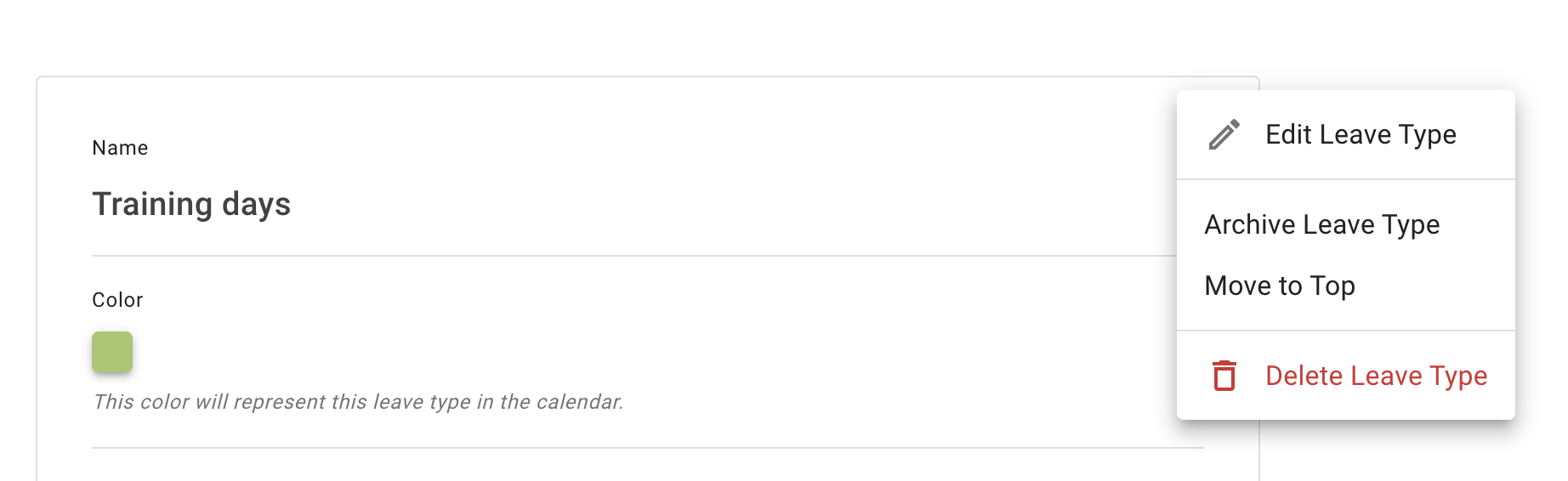
Leave type actions
For each leave type, you can:
- edit the leave type
- archive the leave type
- delete the leave type, if no bookings exist
Archiving is the normal way to retire a leave type. Deleting exists for tidying up a leave type created by mistake, and the product will not let you delete one that has ever been used. If you want an obsolete leave type gone from the booking list, you want to archive it.
Edit a leave type
Select Edit leave type to update the leave type settings.
You can change the name, colour, Default when booking, Counting and Rate, the limit, advance notice and Shown as.
After making changes, click Save changes.
Archive a leave type
Use Archive leave type when a leave type is no longer needed for new bookings.
Archived leave types cannot be selected by employees when they book leave. Old records stay in the system, so your reports and calendar history remain accurate. The product puts it plainly on the leave type itself: “This leave type is archived. It cannot be selected for new leave requests, and existing leave is unaffected.”
An archived leave type does not leave the Leave types page. It moves to the end of the list, under Archived, struck through, so you can still see it was once in use.

You can restore an archived leave type later. Select it in the list, then use either the Restore leave type button on the notice or the same action in its menu. It moves back to the active list and can be used for new bookings again.
Set the default leave type
To make a leave type the one Add leave opens on, select Edit leave type and switch on Default when booking, in its What it is called section. The switch is offered once the leave type has been saved.
The default leave type is not only where Add leave opens: it is also listed first when employees choose a leave type. Making your most-used leave type the default removes a step from the most common action in the product. Only one leave type can be the default, so switching it on for one replaces the current one, and the list marks the current default with a Default when booking chip.
Make the most common leave type the default. For example, many companies switch it on for Holiday so employees can find it quickly.
Delete a leave type
Deleting is for a leave type created by mistake. For anything that has been in real use, archive it instead.
Use Delete leave type only when you are sure the leave type is no longer needed.
Deleting a leave type is permanent. It cannot be restored.
A leave type can only be deleted if no bookings exist for it. If any leave has ever been booked against it, the product refuses the deletion and points you at archiving, so that history, reports and balances stay intact.
Common problems
| What you are seeing | Why | What to do |
|---|---|---|
| Sick leave is coming out of the holiday allowance | The leave type’s Counting is set to Uses the allowance | Set it to Does not use the allowance, counted per leave year. See Why isn’t leave being deducted from the allowance? |
| A leave type will not delete | Leave has already been booked against it | Archive it instead |
| You created a leave type and the people who need it cannot see it | Those employees are covered by a Leave Access policy, and the new leave type has not been added to it | Add it to the relevant policy |
| One employee cannot book anything | Every leave type is switched off for them, or their Leave Access policy grants none | Check their Leave types tab under Employee details |
| A new department is not getting the right leave types | New departments are not added to policies automatically | Add the department to the policy |
| Someone was blocked from booking and it is not obvious why | Usually advance notice, a leave type limit, or a clash with leave they already have where the leave type does not allow overlap | Check the leave type’s advance notice and limit first |
| Your team calendar is showing why people are away | The leave type’s Shown as setting, the company-wide setting, or the calendar feed | See Hide leave type details on Team View |
Best practice
Keep your leave type list simple.
Start with the leave types most employees need, such as holiday and sick leave. Then use Employee policies if certain leave types should only be available to specific departments, locations, or employees.
This keeps booking simple for employees and gives managers better control over leave tracking.