
How to action time off requests
When an employee submits a leave request, their assigned manager or approver receives:
- a count on the Leave requests button in the bar at the top of the page
- an email notification with a link to the request
Managers can then review the request and choose whether to approve or decline it.
The requests you can action depend on your company permissions and approval setup.
Open a leave request
Open Leave requests in the bar at the top of the page, or use the link in the email.
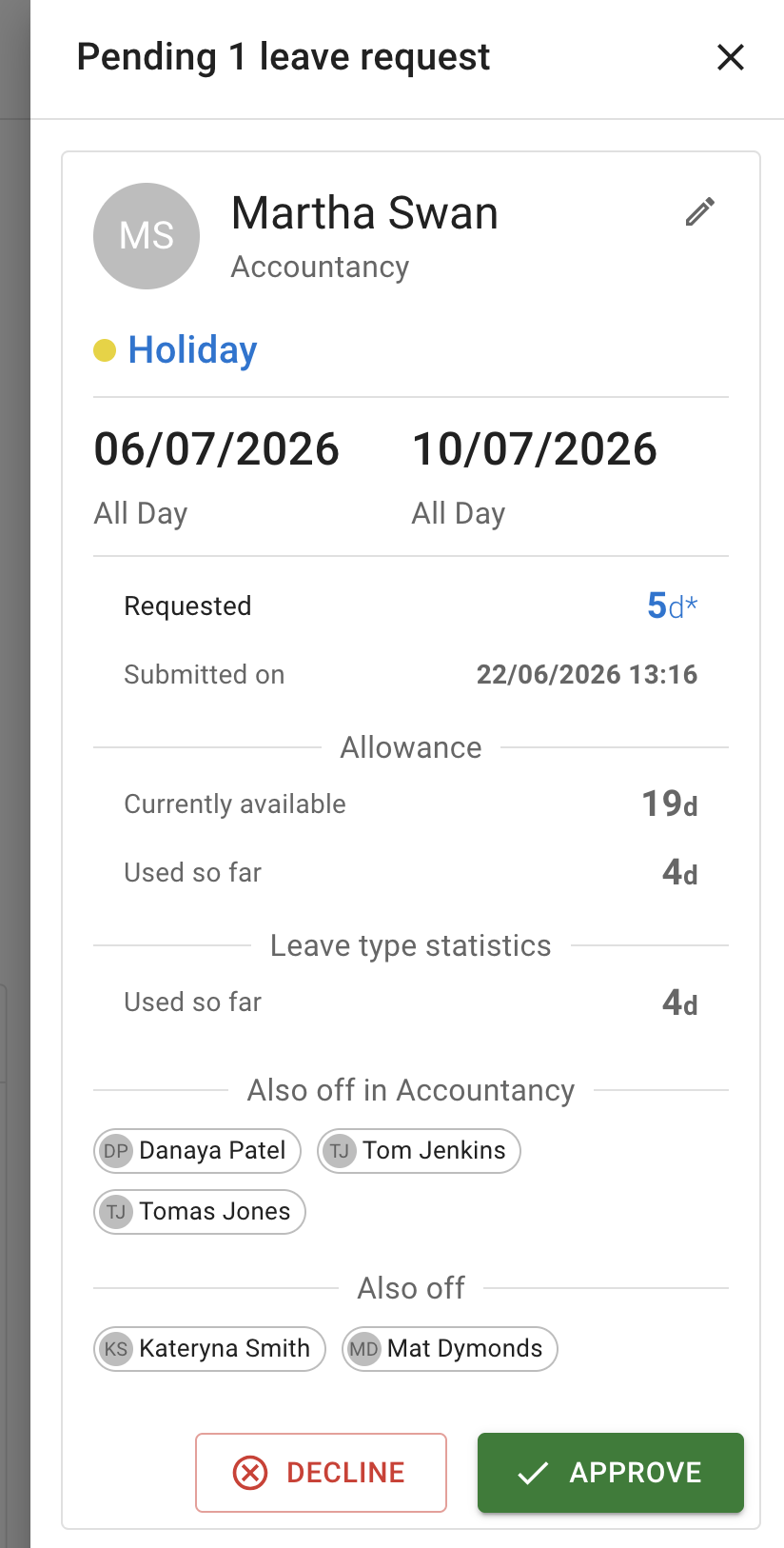
The pending requests page shows requests that are waiting for a decision.
What to review
Before making a decision, check:
- the employee
- the leave type
- the requested dates
- the length of the absence
- whether it is a full or partial day
- the employee’s comment
- any files attached to the request, such as a fit note
- the employee’s remaining allowance, where visible
- who else is off during the same period
- any blackout dates or important company events
Files attached to a request are listed under its comments. Select a file’s name to download it.
Read more: Attaching files to leave requests
Use Team View to check team availability before approving the request.
Read more: Using Team View
Approve a request
Approve the request when it follows company policy and suitable cover is available.
To approve it:
- Open the pending request.
- Review the request details.
- Add a comment if needed.
- Select Approve.
The request will move from pending to approved.
It will then appear as approved in the employee’s calendar and Team View.
The employee will also receive an email notification.
Decline a request
Decline the request when it cannot be accepted.
For example:
- too many people are already off
- the request falls within a blackout period
- the wrong leave type was selected
- the employee has not followed company policy
- there is not enough notice
- the request needs different dates
To decline it:
- Open the pending request.
- Review the details.
- Add a short reason where appropriate.
- Select Decline.
The employee will receive a notification about the decision.
A clear comment can help the employee understand what to do next.
Edit a pending request
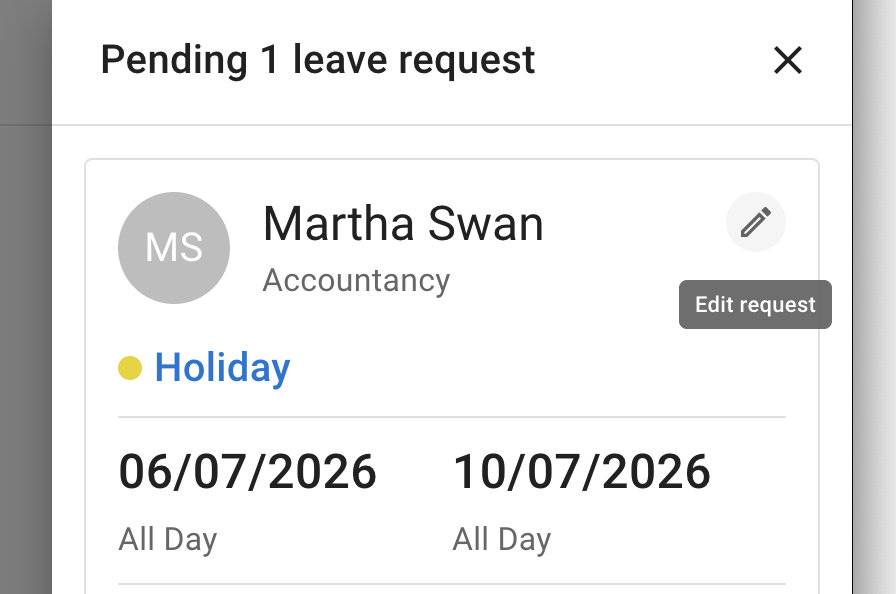
Managers and administrators may be able to edit a pending request before approving or declining it.
Depending on your permissions, you may be able to change:
- the leave type
- the dates
- the duration
- full-day or partial-day details
- the request comment
This is useful when the request is correct in principle but contains a small mistake.
Add a short comment explaining what changed.
Approved requests
Authorised managers and administrators may also be able to edit or cancel an approved request from Team view.
This may be needed when:
- the employee’s plans change
- the wrong dates were approved
- the wrong leave type was used
- the duration needs correcting
Check the employee’s allowance after making a change.
Read more: Cancel or revoke leave requests
Employee revocation requests
An employee may ask to remove leave that has already been approved.
This creates a revocation request for an authorised manager or administrator to review.
You can then:
- approve the revocation and remove the leave
- decline the revocation and keep the approved leave
Review any comment from the employee before making the decision.
Check Team View before approving
Team View helps you understand the effect of the request on your business.
Check:
- how many employees are already off
- whether key roles have cover
- overlapping requests
- pending requests shown on the calendar
- the employee’s department or location
- busy periods or company events
This is especially useful for small teams where one absence can have a larger effect.
If you do not receive a request
If an expected request does not appear, ask an administrator to check:
- who is assigned as the employee’s approver
- whether the employee belongs to the correct department
- whether your manager permissions are active
- whether the request was auto-approved
- whether another approver has already actioned it
Read more: How to assign and manage leave approvers
Action requests on mobile
Managers can also review and action requests from a mobile browser.
This is useful when a request needs a quick decision and you are away from your desk.
Read more: Using TimeOff on mobile
Related articles
-
Using Team View Check team availability, overlapping absences, departments, and locations before approving leave.
-
New manager guide Learn how to approve requests, edit employee leave, add absences, and manage team calendars.
-
Leave request created on behalf of an employee Add leave for an employee when you have permission to manage their requests.
Best practice
Review team availability and company policy before making a decision.
When declining or changing a request, add a short comment so the employee understands what happened.