
Using Team View
Team View gives you one shared calendar for employee leave.
Use it to:
- see who is off
- check pending and approved leave
- spot overlapping requests
- plan team cover
- filter employees by department or location
- request new leave
- review selected employee details, if you have permission
What you can see depends on your role and company privacy settings.
Open Team View
Select Team View from the main menu.
The calendar shows employee absences for the selected period.
Use the navigation controls to move between dates.
Depending on the screen and device, you may be able to use:
- monthly view
- weekly view
- previous and next date controls

Understand the calendar
Leave types are colour-coded to make the calendar easier to scan.
Use the legend to understand what each colour means.
Team View may show:
- approved leave
- pending leave requests
- public holidays
- company events
- blackout periods
- scheduled and non-working days
Pending requests are normally shown differently from approved leave, such as in orange.
Your company’s privacy settings may hide the leave type from some users.
Check who is off on a selected date
Select a date in Team View to quickly check which employees have leave booked.
You can use the quick filter to show employees who are off on that day.
This is useful when:
- reviewing a new leave request
- checking cover for a busy day
- planning a meeting
- checking whether too many people are already absent
- comparing overlapping requests
Filter by department or location
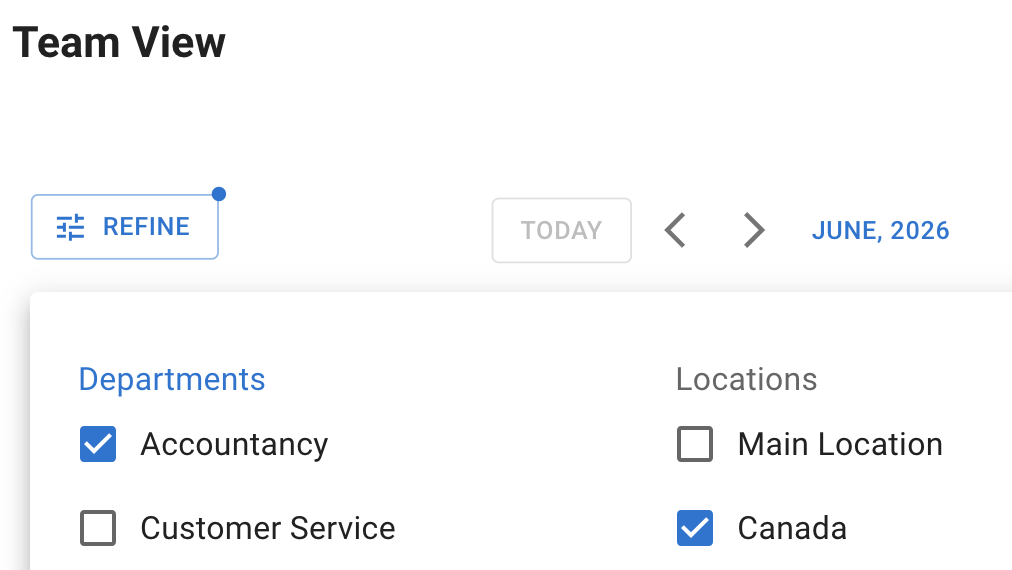
Use the available selectors to focus Team View on the employees you need to see.
You may be able to filter by:
- department
- location
- employees with leave booked
- selected dates
For example, a manager can review one department without showing the full company.
A multi-location business can check leave for one office or region.
The filters available depend on your permissions.
Sort employees
Team View may allow employees to be sorted by:
- name
- upcoming absence
Sorting by name makes it easier to find one employee.
Sorting by upcoming absence helps managers see who will be away next.
Use Team View before requesting leave
Employees can use Team View to check team availability before booking time off.
Before submitting a request, look for:
- colleagues already on leave
- busy periods
- blackout dates
- company events
- pending requests that may overlap
Team View is a planning guide. Your company’s leave policy and approval process still apply.
Read more: How to request leave
Create a new leave request
Select New Absence to start a leave request.
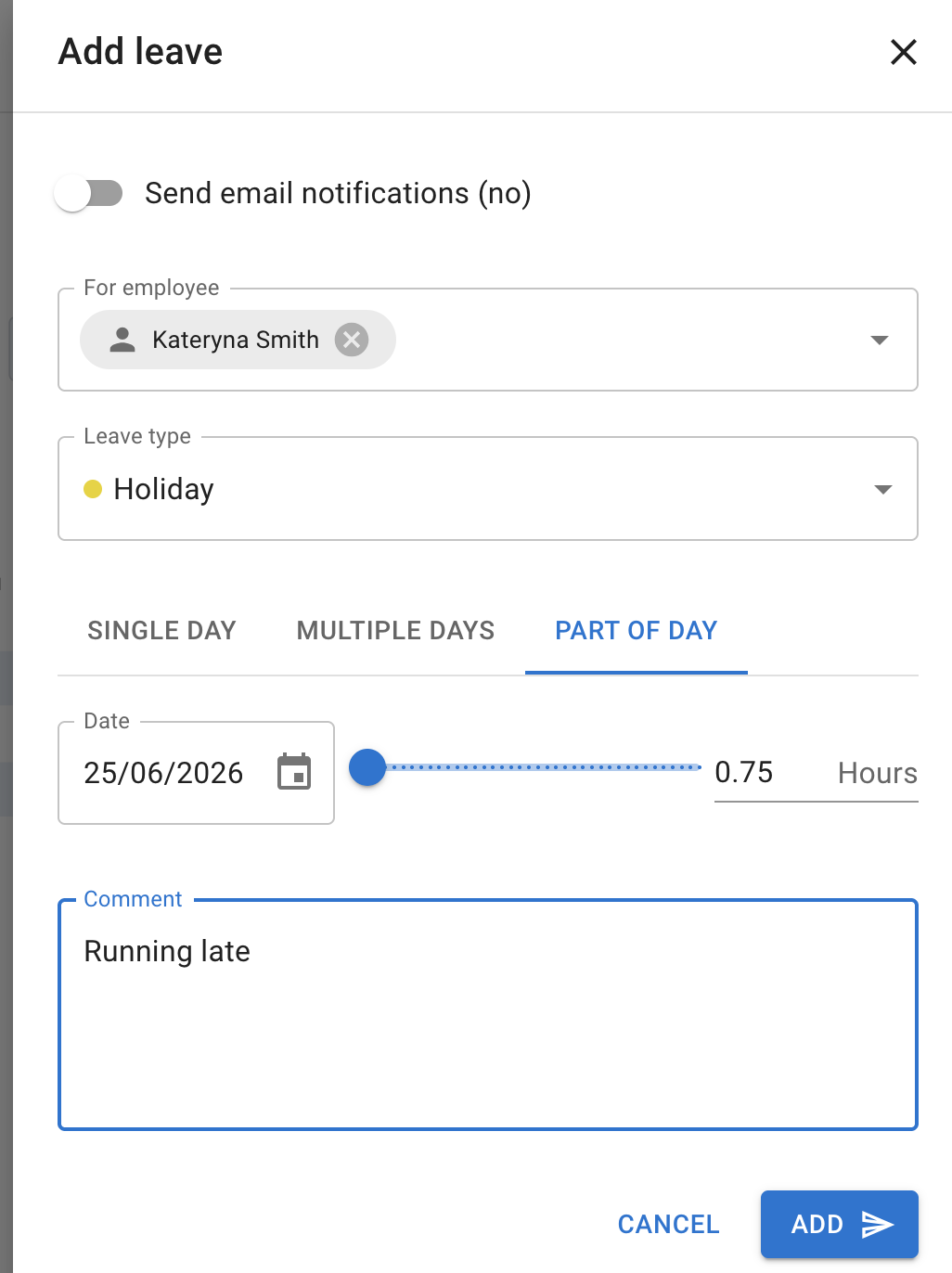
Depending on company settings, you may be able to request:
- one full day
- several days
- a morning or afternoon
- a half day
- a selected number of hours
Read more: Allow partial leave
Team View for managers and supervisors
Managers and supervisors may have extra options in Team View.
Depending on their permissions, they may be able to:
- see employees in departments they manage
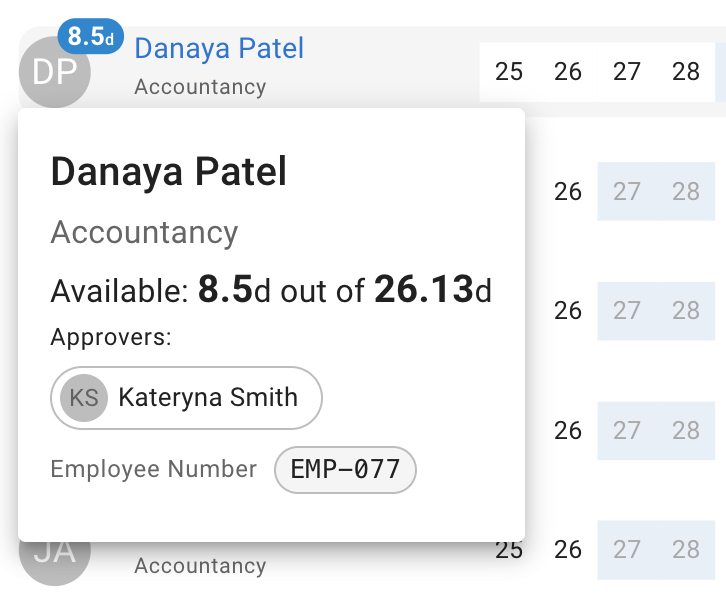
- open employee details
- review taken and available allowance
- see full leave-type details
- approve or decline requests
- edit or cancel employee leave
- add leave on behalf of an employee
Employee pop-ups can provide a quick view of taken and available days.
Read more: Employees section for supervisors
Check Team View before approving leave
Managers should use Team View before approving a request.
Check:
- who else is already off
- pending requests for the same dates
- whether key roles have cover
- the employee’s department or location
- busy periods
- blackout dates
- important company events
This helps managers make fair and consistent decisions.
Read more: Approve or decline time off requests
Team View access and privacy
Administrators can control who can access Team View.
The available visibility options may include:
| Privacy option | Who can see Team View |
|---|---|
| Admins only | Only administrators |
| Admins and supervisors | Admins see the company; supervisors see employees they manage |
| Department members | Employees see colleagues in their own department |
| Everyone sees everyone | All users can see the full company Team View |
The exact wording may vary based on your current company settings.
Read more: Team View leave data privacy options
Hide leave-type details
Your company can hide or obfuscate leave types in Team View.
When leave-type details are hidden:
- employees can see that a colleague is absent
- the specific leave type is not shown
- the absence may appear in grey
- sensitive details, such as Sick Leave, remain private
Admins and supervisors can still see full details where their permissions allow it.
This gives the team useful availability information without showing the reason for every absence.
What different roles may see
Team View access depends on company settings.
For example:
| Role | Typical visibility |
|---|---|
| Employee | Own department or another company-defined view |
| Supervisor | Departments or employees they manage |
| Administrator | The whole company |
| Selected policy holder | A wider company view where a policy grants access |
An administrator can change visibility through company settings and employee policies.
Notifications
Anything that needs your attention sits in the bar across the top of the page, or in a strip beneath it.
These can include:
- pending leave requests, counted on the Leave requests button in the top bar
- outstanding invoices for administrators, as a strip across the top of the page carrying Go to billing
Managers can open a pending request from Leave requests and review it.
Use Team View on mobile
Team View is available through a mobile browser.
You can use it to:
- see who is off
- switch between available calendar views
- check selected dates
- review team availability
- approve requests, if you have permission
Read more: Using TimeOff on mobile
If an employee is missing from Team View
Check:
- the selected department filter
- the selected location filter
- the employee’s department
- the employee’s location
- your Team View permissions
- the employee’s active or inactive status
- company privacy settings
An administrator may need to update the employee profile or Team View access rules.
Team View and the Team view office screen widget
Two surfaces share a name, so it is worth separating them.
Team View is this page. You sign in to it, filter it, select a person, and book leave from it.
Team view is also a widget for office screens — a read-only grid of the same approved leave, put on a screen in a shared space for whoever walks past. Nobody signs in to it and nobody touches it, and an administrator decides what it may show. A request still waiting for a decision does not reach the board: only approved leave does.
Read more: Team view widget for office screens
Related articles
-
Team view widget for office screens Show approved leave as a grid on a screen in the office, and control what it names.
-
Approve or decline time off requests Review employee requests and check team availability before making a decision.
-
Team View leave data privacy options Control who can access Team View and whether leave-type details are visible.
-
Heat Map Review team absence levels and spot busy periods more quickly.
Best practice
Check Team View before requesting or approving leave.
Use filters to focus on the correct department or location, and keep sensitive leave details hidden where your company requires more privacy.