
Heat map
The Heat Map gives administrators a quick view of employee absence across the year.
It helps you:
- spot busy leave periods
- see when several employees are unavailable
- identify yearly absence patterns
- plan team cover
- review dates before approving leave
- prepare for seasonal peaks
Open the Heat Map
Select Heat Map from the main menu.
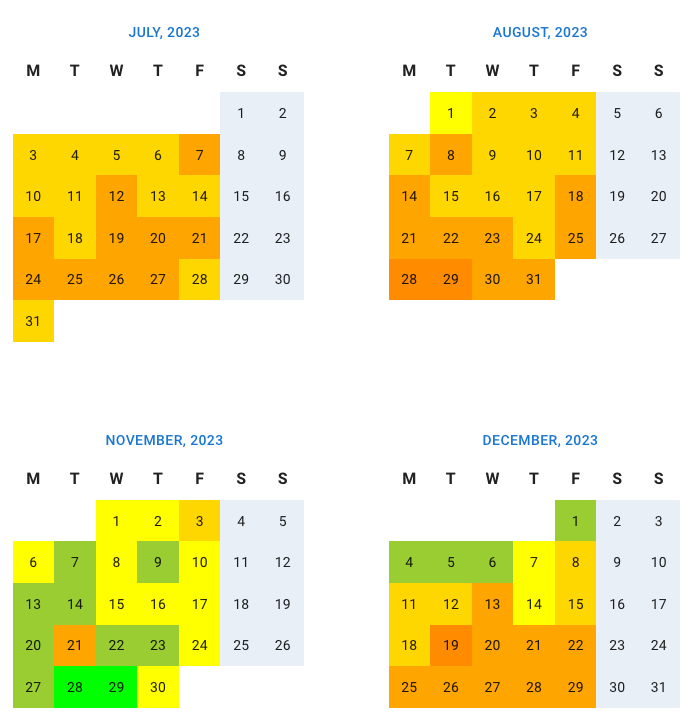
The Heat Map displays several calendar months together.
This makes it easier to see patterns that may be missed in a normal monthly calendar.
The Heat Map is a different screen from the team coverage heat map card on the Dashboard, which shows what share of each department is present on each working day of the current week; for a manager, the share of their team members in each department.
Understand the Heat Map
The Heat Map combines employee absence information into a simple calendar view.
Dates with more employees away are easier to identify.
This helps administrators find:
- popular holiday periods
- dates with limited team cover
- busy summer months
- year-end absence patterns
- possible staffing gaps
- periods that may need extra planning
See who is off
Hover over a date to see more information.
The date details can show:
- how many employees are unavailable
- who is off
- the leave recorded for that date
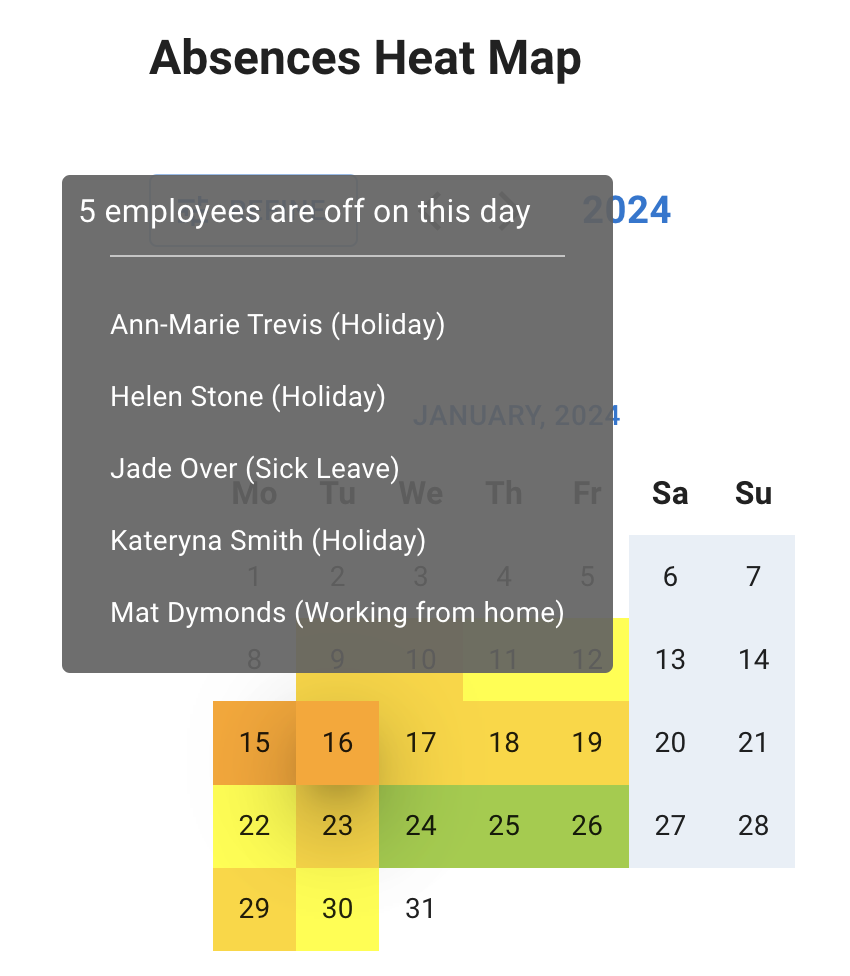
This gives administrators a quick answer without opening each employee record.
Use the Heat Map before approving leave
The Heat Map can help you review the wider impact of a leave request.
Before approving a request, check:
- how many employees are already off
- whether key roles have cover
- whether the date falls within a busy period
- whether several requests overlap
- whether the absence may affect customer service or delivery
For a closer view of individual employees and pending requests, use Team View.
Read more: Using Team View
Use the Heat Map for yearly planning
The Heat Map is useful when planning ahead.
For example, you can use it to prepare for:
- school holiday periods
- summer leave
- Christmas and New Year
- public holiday weekends
- seasonal demand
- important customer deadlines
- large company projects
Spotting busy periods early gives employees more clarity and gives managers more time to arrange cover.
Heat Map and Team View
Heat Map and Team View provide different levels of detail.
| Tool | Best used for |
|---|---|
| Heat Map | Spotting absence patterns and busy periods across several months |
| Team View | Checking individual employees, leave types, pending requests, and selected dates |
Use the Heat Map for the wider picture.
Use Team View when you need to review a specific employee or date.
Heat Map and reports
Reports provide more detailed leave and allowance records.
Use Reports when you need to review:
- leave taken during a selected period
- allowance or PTO usage
- employee leave history
- leave types
- request status
- approvers and comments
Read more: Reports
If the Heat Map does not look correct
Check:
- that employees have been added correctly
- employee departments and locations
- leave request dates
- whether requests are approved or pending
- the selected calendar period
- whether you have administrator access
You can also compare the Heat Map with Team View and Reports.
Related articles
-
Using Team View Check individual employees, overlapping leave, pending requests, departments, and locations.
-
Reports Review detailed leave, allowance, status, approver, and comment information.
-
Approve or decline time off requests Review team availability before making a decision on employee leave.
Best practice
Review the Heat Map regularly instead of waiting until a busy period begins.
Use it alongside Team View and Reports to plan cover and make informed leave decisions.