
Changing an allowance from a date
An employee’s nominal allowance, and a department’s allowance, can change from a date. Leave years before the date keep the allowance they had, and leave years after it have the allowance the change gives.
Use it when an allowance goes up from the next leave year, or when an employee moves to a shorter week part-way through one.
How a change works
- Leave years before the date keep their allowance.
- Leave years after it have the allowance the change gives.
- The leave year the date falls in has a share of each. When the date falls part-way through a leave year, The part-year is rounded to offers A half day or A whole day.
- A change from the first day of a leave year applies to that whole leave year.
- A change can be dated in the past, to put a leave year right.
What applies before the first change is the allowance From the start. Editing it changes every leave year before the first change, finished ones included.
A change does not move a carry-over already made, a manual adjustment, or a Start of employment or End of employment figure that was set or kept. Adding, editing and deleting a change are recorded in the Audit trail.
For example, an employee moves to a shorter week part-way through a leave year. Add a change from the day they start it, with their allowance from then: the leave years before keep the allowance they had, the leave years after have the allowance from then, and the dialog shows what the leave year in between comes to before you save.
Change an employee’s allowance
- Open Employees, select the employee and open the Allowance tab.
- Under Nominal allowance over time, select Add a change, the + on its caption.
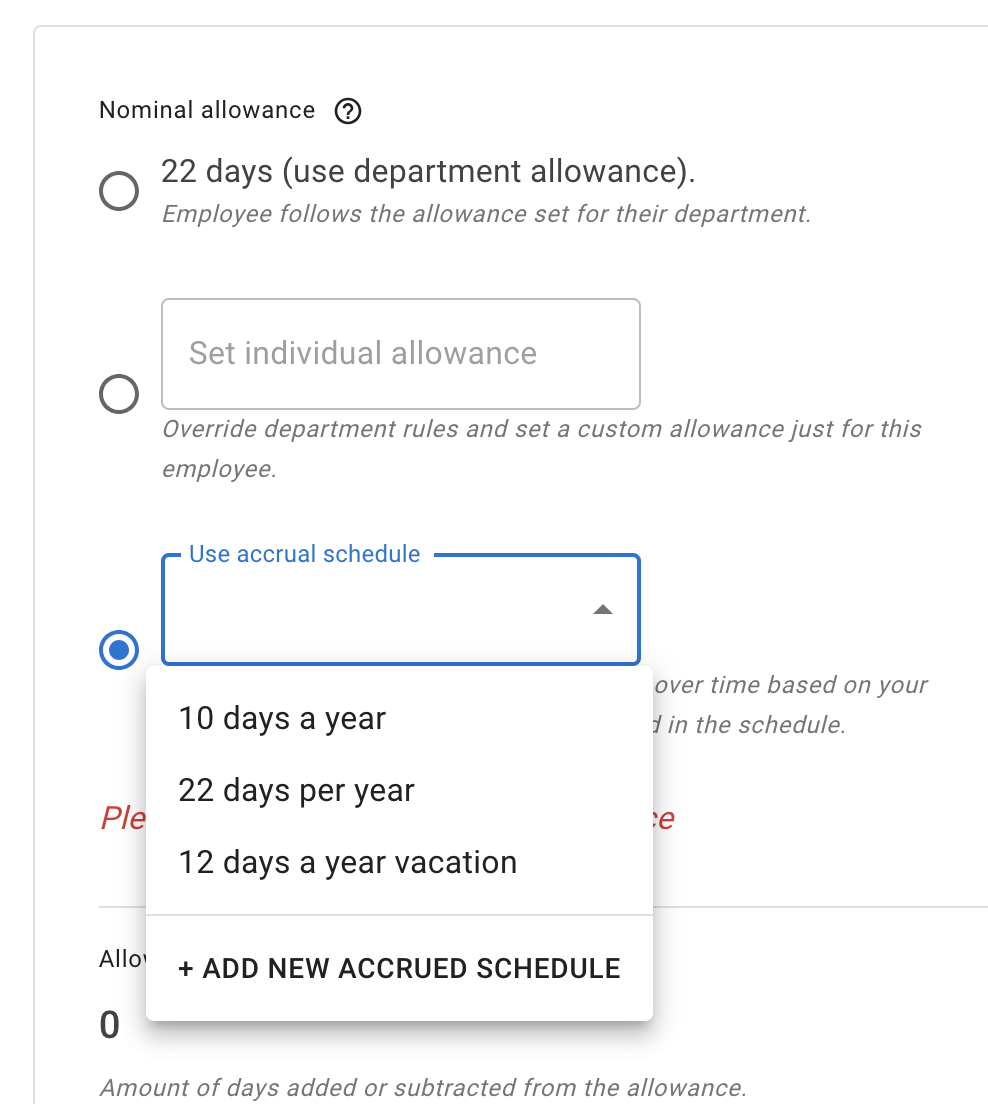
- In Change the nominal allowance, choose the department’s allowance, Set individual allowance or Use accrual schedule.
- Under Applies from, choose The first day of this leave year, The first day of the next leave year or Another date.
- If the date falls part-way through a leave year, choose A half day or A whole day under The part-year is rounded to.
- Check what the leave years come to, shown under the choices, and select Save changes.
Nominal allowance over time lists From the start and each change, newest first. The entry in force today is marked In force, and one still to come Upcoming. A change’s ⋯ menu offers Edit and Delete, and Delete asks first. The menu of From the start offers Edit, which opens Nominal allowance from the start: the same three choices, with no date.

In a leave year a change falls in, the Nominal allowance row of the Allowance breakdown says what the year is made of. So does the employee’s own Allowance details, on My Calendar.
Put an employee on an accrued allowance schedule from a date
Add a change, choose Use accrual schedule and pick the schedule. To take an employee off a schedule from a date, add a change with the department’s allowance or Set individual allowance.
The employees picked on a schedule’s own page, under Accrued Allowance Schedules, follow it from the start. In read mode the page lists those who follow it from a date under From a date. A schedule that a change names cannot be deleted.
Change a department’s allowance
- Open Settings, then Departments, and select the department.
- Under Allowance, select Add a change.
- In Change the department’s allowance, enter the allowance, choose when it Applies from and, if the date falls part-way through a leave year, what The part-year is rounded to.
- Check what the leave years come to and how many employees follow the department’s allowance, and select Save changes.
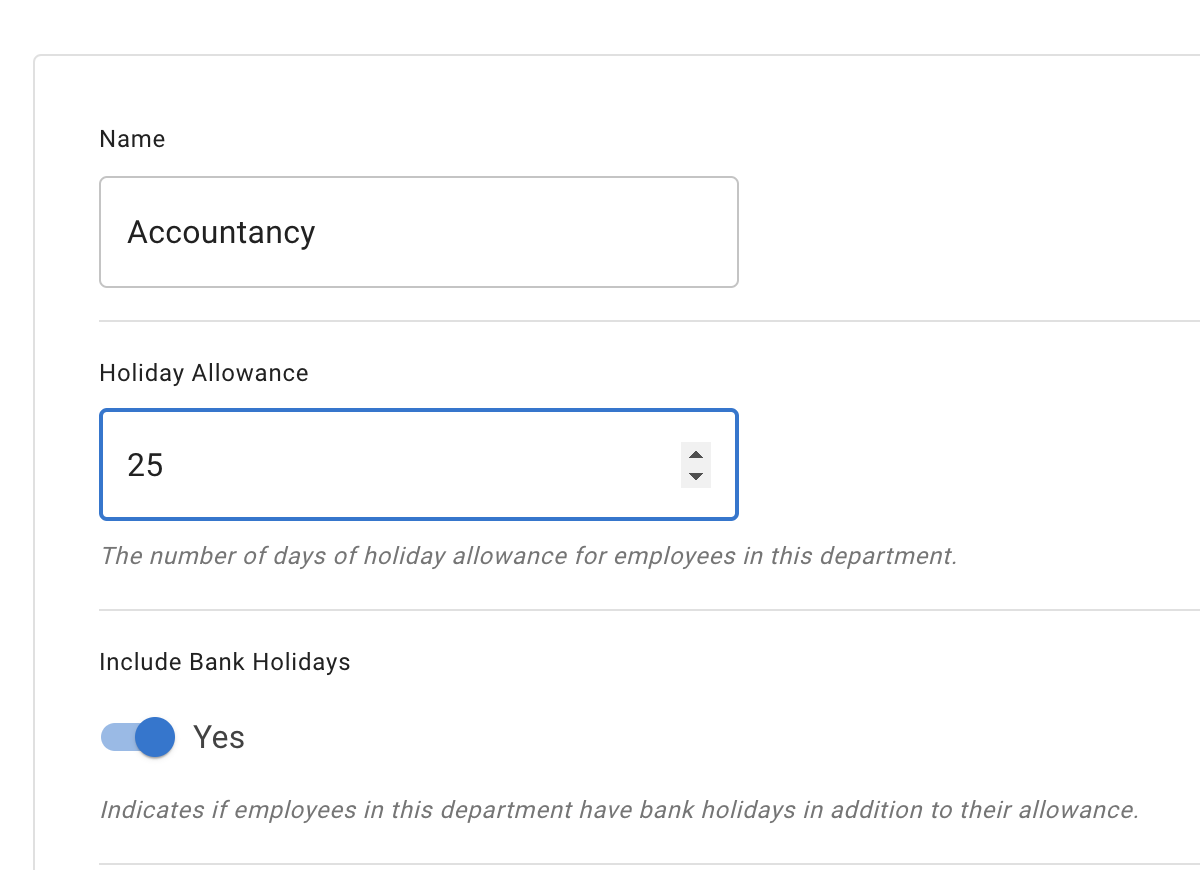
The change reaches every employee who follows the department’s allowance. An employee with an allowance of their own, or on an accrued allowance schedule, keeps it while it applies to them.
The department’s list works as an employee’s does: From the start, each change, In force and Upcoming, and each row’s ⋯ menu. Edit Department does not change the allowance. When you add a department with Add new, the allowance you enter is its From the start.
If each employee’s leave year starts on their own start date, a date falls in a different leave year for each employee, and the dialog says so.