
New employee guide
Welcome to TimeOff.Management.
This guide helps new employees understand the main actions they are likely to use first.
You can use TimeOff.Management to:
- access your employee account
- view My Calendar
- check your allowance or PTO
- request leave
- see request status
- view Team View, if your company allows it
- check public holidays, blackouts, and company events
- use TimeOff on mobile
Exact options may vary depending on your company settings.
1. Access your TimeOff account
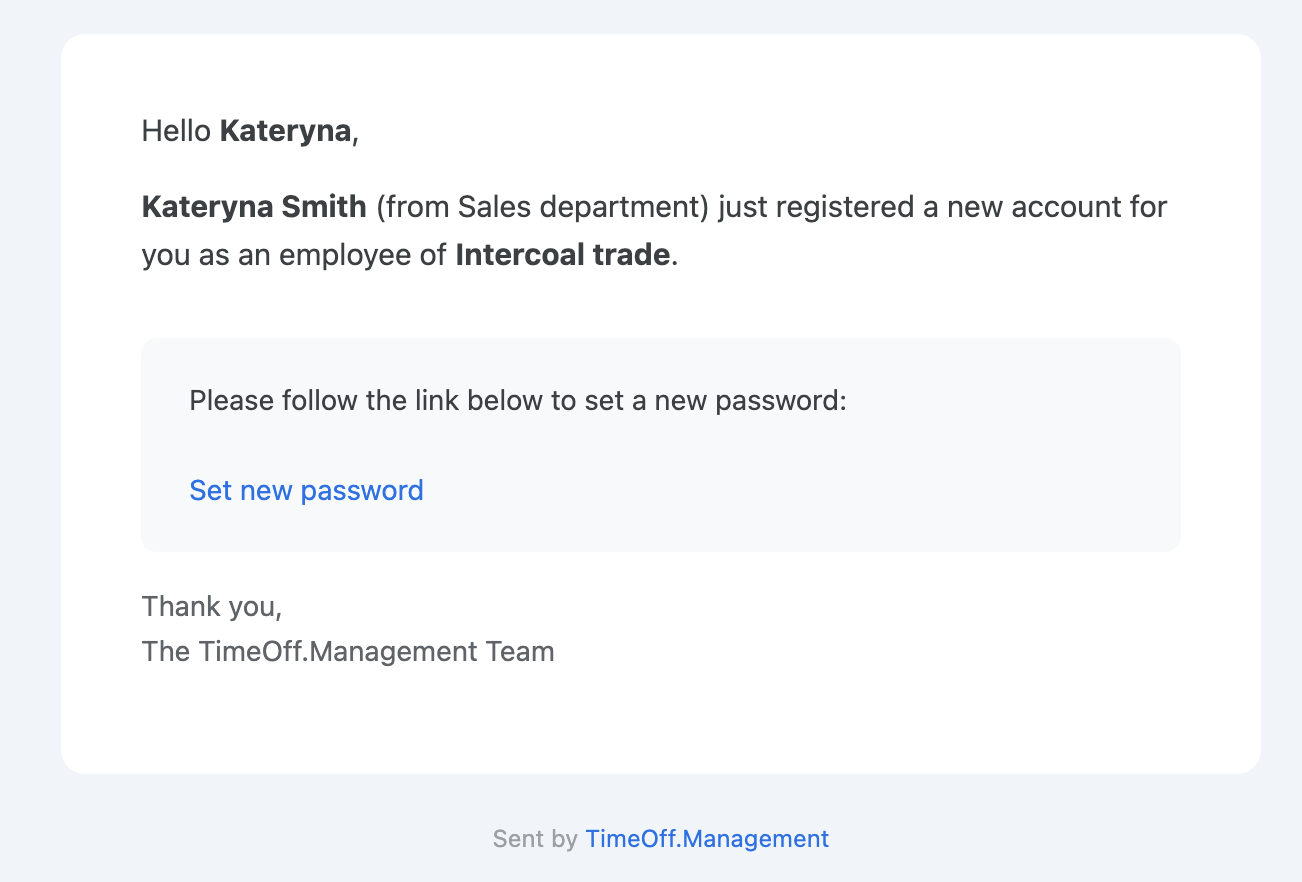
Once your profile has been created by an administrator, you will receive a welcome email.
The email will include a link to access your account and set your password.
Your company may also allow login with Single Sign-On, such as Google or Microsoft.
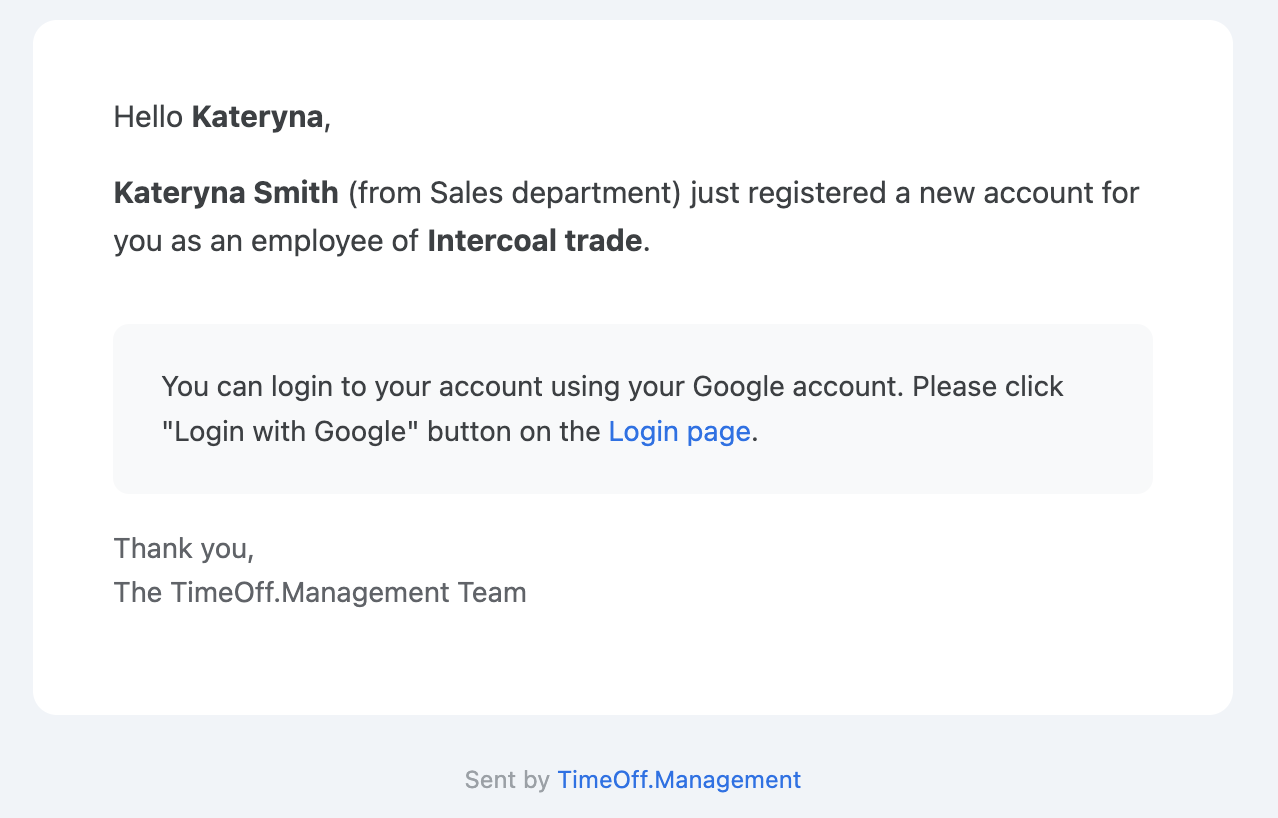
Use the login method your company has set for your account.
If you are not sure which method to use, ask your manager or administrator.
Read more: Reset a forgotten password
2. Open My Calendar
After signing in, the first page you usually see is My Calendar.
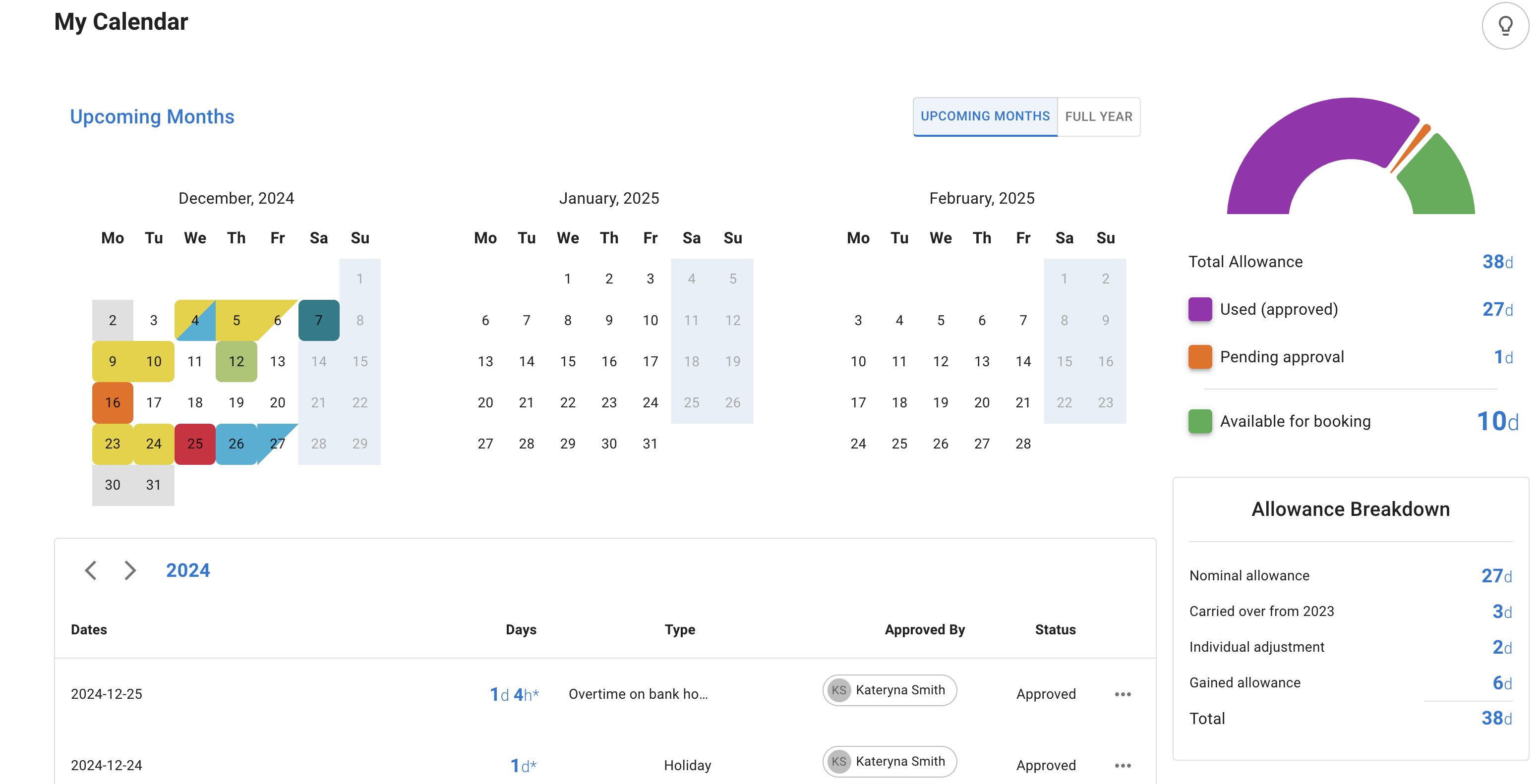
My Calendar shows your own leave and key company calendar information.
You may see:
- your booked leave
- your pending leave requests
- your approved leave
- your remaining allowance or PTO
- public holidays or bank holidays
- blackout periods
- company events
- days you are not scheduled to work
Read more: My Calendar
3. Check your allowance or PTO
If your company tracks leave allowance, you can view your balance in TimeOff.Management.
This helps you understand:
- how much leave you have available
- how much leave you have already booked
- how much leave is pending
- whether a request will use allowance
- whether leave has been carried over
Allowance may be shown in days, hours, or both, depending on your company setup.
If your allowance does not look right, contact your manager or administrator.
4. Set your language preference
You can update your language preference from My Profile.
This helps you use TimeOff.Management in the language that works best for you.
To change your language:
- Open My Profile.
- Find your profile or preference settings.
- Choose your preferred language.
- Save your changes.
5. Use Team View
If your company gives employees access to Team View, you can use it to see who is off.
Team View helps you check team availability before requesting leave.
You may be able to see:
- colleagues who are off
- pending requests
- approved leave
- public holidays
- company events
- blackout periods
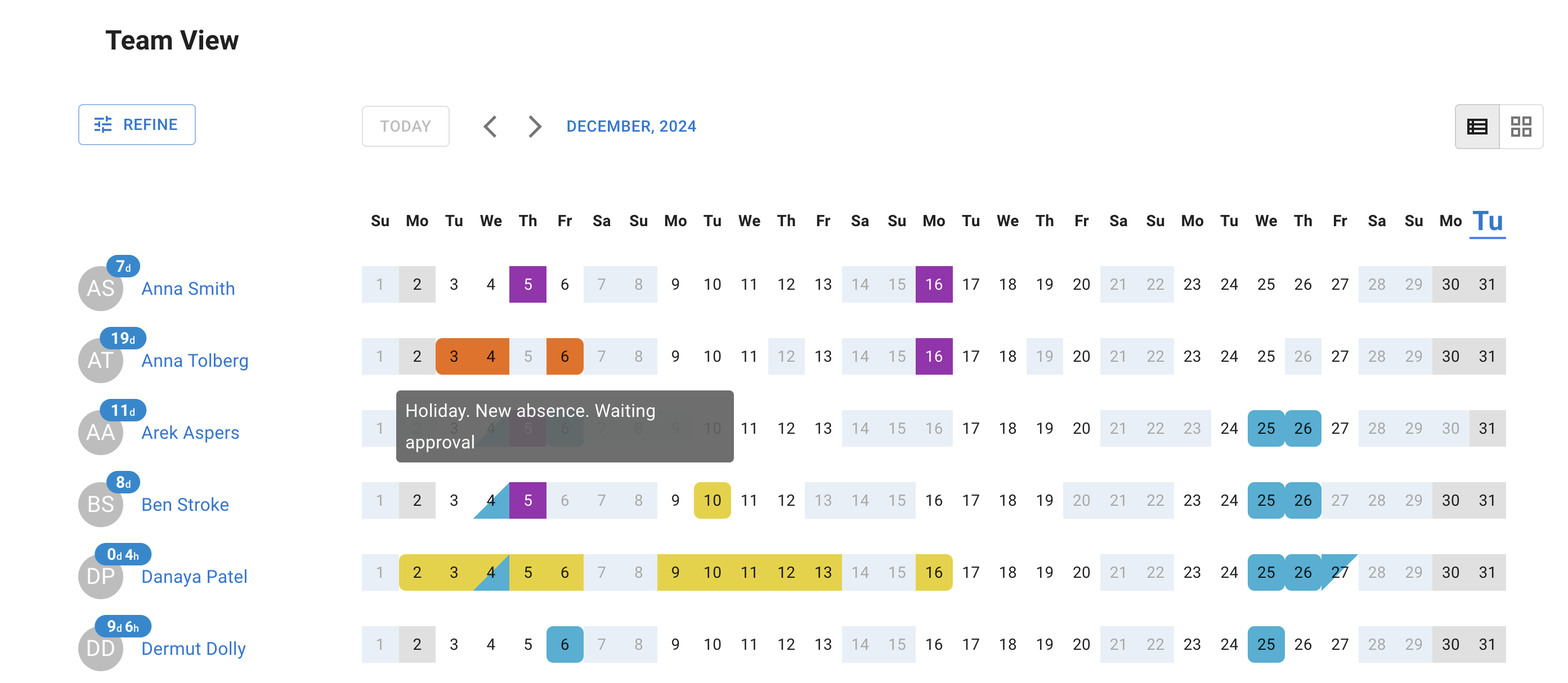
What you can see depends on your company privacy settings.
Some companies show leave types. Others only show that a colleague is unavailable.
Read more: Using Team View
6. Request leave
You can request leave from My Calendar or by using the New Absence button.
Depending on your company settings, you may be able to request:
- one full day
- several days
- a morning
- an afternoon
- a half day
- a selected number of hours
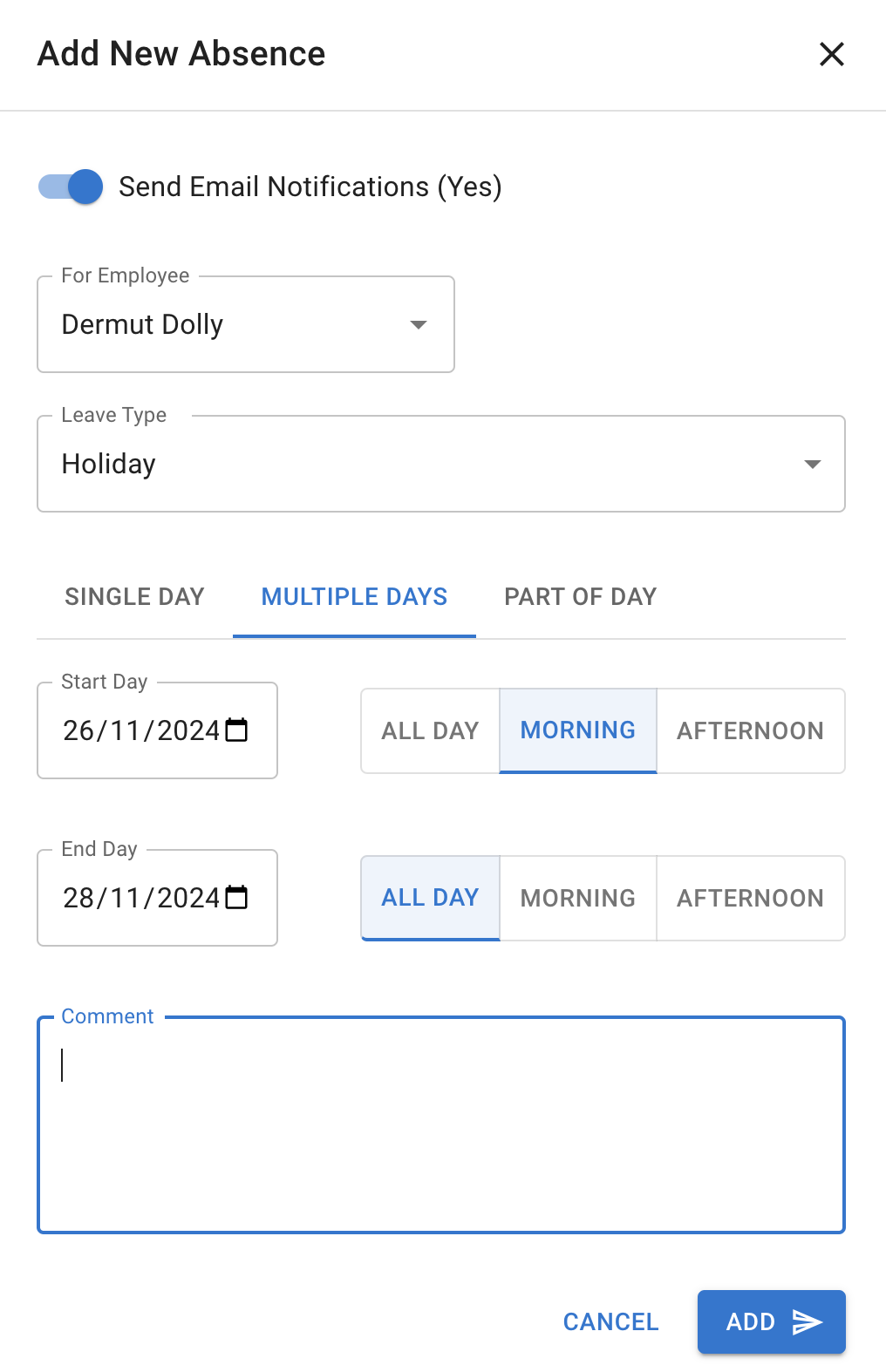
To request leave:
- Select New Absence.
- Choose the leave type.
- Select the date or date range.
- Choose the duration.
- Add a comment if needed.
- Submit the request.
The request will follow your company approval process.
Read more: How to request leave
7. Understand request status
Leave requests can have different statuses.
| Status | What it means |
|---|---|
| Pending | Your request is waiting for approval |
| Approved | Your request has been accepted |
| Declined | Your request was not accepted |
| Revocation pending | You asked to remove approved leave and it is waiting for review |
Approved leave appears in the calendar using the colour linked to the leave type.
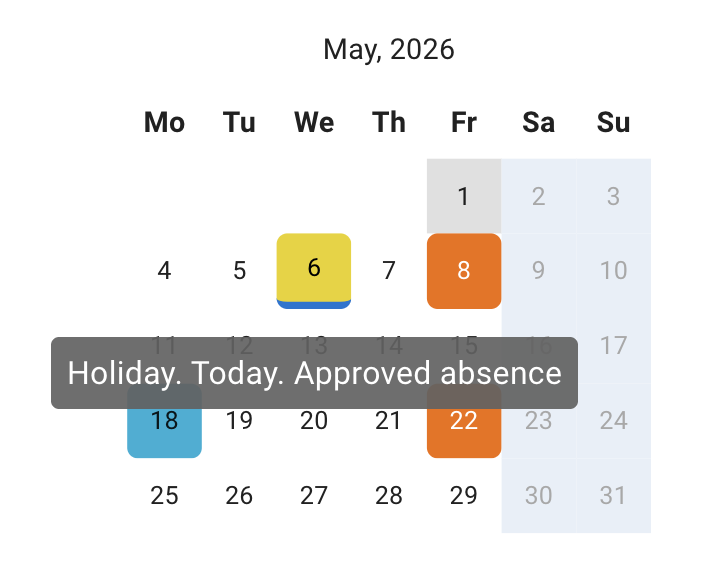
Pending leave requests are shown in orange.
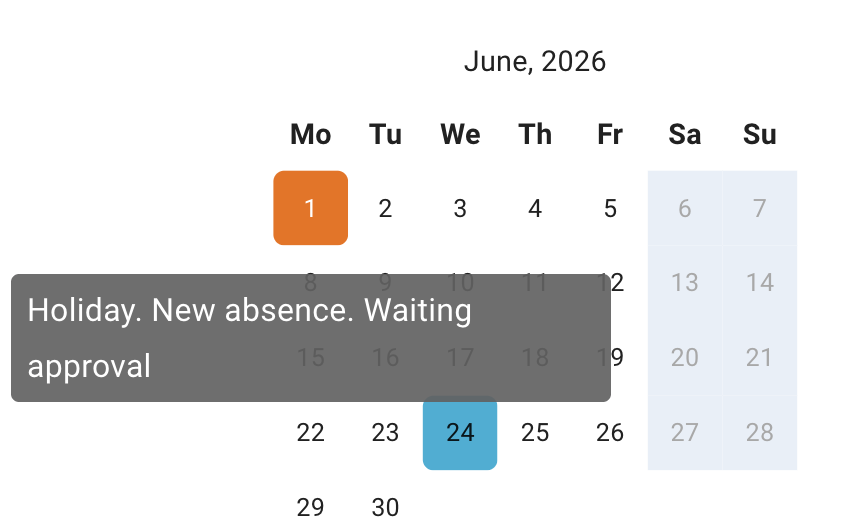
Wait for approval before making firm travel or personal plans.
8. Check public holidays, blackouts, and company events
Your calendar may include other company dates.
These can include:
- public holidays or bank holidays
- company events
- blackout periods
A blackout period is a date range when employees cannot normally book leave.
This may be used during busy business periods.
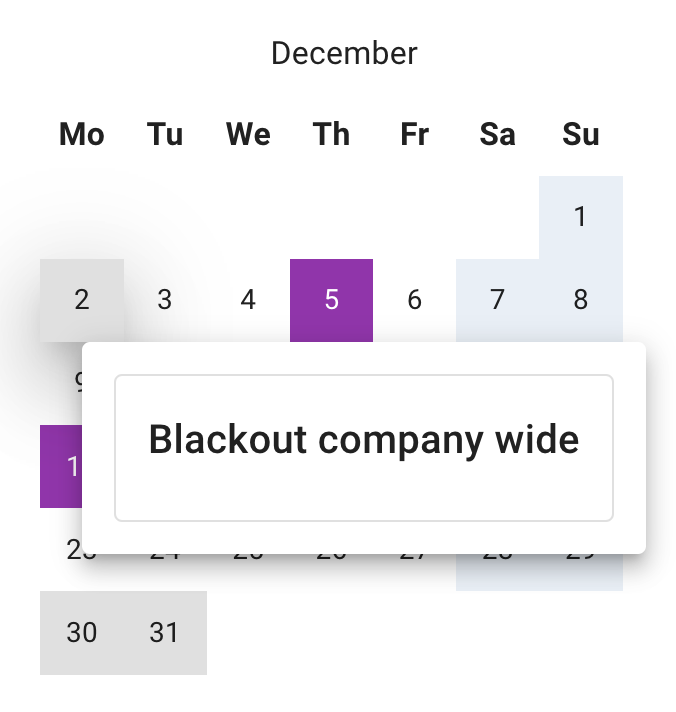
Company events do not normally block leave bookings, but they help employees see important dates.
Read more: Blackouts and company events
9. Cancel or revoke leave
Your company may let you cancel a pending request or ask to remove approved leave.
The available option depends on:
- the request status
- your company settings
- whether the leave has already been approved
- whether the leave date has passed
Read more: Cancel or revoke leave requests
10. Use TimeOff on mobile
TimeOff.Management works on mobile.
You can use your mobile browser to:
- view My Calendar
- check your allowance
- request leave
- check request status
- view Team View, if allowed
- cancel or revoke leave, where enabled
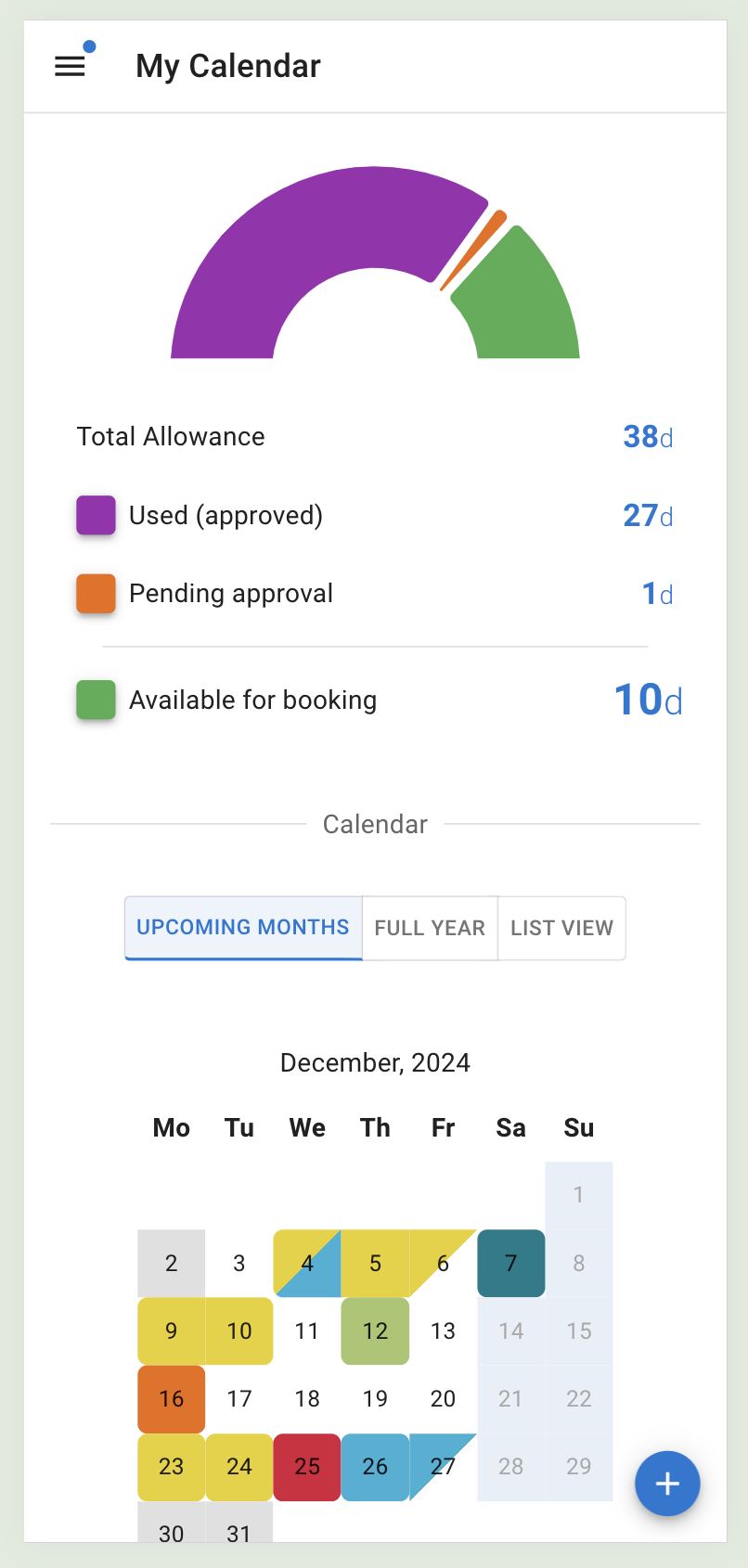
Read more: Using TimeOff on mobile
Common questions
I cannot log in
Check whether your company uses password login, Google, Microsoft, or another SSO option.
Use the same method shown in your welcome email.
If you use password login and forgot your password, reset it here:
I cannot see Team View
Your company may have restricted Team View access.
Some companies allow everyone to see Team View. Others only allow managers or administrators to see it.
Ask your manager or administrator if you think you should have access.
My allowance looks wrong
Your allowance may depend on your department, employee schedule, working pattern, company year, or individual allowance setup.
Ask your manager or administrator to check your employee profile.
I cannot select a leave type
The leave type may be restricted by your company policy.
It may also be blocked for your department, location, or employee group.
Ask your manager or administrator if you think the leave type should be available.
Best practice
Check your allowance, Team View, and any blackout dates before requesting leave. Choose the correct leave type and add a short comment when it helps your manager understand the request. Your exact screen may look slightly different. This depends on your company settings and permissions.