
Using TimeOff on mobile
Manage leave requests effortlessly on our mobile-friendly platform.
There is no need to download an app or keep up with updates. Every time you open TimeOff on your mobile, you are using the latest version of the system.
How to Access TimeOff.Management on Your Phone
TimeOff.Management works well on mobile phones and tablets. You do not need to install an app.
You can add a shortcut to your phone’s home screen, so TimeOff.Management opens in one tap, just like an app.
TimeOff.Management app address: https://app.timeoff.management
Before You Start
TimeOff.Management (TOM) is mobile-friendly and runs in your web browser. You don’t need to install an app. Before creating a shortcut:
You should receive an email invitation from TimeOff.Management.
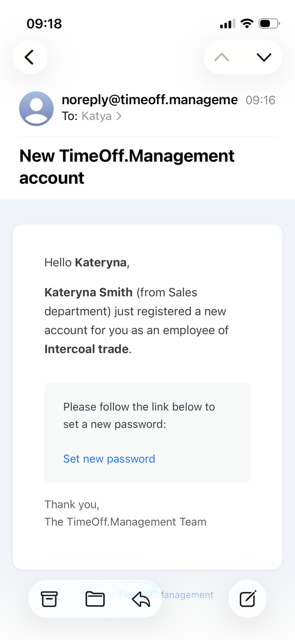
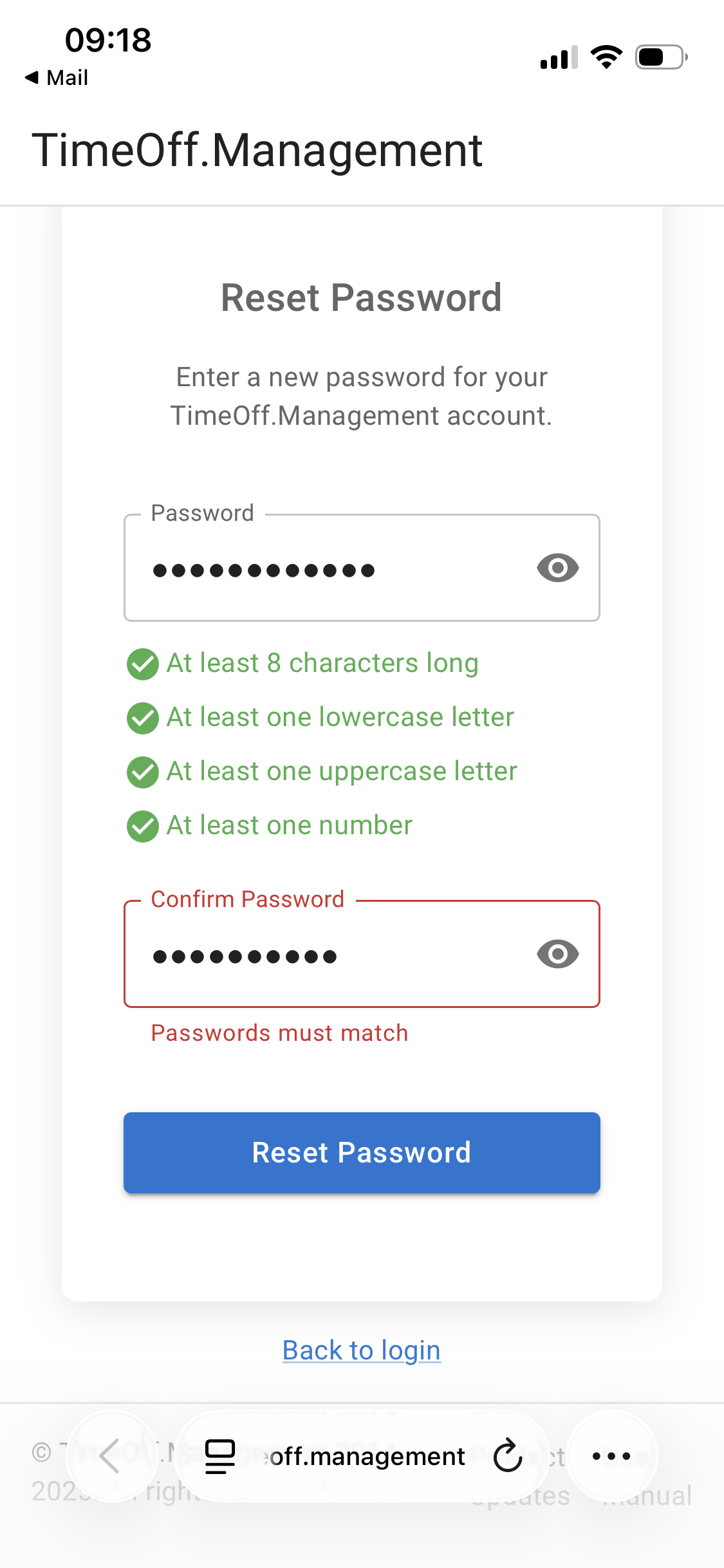
Open the invitation email and tap the link to create your password.
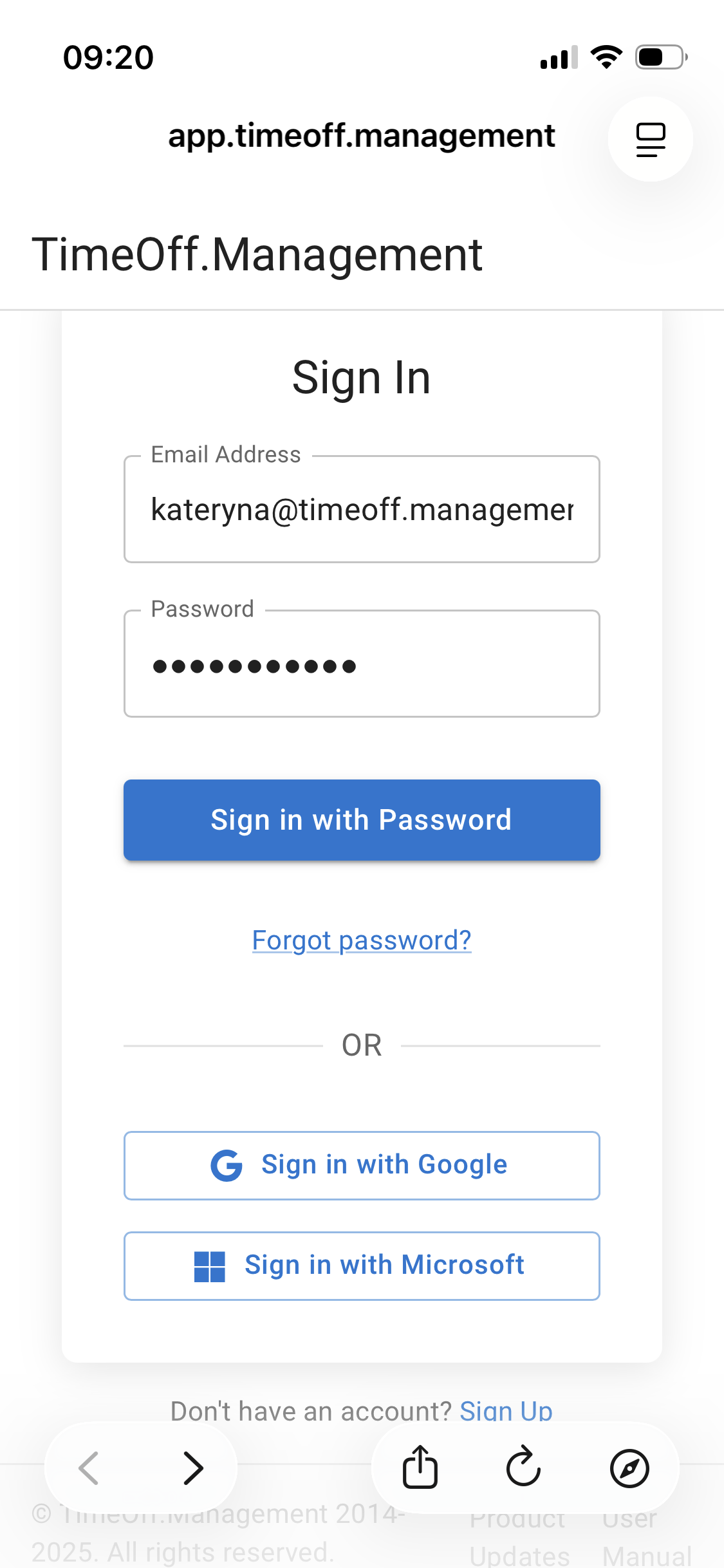
Once your password is set, log in to TimeOff.Management in your mobile browser.
Add TimeOff.Management to an iPhone or iPad
Use Safari for these steps. Home screen shortcuts work best when they are created from Safari.
- Open TimeOff.Management in Safari and go to the main TOM screen (for example, the My Calendar view).
- Tap the Share button. It looks like a square with an arrow pointing upwards and may appear at the bottom or top of the screen.
- From the menu that appears, tap Add to Home Screen.
- In the dialog that appears, tap Add in the top-right corner.
Some menus are hidden under the More icon
….
Add TimeOff.Management to an Android Phone or Tablet
- Open Chrome on your Android phone or tablet.
- Go to https://app.timeoff.management.
- Log in to your TimeOff.Management account.
- Open the main TimeOff.Management screen.
- Tap the More icon
⋮next to the address bar. - Tap Add to Home screen or Create shortcut.
- Keep the default name, or rename the shortcut.
- Tap Add.
TimeOff.Management will now appear on your Android home screen.
Troubleshooting
If something does not work, try the steps below.
I cannot see “Add to Home Screen” on iPhone or iPad
Make sure you are using Safari. This option may not appear correctly in other browsers.
I cannot see “Add to Home screen” on Android
Make sure you are using Chrome. Also check that you are on the main TimeOff.Management screen and not inside a pop-up window.
I forgot my password
Go to the TimeOff.Management login page and use the Forgot password link.
I have a new phone
Simply repeat the steps above on your new device.
You Are Ready
You can now open TimeOff.Management from your phone’s home screen in one tap.
This makes it quick and easy to request holidays, check your leave balance, view your calendar, and manage time off while you are away from your desk.
How to book a time-off request
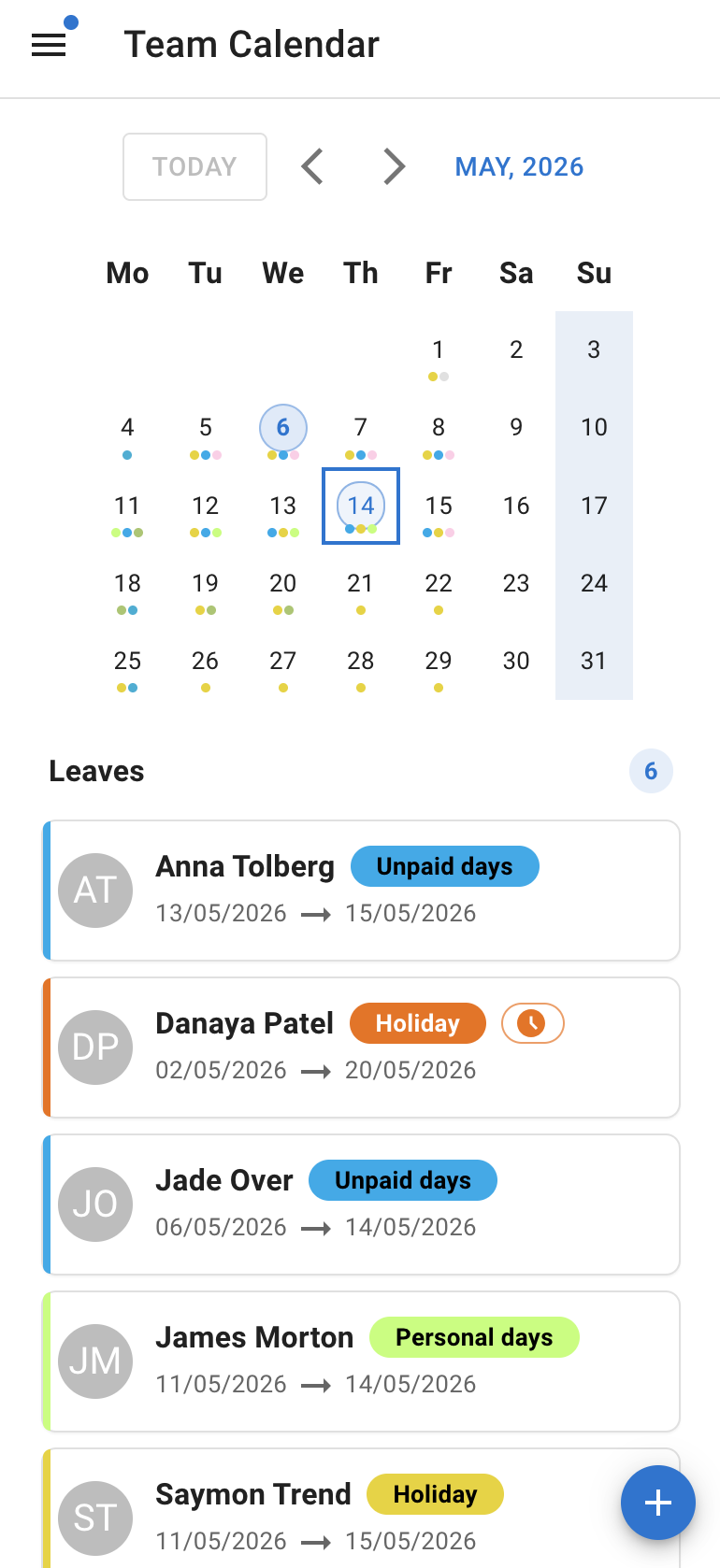
To book leave, tap the plus (+) icon in the bottom-right corner and fill in the form.
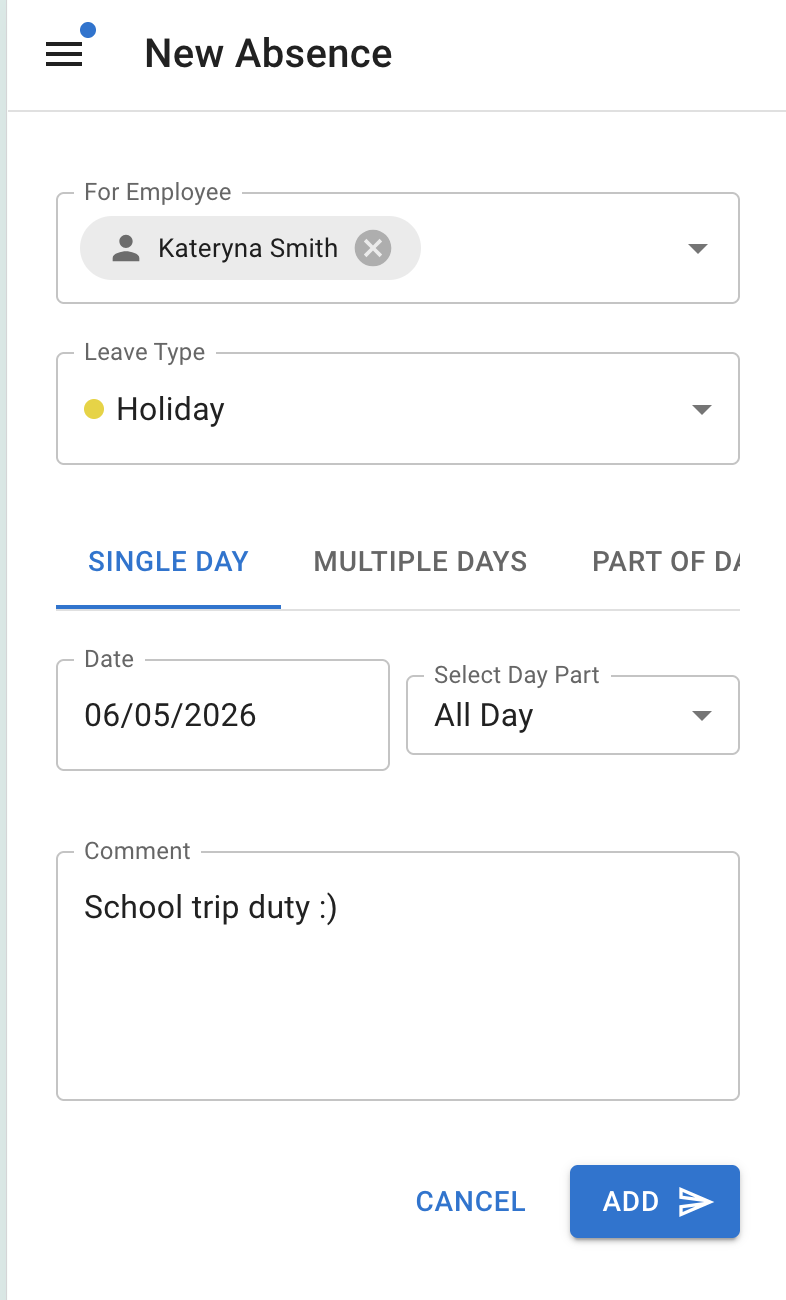
If you have access to Team View, you can open it from the menu in the top-left corner. Tap any day to see more details.
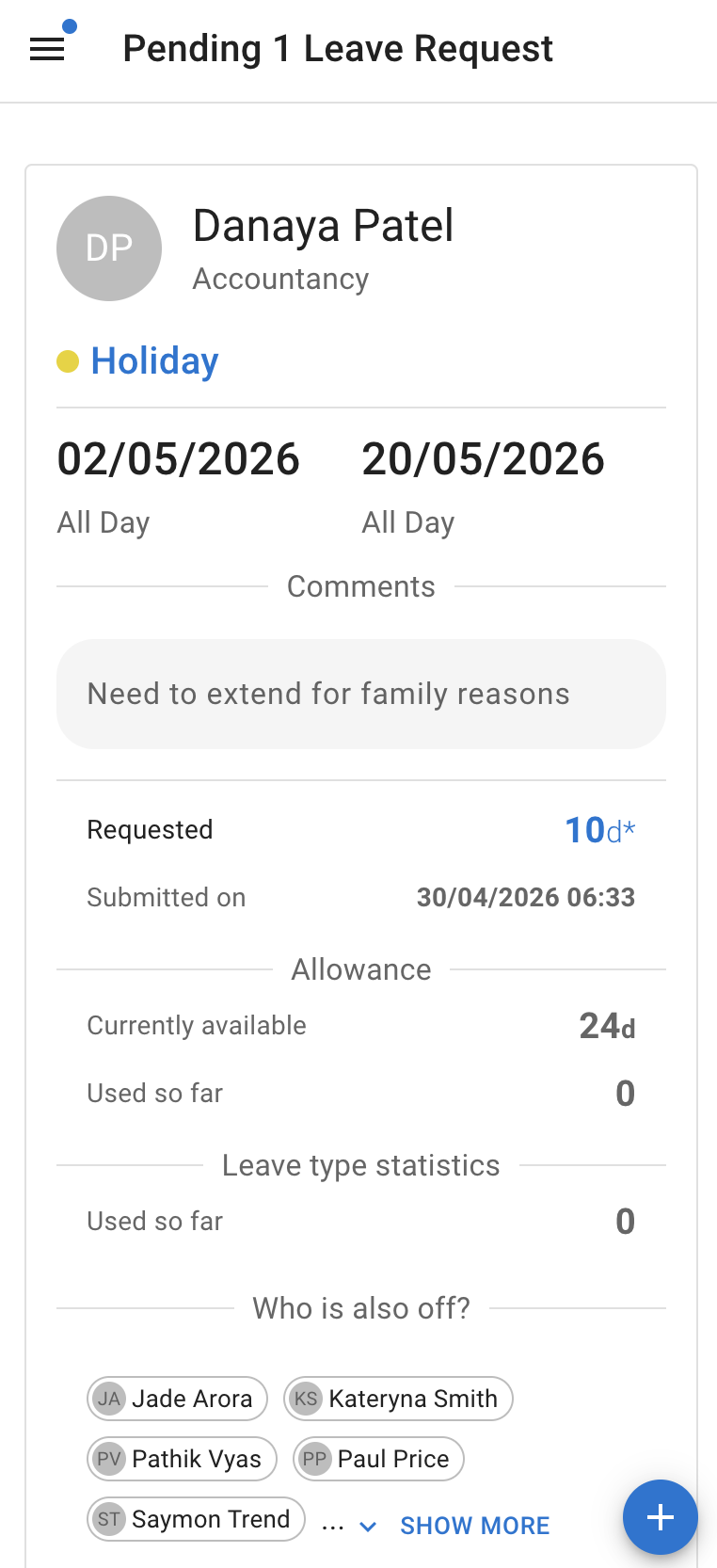
Approvers can manage pending requests.
Related articles
-
My Calendar Learn how employees can view leave, allowance, public holidays, blackout periods, and company events.
-
How to request leave Learn how employees can submit a leave request in TimeOff.Management.
-
How to action time off requests Learn how managers can approve or decline employee leave requests.
Best practice
Add TimeOff.Management to your phone home screen if you approve leave often.
This gives managers and employees quick access to leave requests, calendars, and team availability.