
Leave usage alert
Some employees quietly under-book their leave. They start the year meaning to take it, never get round to it, and arrive at the end of their leave year with a large unused balance — or they simply go a long stretch without a break.
The Leave usage alert report finds those people while there is still time to do something about it, and gives you a quick way to nudge them.
It looks at two separate things:
- Pace — is the employee booking leave at a reasonable rate through their leave year, or falling behind?
- Recency — regardless of pace, has the employee gone an unusually long stretch without any leave at all?
The two are independent. Somebody can be on track for the year and still not have had a break in a long time, so the report treats that as its own flag rather than as another status.
Where to find it
Open the Main menu → Reports → Leave usage alert. It sits alongside the other reports and opens as a full page.
There is also a shortcut: where Reports is in your main menu, the Usage alert card on the Dashboard links straight into it.
The info (ⓘ) button beside the description at the top of the report opens a short How to read this report explainer.
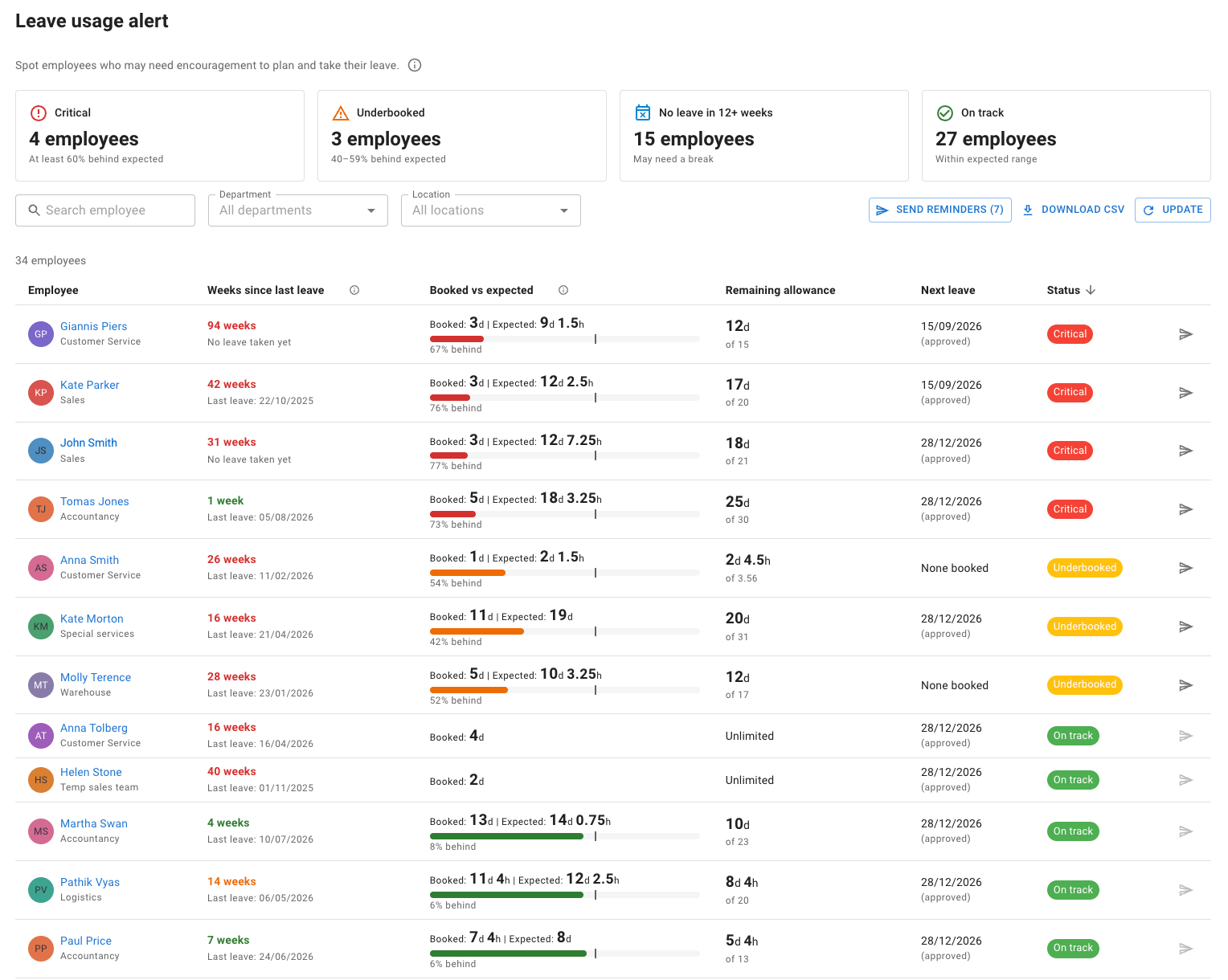
The summary cards
A row of cards across the top summarises the company:
- one card for each status — On track, Underbooked and Critical
- one more card for employees who have gone a long stretch without any leave
Each card shows a count and a short caption saying exactly what it counts. Read those captions on your own screen — they are where the precise boundaries are stated.
The cards are also how you filter. Select a card and the table shows only those employees; select it again to clear it. There is no separate status dropdown.
Because the no-recent-leave card is a separate flag rather than a fourth status, you can combine it with a status card — for example, everyone who is Critical and has had no recent leave.
Reading a row
Employee — the employee’s name, with their department underneath.
Weeks since last leave — how long it has been since the employee’s most recent day of leave, with the date of that leave below it, or a note that they have not taken any leave yet. Worth knowing:
- Only approved leave on a leave type set to deduct from allowance counts here. Leave types set to have no effect on allowance — sick leave, working from home and similar — do not reset this clock. This is the most common source of “but they did have time off” confusion.
- Somebody who is on leave right now reads as up to date.
- For an employee who has never booked leave, the count runs from their start date, not from before they joined.
- The report only looks back so far. Past that point the figure is shown as a capped value with a + after it.
Booked vs expected — the pace column. A bar shows how much the employee has booked, a marker shows where expected sits, and a short label says how far behind (or ahead) of expected they are.
Expected is roughly where an employee’s bookings would sit if they spread their leave evenly across their leave year. Three things to keep in mind:
- Only approved leave counts as booked. Leave requests still awaiting approval do not, so an employee with a long holiday pending can still show as behind.
- The behind or ahead figure is a comparison against the expected amount, not against the whole allowance.
- Employees on an unlimited allowance have no pace to measure, so this column shows what they have booked with no comparison.
Remaining allowance — what is left of the allowance, shown against the total. Reads as Unlimited for employees on an unlimited allowance.
Next leave — the employee’s next booked leave, marked approved or pending, or None booked. This is useful context before you nudge somebody: a person with a fortnight booked next month probably does not need one.
Status — the status chip: On track, Underbooked or Critical. Every employee has exactly one, and employees who are ahead of expected show as On track.
Narrowing the report
- Search employee — free text on the employee’s name. It applies as you type.
- Department and Location — multi-select filters. These two re-run the report, so they take effect when you select Update. Until you do, the screen shows a hint that your filters have changed. This is the same pattern as the other reports.
- Sort the table by selecting a column header. Results are paginated, with a count of the employees currently listed above the table.
Sending a reminder
Reminders are always sent by a person. Nothing in this report goes out automatically. Every reminder sent, to one employee or to everyone in view, is recorded in the Audit trail as Booking reminder email sent.
To one employee
Flagged rows carry a send icon at the end of the row. It is available only for employees who are Underbooked or Critical — on any other row it is disabled and explains why when you hover over it.
Selecting it opens a confirmation that names the employee, says what they will receive, and says whether they have been sent a reminder recently, and if so when and by whom. Turn on Preview the email to read the exact subject line and body before anything goes out. Confirm to send, and you get a success or failure message.
To everyone in the current view
Send reminders in the toolbar sends the reminder to every flagged employee currently shown — that is, everyone your filters and search are displaying. Narrowing the view first is therefore how you target a single department or location.
The dialog lists the recipients before anything is sent. While the run is in progress you see how far it has got and can Stop part-way. At the end you get a summary of how many were sent, and which, if any, failed.
If you have changed the department or location filters without selecting Update, bulk sending is blocked. Otherwise it would send to a list that no longer matches what is on screen, so select Update first.
What the employee receives
A short, friendly email — not a warning. It tells them they are behind on scheduling their leave and gives them a small summary of their allowance position: their total allowance, what they have booked so far, where they would be expected to be by now, and the shortfall. It suggests they review what is left and book it, notes that regular breaks matter, and points them at HR if they need help.
Frame reminders as encouragement rather than enforcement. The report exists to help people take the leave they are entitled to.
Good practice before you nudge
Check whether there is a reason the employee has not booked much leave yet. For example, they may be:
- already planning leave later in the year
- saving allowance for one long trip
- waiting for project dates to become clear
- working to a special arrangement
The Next leave column answers most of these at a glance. Where it does not, a conversation is often better than an email.
The report is most useful part-way through the leave year, before busy periods, and ahead of year-end carry over — early enough that employees still have time to book, and early enough that you avoid a rush of last-minute leave requests.
The Usage alert card on the Dashboard
The Dashboard carries an at-a-glance version of the same information:
- a headline count of employees who have gone a long stretch without leave, shown against the total number of employees, with a percentage meter
- a breakdown into two severity tiers, each with an info hint explaining what it counts
- the longest current gap across the company
- where Reports is in your main menu, a link into the full report, labelled See who’s underbooked or critical
For a manager, the headline count, the tiers and the longest gap all cover their team. The card counts leave exactly as the report does: only approved leave on a leave type that deducts from allowance.
Read more: Dashboard
Exporting to CSV
Download CSV exports the report exactly as you have it filtered, and the file is named after your company and the date of the export.
Each row carries an employee’s on-screen information plus a little more for spreadsheet work: employee number, name, department, location, status, booked, expected, remaining, total allowance, the behind or ahead figure, weeks since last leave and the date of it, the next leave and whether it is approved or pending, and a column flagging employees with no recent leave.
Two things you may notice in the file:
- companies that track leave in hours get hour-labelled columns
- employees on an unlimited allowance show Unlimited rather than a number, and have no expected figure
Good to know
Leave requests awaiting approval do not count as booked. Only approved leave does, so an employee with a big holiday pending can still appear behind.
Leave types that do not come out of the allowance do not reset the “Weeks since last leave” clock. Only approved leave on a leave type set to deduct from allowance does. Sick leave and working from home are the usual examples, but it depends on how each leave type is set up on your account. If a leave type is not affecting the figures the way you expect, check its setting: Why isn’t leave being deducted from the allowance?
Early in a leave year, nearly everyone shows as On track. This is deliberate. At the start of a leave year there is not yet enough elapsed time for anyone to be meaningfully behind, so the report holds off flagging people until the comparison means something. Statuses firm up as the year goes on.
Each employee is measured against their own current leave year. Companies whose leave year is not the calendar year are handled, as are companies where each employee’s leave year runs from their own start date. There is no year selector — the report is always about the year in progress.
Employees on an unlimited allowance have no pace comparison. They show what they have booked, with no expected figure. Read more: Unlimited allowance
The figures are worked out live. The report is current every time you open it.
How this fits with allowance setup
The Leave usage alert report reviews how allowance is being used. It does not change anybody’s allowance, and it does not replace your allowance setup — allowance still comes from your department and individual settings, accruals, carry over, adjustments and leave type limits.
For a full overview, read: Setting up allowances