
TimeOff feeds into Google and Outlook Calendars
To sync your TimeOff calendar with Google or Outlook Calendar using the iCal feed, follow these steps:
- Go into My profile.
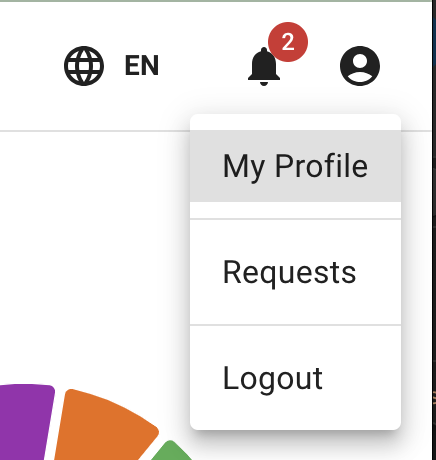
- Click on Calendar feeds. Choose which feed to sync:
- My Calendar Feeds (your personal leave)
- My Team View Feeds (your team’s time off)
- My Custom Feeds (you choose which departments to include)
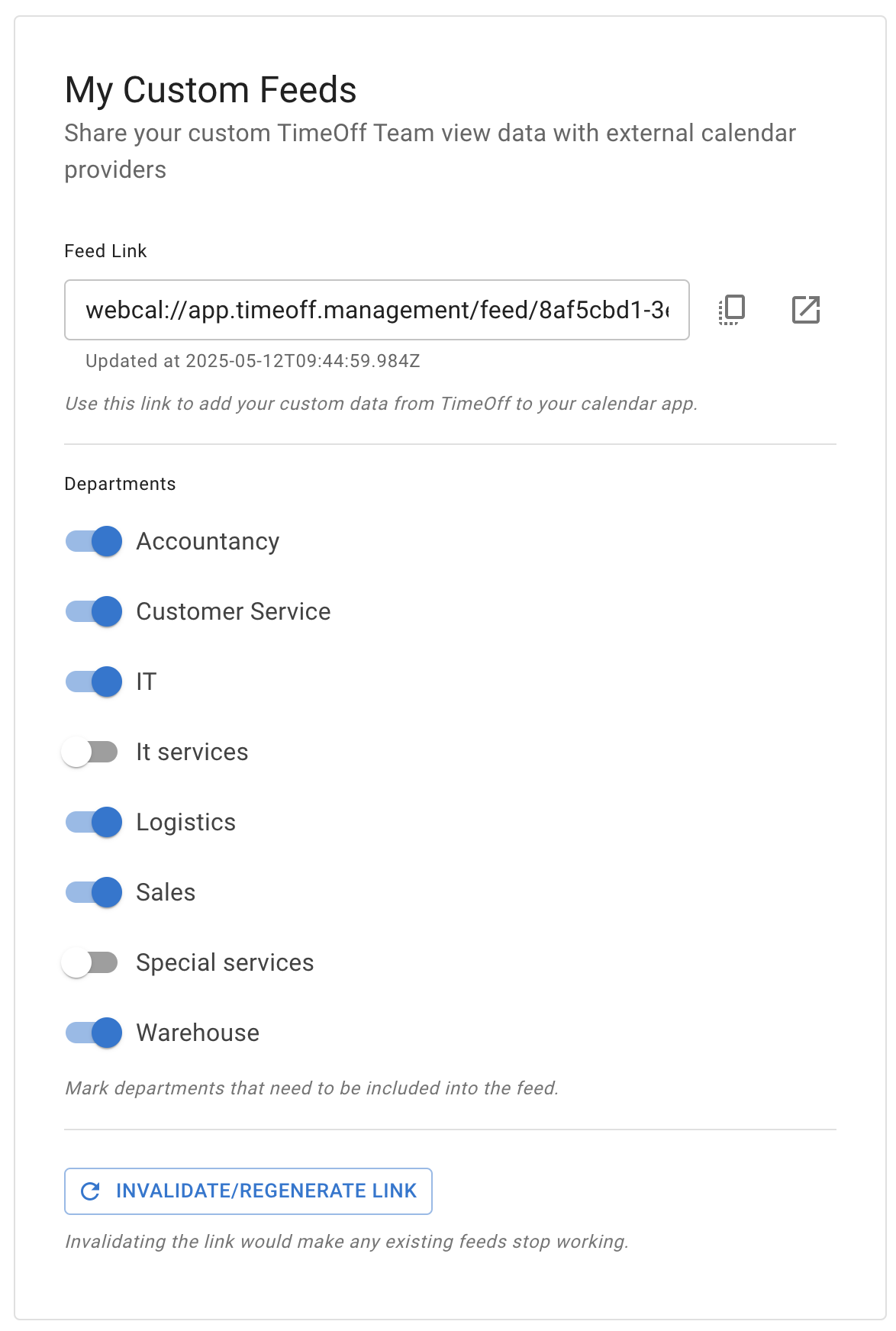
- Select Copy to clipboard, the first of the icons at the right of the feed’s caption.
- Google Calendar: click + next to Other calendars → From URL.
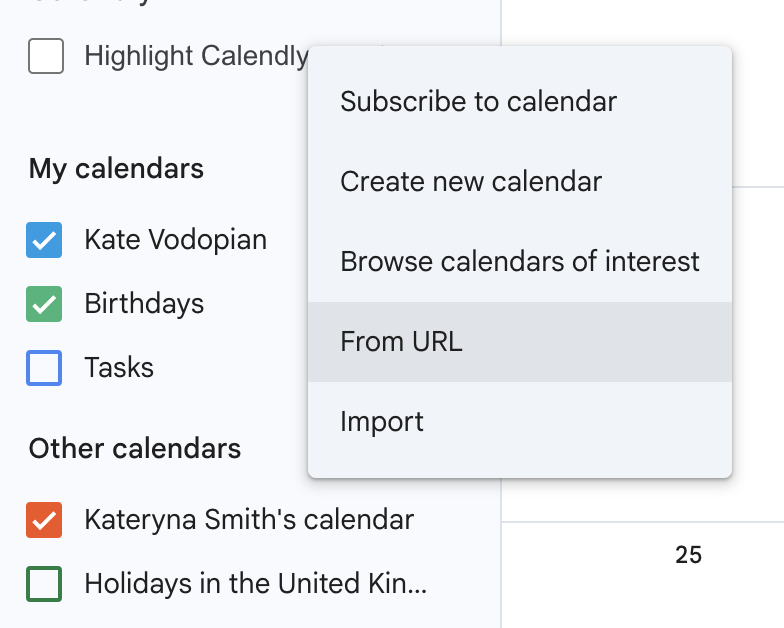
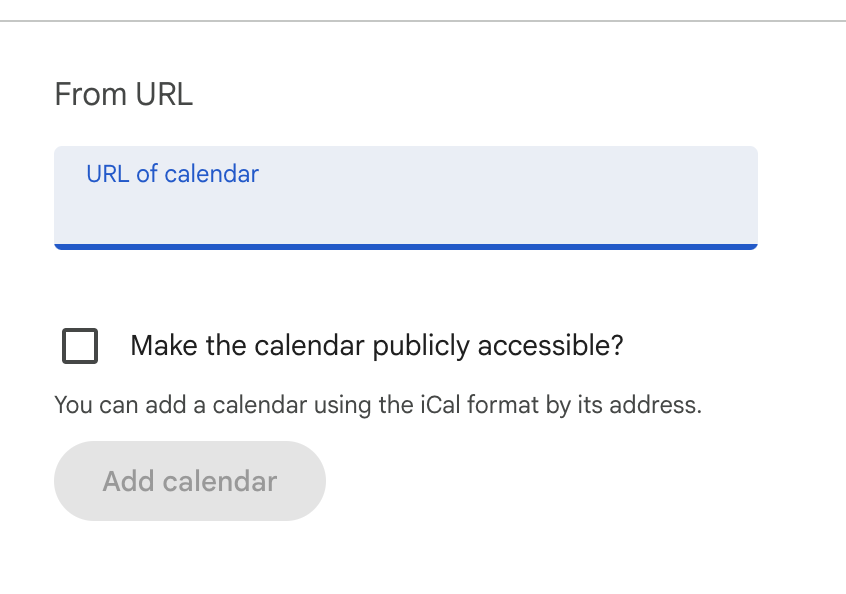
Paste your link into the popup and click Add Calendar.
- Outlook Calendar: Copy your iCal link from My profile → Calendar feeds. In Outlook, click Add calendar.
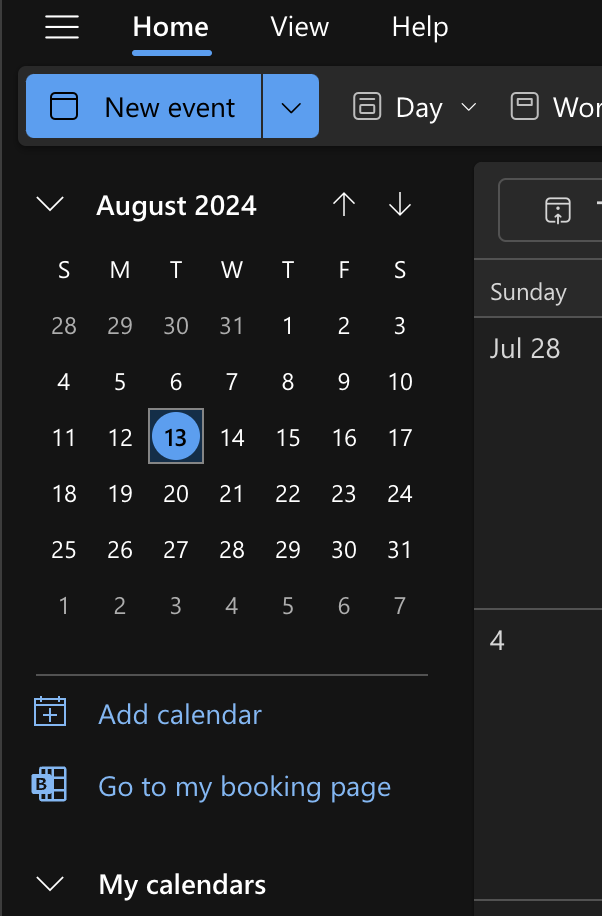
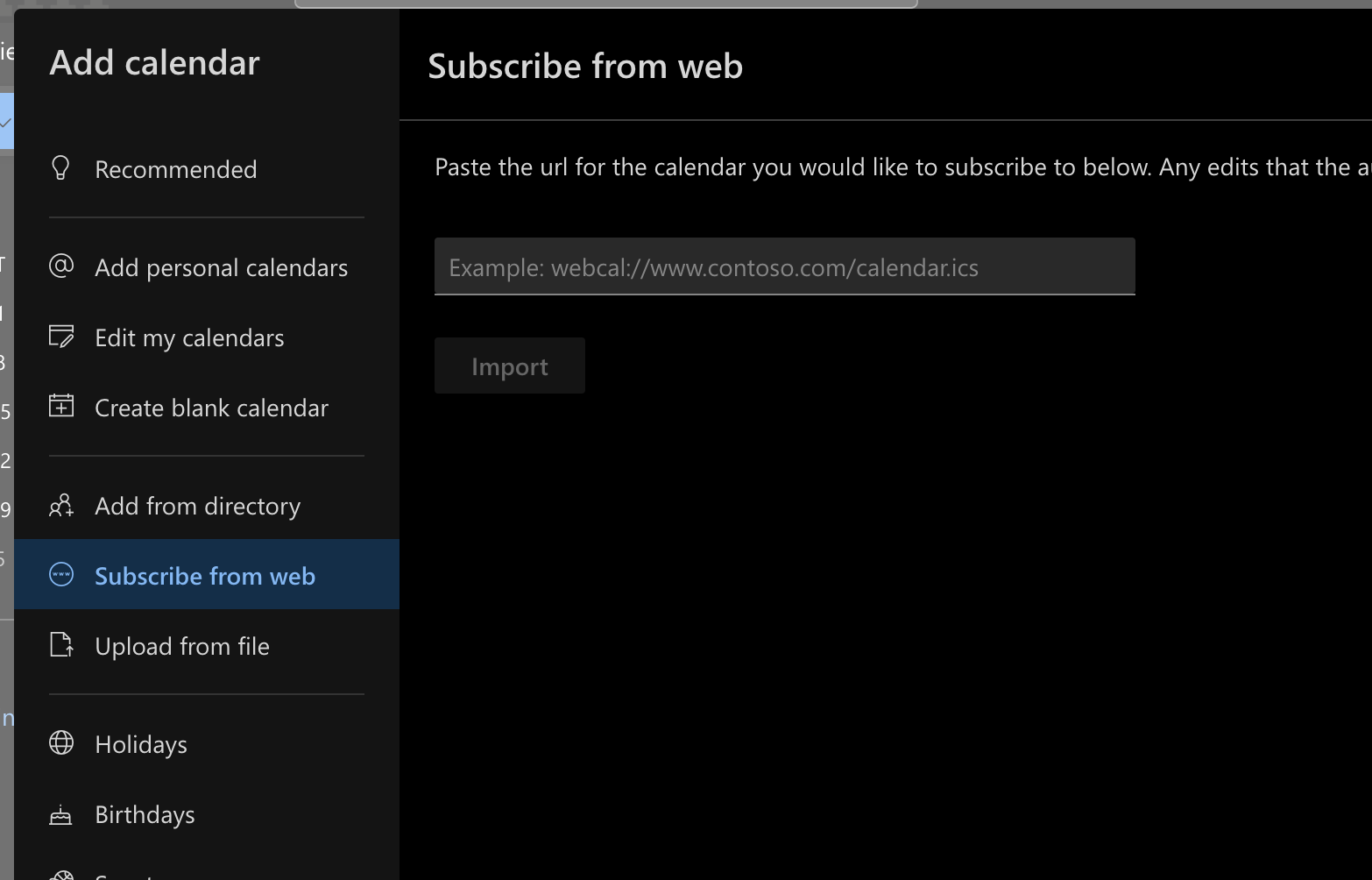
Select Subscribe from web, paste your iCal link, click Import, then choose a name, colour, and location.
Important: Each link is unique to the user and respects your permission settings in TimeOff. Each user should connect their own feed.
If a link has been shared by mistake, select Regenerate link, the last icon on the feed’s caption. The card asks first: “Invalidating the link would make any existing feeds stop working.” Select Regenerate link again to replace the link, or Back to keep it.
Leave Types and Public Holidays: By default, leave shows as Busy and Public holidays are not shown. Admins can change this in Settings → Advanced settings → Calendar feeds.