
Audit trail
The Audit trail gives administrators a chronological record of the changes made in your TimeOff.Management account: every leave-related action, every change to an employee’s record, and every change to company configuration.
Each entry shows when it happened, who did it, what the action was, and who or what it affected — with a per-entry breakdown of exactly which values changed.
Use it when you need to answer questions like:
- Who approved this leave, and when?
- Who changed this employee’s allowance?
- Which company settings changed last week, and what were the previous values?
Who can see it
The Audit trail report is available to administrators only. Other employees do not see the menu entry and cannot open the page — including employees who have been given access to reports.
Each leave also has its own History section, visible to the people involved in that leave. It is not admin-only — see Leave history for everyone involved below.
Where to find it
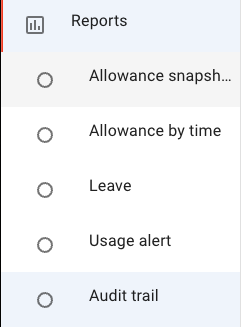
Open the Main menu → Reports → Audit trail.
There is also a shortcut: on an employee’s details, the actions menu offers View audit trail. It opens the report pre-filtered to that person as the affected employee.
Inside the report, clicking a name in the Who or Affected column opens that employee’s details panel.
Reading an entry
Each entry in the report has four columns:
- When — the date and time of the action, shown in your company’s configured time zone and date format
- Who — the person who performed the action
- Action — what happened, for example Leave approved or Employee details updated
- Affected — the employee the action concerned; for configuration entries, the item concerned (for example, the department or leave type that was changed)
Select Show details on an entry to expand its Changes breakdown: each changed field is listed with its previous and new value. Hide details collapses it again.
Sensitive values are never stored or displayed. A password reset, for example, is recorded as having happened, but the value itself shows as value hidden.

Filtering the report
- From / To — date pickers. They default to the last 7 days and will not let you pick a date older than the retention window.
- Category — a multi-select covering Leaves, Employees, and Configuration. Defaults to All categories.
- Affected employee and Performed by — multi-select employee pickers. Both include employees who have since been deleted, so their history stays findable.
Select Update to apply the filters. Results are paginated.
There is currently no export or download of the audit trail — it is viewed in the app.
What gets recorded
Entries fall into the three categories offered by the Category filter. The lists below use the exact labels shown in the report’s Action column.
Leaves
Every step of a leave’s life:
- Leave booked, Leave edited, Leave approved, Leave declined, Leave cancelled, Leave revoked
- Leave approved (interim) — the first-tier screening step, for companies using the two-stage approval flow
- Revoke request cancelled, Revoke request approved, Revoke request declined
- Leaves imported — bulk imports are recorded, including one entry per imported leave
- Attachment added, Attachment removed — a file attached to the leave or removed from it, with the file named
Employees
Changes to an employee’s record and entitlements:
- Employee added, Employee details updated, Employee deleted, Password reset
- Moved to another location, Moved to another department
- Allowance settings updated, Allowance adjustment added, Allowance adjustment removed, Allowance carried over
- Start/end of employment adjustment set, Start/end of employment adjustment recalculated
- Leave type limit set, Leave type limit cleared, Leave type toggled
- Employee policies updated
- Working schedule added, Working schedule updated, Working schedule removed
- Employees imported
- Booking reminder email sent — a reminder sent to the employee from the Leave usage alert report
- Document added, Document removed — a document added to the employee’s record or removed from it, with the field and the file named
Configuration
Changes to company-wide settings:
- Company settings updated, Company features updated, Company schedule updated, Company calendar feed revoked
- Leave type created / updated / deleted
- Department created / updated / deleted, Supervisor added to department, Supervisor removed from department
- Location created / updated / deleted
- Bank holiday added / updated / removed, Bank holidays imported
- Blackout event created / updated / deleted
- Policy created / updated / deleted, Employee assigned to policy, Employee removed from policy
- Custom field created / updated / deleted, Custom fields reordered
How long entries are kept
Audit entries are kept for one month. Entries older than one rolling month are removed and cannot be retrieved, and the report cannot be queried further back regardless of the filters you set.
There is one exception: the entries about a leave are kept for as long as the leave itself exists, and remain visible in that leave’s History section. The Audit trail report still shows only the last month; the older leave events live on in the per-leave view. When a leave is removed from the system — for example when the employee is deleted — its history goes with it.
The Audit trail launched on 10 August 2026. It only contains activity from the date the feature became available on your account — actions taken before then were not recorded.
Leave history for everyone involved
Every leave’s details panel has a collapsed History section at the bottom. Expanding it shows a timeline of everything that happened to that leave — booked, edited, approved, declined, cancelled, revoked, imported, a file attached or removed — with who did it and when.
Timeline entries carry plain-language context where relevant: auto-approved, on behalf (booked by someone else for the employee), awaiting approval, and for edits a summary such as changed start date, duration. A Show changes control on an edit reveals the exact previous and new values.
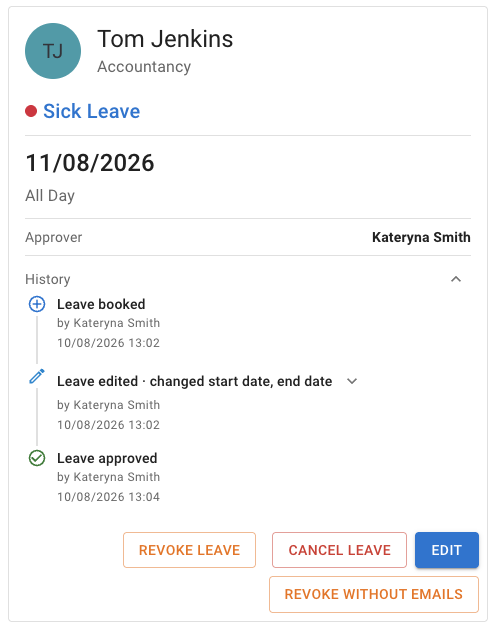
The History section is visible to exactly the people who can open the leave’s details: the employee the leave belongs to, and the people who can approve or screen their requests. Administrators additionally see all leave events in the Audit trail report, within its one-month window.
Frequently asked questions
Who can see the audit trail? Administrators only. Each leave’s own History section is visible to the employee and their approvers.
How long is history kept? One month in the Audit trail report. A leave’s own history is kept for as long as the leave exists, in that leave’s History section.
What about deleted employees? Their entries remain in the trail under their name, and you can still filter on them, until the retention window passes.
Can I export the audit trail? Not currently — it is viewed in the app.
Are passwords or other sensitive values shown? Never. Such values display as value hidden.