
How to backup employees' leave data
A company backup gives you a downloadable copy of your TimeOff.Management data.
We recommend creating a backup:
- at least once every six months
- before deleting your company account
- before making major changes to your company setup
- when your business needs an additional record of employee leave data
Deleting a company account is permanent. Its data cannot be retrieved afterwards.
Who can create a company backup?
Company Backup is available from General Settings.
This is an administrator function because the downloaded file contains company and employee information.
Store the backup securely and only share it with people who are allowed to access the data.
How to download a company backup
To create a backup:
- Open Settings → General Settings.
- Select Company Backup.
- Follow the option to download the backup.
- Save the file in a secure location.
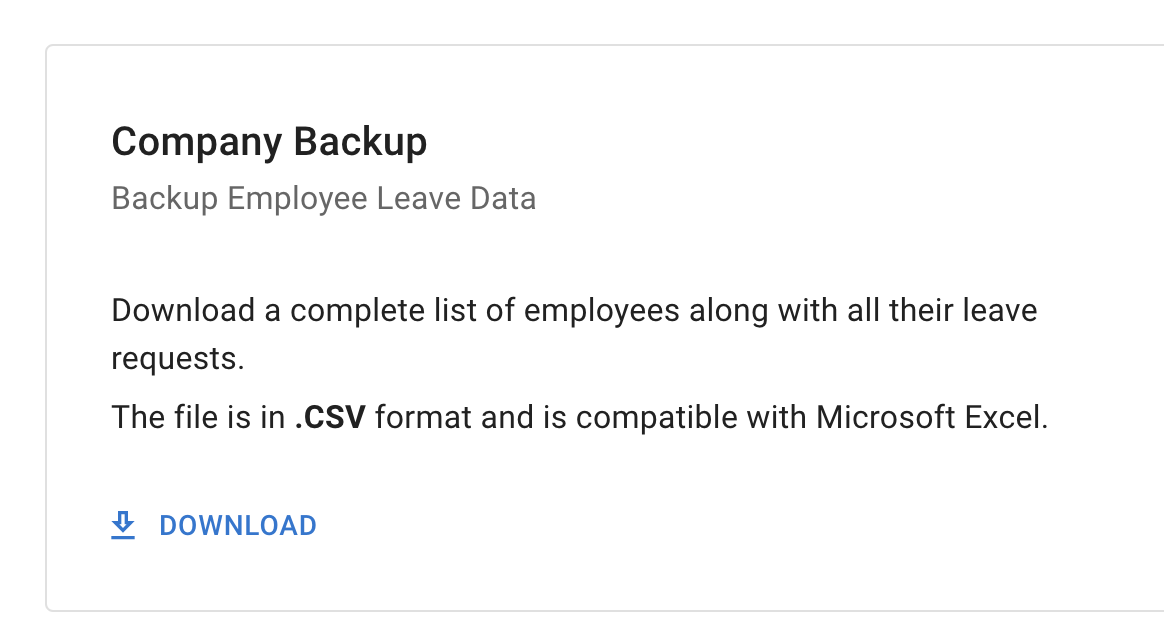
The backup is downloaded as a CSV file.
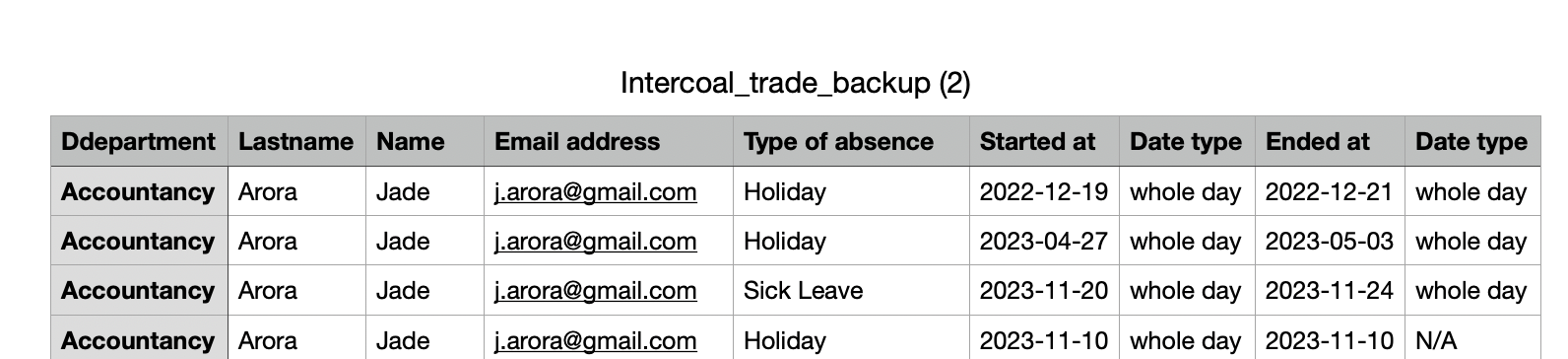
Download leave data for one employee
You can also download leave data for a single employee.
This is useful when you need an individual record without downloading a full company backup.
To download the data:
- Go to Employees.
- Open the employee’s profile.
- Go to Employee Details.
- Open the available actions menu.
- Select the option to download the employee’s leave data.
- Save the file in a secure location.
You may use this when:
- an employee leaves the company
- payroll needs an absence record
- HR needs to review leave history
- you want to keep an individual employee record
- you need to check leave before deactivating an account
The download may contain personal and absence information. Store it securely and only share it with authorised people.
Read more: Deactivate an employee account
Check the downloaded file
After downloading the backup:
- Confirm that the file has been saved.
- Open it to make sure it is readable.
- Check that it relates to the correct company account.
- Move it to your approved secure storage location.
- Record the backup date if your company keeps a backup schedule.
Do not rely on a download that you have not checked.
The backup does not include files attached to leave requests or documents on employee records. Download any you need to keep from the leave or the employee record that holds them.
Read more:
Before deleting a company account
Always download and check a company backup before deleting your TimeOff.Management account.
You may also want to save:
- leave and absence reports
- allowance and PTO reports
- invoices
- payroll information
- any other records required by your business
Read more: Delete a company account
Company Backup and Reports
Company Backup and Reports serve different purposes.
| Option | When to use it |
|---|---|
| Company Backup | Download a broader copy of company account data |
| Reports | Review and export specific leave, allowance, or absence information |
Use Reports when you need a focused view for a selected date range, employee, department, location, or leave type.
Read more: Reports
How often should you create a backup?
We recommend downloading a company backup at least once every six months.
Your business may choose to do this more often.
For example:
- every month
- every quarter
- before year-end allowance work
- before changing important company settings
- before deleting the company account
Choose a simple schedule and make one administrator responsible for checking that backups are completed.
If the backup does not download
Try these checks:
- refresh the page
- check your internet connection
- check your browser’s download settings
- check the browser’s downloads folder
- try another supported browser
- confirm that you have administrator access
Do not delete the company account until you have successfully downloaded and checked the backup.
Related articles
-
Delete a company account Review the checks to complete before permanently removing your company and its data.
-
Reports Export focused information about leave, allowance, employees, approvers, and absence records.
-
TimeOff.Management data security Learn more about managing and protecting employee information.
Best practice
Download a company backup at least every six months.
Always create and check a fresh backup before deleting your company account.