
Login type (enable SSO)
TimeOff.Management supports two login methods:
- email and password
- Single Sign-On with Google or Microsoft
Administrators can choose the login method for each employee.
Only one method can be active at a time.
The default login type is Email/Password.
Email and password or SSO?
Choose the method that matches how the employee should access TimeOff.Management.
| Login type | How the employee signs in |
|---|---|
| Email/Password | Uses the email address and password linked to their TimeOff.Management account |
| Google/Microsoft SSO | Uses their Google or Microsoft account |
When SSO is selected, the employee cannot also sign in with their TimeOff.Management password.
When Email/Password is selected, Google or Microsoft SSO is not available for that employee.
Enable SSO for an employee
To change an employee’s login type:
- Go to Employees.
- Select the employee.
- Open Employee Details.
- Enter Edit Mode.
- Find the Login Type section.
- Select the required login method.
- Click Save Changes.
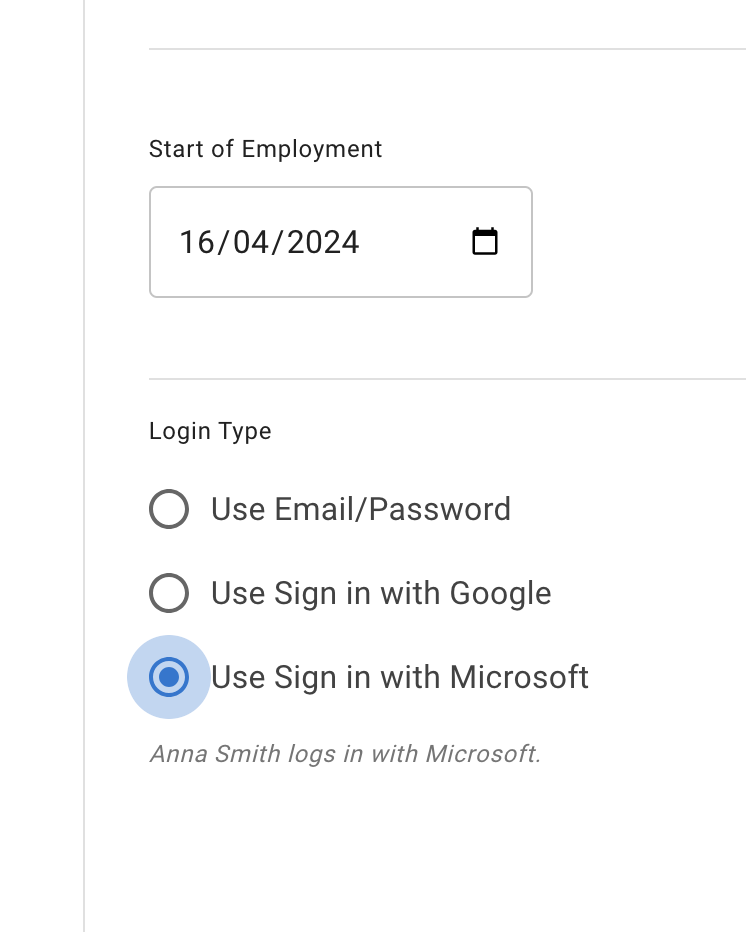
Tell the employee which login method they should use after you save the change.
Switching from email and password to SSO
When you change an employee to Google or Microsoft SSO, they should use the matching SSO option on the login page.
Their previous email and password login will no longer be available while SSO is selected.
Before making the change:
- confirm the employee knows which SSO option to choose
- check the email address saved in their employee profile
- tell the employee when the change will take effect
Switching from SSO to email and password
When you change the login type back to Email/Password, the employee must use the standard email and password login.
If they do not know their password, they can request a password reset.
Read more: Reset a forgotten password
If the employee cannot sign in
Check:
- the login type selected in Employee Details
- the employee’s saved email address
- whether they are choosing the correct Google or Microsoft option
- whether they are trying to use a password while SSO is active
- whether their account is still active
If the employee was recently added, also check that their profile and invitation were set up correctly.
If the employee has been deactivated
Changing the login type will not restore access to an inactive employee account.
Check the employee’s End of employment date if they should still have access.
Read more: Deactivate an employee account
Related articles
-
Reset a forgotten password Help an employee regain access when Email/Password is their active login type.
-
Adding, editing, and deleting users Add employees and update their account details, department, location, and access settings.
-
Send a welcome email to a new employee Invite a new employee to access TimeOff.Management.
Best practice
Choose one clear login method for each employee and tell them which option to use.
This avoids confusion between password login and Google or Microsoft SSO.