
Reminder policy
A reminder policy watches a group of employees and emails another group before those employees’ approved leave starts. Managers and teammates find out what is coming without going to look for it.
You choose two things: whose upcoming leave triggers a reminder, and who the reminders go to. They can be the same group of people, or two different ones.
Recipients get at most one email a night. It is a digest of the upcoming leave, not one message per booking, so switching a policy on for a large group does not flood anybody’s inbox.
This is an administrator’s screen. A company can run several reminder policies side by side, each with its own name and its own two groups.
Where to find it
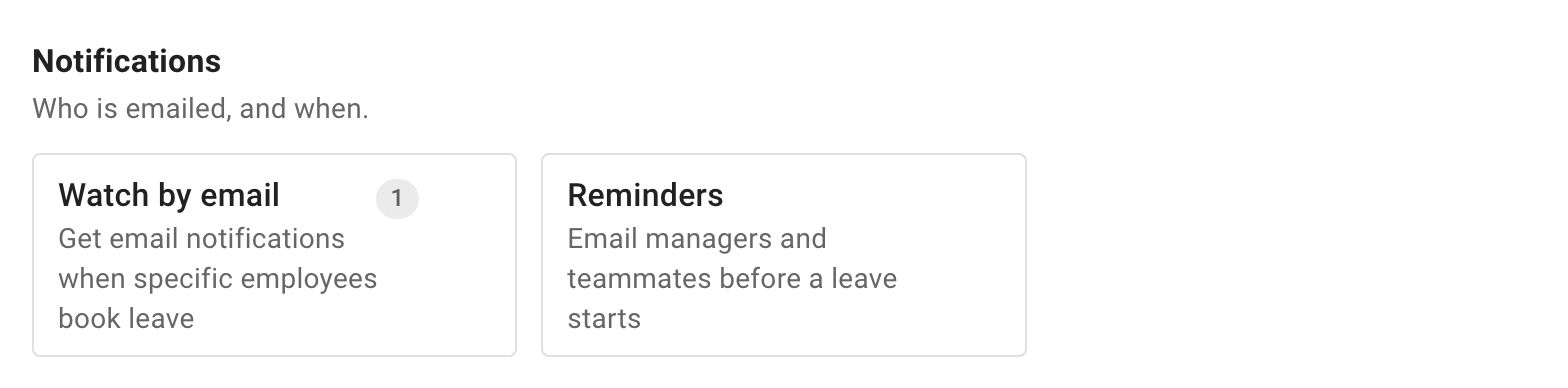
Open Settings → Employee policies. The Employee policies page is a catalogue of tiles, one per kind of policy, grouped under headings; the one you want is Reminders, under Notifications, described as “Email managers and teammates before a leave starts”. A page you have pinned to the menu leaves its group and comes first, under Pinned. Opening the tile shows your reminder policies.
If it is quicker to type the name than to hunt for the tile, there is a search box above the grid.
Creating a policy
A policy is a single card, and you fill it in from the top down.
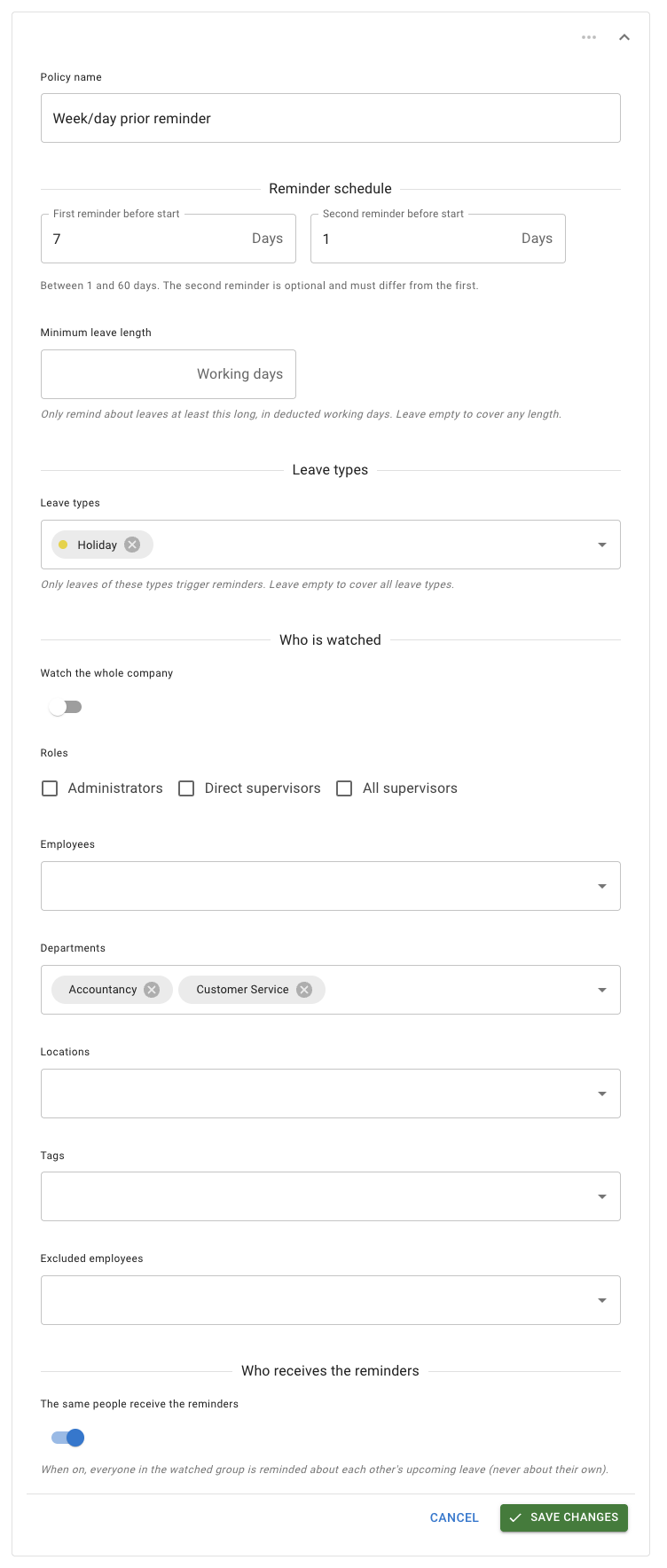
Policy name
The name is what you and your colleagues see in the list, so make it say what the policy does — Week/day prior reminder, Support cover, Directors’ leave — rather than Policy 2.
Reminder schedule
Two fields, First reminder before start and Second reminder before start, decide how far ahead of the leave the reminders go out. The caption beneath them states the permitted values:
Between 1 and 60 days. The second reminder is optional and must differ from the first.
So a policy sends either one reminder or two. The example above uses seven days and one day: a week’s notice, then a nudge the day before the leave starts.
Minimum leave length
An optional filter that narrows the policy by how long the leave is, so a policy need not fire for the shortest bookings. Leave it empty and leave of any length can trigger a reminder.
Leave types
The other optional filter. Name the leave types that should trigger reminders — the policy above is limited to Holiday — or leave the picker empty and every leave type counts.
Who is watched
The group whose upcoming leave triggers the reminders.
- Watch the whole company — a switch that watches everybody in the company, so you do not need to name anyone below it.
- Roles — three checkboxes: Administrators, Direct supervisors and All supervisors.
- Employees, Departments, Locations and Tags — the same pickers you will know from the other employee policies. Naming a department, a location or a tag watches everybody in it. Read more: Tagging employees
- Excluded employees — anyone named here is not watched, whatever the pickers above say. Use it when a policy is right for a group apart from one or two people.
You can combine these freely. A policy might watch two named departments, everyone in one location, and every direct supervisor.
Who receives the reminders
The same people receive the reminders is a switch, and its caption is worth reading before you decide:
When on, everyone in the watched group is reminded about each other’s upcoming leave (never about their own).
That is the common arrangement — a team keeping an eye on each other.
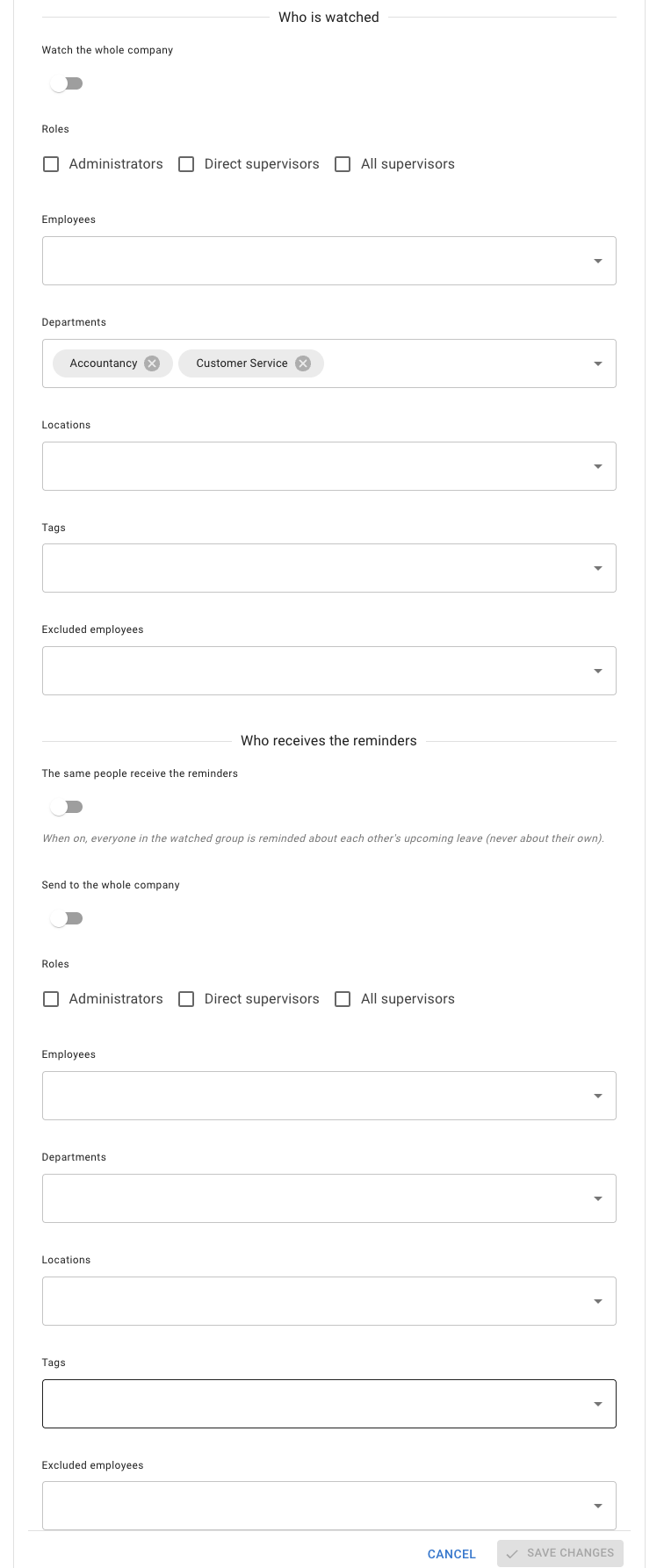
Switch it off and a second set of controls appears, laid out exactly like Who is watched: a Send to the whole company switch, the same three role checkboxes, and pickers for employees, departments, locations, tags and exclusions. Use it when one group should hear about another — a department’s leave going to the two people who arrange cover, for instance.
Saving
Save changes and Cancel sit in a bar at the bottom of the card. Both groups have to be filled in before the policy will save: until it watches somebody and sends to somebody, Save changes stays greyed out, as it is in the shot above.
What a saved policy looks like
A saved policy reads back as plain sentences rather than as form fields, which makes it quicker to check than the form you filled in. The schedule becomes “7 days before the leave starts; 1 day before the leave starts”, an empty minimum length becomes Any length, and the same-people switch becomes Yes.
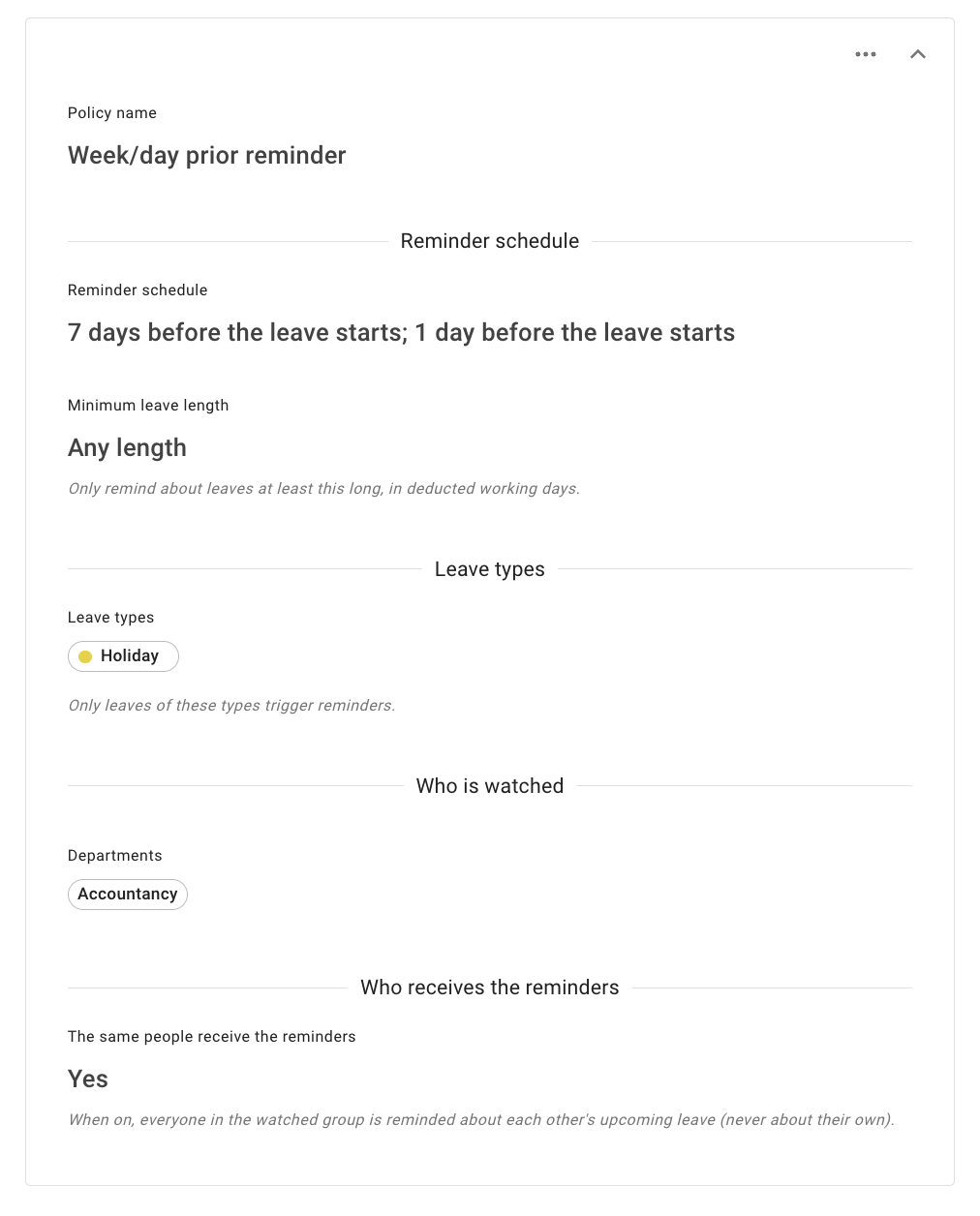
Only the choices you actually made are listed. The policy above watches one department, so Who is watched shows that department and nothing else — the pickers you left empty are not repeated back at you.
The chevron at the top right of a card collapses it down again, and the ⋯ menu holds the card’s actions.
Editing and deleting
A policy’s ⋯ menu is where you go to change or remove it. Editing reopens the same card you filled in when you created the policy.
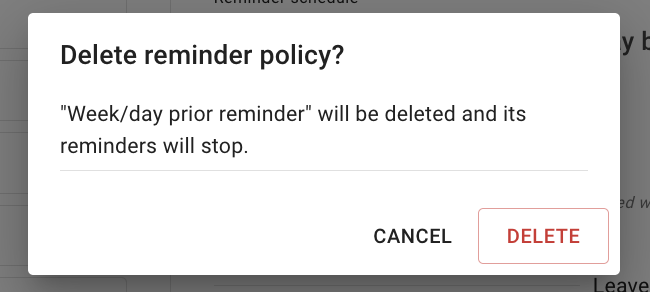
Deleting asks you to confirm first, and the dialog names the policy and says what follows:
“Week/day prior reminder” will be deleted and its reminders will stop.
Deleting one policy does not touch your others. If a second reminder policy watches the same employees, it carries on unchanged.
What a recipient receives
At most one email a night. It is a digest of the upcoming leave the policy covers rather than a message per booking, which is why a policy can watch a whole department without anybody’s inbox suffering for it.
Inside, the upcoming leave is grouped by how soon it starts, most imminent first, so what matters today sits at the top. Each line names the employee, the leave type, the dates and how long the leave is in working days. A recipient who would not see the leave type on Team View sees a generic Leave in its place. The subject line tells the recipient how many upcoming bookings the digest covers.
A link at the bottom opens Team View, which is where to go for the fuller picture. Read more: Using Team View
Good to know
Nobody is reminded about their own leave. It is the first thing people ask when they turn the same-people switch on, and the screen says so underneath it. Somebody in the watched group hears about their colleagues’ leave, never about their own.
Only approved leave triggers reminders. A request still waiting for a decision is not something teammates get reminded about.
It is one digest, not one email per booking. The fear of the opposite is the main thing that stops administrators switching a policy on for a large group.
Deleting a policy stops its reminders. The confirmation dialog says as much before you go through with it.
Both groups have to be filled in. A policy that watches nobody, or that sends to nobody, cannot be saved, and Save changes stays greyed out until both sections have somebody in them.
Leave type visibility. Reminders respect the leave type visibility settings you have configured.
Frequently asked questions
Nobody has received anything. Check the two groups first: a policy needs somebody watched and somebody receiving, and reminders only follow leave that has been approved. Then check the filters — a Leave types picker limited to one type, or a Minimum leave length set longer than the bookings people actually make, will both narrow a policy further than you might expect.
I have not been reminded about my own leave. That is expected, and it is not something that can be switched on. Nobody is reminded about their own leave, whichever group they are in.
A leave request did not produce a reminder. Reminders follow approved leave, so a request still waiting for a decision will not appear. If it has been approved, check the policy’s Leave types and Minimum leave length filters, and check the employee is not named under Excluded employees.
Somebody is receiving reminders I did not expect. An employee can be reached by more than one reminder policy, and the Excluded employees picker only takes somebody out of the policy it sits in. If another policy sends to them — through a role, a department, a location, a tag or the whole-company switch — that one still applies. Look through your other policies for the one reaching them.
Can a policy watch one group and tell a different group about it? Yes. Switch The same people receive the reminders off, and Who receives the reminders gets its own set of pickers, independent of the watched group.