
Password recovery
You can request a password reset if you cannot sign in to TimeOff.Management.
You need access to the email address saved in your employee profile.
Reset your password
To reset your password:
- Open the TimeOff.Management login page.
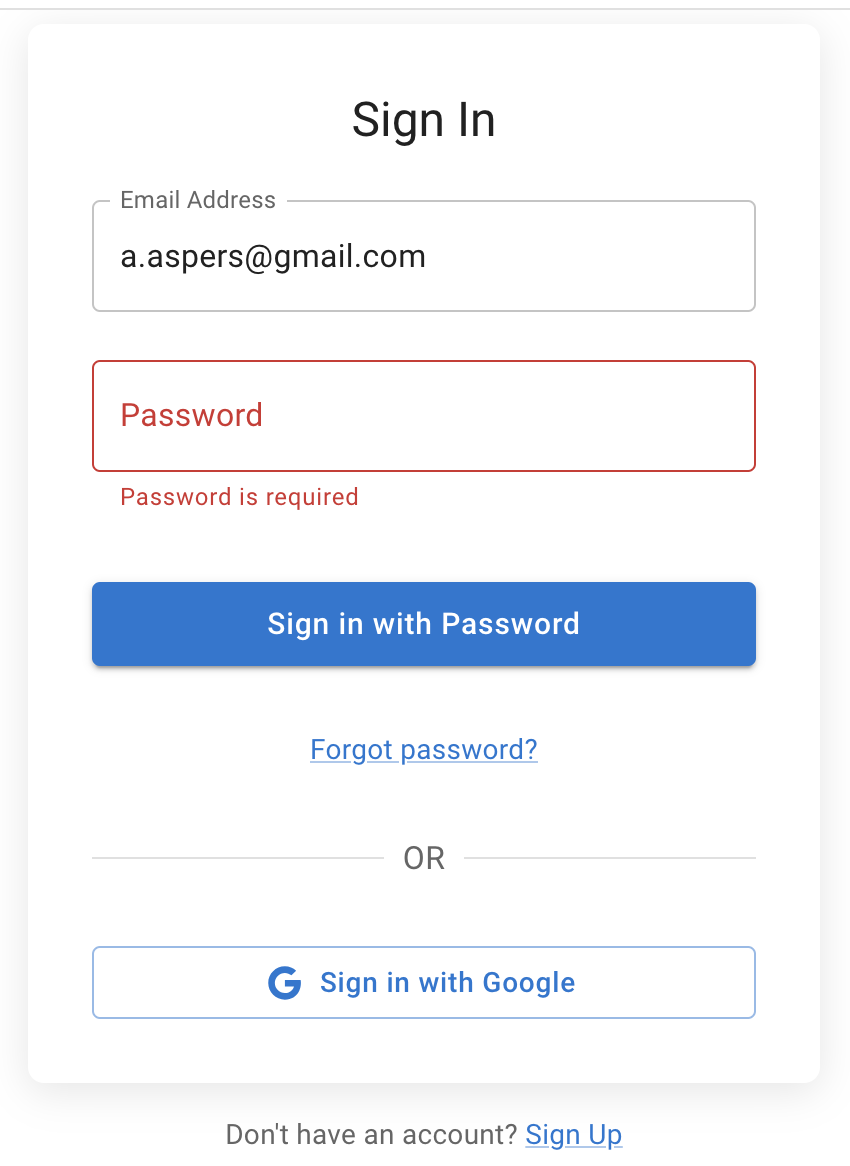
- Select Forgotten password.
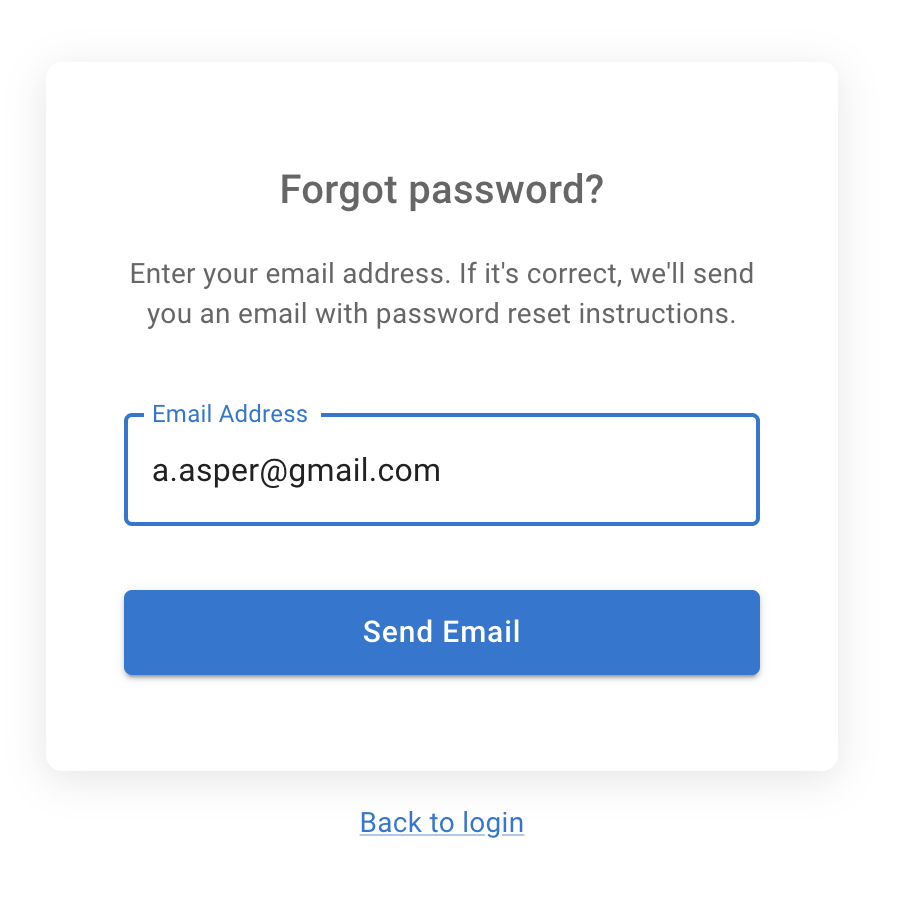
- Enter the email address linked to your account.
- Submit the request.
- Open the password reset email.
- Follow the link in the email.
- Create a new password.
- Return to TimeOff.Management and sign in.
Use the same email address that your company administrator added to your employee profile.
If the reset email does not arrive
First, check:
- your spam or junk folder
- whether you entered the correct email address
- whether your company email system blocked the message
- whether your mailbox is full
- whether you requested more than one reset email
Wait for the newest email before using the reset link.
Older links may no longer work after a new password reset request is made.
Check your employee email address
Ask your company administrator to confirm the email address saved in your employee profile.
A spelling mistake or an old work email can stop the reset message from reaching you.
The administrator can check your employee details, but they should not need to know your password.
Read more: Adding, editing, and deleting users
Use the correct login method
A password reset is for accounts that sign in with an email address and password.
Your company may use another login method, such as:
- Microsoft
- Single Sign-On
If you normally use one of these options, select the same login method instead of resetting your TimeOff.Management password.
Read more: Enable Single Sign-On
If you recently received a welcome email
New employees should use the link in their welcome email to access TimeOff.Management for the first time.
If the welcome link does not work, ask your administrator to check your email address and resend the invitation.
Read more: Send a welcome email to a new employee
If your account has been deactivated
A password reset will not restore access to a deactivated employee account.
If your employment end date was entered by mistake, contact your company administrator.
Read more: Deactivate an employee account
If the password reset link does not work
Try these checks:
- Use the most recent reset email.
- Open the full link from the email.
- Request a new password reset.
- Try another browser.
- Check that cookies and JavaScript are enabled.
- Ask your administrator to confirm that your account is active.
Do not share the password reset email or link with anyone else.
Create a secure password
Choose a password that is:
- difficult to guess
- different from passwords used elsewhere
- not based on your name or company name
- kept private
Do not send your password by email or share it with a manager or administrator.
Related articles
-
Send a welcome email to a new employee Invite a new employee or resend their access email.
-
Enable Single Sign-On Learn how company login methods can affect the way employees access TimeOff.Management.
-
Deactivate an employee account Check why a former or inactive employee can no longer sign in.
Best practice
Use the same email address and login method each time you access TimeOff.Management.
Keep your password private and request a new reset email if an older link no longer works.