
Office screens
An office screen turns a screen in your office into a live leave board. You create the screen in TimeOff.Management, choose what it shows, and get a display link. Open that link in the browser on the device driving the screen and the board starts. There is no login on it, it keeps itself up to date, and it cycles through the widgets you picked.
It answers the open-plan question — who’s off this week? — on a wall instead of in an inbox. It also carries the office’s shared calendar: bank holidays, periods when leave cannot be booked, and company events.
Anyone with the display link can see what that screen shows. There is no login on the display, so treat the link as a secret and share it only with whoever is setting the device up. If it gets out, regenerate it — see Looking after a screen.
Who can set one up
Office screens are administrators only. Other employees do not see the menu entry and cannot open the page.
The screen itself has a much wider audience: everybody who walks past it. That is the reason to read Controlling what leave types reveal before you put anything on a wall.
Where to find it
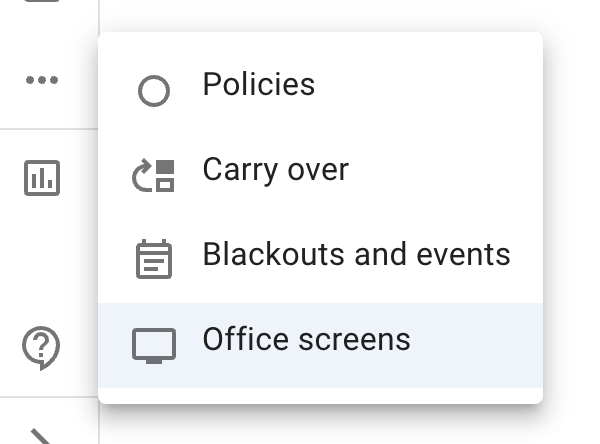
Open the left-hand menu → Settings → Office screens.
Before you start
You need two things:
- An administrator account. Without it the menu entry is not there.
- A device with a browser that can show a web page full screen. That is usually a TV with a built-in browser, a signage player, or a small computer wired to a monitor. The product names Screenly, Yodeck and a Raspberry Pi as examples of the kind of thing people use it with — examples, not a list of supported devices.
The screens catalogue
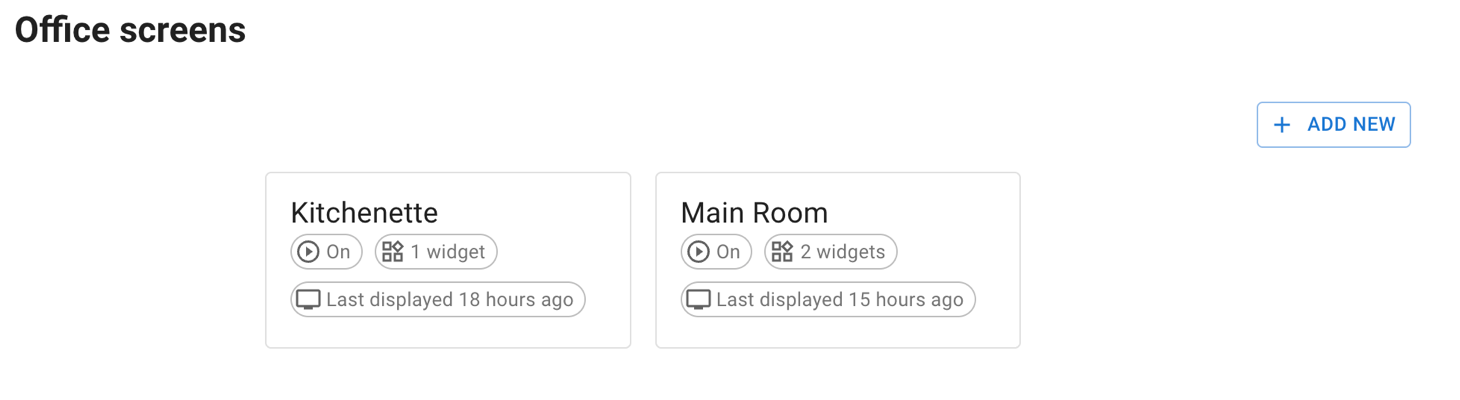
The landing page is a catalogue of your company’s screens, one tile each, with an Add new button.
Each tile carries:
- the screen’s name
- whether it is switched on or off
- how many widgets it has
- when that screen’s display last checked in — Last displayed …, or Never displayed if nobody has opened the link yet
That last line is worth knowing about. It is how you can tell, from your desk, whether the screen across the office is actually alive.
Setting up a screen
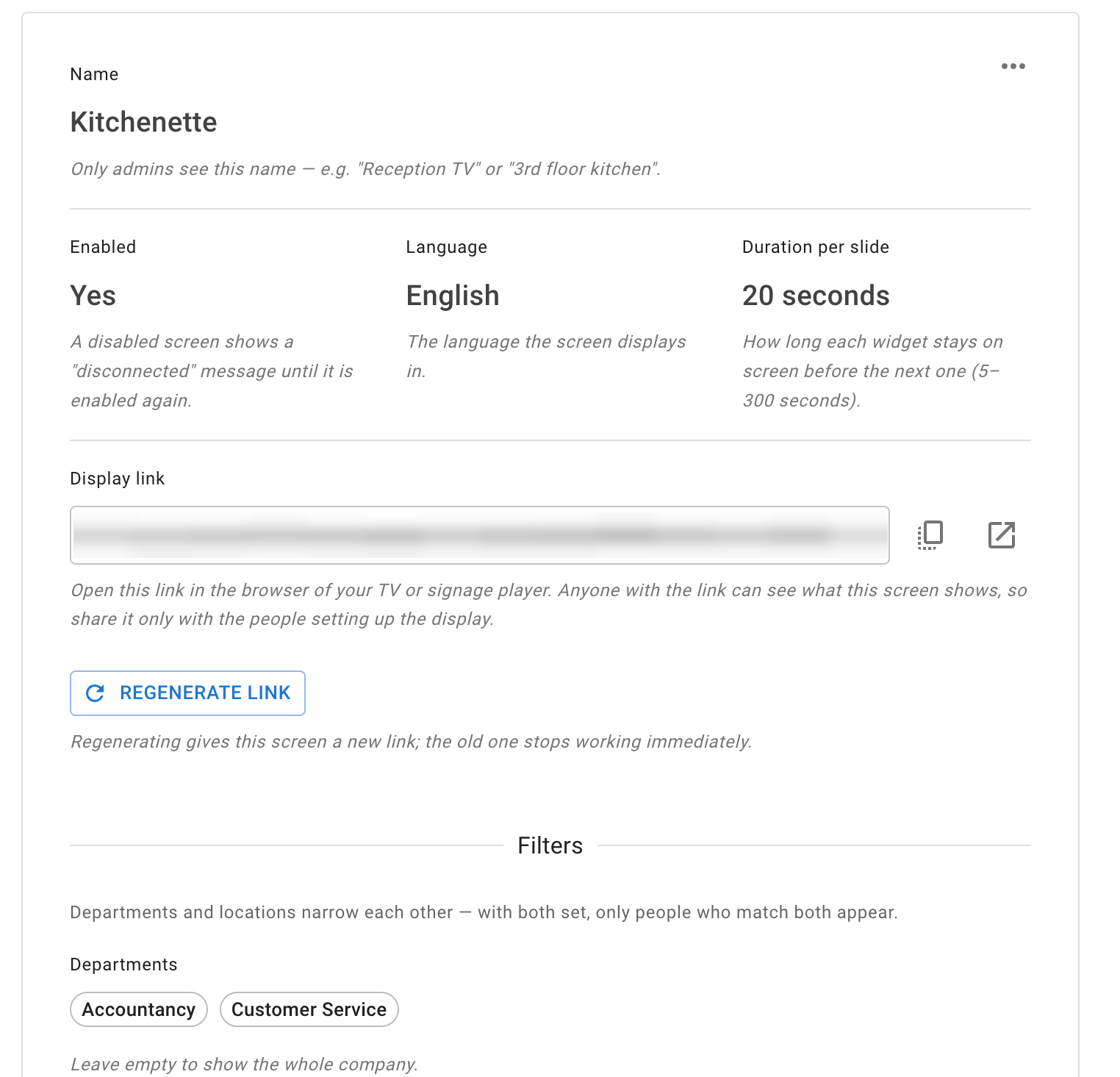
Select Add new, or select an existing tile to open it. A screen reads as a form:
- Name — only administrators ever see it, so make it the practical thing: Reception TV, Warehouse canteen.
- Enabled — a screen can be switched off without deleting it.
- Language — each screen displays in the language chosen here, which does not have to be your own. A Madrid office screen can be in Spanish while you work in English.
- Duration per slide — how long each widget stays up before the next one takes over. You choose it.
- Display link — the link itself, with icon buttons beside it to copy it and to open a preview, and a Regenerate link button below.
- Filters — Departments and Locations, the two controls that decide who the screen covers. See below.
- Widgets — the list of widgets this screen cycles through, in order, with an Add widget button. Each widget can be moved up or down, or removed.
Choosing who the screen covers
Two filters decide whose leave reaches this screen: Departments and Locations.
They narrow each other — they do not add up. This is the control most often misread, so it is worth being explicit:
- Leave a filter empty and it means all — everyone, not nobody.
- Set both and only people who match both appear.
So a screen filtered to the Support department and the Manchester location shows the Support people in Manchester. It does not show everyone in Support plus everyone in Manchester.
If a screen is showing fewer people than you expected, this is the first place to look.
Read more: Managing departments · Managing locations
Adding widgets
A screen shows one widget at a time and cycles through them in the order they are listed. Select Add widget to add one; each appears as a card with its own settings.
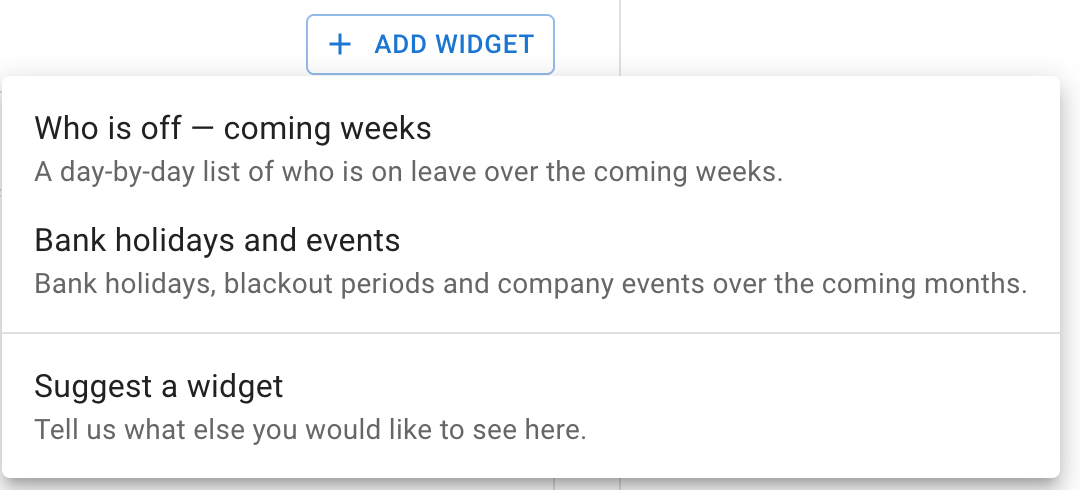
The same menu carries a Suggest a widget option, for telling us what else you would like to see on a screen.
Every widget has a Horizon — how far ahead that widget looks. It rolls forward with the date rather than covering a fixed block of the calendar. You set it on the widget’s card, where a caption under the field tells you where that widget’s span starts and the values it accepts.
Who is off — coming weeks
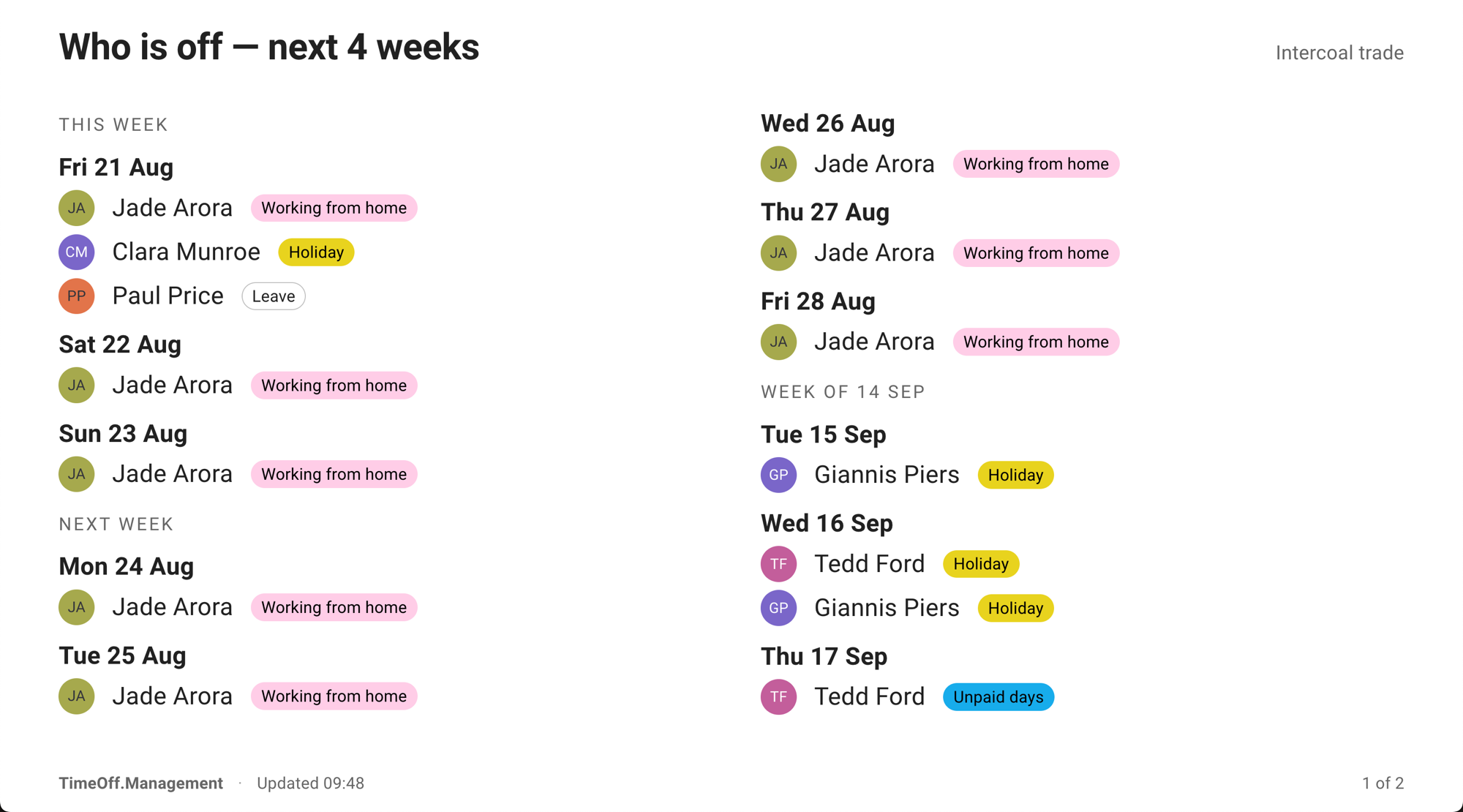
A day-by-day agenda of who is on leave across the widget’s horizon, grouped by week and by day. On the board itself, the heading names the widget along with the horizon you set for it.
Each person appears with their avatar, their name, and their leave type shown according to that widget’s leave-type table. Where somebody is off for only part of a day, the row says so — morning or afternoon. Days with nobody off are skipped, and long lists page through on their own.
Only approved leave appears. A request still waiting for approval does not show on the wall.
Bank holidays and events
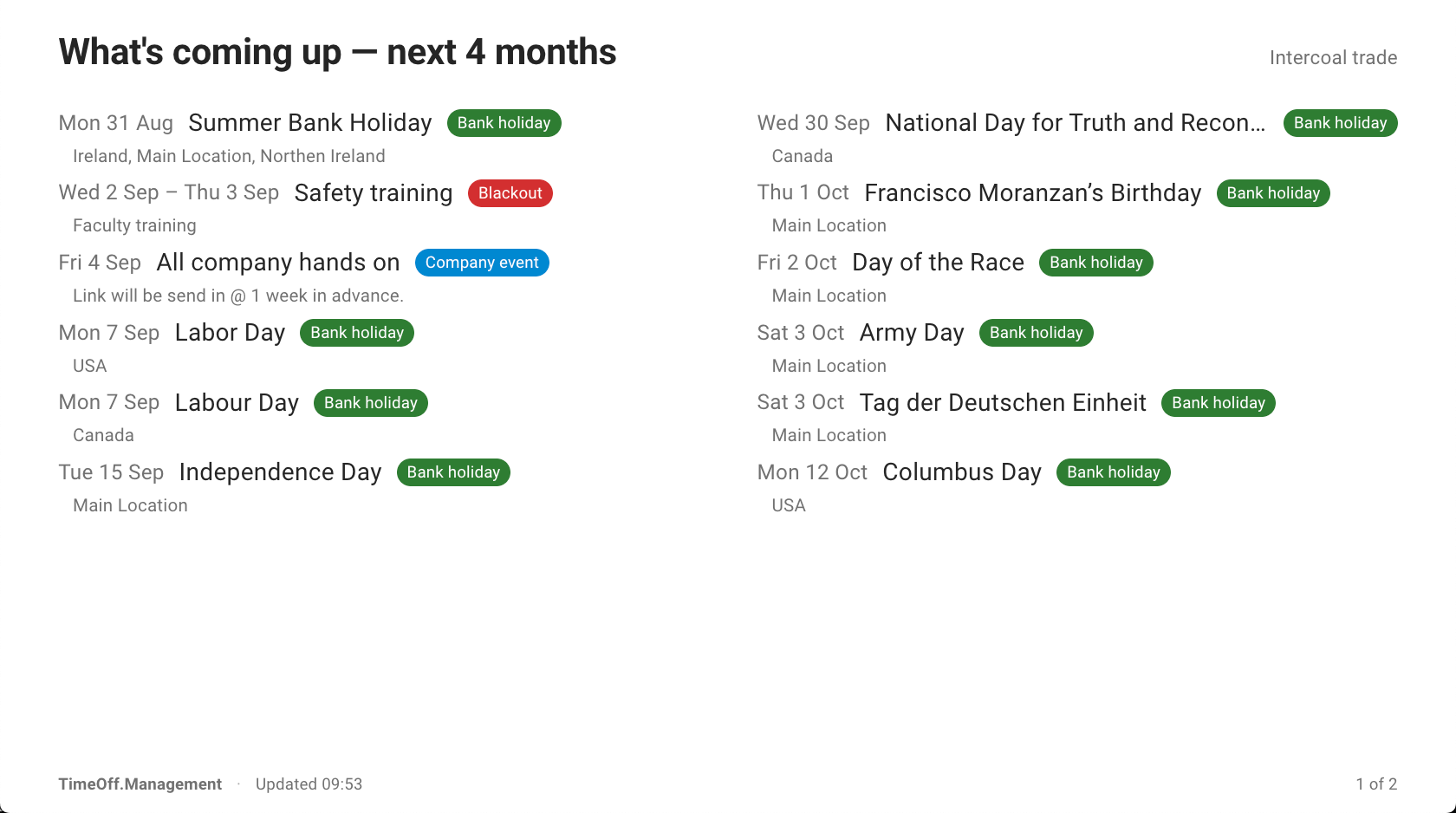
What is happening across the widget’s horizon, split into what is on now and what is still to come. On the board this widget is headed What’s coming up, with the horizon you set for it.
Tick which sources to Include:
- Bank holidays
- Blackout periods
- Company events
Each row is labelled with which of the three it is, and colour-coded so the kind reads from across the room. Where a row applies to only some of the people the screen covers, the row says so.
The difference between the last two matters to whoever is reading the wall: blackout periods stop leave being booked; company events do not.
This widget never names a leave type, so it has no leave-type table on its card.
Read more: Blackouts and company events · Public holidays
Team view
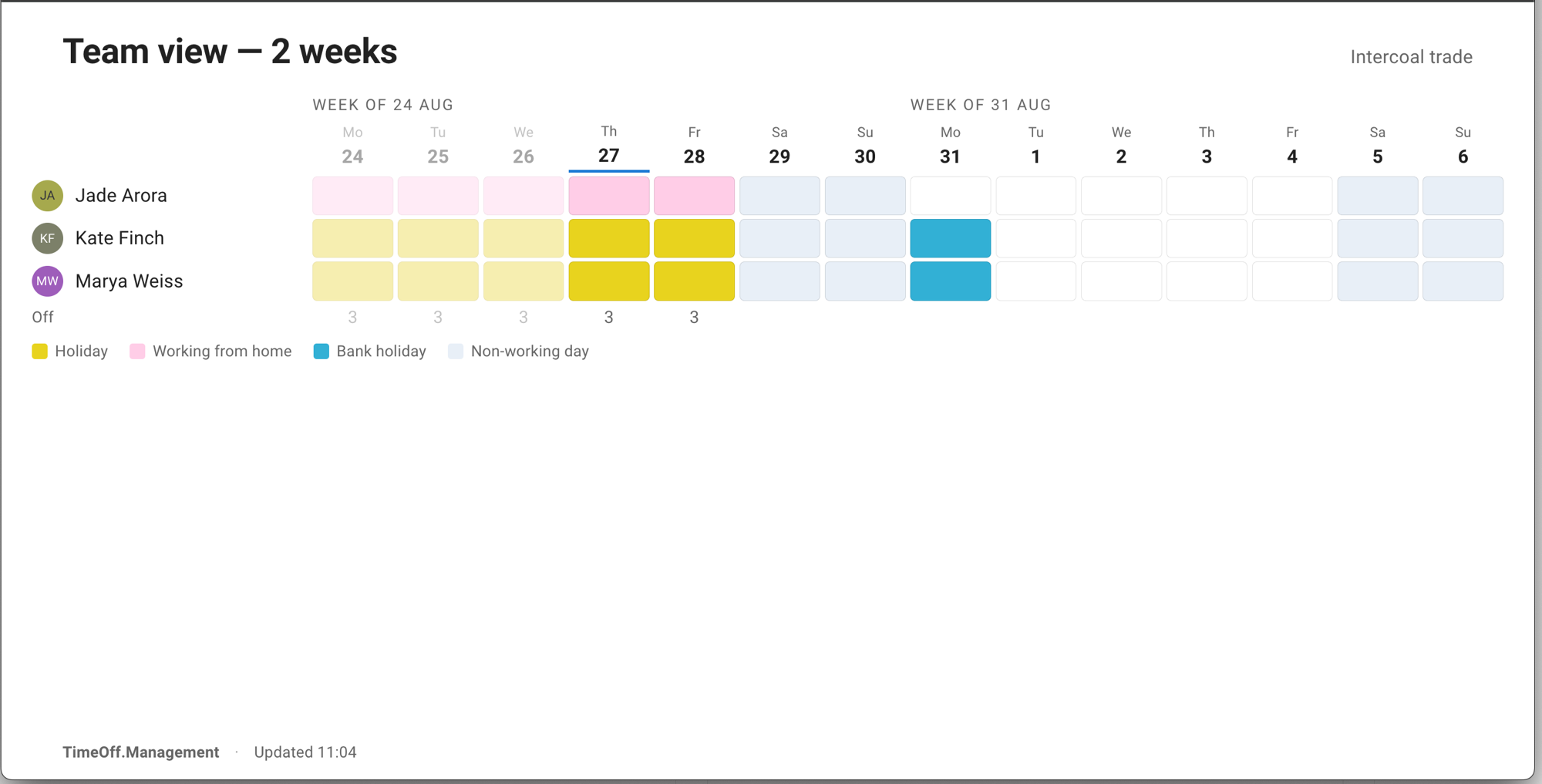
The same leave as Who is off — coming weeks, laid out as a grid rather than a list: a row for each person, a column for each day, and each person’s leave marked in the squares where it falls. It reads like the wall planner it replaces, which is what makes it carry across a room.
Only people with leave in the period get a row. Non-working days and bank holidays are shaded, the current day is marked, a count along the bottom gives how many people the board shows on leave each day, and a key names the colours. It has its own Leave types table, so what it is willing to name is decided screen by screen.
Team view was added because customers asked for it.
Read more: Team view widget for office screens
Controlling what leave types reveal
A wall has no viewer. Nobody logs into a display, so it cannot decide what to show based on who is looking. The screen decides — and you decide for the screen.
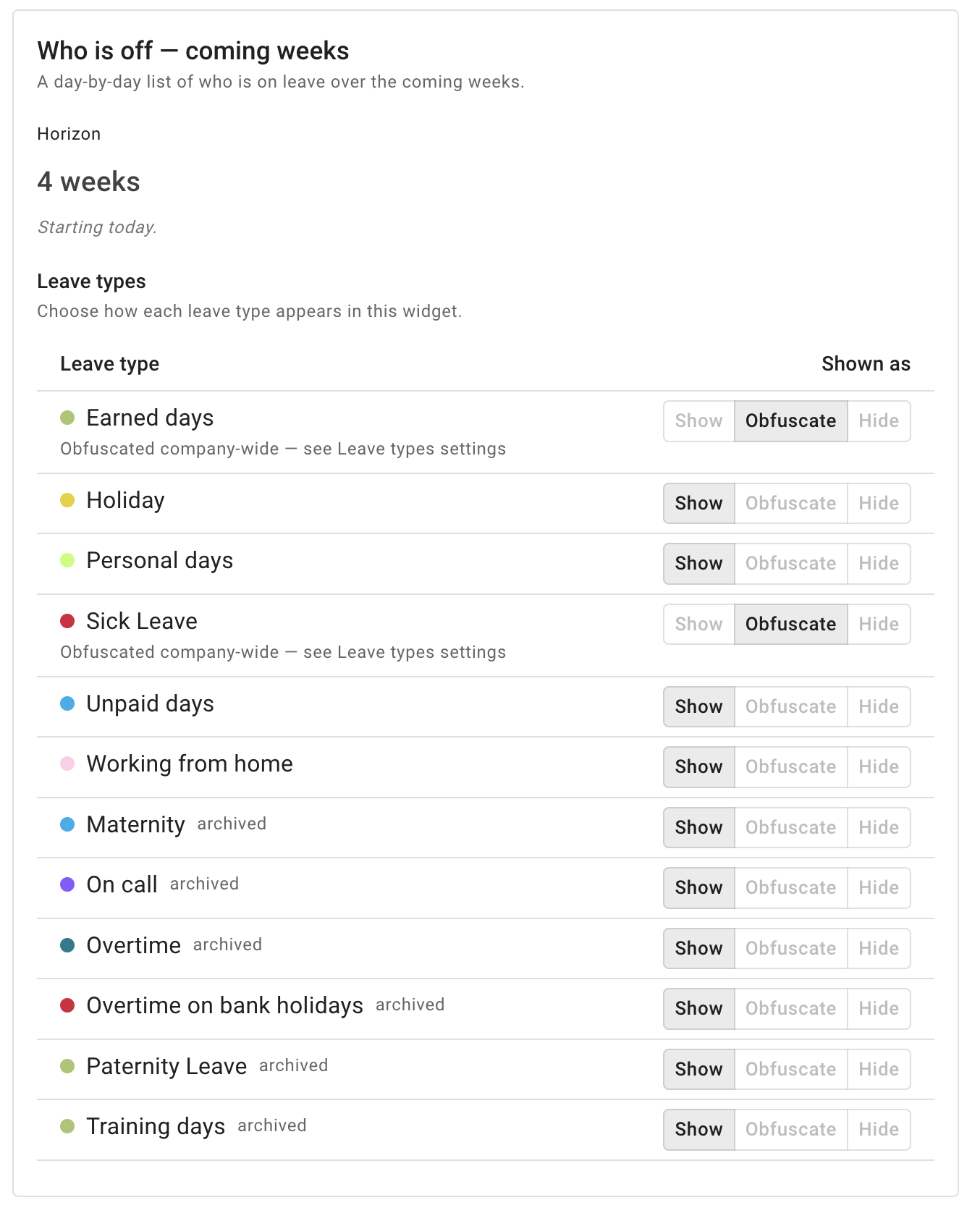
On every widget where naming a leave type is possible at all, there is a Leave types table with a row per leave type and a Shown as column. For each leave type, pick one of three:
| Choice | What the board shows |
|---|---|
| Show | The leave type appears by name |
| Obfuscate | The person still appears as being off, but the leave type is replaced with a generic Leave |
| Hide | Leave of that type does not appear on this screen at all |
Archived leave types appear in the list too, tagged archived.
Your company’s settings are a floor
An office screen can be stricter than your company-wide settings, never looser:
- A leave type your company already hides stays hidden on every office screen, and cannot be shown there.
- A leave type your company already obfuscates can be hidden on a screen, but cannot be named on one.
Where that is the case, the row is locked and carries a caption saying so — Obfuscated company-wide — see Leave types settings — which points you at the setting that decided it. If you are wondering why a particular leave type cannot be switched on, this is the answer, and the fix is a company-wide one rather than a screen one.
Read more: Leave types · Team View privacy modes
Getting it onto the screen
- Open the preview from the display-link row and check the board looks the way you want it.
- Copy the display link.
- On the device driving the screen, open the link in its browser and put the browser full screen.
- Leave it alone. The display refreshes itself — nobody has to go and touch the screen.
The display is sized to be read across a room and rotates through the screen’s widgets. A footer carries the TimeOff.Management name, a note of when the data was last updated, and an indicator of which widget is showing.
Looking after a screen
Checking a screen is alive. The catalogue tile’s last-displayed line is the quickest check. Never displayed means the link has never been opened on any device — which usually means it was never pasted into the player.
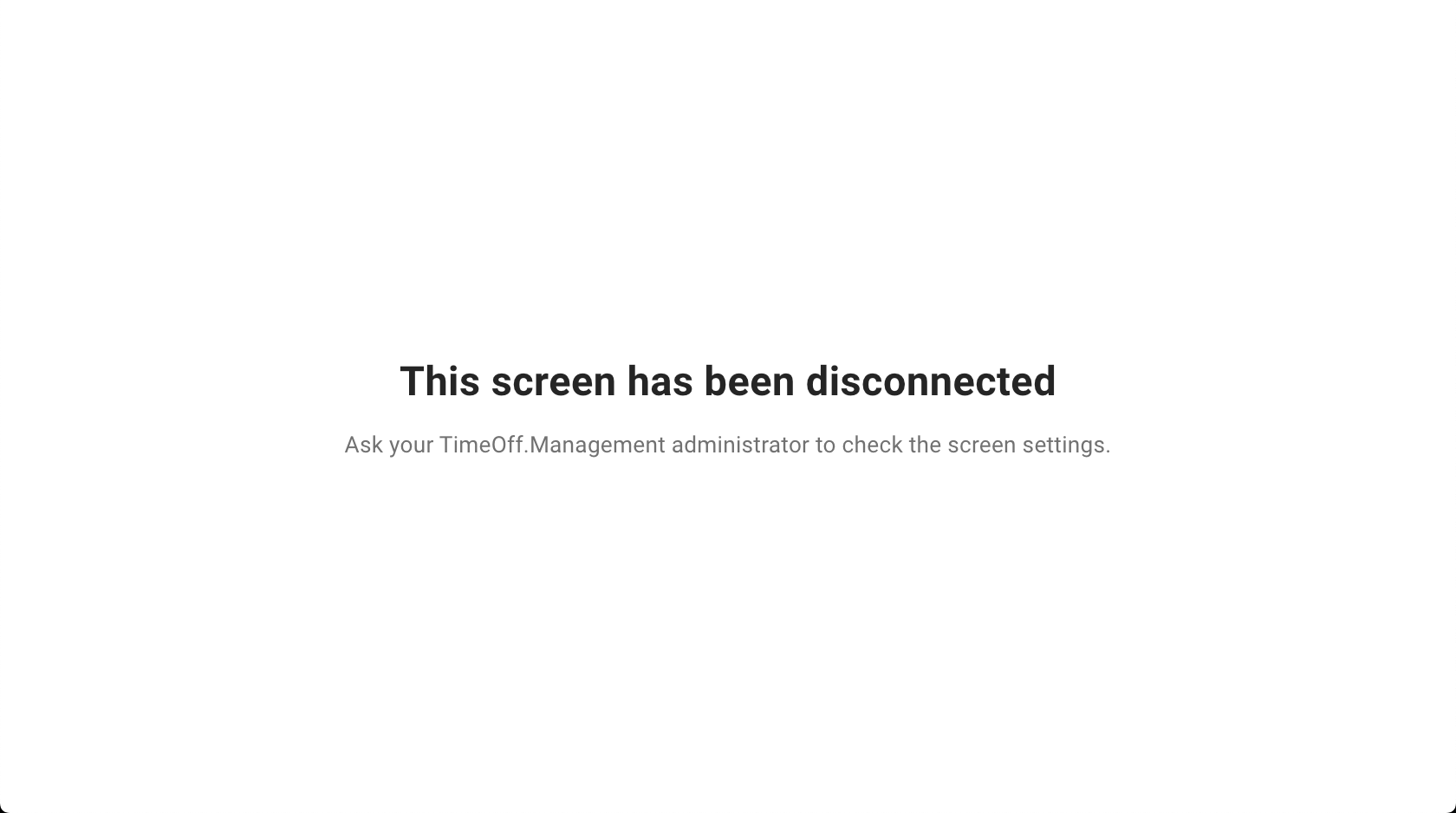
Switching a screen off. Turn Enabled off. A disabled screen does not go blank: its display shows a disconnected message, pointing whoever is reading it at their administrator, until you switch it back on.
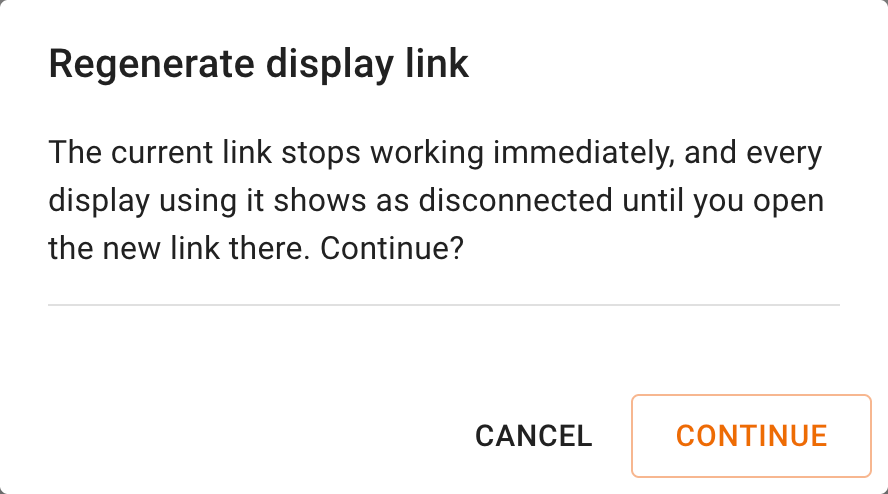
Replacing a link that has got out. Select Regenerate link and confirm. This takes effect immediately: the old link stops working at once, and every display still using it shows as disconnected until somebody opens the new link on that device. Regenerating is the right fix — just budget for the walk to each screen afterwards.
Deleting a screen. Its display shows the disconnected message too, rather than an error or a blank wall.
Troubleshooting
The display reads “This screen has been disconnected”. The screen has been switched off, deleted, or its display link regenerated. Check Enabled first; if the link was regenerated, open the new one on the device.
The screen is blank, dark or frozen. That is not a settings problem. A screen that is switched off or deleted still shows a message, so a dead screen points at the device, its power or its network.
The tile says “Never displayed”, but the screen is up. The display link has never been opened. Check that the link on the device is the current one, and that it was actually pasted in rather than typed into a note somewhere.
Somebody who is off is missing from the board. Three things to check: their leave is approved — only approved leave appears; they fall inside both the Departments and Locations filters; and their leave type is not set to Hide on that widget.
A leave type shows as “Leave” instead of by name. Either that widget’s table has it set to Obfuscate, or your company obfuscates it everywhere — in which case the row is locked and no screen can name it.
I cannot set a leave type to Show. Your company hides or obfuscates that leave type company-wide, and a screen can only be stricter than the company setting. Change it in your company’s leave type settings, or leave the screen as it is.
Something I expected is not on the board yet. Check the widget’s Horizon. A widget only looks so far ahead, and anything past that appears as the date comes closer.
I cannot find Office screens in the menu. It is administrators only.