
Allowance for employees who join or leave during the year
An employee who joins or leaves part-way through a leave year works for only part of that year. By default, TimeOff.Management pro-rates their allowance for it, so the allowance matches the part of the year they are employed.
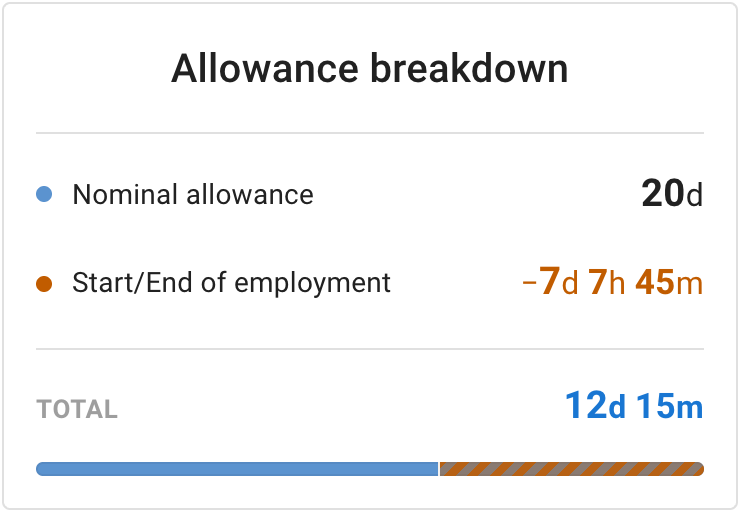
The adjustment has its own row in the employee’s allowance breakdown: Start/End of employment. This article explains what the figure is based on, when it is worked out, how to read it on the employee’s Allowance tab, and what an admin can do with it.
In this article, an admin means an administrator, or anyone else who can change the employee’s allowance.
What the Start/End of employment row is
The row takes away the part of a leave year’s allowance that falls outside the employment:
- In the leave year an employee joins, it takes away the part of that year’s allowance that falls before their start date.
- In the leave year they leave, it takes away the part that falls after their end date.
- Someone who joins and leaves in the same leave year has both in that year.
In the leave years in between, there is no such figure.
For joiners, this is a company setting, on by default: see Switching off pro-rating for mid-year joiners. Employees whose allowance comes from an accrued allowance schedule follow the schedule: see Accrued allowance schedules.
The breakdown describes the row in its own words: “Pro-rated for the working days of the leave year before the employee’s start date or after their end date, unless an admin has set the figure.”
What the figure is based on
The figure is based on the share of the leave year’s working days that fall outside the employment. Those working days are the employee’s own: their working pattern counts, and so do the bank holidays that apply to them.
So, when their allowance is pro-rated, someone who joins about halfway through the leave year gets about half of that year’s allowance.
When the figure is worked out
The figure is worked out in three cases only:
- when the employee is added
- when their start or end date changes, unless an admin has set the figure
- when an admin selects Recalculate
Between those cases, the figure is not worked out again. A pro-rated figure’s caption on the Allowance tab says the date it was last worked out.
What does not work it out again
A later change to any of these does not work the figure out again:
- the employee’s working pattern
- bank holidays
- their department or location
- policies
- the company’s leave-year settings
So if you have changed one of these and the figure has not moved, that is expected. When the change affects the figure, the Allowance tab shows what the current rules would give, and Recalculate applies them. See Applying the current rules with Recalculate.
A change that gives the employee a different allowance, such as a move to a department with a different allowance, can still change the days of a pro-rated figure, as the next section explains.
It follows the allowance amount
A pro-rated figure is a share of the allowance, so it follows a later change to the employee’s allowance. Give them a larger allowance, and the part taken away grows with it.
A figure an admin set, or a kept figure (see below), stays at its days.
Reading the Allowance tab: where the figure came from
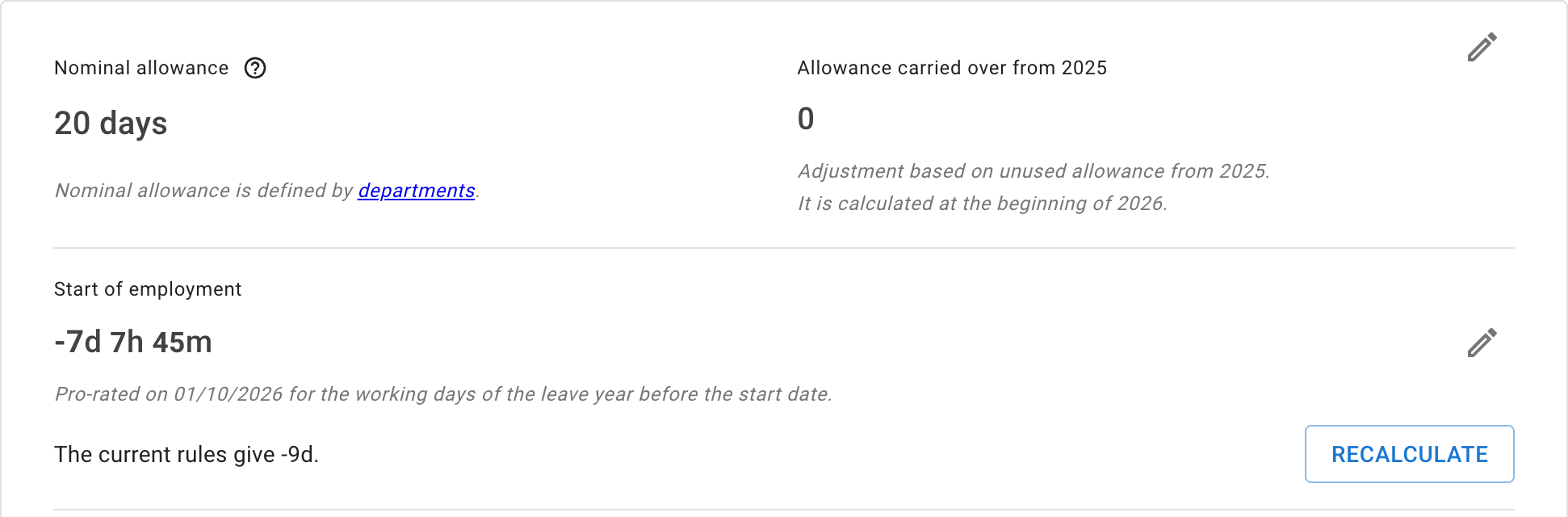
Open Employees, select the employee, and go to their Allowance tab. When their start or end date falls in the leave year on screen, the tab lists the figure under the nominal allowance, as Start of employment, End of employment, or both.
Whoever can change the employee’s allowance also sees a caption under each side, saying where the figure came from:
| Caption | Where the figure came from |
|---|---|
| Pro-rated on [date] for the working days of the leave year before the start date. | TimeOff.Management worked it out on that date. On the End of employment side, the caption ends “after the end date.” |
| Set by [name] on [date]. | An admin set it by hand. See Setting the figure yourself. |
| Kept from the previous calculation. | It was carried over unchanged from an earlier calculation. |
| From the accrued allowance schedule. | The employee’s allowance comes from an accrued allowance schedule. See Accrued allowance schedules. |
Kept figures
A kept figure was carried over unchanged from an earlier calculation. It stays as it is until an admin recalculates it, or until the date it belongs to changes.
Who sees what
Admins, and anyone else who can change the employee’s allowance, see the captions and the pencil. When it applies, they also see the current rules line with Recalculate: see Applying the current rules with Recalculate.
The employee, and anyone who can only view their allowance, see the figure alone. An employee finds their own figure on My calendar, as the Start/End of employment row of their Allowance breakdown.
Applying the current rules with Recalculate
Under some figures, whoever can change the employee’s allowance also sees a line, “The current rules give [figure].”, beside a Recalculate button. It appears:
- beside a figure that was set or kept, even when the current rules give the same days. Recalculate then replaces it with what the current rules give.
- beside a pro-rated figure, when something the figure is based on has changed: a new working pattern, for example.
Select Recalculate to replace the figure, a set one included, with one worked out by the current rules. The tab then confirms it: Adjustment recalculated.
Setting the figure yourself
An admin can set either side by hand:
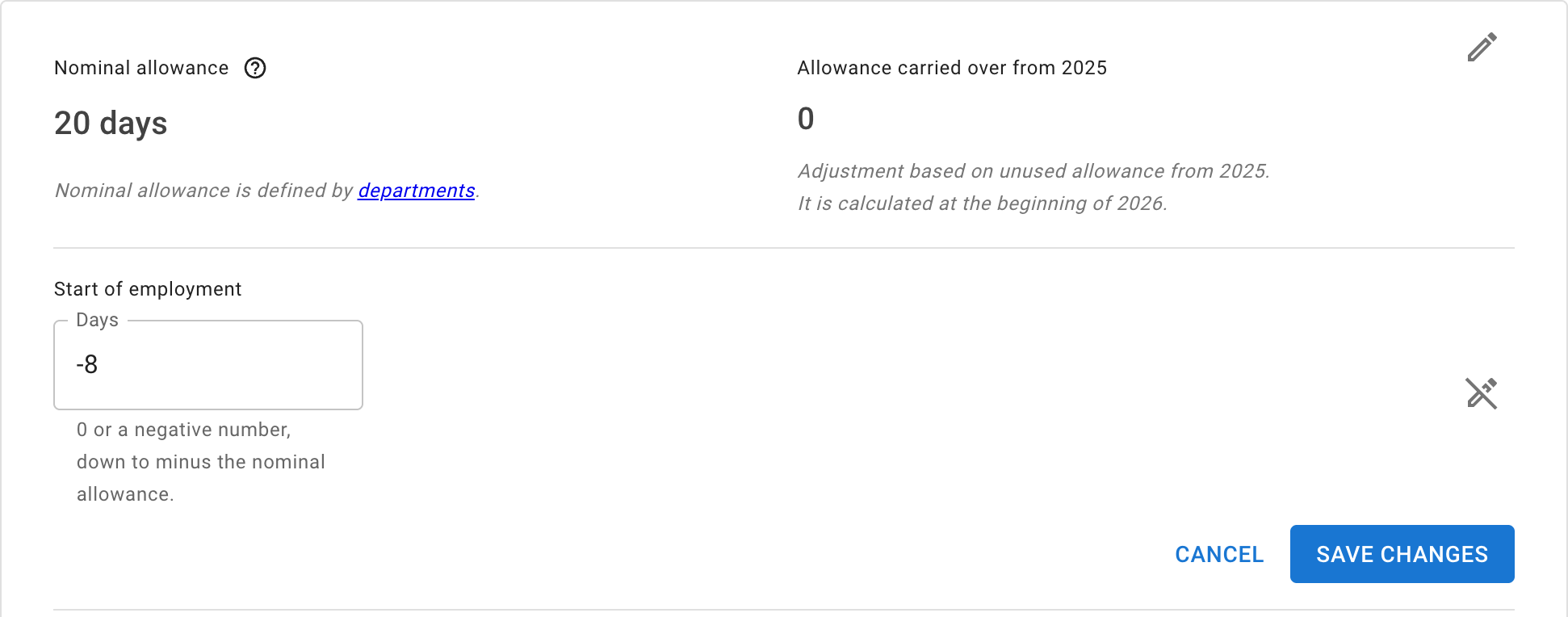
- On the employee’s Allowance tab, select the pencil beside Start of employment or End of employment. A field opens.
- Enter the figure. As the field’s help text says, it takes “0 or a negative number, down to minus the nominal allowance.” The field is in days, or in hours when your company shows leave durations in hours.
- Select Save changes. The tab confirms Adjustment saved, and the caption then reads “Set by [name] on [date].”
Cancel closes the field without saving.
A set figure stays when the employee’s start or end date changes. Only Recalculate, or another edit, replaces it.
The one exception is clearing an end date. That removes the End of employment figure, including one an admin set.
This figure only takes allowance away. To give an employee extra days, use an allowance adjustment instead.
Switching off pro-rating for mid-year joiners
Pro-rating for mid-year joiners is a company setting, and it is on by default.
Go to Settings → General settings. On the Company Details card, directly under Leave year basis, is Pro-rate allowance for mid-year joiners. To change it, select the card’s pencil, use the switch, and select Save changes.
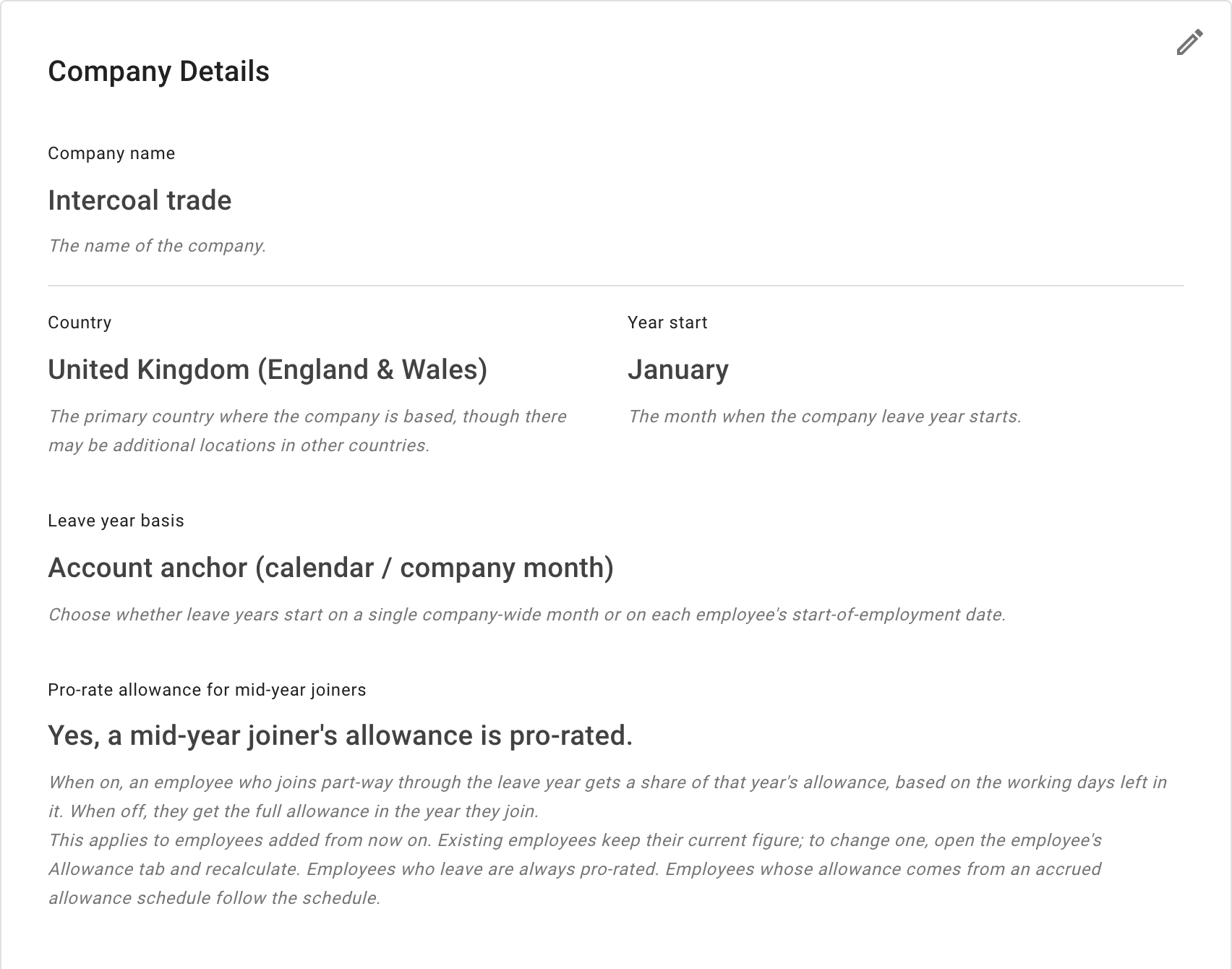
Its explanation on screen reads:
When on, an employee who joins part-way through the leave year gets a share of that year’s allowance, based on the working days left in it. When off, they get the full allowance in the year they join.
This applies to employees added from now on. Existing employees keep their current figure; to change one, open the employee’s Allowance tab and recalculate. Employees who leave are always pro-rated. Employees whose allowance comes from an accrued allowance schedule follow the schedule.
Switching it changes no figure already on an employee. The setting is used the next time a figure is worked out: when an employee is added, when their start date changes (unless an admin has set the figure), or when an admin selects Recalculate. Until then, an employee’s Allowance tab shows what the current rules give beside Recalculate.
To apply the setting to an existing employee, open their Allowance tab and select Recalculate.
Accrued allowance schedules and anniversary leave years
Accrued allowance schedules
An employee whose allowance comes from an accrued allowance schedule follows the schedule, and the Allowance tab says “From the accrued allowance schedule.” The Pro-rate allowance for mid-year joiners switch does not change that.
An admin can still set the figure by hand, as described in Setting the figure yourself. Recalculate then hands it back to the schedule.
Anniversary leave years
With Leave year basis set to Each employee’s employment anniversary, a joiner’s leave year starts on their start date, so pro-rating takes nothing away at the start. The End of employment side works as described above.
Read more: How do tenure-based and anniversary-based allowances work?
Where changes are recorded
When setting the figure or recalculating it changes the figure, the change is recorded in the Audit trail, under Employees:
- Start/end of employment adjustment set
- Start/end of employment adjustment recalculated