
Restrict leave overlap
Some teams cannot afford to have everyone away at once. A support rota, a shift, a two-person finance team, a duty roster over a shutdown.
A Restrict leave overlap policy defines a group of employees and a limit on how many of them may be away at the same time. When somebody in the group asks for leave that would break the limit, the policy acts on it: either the request is refused, or the person booking is told the limit will be reached and, if they go ahead, the leave goes through with a warning recorded for whoever approves it.
This is an administrator’s screen. A company can set up as many groups as it likes, each with its own rule, and an employee can be in more than one.
Where to find it
Open Settings → Employee policies. The Employee policies page is a catalogue of tiles, one per kind of policy, grouped under headings; the one you want is Restrict leave overlap, under Booking and approval, described as “Restrict employees from booking leave at the same time.” A page you have pinned to the menu leaves its group and comes first, under Pinned. There is a search box above the grid if it is quicker to type the name than to hunt for the tile.
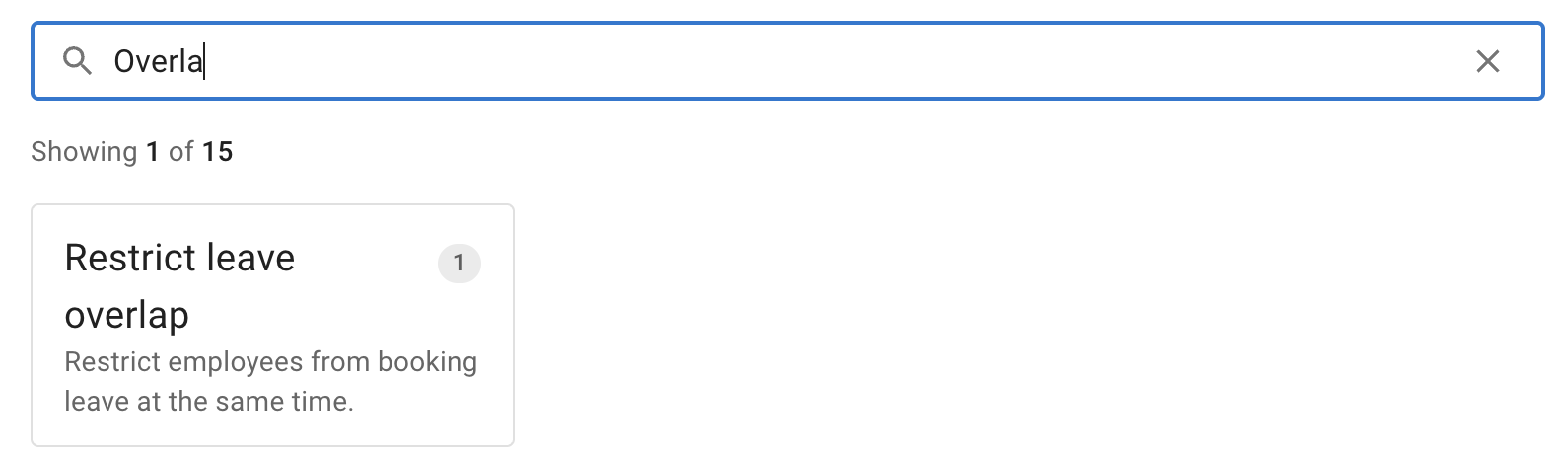
The tile carries a badge counting the groups you have set up. A policy with none configured shows no badge at all.
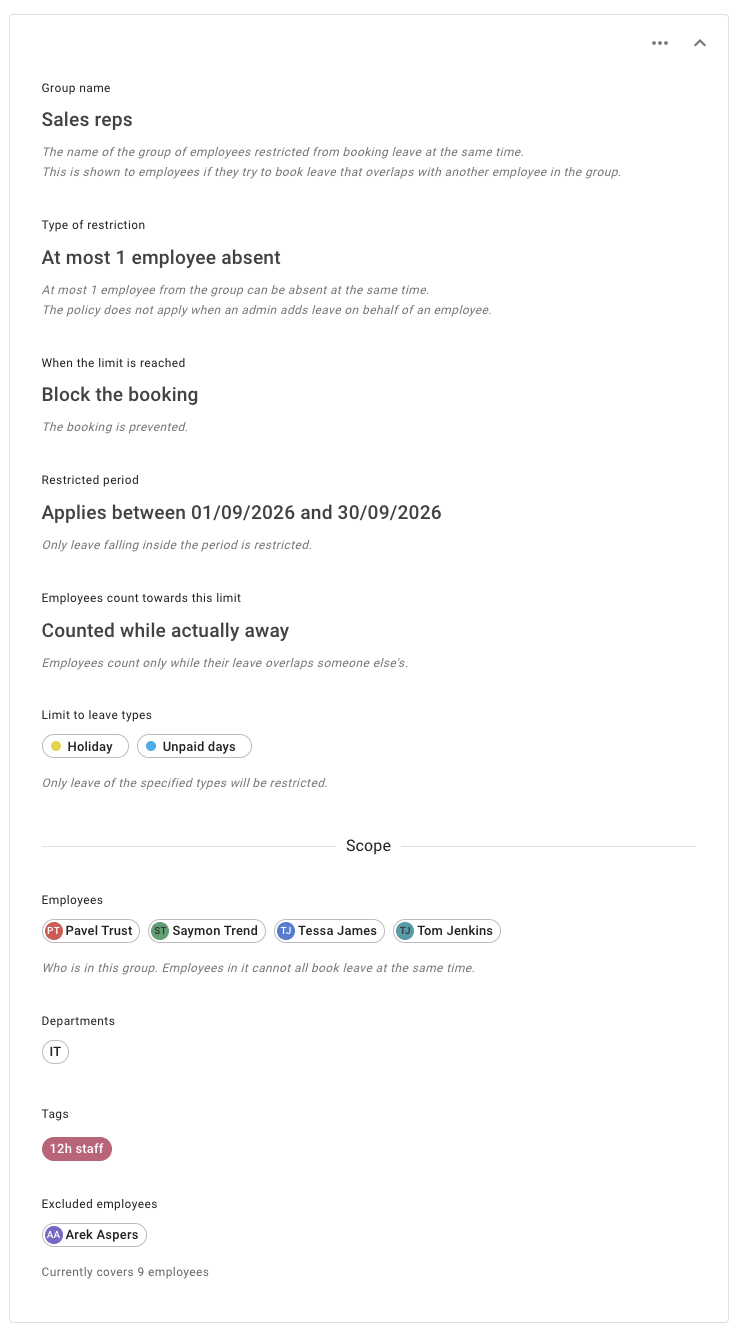
Opening the tile lists your groups, each as a card. A card collapses to its name, and the chevron expands it to a read-only summary of everything the group does. The ⋯ menu offers Edit and Delete. Add creates a new group.
Creating a group
A group is a single card, and you fill it in from the top down.
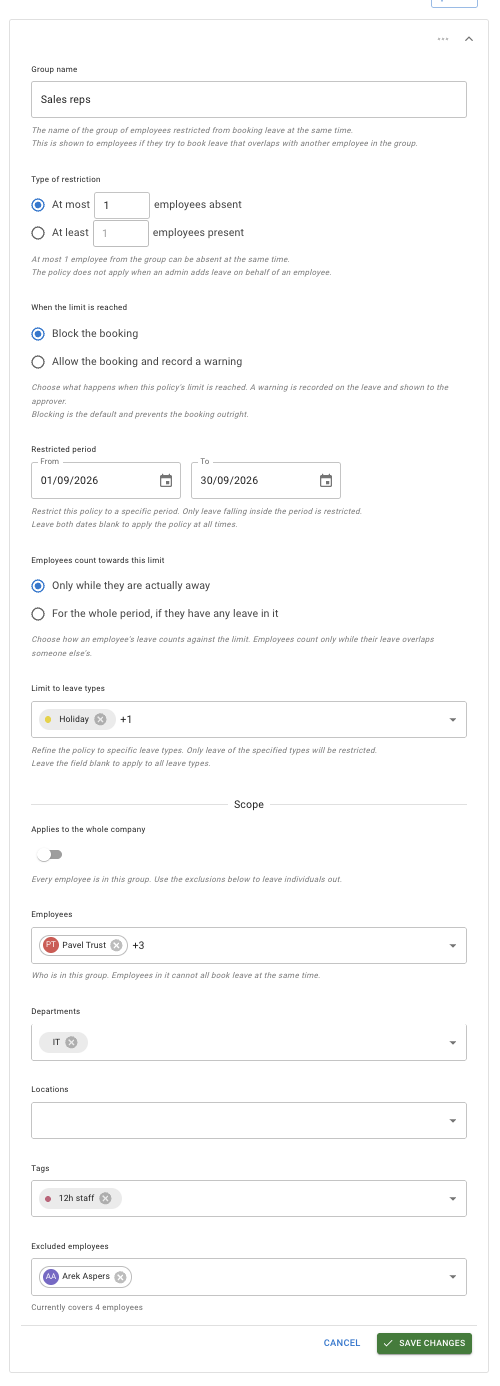
Group name
Free text, and worth a moment’s thought, because employees see it. The helper text says as much:
The name of the group of employees restricted from booking leave at the same time. This is shown to employees if they try to book leave that overlaps with another employee in the group.
It also appears on the warning recorded against a leave. Name the group something a colleague will recognise — Support rota, Weekend cover, Finance — rather than Group 2.
Type of restriction
Two mutually exclusive rules, each with a number you type:
- At most … employees absent — a ceiling on how many of the group may be away.
- At least … employees present — a floor on how many must remain.
Underneath, a caption restates the rule you have just set in plain English, so you can check it reads the way you meant it. A second caption says who can go past the limit — see Going past a blocking limit below.
When the limit is reached
Two options, Block the booking and Allow the booking and record a warning, captioned:
Choose what happens when this policy’s limit is reached. A warning is recorded on the leave and shown to the approver. Blocking is the default and prevents the booking, except when an admin adds it.
With Managers can go past the limit switched on, the second line reads “Blocking is the default and prevents the booking, except when a manager or an admin adds it.”
Managers can go past the limit
A switch, shown only while the group is set to Block the booking, and off until you turn it on. Its helper text:
When a manager adds leave for an employee whose leave they manage, the booking is allowed and a warning is recorded on the leave for the approver, as it is when an admin goes past the limit. Leave that managers add for themselves is still blocked.
A group that warns refuses nobody, so the switch is not shown there. On a saved card it reads Yes or No.
Choosing Allow the booking and record a warning instead raises an alert on the editor:
Nothing will be prevented. Employees can book past the limit, and each booking that does carries an automatic note for the approver.
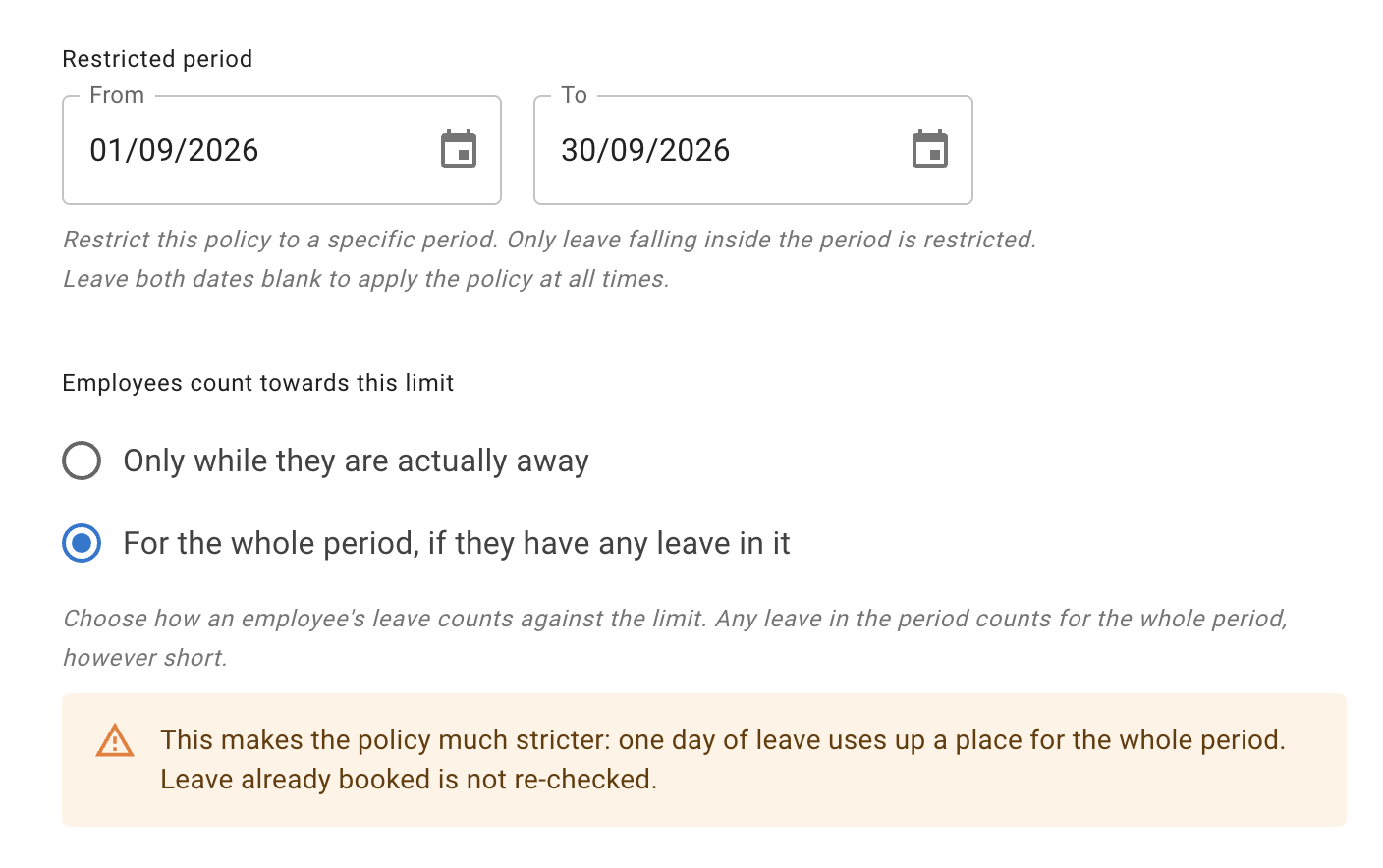
Restricted period
An optional From and To pair of dates:
Restrict this policy to a specific period. Only leave falling inside the period is restricted. Leave both dates blank to apply the policy at all times.
Employees count towards this limit
This control only appears once both period dates are set — it has no meaning without a bounded period, so on a group that applies at all times you will not see it.
Two options: Only while they are actually away and For the whole period, if they have any leave in it. The caption underneath describes whichever one you have picked. With the first selected it reads:
Choose how an employee’s leave counts against the limit. Employees count only while their leave overlaps someone else’s.
The second is covered in Counting across the whole period below.
Limit to leave types
An optional picker:
Refine the policy to specific leave types. Only leave of the specified types will be restricted. Leave the field blank to apply to all leave types.
Scope
The last block on the card, headed Scope, is where you say who is in the group. It has six rows:
- Applies to the whole company — a switch. “Every employee is in this group. Use the exclusions below to leave individuals out.”
- Employees — named individuals. “Who is in this group. Employees in it cannot all book leave at the same time.”
- Departments
- Locations
- Tags
- Excluded employees
Beneath the block, a line tells you how many employees the group currently covers.
The Tags row appears only if your company has created tags.
Saving
SAVE CHANGES and CANCEL sit at the bottom of the card.
What a saved group looks like
Saved, the card collapses to its name. Expand it with the chevron and every setting is summarised as a short sentence rather than a form control — the rule as At most … employees absent, the enforcement as Block the booking, the period as Applies between … and …, the counting as Counted while actually away.
Rows you left empty are not shown at all, so a group’s card only ever lists the things it actually does.
Choosing the rule
At most … employees absent sets a ceiling; At least … employees present sets a floor. They are not two ways of saying the same thing, because a group’s size changes as people join and leave — a floor holds the cover you need whatever the group’s size, while a ceiling stays fixed at the number you typed.
If you set a figure the group cannot satisfy — asking for more people present than the group contains — the editor warns you inline that the group cannot meet it.
Block or warn
Block the booking refuses the request, and it is what most rotas want. It does not stop everyone: an administrator can always go past a blocking group, and a manager can when the group’s Managers can go past the limit is on — see Going past a blocking limit.
Allow the booking and record a warning is the softer setting for teams who would rather see the clash than prevent it. The person booking is told the limit will be reached and asked whether to go ahead; if they do, the leave goes through and a warning is recorded on it for the manager.
Warning mode prevents nothing. It is the single most misunderstood setting on this screen. The question the booking form asks is for the person booking, and the answer is theirs: nobody has to override the limit before the leave is added. The request then follows its usual approval route, with the warning on it for whoever decides it. What warning mode adds is visibility — the person booking sees the clash before they commit, and the manager sees it on the leave afterwards.
Going past a blocking limit
A group set to Block the booking refuses most people, but not everyone.
- Administrators can always go past it, whether they are adding leave for somebody else or booking their own.
- Managers can go past it when the group’s Managers can go past the limit switch is on, and only when they are adding leave for an employee whose leave they manage. Leave a manager books for themselves is still refused, unless they are also an administrator.
Going past the limit is never silent. The booking form asks first, exactly as it does for a group that warns, and says the group would normally block this. Once they go ahead, a warning is recorded on the leave, the same one a group that warns leaves.
The caption under Type of restriction says who can go past the limit. With the switch off it reads:
An admin can go past the limit, and a warning is then recorded on the leave.
With it on:
An admin, or a manager adding leave for an employee whose leave they manage, can go past the limit, and a warning is then recorded on the leave.
On a group that warns, the caption reads “The warning is also recorded when an admin adds leave on behalf of an employee.”
If an administrator adds leave past a blocking group’s limit and it goes through, the group is working as designed. The warning on the leave records that the limit was passed.
Limiting it to a period
A group with no restricted period set applies at all times. Setting one narrows it to a stretch of the calendar — a Christmas shutdown, a summer peak, the weeks around a launch — and leaves the rest of the year alone. Clear both dates and the group goes back to applying at all times.
Once the period has passed, the group stops restricting anything new, and the card says so: it names the date the period ended and tells you the policy no longer restricts any new leave.
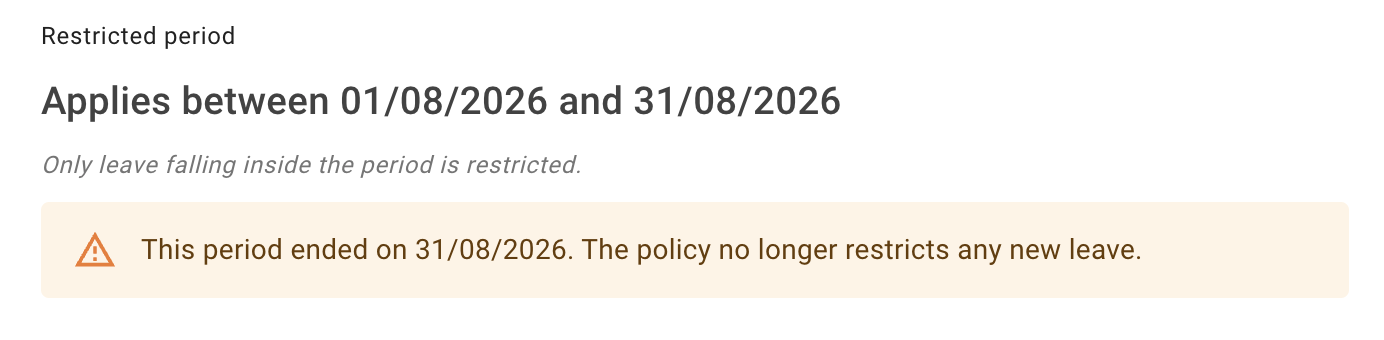
Keep that in mind when a group appears to have stopped working. An old period left in place is the usual explanation, and the group will tell you as much when you expand its card.
Counting across the whole period
Once a restricted period is in place, Employees count towards this limit decides what counts as taking up a place in the group. The caption underneath changes to describe whichever option you have picked.
Only while they are actually away is the ordinary reading, and the default: an employee takes up a place for the days their leave actually covers.
For the whole period, if they have any leave in it is much stricter: an employee with any leave inside the period takes up a place for the entire period.
Take a four-week shutdown, with a group set so that at least two of the team must be present. Under the first option, somebody taking a single day in the opening week occupies a place for that day alone and the rest of the shutdown is unaffected. Under the second, that one day counts them as away for the whole four weeks — they are no longer one of the two holding the fort.
Reach for the stricter reading when what you are protecting is cover across the whole period rather than cover on a given day.
Selecting it raises an alert on the editor:
This makes the policy much stricter: one day of leave uses up a place for the whole period. Leave already booked is not re-checked.
The second sentence matters as much as the first. Changing the setting does not go back over leave that already exists; it changes what happens from that point on.
Limiting it to certain leave types
Leave the Limit to leave types picker empty and the group’s rule applies to every leave type. Select types and it narrows to those, which is what you want when the rota matters for holiday but not for training days.
Who is in the group
A group’s membership is defined on the policy itself, under Scope. Build it from named Employees, whole Departments, whole Locations, Tags, or the entire company with the Applies to the whole company switch — and take anyone out again with Excluded employees.
The department, location and tag rows are the ones worth reaching for. They are standing selections rather than a list of names, so somebody who joins that department later is in the group automatically, with nobody editing the policy. Add the department once instead of everyone in it, and the group keeps itself up to date.
Looking at one person rather than one group? An employee’s own record lists the groups that currently cover them, read-only, in its policies section.
What employees and managers see
When a group blocks, the request is refused and the message names the group that stopped it.

When a booking would go past a limit and is allowed to — because the group warns, or because the person booking can go past a blocking group — the booking form asks before anything is saved. The question sits at the bottom of the form, above the buttons. It says how many groups the booking goes past, gives one line per group — its name, how many of the group are already away and when, and its limit — and then says what will happen:
The leave will be added, with a note on it saying the limit was reached.
For a group that would normally block, its line adds “This policy would normally block it.”
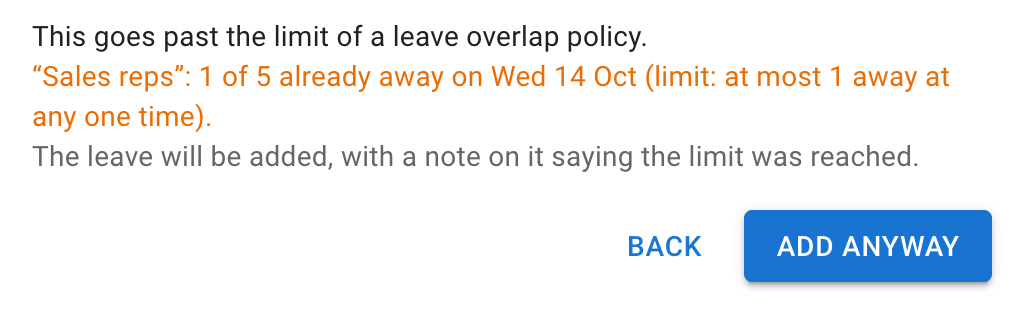
Add anyway adds the leave. Back returns to the form with everything as you left it, so you can change the dates instead. Changing anything on the form also dismisses the question, and the next Add asks again if the booking still goes past a limit. The phone’s Add leave page asks the same question.
After Add anyway, the confirmation repeats the same lines, so the clash is on record at the moment it happens.

An automatic note is also attached to the leave. It sits in the leave’s Comments thread, labelled Automatic with a timestamp rather than credited to a person, and it names the group and sums up what was reached. The note travels with the leave: wherever that comment thread appears — the leave’s own details, the leaves list, the manager’s leave requests to be processed card, and the leave notification emails — the note appears with it.
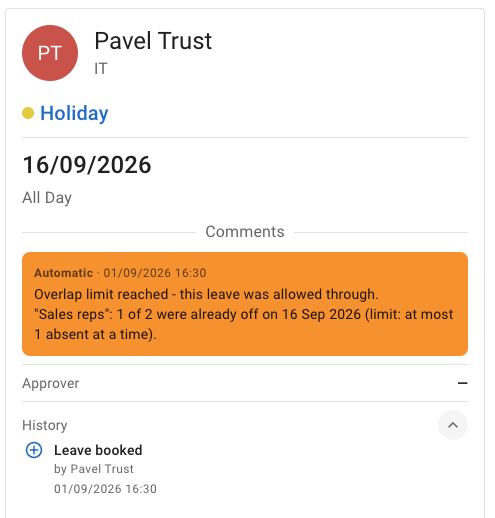
The note records what was true at the moment the leave was booked.
Editing a leave is checked the same way as booking a new one. On the edit form, the question’s button reads Save anyway in place of Add anyway.
Adding leave for several people at once does not ask. When a manager or an administrator adds the same leave for several employees in one go, each booking a group allows through carries its warning, and one a group refuses is refused.
Things to know
- Warning mode prevents nothing. A group set to Allow the booking and record a warning asks the person booking first, but never refuses them. If you need the limit enforced, set it to Block the booking.
- Administrators can go past every blocking group, and managers can when the group allows it. The booking form asks them first, and a warning is recorded on the leave.
- Adding leave for several people at once does not ask. Each booking still carries its warning where a group allows it through.
- Leave still awaiting approval counts towards the limit. A colleague’s request does not have to be approved to occupy a place in the group, which is why a request can be refused on a day when nothing has been approved yet.
- The counting control appears once a restricted period is in place. If you cannot find Employees count towards this limit, it is because the group has no From and To dates set.
- Changing a group does not re-check leave that already exists. Settings apply to what happens next; leave already in the diary stays as it is.
- A finished restricted period stops the group restricting anything new. If a group seems to have stopped working, check whether its period has passed.
- An employee can be in more than one group, and each group’s rule applies.
- Deleting a group removes its rule from that point on.
Frequently asked questions
I set the group to warn, but people are still booking leave over the limit. That is what warning mode does. The booking form tells the person booking that the limit will be reached, and Add anyway lets the leave through with a warning recorded for the manager; it is not a soft block. Switch the group to Block the booking if you need the limit enforced.
I cannot find the setting for counting across the whole period. It only appears once both Restricted period dates are set. A group that applies at all times does not show it, because the setting has no meaning without a bounded period.
The group has stopped blocking anything. Check its Restricted period first. A period that has already finished is the usual answer — the group is still there, but there is nothing left inside its dates. Also worth checking that the request’s leave type is one the group covers.
Nobody’s leave is approved yet. Why was the request refused? Leave awaiting approval counts towards the limit as well as approved leave. A colleague’s pending request occupies a place in the group.
I excluded somebody, but they were still stopped. Excluded employees applies to the group it is set on. If another group also covers that person, its rule still applies — look for a second group that reaches them, through its own employees, department, location or tag.
An administrator booked leave past a blocking group’s limit and it went through. Administrators can always go past a blocking group. The booking form asked them first, and a warning was recorded on the leave — look for the automatic note in its Comments. The caption under Type of restriction on the group says who can go past it.
A manager added leave past a blocking group’s limit. The group has Managers can go past the limit switched on, which lets a manager go past it when adding leave for an employee whose leave they manage — or the manager is also an administrator, and administrators can always go past it. Turn the switch off if the group should refuse managers. Leave a manager books for themselves is refused unless they are also an administrator.
I was asked about a limit but do not want the warning on my leave. Choose Back and change the dates. The warning is recorded only if you go ahead — Add anyway, or Save anyway on the edit form.
I changed the rule, but leave that breaks it is still in the diary. Changing a group’s settings does not go back over leave that already exists. The new rule governs what happens from that point on.