
Documents on employee records
An employee’s record can hold the documents that belong with it. Each kind of document has its own field, which an administrator sets up as a custom field of type File. The field decides who, besides administrators, can see its documents and who can add them.
Documents are kept on the Documents tab of the employee’s record, and employees see their own on My profile, where a field lets them.
Set up a document field
Document fields are set up by administrators, on the Custom fields page under Settings.
- Select Add new.
- Enter a Label, the field’s name everywhere it appears, and a Description (optional) if a hint helps.
- Choose the Type File.
- Choose what The employee and Managers may do with the field’s documents: No access, Can view or Can view and add.
- Select Save changes.
A field starts at No access for both. Administrators can always view, add and remove its documents, as the field’s details say under Managers.
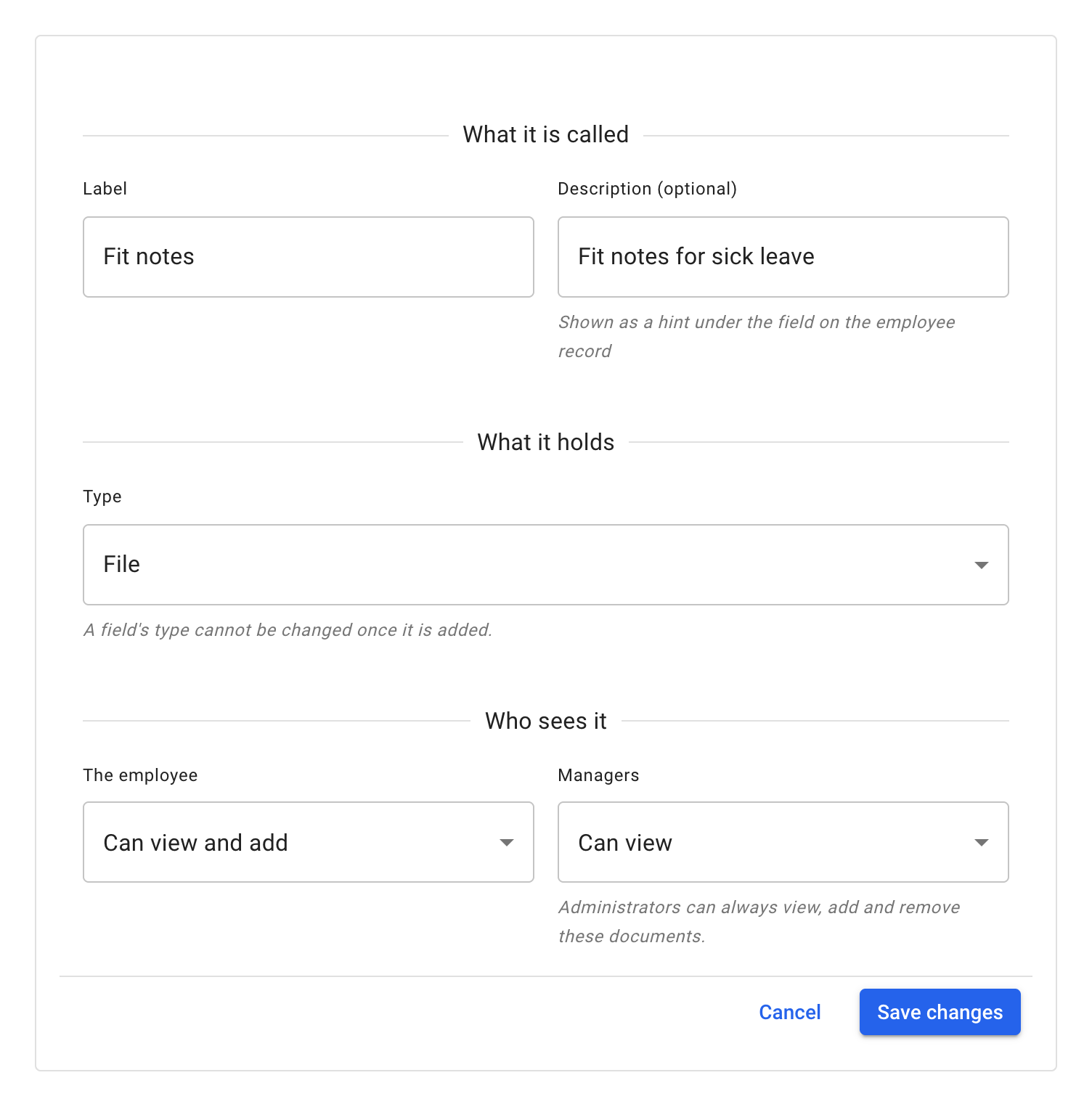
You can change the label, the description and both access levels later. The type cannot be changed once the field is saved.
For how custom fields work in general, read Custom fields on employee records.
Add a document to an employee’s record
Open the employee from Employees, then the Documents tab.
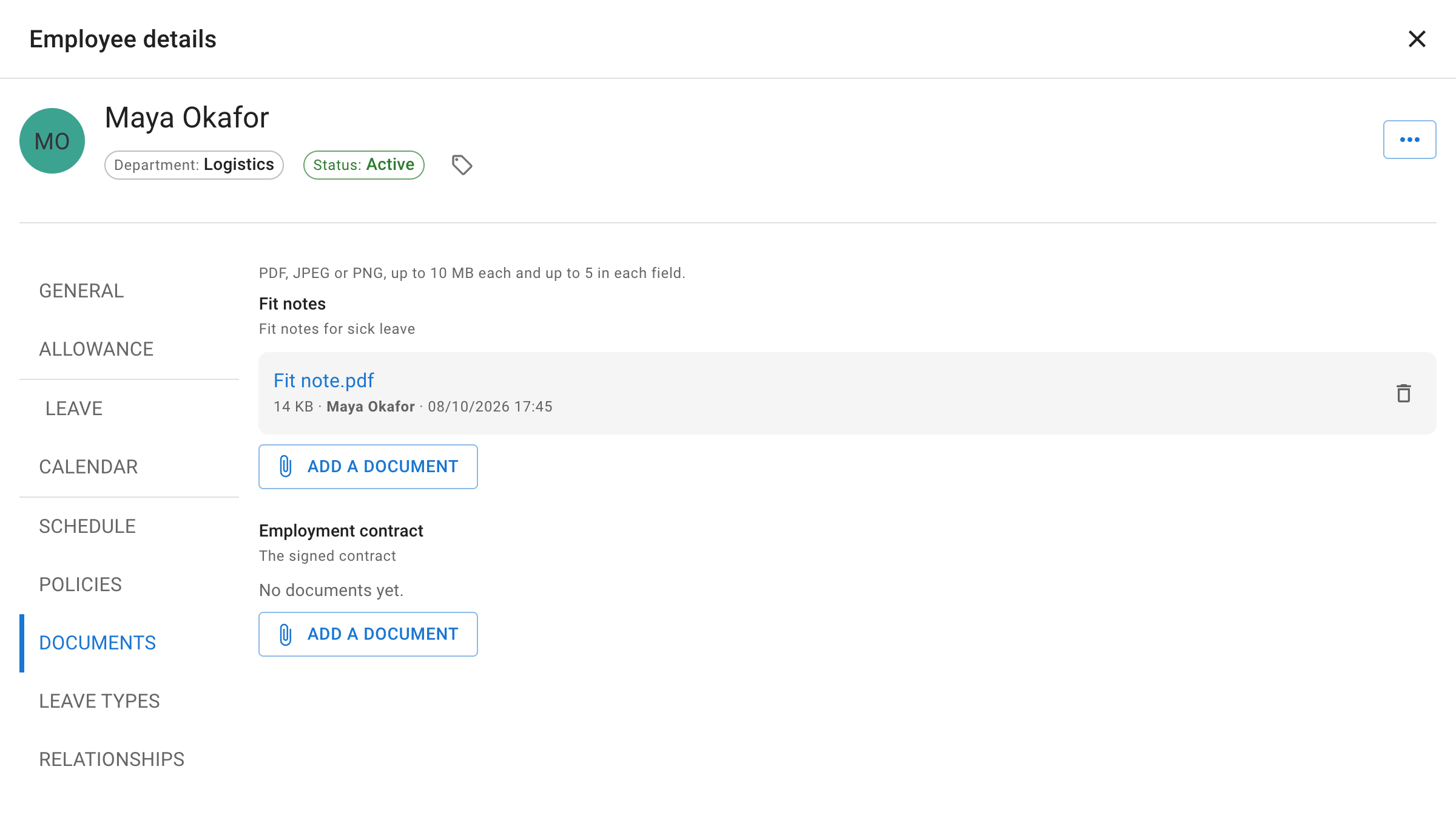
The tab lists each document field you may see: its label, its description underneath, and the documents it holds. A field with nothing in it is still listed, and says No documents yet.
Select Add a document on a field to choose a file. The button appears on the fields you may add to. The caption at the top of the tab gives the file types it accepts and its limits.
If your company has no document field yet, an administrator sees No document fields are set up yet. on the tab, with the link Add one under Custom fields., which opens the Custom fields page.
Who can see and add documents
- Administrators see every document field on every record, and can add and remove documents in all of them.
- Managers see the fields set to Can view or Can view and add for Managers, and add documents where the field is set to Can view and add. A manager here is one of the employee’s supervisors, or anyone with an employee management role that lets them view that employee’s information.
- The employee sees the fields set to Can view or Can view and add for The employee, on My profile, and adds documents where the field is set to Can view and add.
A manager or an employee with nothing to see gets no Documents tab. Administrators always have it.
What the employee sees
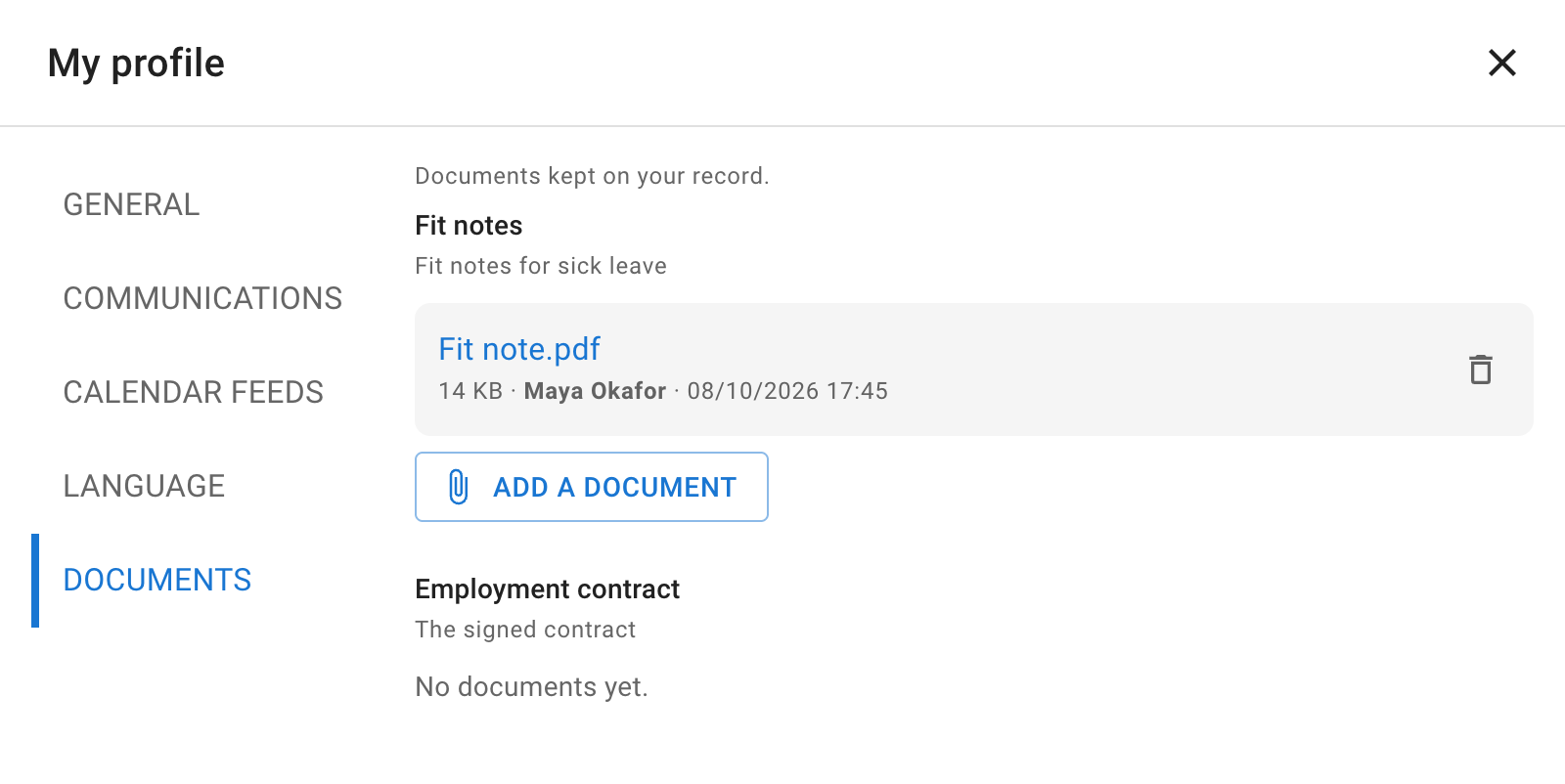
Employees find their own documents on My profile, which has a Documents tab when at least one field lets them view.
They can download what those fields hold, and add documents to the fields that let them add.
Which files you can add
Documents follow the same rules as files attached to leave requests:
- PDF, JPEG or PNG, one file at a time. TimeOff.Management checks that each file really is one of these, whatever its name.
- Each file has a size limit, each field holds a limited number of documents on each employee’s record, and your company has a storage limit that it shares with the files on leave requests. When a limit is reached, the message under the button says which.
Each document is listed with its name, its size, who added it and when. If that person’s account has been deleted, the row says a former employee.
Select a document’s name to download it. Documents are always downloaded, and never open inside TimeOff.Management.
Remove a document
Select the bin beside a document. Its tooltip reads Remove. The row then asks Remove this file?: select Remove file to confirm, or Back to keep it.
- An administrator can remove any document.
- Anyone else can remove only a document they added, and only while the field still lets them add.
Removing a document is permanent.
Change or delete a field
You can change a field’s label, description and access levels with Edit custom field, in the field’s ⋯ menu on the Custom fields page, at any time. A change to who has access takes effect at once. An employee who has TimeOff.Management open when they are given access sees the Documents tab on My profile after reloading the page.
Deleting a document field, with Delete custom field in the same menu, deletes every document stored in it, on every employee’s record. The confirmation, Delete custom field?, says how many documents the field holds. This cannot be undone.
Where it is recorded
The Audit trail shows Document added and Document removed under Employees, with the field and the file named.
Creating, changing and deleting a field appear under Configuration, as Custom field created, Custom field updated and Custom field deleted. Deleting a field is recorded once, as Custom field deleted, rather than as one entry for each document it held.
A document field is not available as a report column.
Read more: Audit trail
When an employee leaves
Deactivating an employee keeps their documents.
Deleting an employee deletes the documents on their record.
Documents are not part of the company backup. Download any you need to keep before you delete an employee or the company account.
Read more: Deactivating users
On a phone
The phone layout has no Documents tab. Use a computer to see, add or remove documents.
Keeping health information appropriate
A document can contain health information, a fit note for example.
- Add only what your company needs.
- Check that your employee privacy notice covers the documents your company keeps in TimeOff.Management.
- Remove documents when your company does not need to keep them. TimeOff.Management does not remove them automatically.
TimeOff.Management cannot give legal advice. For more on personal data, read GDPR questions.