
Attaching files to leave requests
A leave request can carry the files that go with it, such as a fit note for a sick leave.
You can attach a file while you book the leave, or at any time afterwards from the leave’s details. The people who deal with the request find the file there.
Where to attach a file
When you book the leave
When a booking is for one person, yourself or one employee you book for, the comment box on the Add leave form has a paperclip in its corner: Attach a file.
Each file you choose is listed under the comment, with its name and size. To take one off before you book, select the bin beside it.
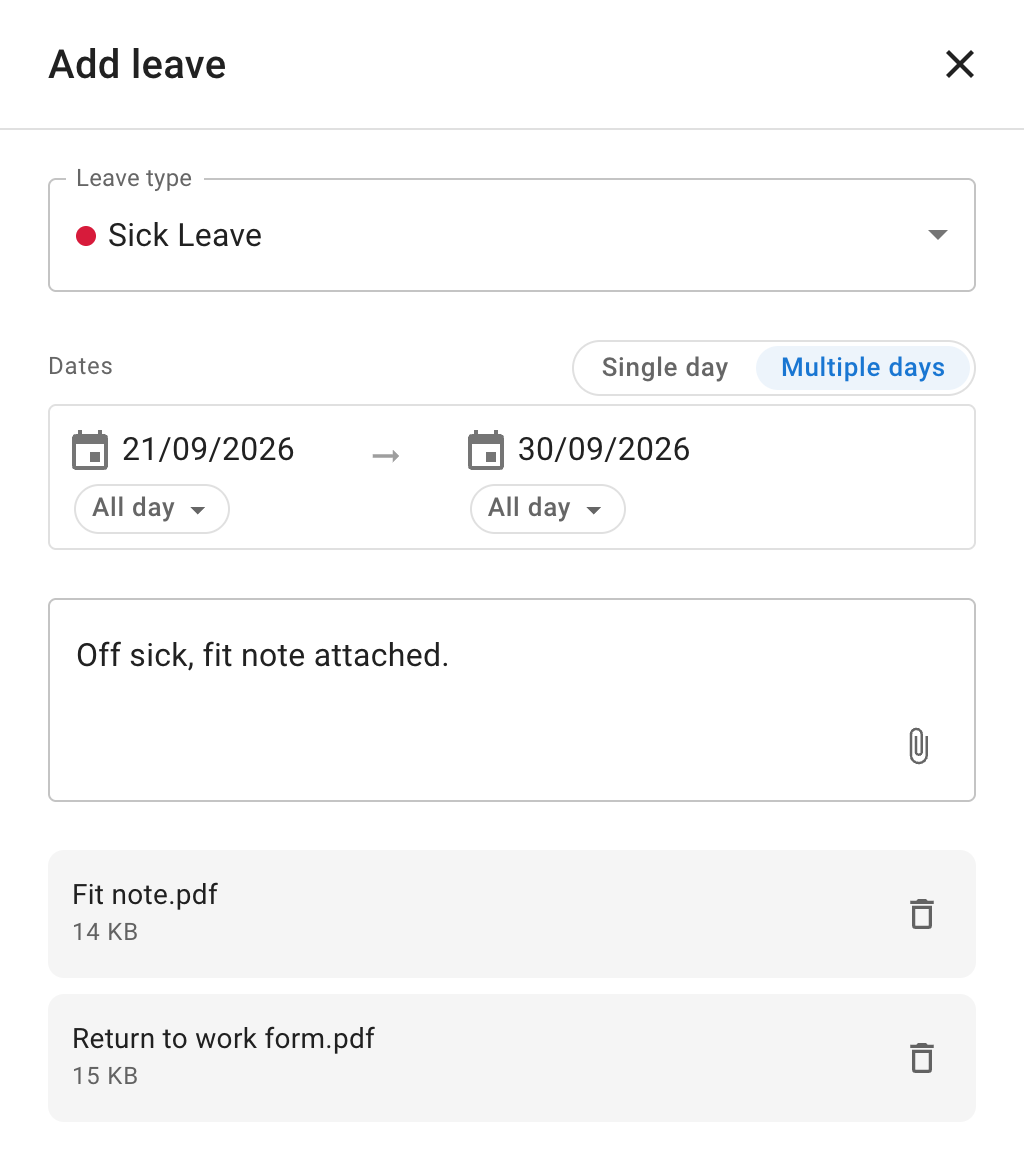
The files are attached when you select Add, and the confirmation lists them. If a file could not be attached, the confirmation says why and offers Try again. The leave is booked either way.
A booking for several employees at once, such as a whole department, has no paperclip. Attach the files to each leave from its details afterwards.
After booking
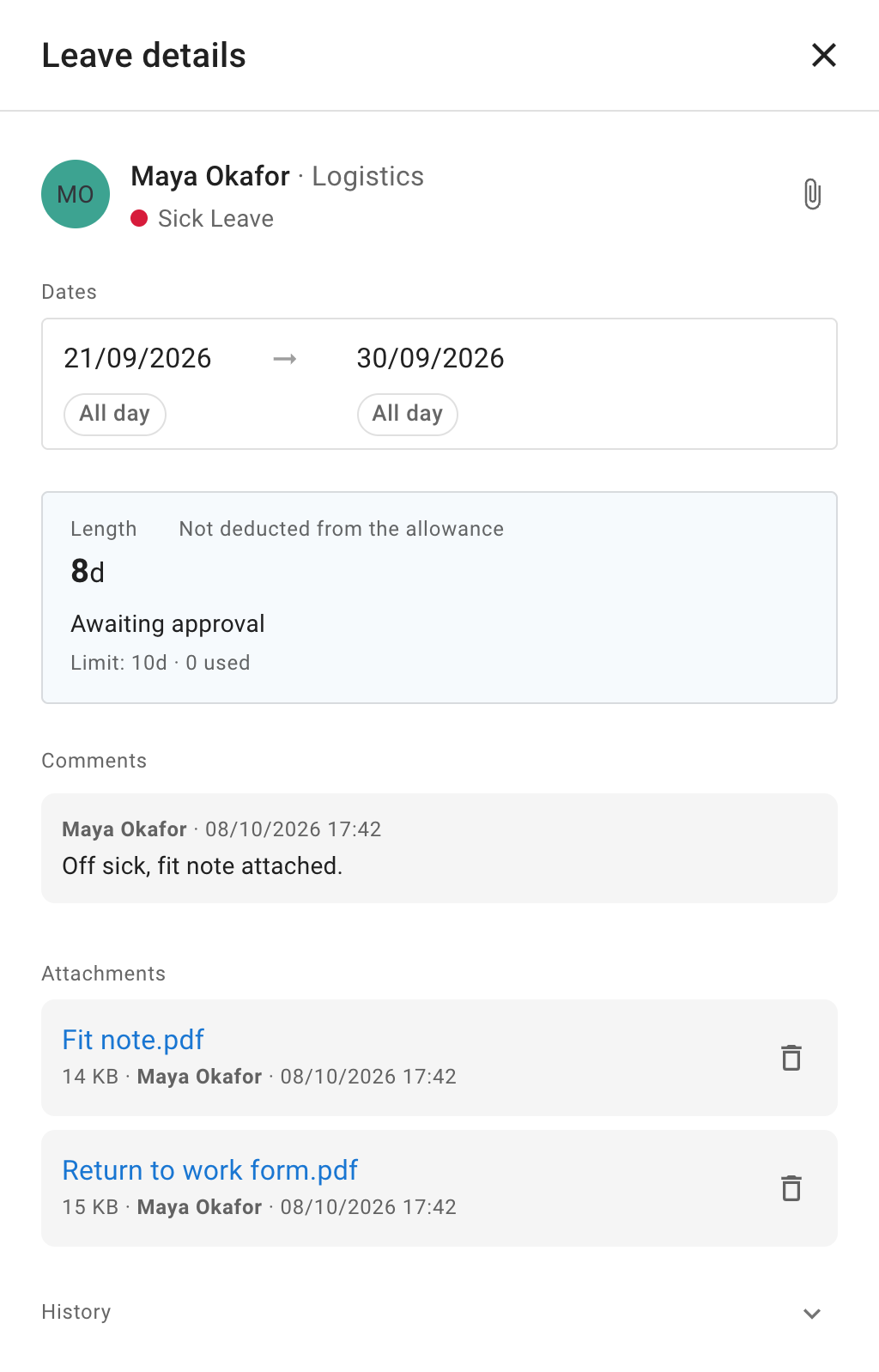
Open the leave’s details and select the paperclip, Attach a file, at the right of its top row. When you can edit the leave, the paperclip sits beside the Edit pencil.
The leave’s files are listed in its Attachments section, below Comments. A leave with no files has no Attachments section.
In Leave requests, each request carries the same paperclip and lists its files, so an approver sees them beside the request they are deciding.
Leave lists mark a leave you can open that has files with a paperclip: the list of leaves on My Calendar, the Leave tab of an employee’s record, the Leave report, and the list of leaves in People on leave. Hover over the paperclip to see how many files the leave holds.
Who can see and add files
Anyone who can open a leave’s details can see its files and attach one:
- the employee whose leave it is
- their supervisors, and your company’s administrators
- an approver at a second approval step, while the request is waiting on them
Who that is depends on how approvals are set up in your company.
Colleagues who see the leave only on Team View cannot open its files.
Attaching after approval
You can attach a file at any time, whatever the request’s status: before it is approved, after approval, or when a note arrives days later.
Attaching a file does not change the request or its approval.
Which files you can attach
You can attach PDF, JPEG and PNG files, one at a time. TimeOff.Management checks that each file really is one of these, whatever its name.
Each file has a size limit, a leave holds a limited number of files, and your company has a storage limit. When one is reached, the message on screen says which.
Open and remove a file
Each file is listed with its name, its size, who attached it and when. If that person’s account has been deleted, the row says a former employee.
Select a file’s name to download it. Files are always downloaded, and never open inside TimeOff.Management.
To remove a file, select the bin beside it. Its tooltip reads Remove. The row then asks Remove this file?: select Remove file to confirm, or Back to keep it.
Only the person who attached a file, or an administrator, can remove it. Removing a file is permanent.
Where it is recorded
Each file attached or removed appears in the leave’s History, as Attachment added or Attachment removed, with who did it and when.
Administrators also see these in the Audit trail, under Leaves, with the file named.
Read more: Audit trail
On your phone
On a phone, a leave’s files work as they do on a computer. You can attach files while you book leave or from the leave’s details, download a file, and remove one.
Read more: Using TimeOff on mobile
When an employee leaves
Deactivating an employee keeps their leaves and the files attached to them.
Deleting an employee deletes their leaves and the files attached to them. Deleting the company account deletes every file.
Files are not part of the company backup or of any CSV export. Download any you need to keep first, one at a time.
Read more:
Keeping health information appropriate
A fit note can contain health information.
- Attach only what your company needs.
- Check that your employee privacy notice covers the files your company keeps in TimeOff.Management.
- Remove files when your company does not need to keep them. TimeOff.Management does not remove them automatically.
TimeOff.Management cannot give legal advice. For more on personal data, read GDPR questions.