
Org chart
The Org chart shows on one page who manages whose leave across your whole company, and through which setting, so you can see who approves someone’s leave, or whether anyone is missing a manager, without opening employees one at a time. It is drawn from the settings that already decide who approves leave: it is not a separate structure to keep up, and nothing is edited on the chart itself.
Who can use it
The org chart is for administrators only. Managers and employees have no Org chart button and cannot open the page.
Opening the org chart
On Employees, select the org chart icon at the top right, before the envelope icon and Add new employee. Its name, Org chart, appears when you hover over it.
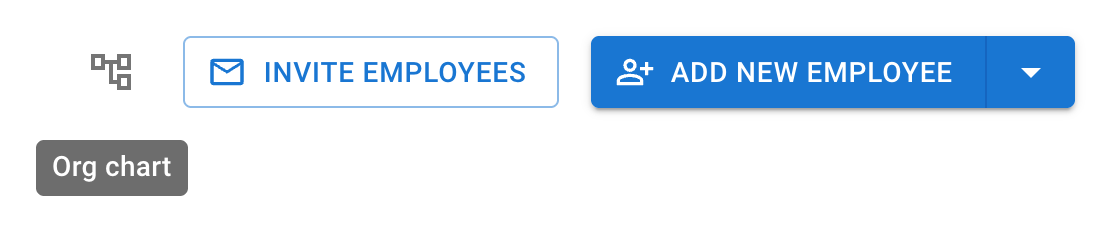
While you are inviting employees, the icon is hidden with the other buttons.
An employee’s Relationships tab links to it too: Org chart sits at the right of its Leave managed by caption.
Reading the chart
Cards
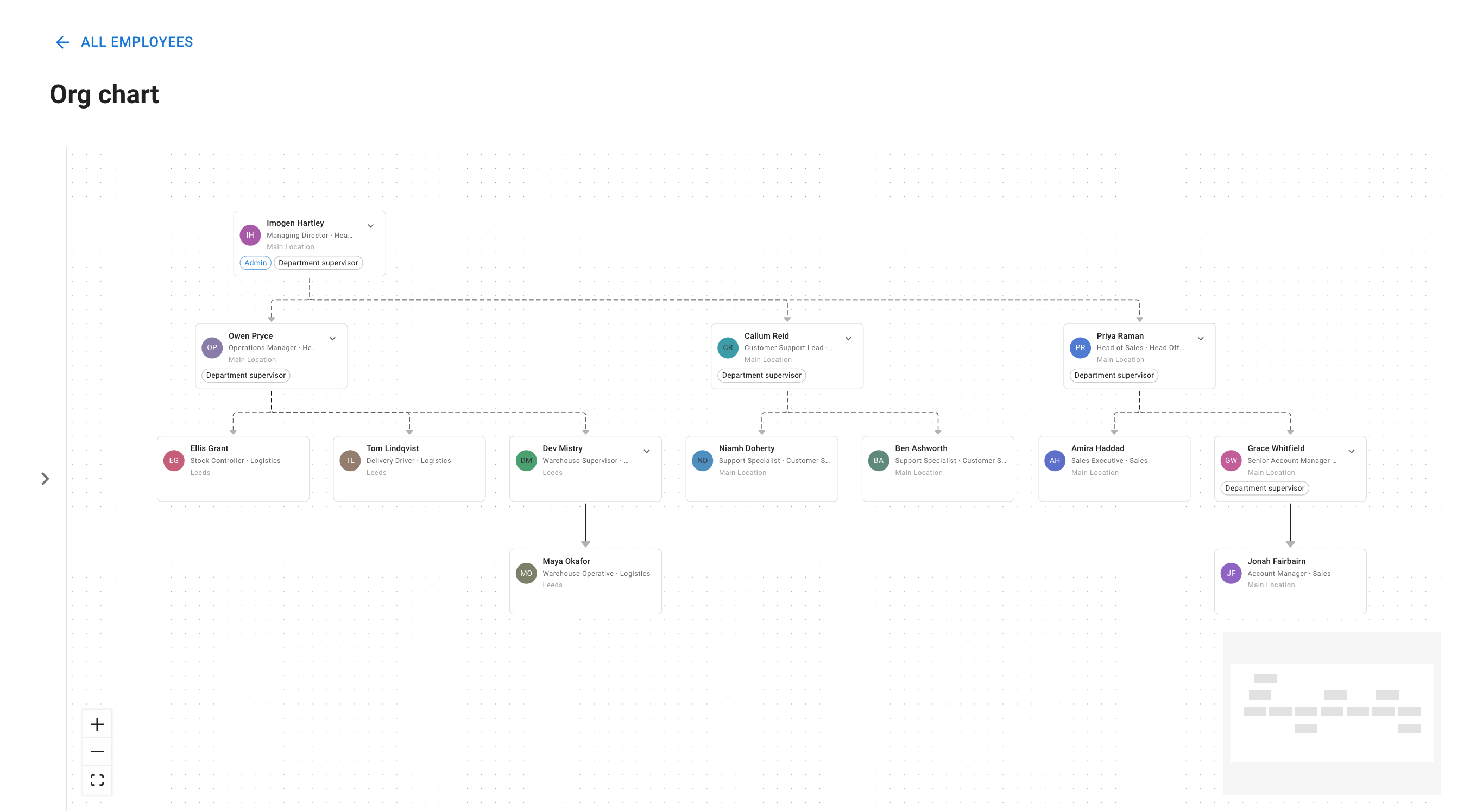
Each current employee has a card with their initials, their name, their job title and department on one line, and their location on the line below. Hover over a card to see the job title, department and location together.
Some cards carry Admin. Some carry Department supervisor, which marks anyone who manages a department, as its manager or as a secondary supervisor.
Lines
A line runs from a person to each employee whose leave they manage. Each kind of relationship has its own line style, and the Legend, at the foot of the Filters panel, says which is which. A kind that is switched off is greyed in the legend.
Finding your way around
Opening and folding teams
The chart opens folded up, showing the people at the top. A card with a team under it has a chevron, and while the team is folded, the chevron shows how many people are directly under that card. Select the chevron to open the team, and select it again to fold it.
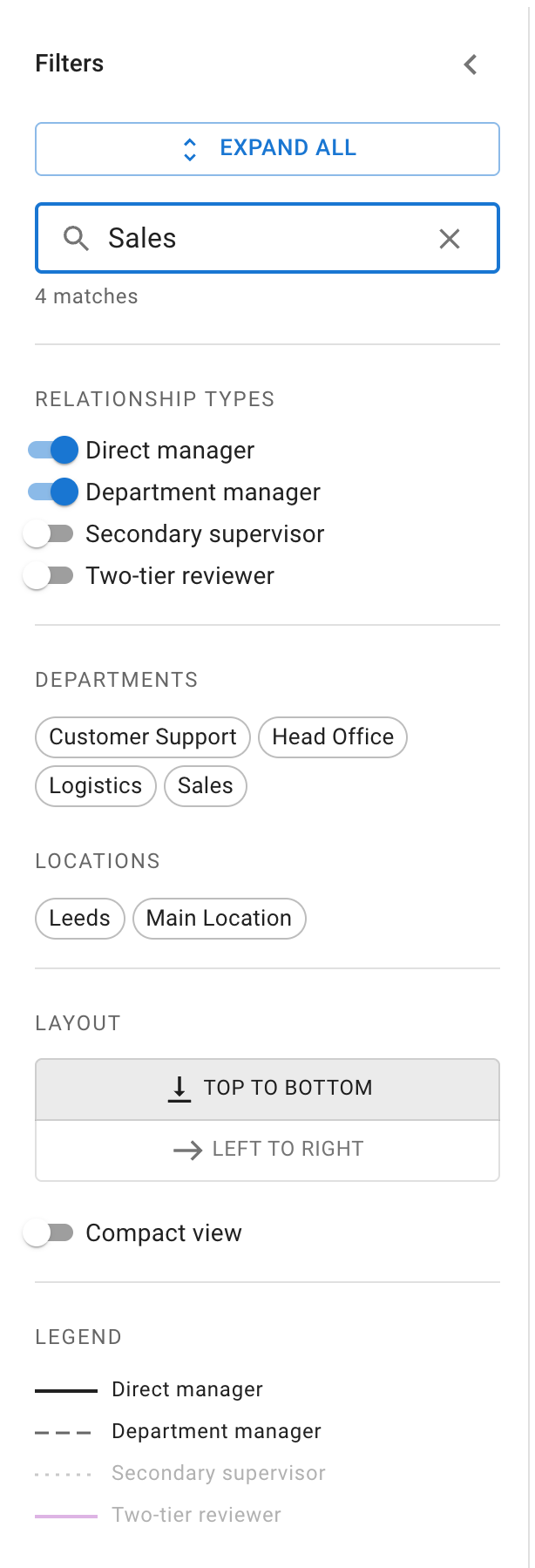
Expand all, at the top of the Filters panel, opens every team, and the same button then reads Collapse all. It is greyed out when no card on the chart has a team.
Hovering and selecting
Hover over a card to highlight the lines to the people they manage.
Select a card to open that employee’s details on the Relationships tab. The card stays marked while their details are open.
Moving and zooming
Drag the background to move the chart. Zoom with the mouse wheel, a pinch, or the three buttons in the corner: zoom in, zoom out, and fit the whole chart in view. The small overview map shows where you are, and you can drag it too. Cards cannot be dragged.
Filters
The panel headed Filters is open when the page opens. The chevron beside its heading closes it to a narrow strip, and the chevron on the strip opens it again.
Search
Type in Search employees… to find people by name, job title, department or location. People who do not match fade, and cannot be hovered over or selected. Matches show even inside a folded team, together with the people above them, and the panel counts the matches under the box. Clearing the search leaves the chart as it was.
Relationship types
Relationship types has a switch for each kind of line: Direct manager, Department manager, Secondary supervisor and Two-tier reviewer. The first two are on when the page opens. Turn on the others to add their lines. Someone can then have more than one line coming in.
Departments and locations
Under Departments and Locations, choose one or more to show only the people in them. Someone whose manager is filtered out then appears at the top.
Layout and compact view
Layout draws the chart Top to bottom or Left to right.
Compact view shows smaller cards with only the initials, the name and the chevron, so more of a large company fits on screen.
When the chart is empty
When the chart has nothing to show, the page says why:
- If every relationship type is switched off, it says No relationship types are turned on., with Turn on the default types, which turns the first two back on.
- If the filters leave nobody, it says No employees match these filters, with Clear filters.
- If a search finds nobody, a banner above the chart says No employees match “[your search]”., with Clear search.
If the chart cannot be loaded, the page says Something went wrong and offers Retry. If it cannot be drawn, it says The chart could not be drawn., with Retry.
Good to know
To change a line, change the setting behind it. A direct manager is set on the employee’s record, a department’s manager and its secondary supervisors in the department’s settings, and a two-tier reviewer in a Two-tier approval policy. See How to assign and manage leave approvers, Managing departments and How do I set up first and second leave approvers?. The chart shows the change when you open the page again.
Someone with a direct manager appears under that manager, not under their department’s manager. That is how their leave is approved: see How to assign and manage leave approvers.
The chart draws the four kinds of relationship under Relationship types, and nothing else. Who is in an employee management role, who watches leave by email, and who receives reminders are not drawn. Those are policies, and the employee’s Policies tab lists them.
Employees whose employment has ended do not appear.
Someone at the top who should not be there has no manager among the types switched on, or their manager is outside the departments or locations chosen in Filters.
The chart opens the same way each time: folded up, with the filters cleared and the first two types on.